Best Production Software for Beginners in 2026: Prices, Free Plans and 5 Picks
5 best production software for beginners, with entry costs, free tiers and the buyer each one serves. Short verdicts, no fluff. Built for quick decisions.
- Editor's choice
 Filmora
Balancing simplicity with creative choices
Starts atPricing on requestVisit filmora.wondershare.comFull review - Great alternative
 DaVinci Resolve
All-in-one editing, color, and audio
Starts atPricing on requestVisit blackmagicdesign.comFull review - Also consider
 Final Cut Pro
Mac and iPad users wanting pro features
Starts atPricing on requestVisit apple.comFull review
Direct answer
Our first pick is Filmora, best for balancing simplicity with creative choices. Alternatives: DaVinci Resolve for all-in-one editing, color, and audio, and Final Cut Pro for Mac and iPad users wanting pro features. The other 2 tools in the list cover narrower or pricier cases. None of these vendors publish plan prices, so pricing is on request for every option.
TL;DR:
- The list opens with Filmora, aimed at balancing simplicity with creative choices.
- What to know about Adobe Premiere Elements first: fewer pro-level controls than Premiere Pro.
- CapCut fits fast, template-based editing.
- CapCut stands alone as the one tool in this list with a free plan.
Last checked November 2026. Pricing on request: vendors did not publish plan prices when this guide was last checked (November 2026), so ask each vendor for a written quote.
Quick comparison
| Tool | Best for | Starts at | Free plan? | |
|---|---|---|---|---|
| Filmora | Balancing simplicity with creative choices | Pricing on request | Not stated | Visit |
| DaVinci Resolve | All-in-one editing, color, and audio | Pricing on request | Not stated | Visit |
| Final Cut Pro | Mac and iPad users wanting pro features | Pricing on request | Not stated | Visit |
| Adobe Premiere Elements | Guided, automatic video editing | Pricing on request | Not stated | Visit |
 CapCut | Fast, template-based editing | Pricing on request | Yes | Visit |
Tool-by-tool breakdown
If you are comparing production software for beginners, this page covers 5 tools in one place: what each is best for, what it costs to start, whether it has a free plan, and the main limit to know about.
Filmora targets balancing ease of use with creative choices. It gives you easy-to-learn timeline tools along with AI features, effects, captions, and audio choices.
Also, Filmora eases some advanced controls, so editors who require deep color science or complicated compositing may outgrow it. Pricing for Filmora is not stated here, so ask the vendor for current figures. Trial and free access: Not stated.
Limits to weigh: Watermarks may apply without a license.
- AI features, effects, captions, audio
- Easy-to-learn timeline tools for desktop and mobile
- Some advanced controls are simplified
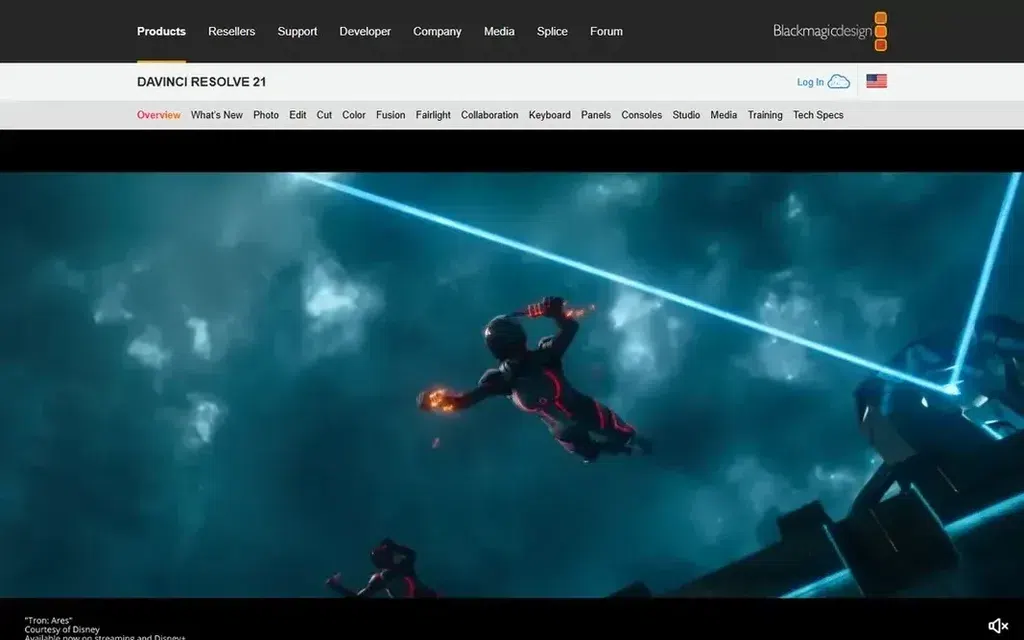
In practice, beginners interested in color and audio plus cutting video can grow into its full toolset. DaVinci Resolve does not show a starting price in this comparison, so check the vendor site for current pricing. Free plan details: Not stated.
Downsides: Demanding on system resources.
- Available for Mac, Windows, Linux
- Audio in one app
- Plenty of panels can intimidate beginners DaVinci Resolve if this describes you: all-in-one editing, color, and audio. If you only need fast social videos, start with CapCut or Filmora and move to Resolve when color and audio become priorities.
Pick Final Cut Pro if this describes you: Mac and iPad users wanting pro features. Beginners already in the Apple ecosystem get a capable editor that can deal with serious projects as skills develop.
It is restricted to Apple devices, so Windows and Linux users must look elsewhere. Check the vendor site for Final Cut Pro pricing; none is listed in this comparison. On free options: Not stated.
What to check first: Mac and iPad only.
- Intelligence features ease pro editing
- Optimized for Mac and iPad
- Magnetic timeline differs from track-based editors
Adobe Premiere Elements
Best for: Guided, automatic video editing
Adobe Premiere Elements serves guided, automatic video editing. Adobe Premiere Elements is simple video editing software targeted at turning clips into refined movies.
Drawbacks to consider: Automation can limit fine-tuning.
It supplies automatic editing and step-by-step guidance, making it approachable for beginners who want to tell stories and share memories without learning a professional suite. Check the vendor site for Adobe Premiere Elements pricing; none is listed in this comparison. Free plan details: Not stated.
- Approachable for home and memory videos
- Automatic editing and step-by-step guidance
- Fewer pro-level controls than Premiere Pro
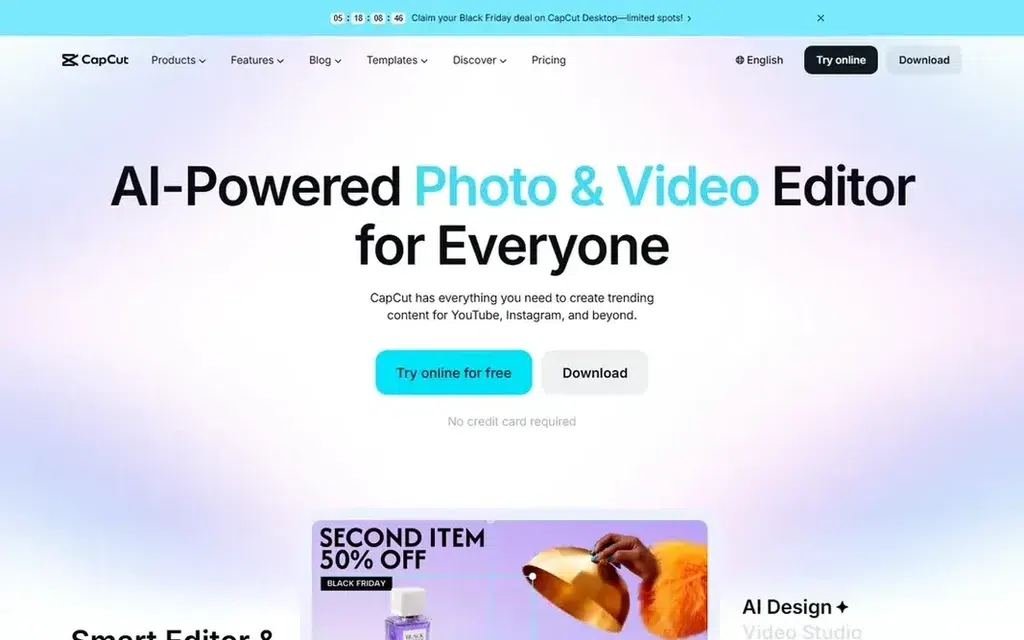
In short, CapCut is for fast, template-based editing. If you need broadcast-level control or advanced effects compositing, a more full editor like DaVinci Resolve or Premiere Pro is a better fit. The trade-off is depth: CapCut centres on speed and social-ready output instead of fine-grained color grading or multi-track audio post.
Limits to weigh: Restricted advanced color and audio tools.
On top of that, CapCut is an AI-powered video editor made for making YouTube and Instagram videos. It supplies smart templates and creative effects, and it runs on desktop, mobile, or online. Check the vendor site for CapCut pricing; none is listed in this comparison. CapCut offers a free plan.
- Smart templates and creative effects
- Available on desktop, mobile, online
- Fewer professional workflow controls
How these tools were picked
Selection started from tools commonly considered for production software for beginners, then narrowed to 5 that have clear pricing information or a clear quote process. Seat minimums, billing terms and add-ons can move the real cost, so the starting prices here are a guide and not a quote. Position on the page reflects fit for a typical buyer first, with price clarity and free access breaking ties. Treat it as a guide, not a ruling.
What to check before you buy
- Confirm the entry price with every vendor: no tool from Filmora to CapCut shows a fixed starting price.
- Test the free plan from CapCut against your real workload before relying on it.
- Before choosing Filmora, weigh its main limit: some advanced controls are simplified.
- Price CapCut for your actual team size; headline prices rarely include add-ons or overage.
- Get the contract term, renewal terms and any onboarding fees from DaVinci Resolve in writing.
FAQ
Which production software is easiest for beginners?
CapCut is frequently the easiest starting point because of its smart templates and availability on desktop, mobile, and online. Adobe Premiere Elements also supplies step-by-step guidance. Both cut the initial ramp-up time compared to professional suites.
Can I try these tools before paying?
Often, yes. CapCut has a free plan. Use your own data and a real task during the test, and check what the free tier or trial limits before you rely on it. For the full picture, the cards above cover all 5 entries of this production software for beginners list, including price, free plan and limits.
Which options for production software for beginners have a free plan?
CapCut is the only tool in this list with a free plan. Free plans usually cap users, projects or features, so check the limits on the vendor page. Prices, free plan details and limits for all 5 tools in this production software for beginners roundup sit on the individual cards above.
Do these tools publish their prices?
No. None of the tools, from Filmora to CapCut, shows a fixed starting price here, so budget time for quotes.
Is Filmora the right pick for everyone comparing production software for beginners?
No single tool suits every team. Filmora comes first because it fits balancing ease of use with creative options, while DaVinci Resolve suits all-in-one editing, color, and audio and Final Cut Pro suits Mac and iPad users wanting pro features. Match the tool to your own size, budget and workflow before deciding.
Sources
- https://filmora.wondershare.com
- https://www.blackmagicdesign.com/products/davinciresolve
- https://www.apple.com/final-cut-pro
- https://www.adobe.com/products/premiere-elements.html
- https://www.capcut.com