Best CNC Software for Beginners in 2026: 8 Programs Compared
We compared the best CNC software for beginners in 2026, including free CNC software, on ease of use, machine support, toolpaths and real cost for makers.
- Editor's choice
 Easel
Hobbyists who want the simplest start
Starts atFreeVisit inventables.comFull review - Great alternative
 Carbide Create
Beginners with Carbide or GRBL machines
Starts atFreeVisit carbide3d.comFull review - Also consider
 Fusion 360
Beginners who want to learn 3D CAD and CAM
Starts atFreeVisit autodesk.comFull review
TL;DR:
- Carbide Create and Easel are the easiest first steps for simple 2D and 2.5D work.
- Fusion 360 for personal use gives beginners a path from simple parts to full 3D design.
- Free CNC software can be enough to learn, but check machine and post-processor support first.
- The best beginner choice depends on your machine, your material and whether you want 3D work.
Quick comparison
| Tool | Best for | Starts at | Free plan? | |
|---|---|---|---|---|
| Easel | Hobbyists who want the simplest start | Free | Yes | Visit |
| Carbide Create | Beginners with Carbide or GRBL machines | Free | Yes | Visit |
| Fusion 360 | Beginners who want to learn 3D CAD and CAM | Free | Free trial | Visit |
 VCarve Desktop | Woodworkers focused on signs and carving | See website | No | Visit |
 Carveco Maker | Makers who want relief carving without a subscription trap | See website | Free trial | Visit |
 FreeCAD | Beginners who want free, open-source 3D CAD | Free | Yes | Visit |
 Kiri:Moto | Beginners who want free browser-based CAM | Free | Yes | Visit |
 LightBurn | Laser and CNC users who want strong layout tools | See website | Free trial | Visit |
The best CNC Software for Beginners
CNC software turns a drawing into toolpaths your machine can cut. For a beginner, the hardest part is not the cutting. It is learning design, toolpaths and machine setup without getting lost in industrial menus. We compared programs that keep those steps clear, and that work with common hobby machines.
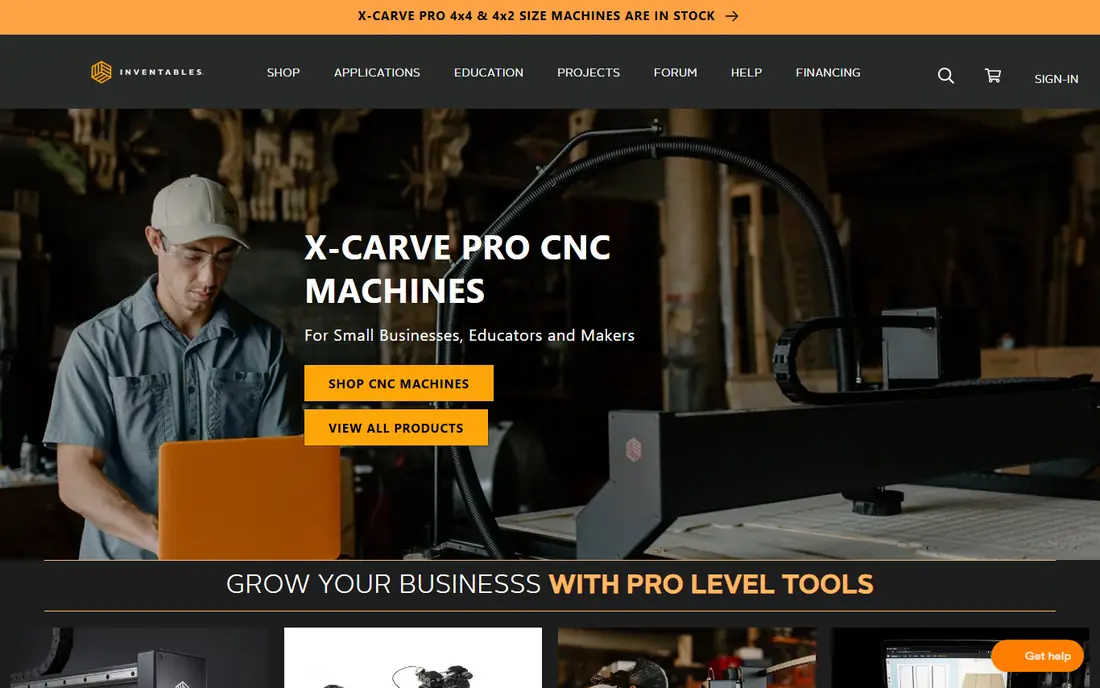
Easel suits hobbyists who want to cut a first project today. Easel runs in a browser and combines design, toolpath setup and machine control in one simple flow. That keeps the first project short, and the project library gives new users proven starting points.
The catch is scope. Easel is best for 2D and 2.5D work, and advanced 3D carving or complex modeling will push you toward another program. Paid Easel Pro adds features, so check whether the free tier covers your material and bit types. Pricing is listed as Free, with a free plan or trial status of Yes. Check the vendor pricing page before you buy, since tiers and limits change, and test the tool on a real case during any trial.
- Browser-based design and CAM
- Simple toolpaths
- Large project library
- Limited 3D work
- Needs internet for the browser workflow

For beginners who want a free desktop program, Carbide Create is a strong starting point. Carbide Create is a free desktop program for 2D design and toolpaths, with a preview that helps beginners spot errors before cutting.
The free version stays focused on 2D work. If you want 3D reliefs and more advanced toolpaths, Carbide Create Pro is a separate paid upgrade, so plan for that step if your projects move in that direction. Pricing is listed as Free, with a free plan or trial status of Yes. Check the vendor pricing page before you buy, since tiers and limits change, and test the tool on a real case during any trial.
- Free 2D CAD and CAM
- Clear toolpath preview
- Simple interface
- Limited 3D modeling in the free version
- Pro features cost extra
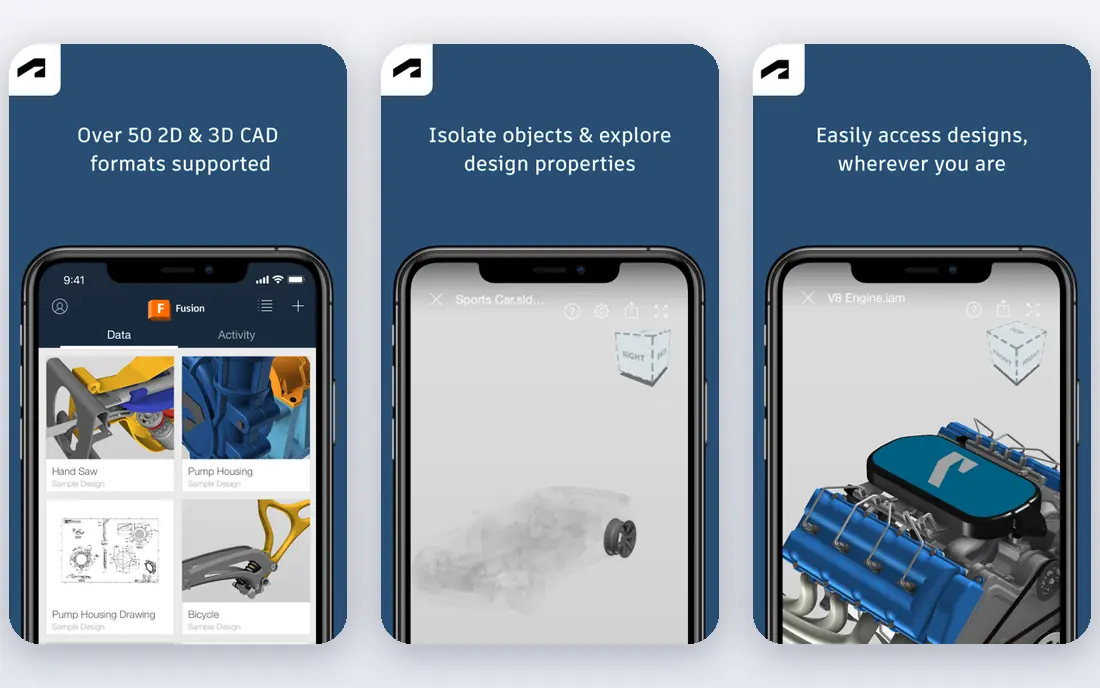
Fusion 360 is built for beginners who plan to grow into 3D parts. Fusion 360 for personal use gives beginners professional-grade 3D modeling, CAM and simulation in one program. That depth means one program can carry you from a first bracket to a complex part.
The learning curve is real. Menus, sketches and constraints take time to learn, and the personal license limits some commercial and advanced features. It is the best long-term pick, not always the fastest first cut. Pricing is listed as Free, with a free plan or trial status of Free trial. Check the vendor pricing page before you buy, since tiers and limits change, and test the tool on a real case during any trial.
- Full 3D modeling and CAM
- Simulation
- Personal use license
- Steep learning curve
- Personal license has limits
If you are looking for a tool for woodworkers who want polished signs and plaques, VCarve Desktop deserves a close look. VCarve Desktop is built for sign making, V-carving and 2.5D relief work, with toolpaths that feel made for wood. Its preview and gadget options help beginners get clean results on detailed designs.
The catch is project size and scope. Desktop has a work-area limit, and full 3D modeling is a job for Aspire or another program. For sign work, though, it is a strong one-time purchase. Pricing is listed as See website, with a free plan or trial status of No. Check the vendor pricing page before you buy, since tiers and limits change, and test the tool on a real case during any trial.
- Strong 2D and 2.5D toolpaths
- Sign and V-carving tools
- One-time purchase
- Desktop size limits
- No full 3D modeling like Fusion 360
Carveco Maker
Best for: Makers who want relief carving without a subscription trap
Carveco Maker suits makers who want to try relief carving. Carveco Maker covers 2D design and relief carving in a program aimed at makers rather than industrial shops. Its vector and relief tools suit decorative panels, signs and carved details.
The tutorial base is smaller than the Vectric community, so beginners may need to search more for worked examples. Relief carving also needs care with depth and stepover, so start with test cuts in cheap material. Pricing is listed as See website, with a free plan or trial status of Free trial. Check the vendor pricing page before you buy, since tiers and limits change, and test the tool on a real case during any trial.
- Relief and 2D toolpaths
- Vector tools
- Subscription or perpetual options
- Smaller tutorial library than Vectric
- Relief work takes practice
For beginners who value open source and parametric design, FreeCAD is a strong starting point. FreeCAD is free, open source and parametric, which means you can change a dimension later and update the model. Its CAM workbench can produce toolpaths for milling and routing.
The interface feels more technical than Easel or Carbide Create, and CAM setup needs more manual choices. It suits patient beginners who like open tools and want full control over their files. Pricing is listed as Free, with a free plan or trial status of Yes. Check the vendor pricing page before you buy, since tiers and limits change, and test the tool on a real case during any trial.
- Free and open source
- Parametric 3D modeling
- CAM workbench
- Interface feels technical
- CAM setup needs more manual steps
Kiri:Moto is built for beginners who want free CAM in a browser. Kiri:Moto runs in a browser and turns models into toolpaths for milling, laser and 3D printing workflows. That makes it a handy free CAM option when you already have a design file.
Design tools are basic, so most users import a model made elsewhere. The interface is functional rather than polished, but for free CAM it is a practical choice. Pricing is listed as Free, with a free plan or trial status of Yes. Check the vendor pricing page before you buy, since tiers and limits change, and test the tool on a real case during any trial.
- Browser-based CAM
- 3D and laser support
- No install needed
- Interface is utilitarian
- Design tools are basic
If you are looking for a tool for laser users and mixed laser and CNC shops, LightBurn deserves a close look. LightBurn is best known for laser layout, cutting and engraving, with camera alignment and strong vector tools. Many CNC users also use it for layout and laser add-on work.
It is not a full 3D milling CAM program, so router users will still need a CAM tool for complex milling. For laser work, though, its layout speed and device support are hard to beat. Pricing is listed as See website, with a free plan or trial status of Free trial. Check the vendor pricing page before you buy, since tiers and limits change, and test the tool on a real case during any trial.
- Strong layout and vector tools
- Camera support
- Wide device support
- Laser-focused
- Not a full 3D CAM program
How we picked these
We compared official feature pages, pricing pages, documentation and app listings for programs that a beginner can actually install and use. We favored programs with guided toolpaths, clear previews and a post-processor for common hobby controllers. We also checked free tiers carefully, since a free plan with tight limits can be less useful than a simple paid program. Where a price could not be verified from the vendor, we wrote See website.
How to pick your first CNC program
Start with your machine, not with the longest feature list. A program that posts clean code for your controller will save you more time than a program with features you will not use this year.
Match the program to your machine
Check that the program supports your controller and has a post-processor for it. GRBL machines, Carbide machines and Inventables machines each have common workflows, and a mismatch can mean code that will not run. If you are unsure, ask the machine maker which programs its users use most.
Start in 2D, then move to 3D
Most first projects are signs, coasters, brackets and simple cutouts. Those need 2D or 2.5D toolpaths, not full 3D modeling. A simple program will get you cutting sooner. You can move to a 3D program later, once you understand feeds, speeds and depth of cut.
Use the preview every time
A toolpath preview shows where the bit will go before you cut material. Check it for missed areas, wrong depths and moves through clamps. A good preview is a safety tool as well as a design tool, and beginners should never skip it.
Count the real cost, including learning time
Free software is a good start, but a paid program with better tutorials and support can be cheaper in time saved. Weigh subscription cost against one-time cost, and check whether a personal or hobby license limits commercial use or file exports.
FAQ
What is the best free CNC software?
Carbide Create, Easel and Fusion 360 for personal use are strong free starting points. Carbide Create and Easel are simplest for 2D work, while Fusion 360 for personal use adds 3D modeling and CAM. The best free CNC software for you depends on your machine and whether you need 3D.
Do I need separate CAD and CAM software?
Not always. Many beginner programs combine design and toolpath creation in one window. Separate CAD and CAM tools give more control, but they also add file steps and learning time. Start combined, then split the workflow only when a project needs it.
What CNC software works with a GRBL machine?
Carbide Create, Easel, Fusion 360, Kiri:Moto and several sender programs can produce GRBL code with the right post-processor. Always check the post-processor setting and run an air cut or a test in soft material before a full cut.
Can beginners use Fusion 360?
Yes, with patience. Fusion 360 for personal use is free for qualifying personal use and covers design, CAM and simulation. It has a steeper learning curve than Easel or Carbide Create, so it suits beginners who want to grow into 3D work rather than cut a first sign today.
How much should a beginner spend on CNC software?
You can start at zero cost with a free program and learn the basics. If you cut often, a one-time purchase such as VCarve Desktop or Carveco Maker may be worth it for sign and relief work. Avoid a costly industrial license until your projects clearly need it.