Font Design Software in 2026: The 6 Best Options Side by Side
Searching for the best font design software? Here are 6 options with prices and free plans. Strengths and weak spots are spelled out. Updated November 2026.
- Editor's choice
 Affinity Designer
Low-cost vector design work
Starts atPricing on requestVisit affinity.serif.comFull review - Great alternative
 Glyphs
Mac-based precision type design
Starts atPricing on requestVisit glyphsapp.comFull review - Also considerFontLab 8
Full font production and export
Starts atPricing on requestVisit fontlab.comFull review
Direct answer
If you need budget-friendly vector design work, Affinity Designer is the first tool to look at here. Glyphs fits Mac-based precision type design; FontLab 8 fits full font production and export. All 6 tools are compared below on fit, free plan and limits. None of these vendors publish plan prices, so pricing is on request for every option.
TL;DR:
- Top of the list is Affinity Designer, which targets budget-friendly vector design work.
- Neither Affinity Designer nor Adobe Illustrator, nor any of the other 4 tools, has a permanent free plan; trials and quotes are the norm.
- Adobe Illustrator is the one to check for vector lettering and graphic design.
- FontLab 8 comes with a trade-off: dense interface for newcomers.
- Every tool from Affinity Designer to Adobe Illustrator works by quote, with no list price shown.
Last checked November 2026. Pricing on request: vendors did not publish plan prices when this guide was last checked (November 2026), so ask each vendor for a written quote.
Quick comparison
| Tool | Best for | Starts at | Free plan? | |
|---|---|---|---|---|
| Affinity Designer | Low-cost vector design work | Pricing on request | Not stated | Visit |
| Glyphs | Mac-based precision type design | Pricing on request | Not stated | Visit |
| FontLab 8 | Full font production and export | Pricing on request | Not stated | Visit |
 FontForge | Open-source font editing | Pricing on request | Not stated | Visit |
 Adobe Photoshop | Raster lettering and image editing | Pricing on request | Not stated | Visit |
 Adobe Illustrator | Vector lettering and graphic design | Pricing on request | Not stated | Visit |
Tool-by-tool breakdown
If you are comparing font design software, this page covers 6 tools in one place: what each is best for, what it costs to start, whether it has a free plan, and the main limit to know about.
Choose Affinity Designer for budget-friendly vector design work. Affinity Designer is professional graphic and vector design software made for precision, speed and freedom. It lets you produce crisp vector art and bold graphics, which makes it handy for drawing letterforms and preparing vector assets.
Trade-offs to know: Restricted font production features.
It is best treated as a drawing and design tool instead of a font factory. More specifically, choose a specialized editor when your goal is to build a complete, installable typeface. Pricing for Affinity Designer is not stated here, so ask the vendor for current figures. Free options: Not stated.
- Precision and speed focus
- Crisp vector drawing
- Not a dedicated font editor
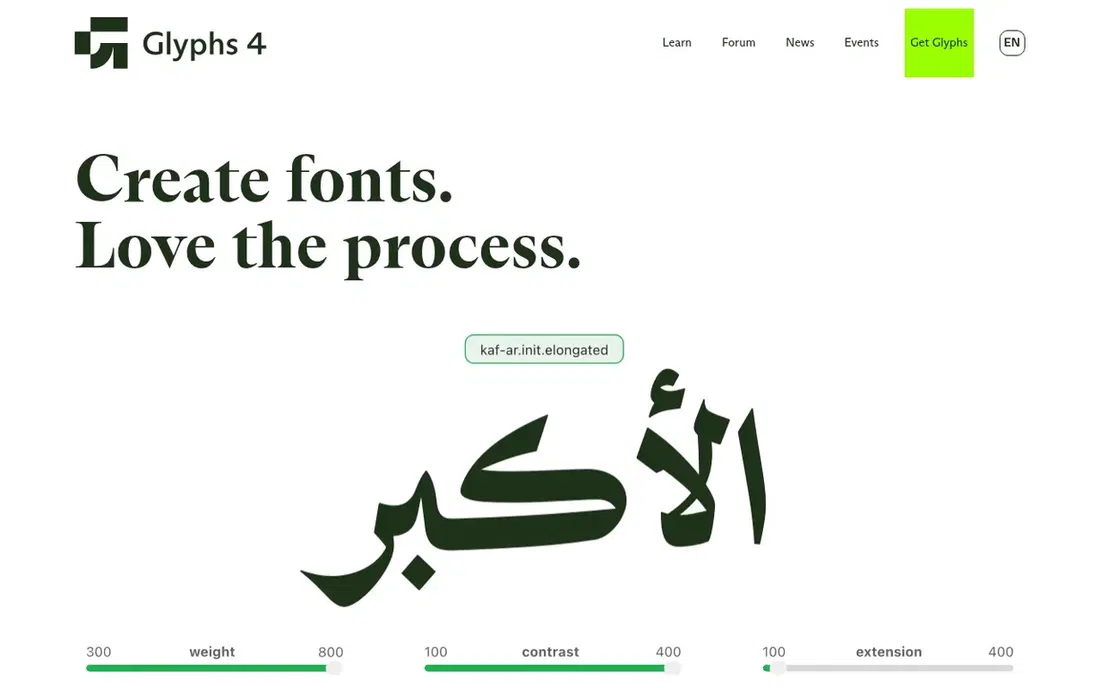
Glyphs makes the most sense for Mac-based precision type design. Glyphs is a Mac font editor that puts you in control of the design process.
Watch-outs: Ramp-up time for advanced features.
Its advanced features may take time to learn for beginners. Consider it when precision drawing and glyph management are central to your workflow and you are committed to the Apple ecosystem. Pricing for Glyphs is not stated here, so ask the vendor for current figures. On free options: Not stated.
- Runs large character sets
- Efficient shape reuse
- Mac only
FontLab 8
Best for: Full font production and export
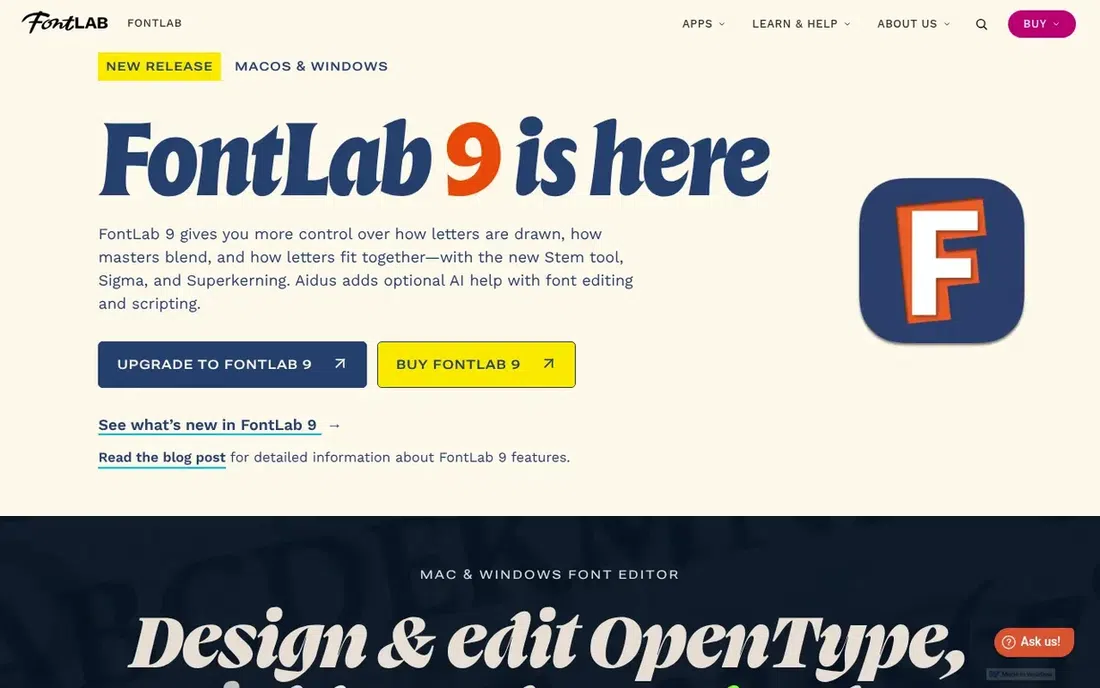
FontLab 8 is designed for full font production and export. FontLab 8 is an integrated font editor for Mac and Windows. It supports creating, opening and modifying fonts, with tools to draw, space, kern, hint and export desktop, web, color and variable OpenType fonts.
What to check first: Desktop-only workflow.
The breadth of features can feel overwhelming for someone drawing a first typeface. For everyday use, the vendor lists plenty of improvements including a new interface. FontLab 8 also assumes you understand font terminology and production concepts. FontLab 8 does not show a starting price in this comparison, so check the vendor site for current pricing. Free plan details: Not stated.
- Integrated drawing and spacing
- Web and variable fonts
- Dense interface for newcomers
FontForge is designed for open-source font editing. FontForge is a widely known open-source font editor available for several products. It supports drawing, editing and converting font files across typical formats, and it can be extended through scripting.
Watch-outs: Interface feels dated.
On top of that, FontForge has an interface that plenty of users find less refined than commercial editors, and its documentation is not always consistent. It can be harder to learn for beginners. Worth adding: pick a commercial editor when you need a smoother drawing experience and dedicated support, and keep FontForge for open-source or scripting-heavy tasks. Pricing for FontForge is not stated here, so ask the vendor for current figures. Free access: Not stated.
- Scriptable with built-in languages
- Free and open source
- Documentation can be uneven
Where Adobe Photoshop fits: Raster lettering and image editing. Use Photoshop for mood, texture and presentation, and turn to a font editor when you need precise outlines and exportable fonts.
Photoshop works with pixels, so it is not suited to producing clean vector outlines or finished font files. Type design needs dedicated vector and font tools. Adobe Photoshop shows no starting price here, so confirm the cost on the vendor site. As for free access: Not stated.
Drawbacks to consider: Not a vector font editor.
- Custom scene creation
- Mobile and online access
- Raster workflow limits font export
Adobe Illustrator is built with vector lettering and graphic design in mind. Adobe Illustrator is vector graphics software used for drawing logos, illustrations and lettering. Its generative AI can turn a text prompt into a completely editable vector graphic, which helps when exploring letterform ideas.
On top of that, choose Illustrator when the priority is visual exploration and integration with other vector artwork. As for the details, Illustrator does not manage font-specific tasks like spacing, kerning and OpenType export on its own. No starting price is listed for Adobe Illustrator here; confirm pricing on the vendor site. Free plan details: Not stated.
The main drawbacks: Needs separate font production tools.
- Familiar vector drawing tools
- Plugs into Adobe workflows
- Not a dedicated font editor
Selection criteria
We compared the tools on published pricing, free plan or trial availability, feature coverage for font design software, and the limits each vendor documents. Where a price is missing, the vendor does not list one publicly or ties it to a quote. Always confirm before budgeting. The sequence is a judgement call: typical use case first, then pricing transparency, then free access. Use the profiles to check fit.
What to check before you buy
- Request quotes from Affinity Designer, Adobe Illustrator and the others; the list shows no fixed prices.
- Before choosing Affinity Designer, weigh its main limit: not a dedicated font editor.
- Let daily users try Adobe Photoshop on real work; their feedback beats any feature checklist.
- Get the contract term, renewal terms and any onboarding fees from Affinity Designer in writing.
- Confirm you can export your data from Adobe Illustrator, so leaving later does not mean losing records.
FAQ
Can I try these options before paying?
Not by default. None of the tools, from Affinity Designer to Adobe Illustrator, lists a free plan or a free trial here, so ask each vendor for a demo before committing.
What should I check before choosing font design software?
Confirm the supported operating systems, the font formats you can import and export, and whether spacing, kerning and hinting tools are included. If you plan to make variable or color fonts, verify that support.
Is Affinity Designer the right pick for everyone comparing font design software?
No single tool suits every team. Affinity Designer comes first because it fits affordable vector design work, while Glyphs suits Mac-based precision type design and FontLab 8 suits full font production and export. Match the tool to your own size, budget and workflow before deciding.
How are the tools for font design software ordered?
The order follows typical fit for font design software, with Affinity Designer first and Adobe Illustrator last, then price clarity and free access. It is editorial judgement, not a score, so another team could rank the tools differently.
Does any tool for font design software here have a free plan?
No tool in this list, Affinity Designer and Adobe Illustrator included, has a permanent free plan. Trials and quotes are the usual route, so plan a short evaluation period.
Sources
- https://affinity.serif.com/en-us/designer
- https://glyphsapp.com
- https://www.fontlab.com/font-editor/fontlab
- https://fontforge.org
- https://www.adobe.com/products/photoshop.html
- https://www.adobe.com/products/illustrator.html