Best 3D Design Software in 2026: 8 Tools Compared
Compare the best 3d design software for beginners and professionals, with free and paid tools for modeling, animation, sculpting and CAD work in 2026.

- Editor's choice
 Blender
Free all-round 3D work
Starts atFreeVisit blender.orgFull review - Great alternative
 Autodesk Maya
Film and game animation
Starts at$245 per monthVisit autodesk.comFull review - Also consider
 Cinema 4D
Motion graphics
Starts atSee websiteVisit maxon.netFull review
TL;DR:
- Blender is the strongest free starting point, since it covers modeling, animation, sculpting and rendering in one program.
- Maya and 3ds Max remain the studio standards for film, television and game work, but their subscriptions are a serious budget commitment.
- SketchUp and Tinkercad are better choices for quick architectural concepts and simple 3D printing projects.
- Fusion and FreeCAD suit measured, mechanical work, while ZBrush and Houdini suit sculpting and effects respectively.
- Pick based on your output first: a game asset, a printed part and an animated short each point to a different tool.
Quick comparison
| Tool | Best for | Starts at | Free plan? | |
|---|---|---|---|---|
| Blender | Free all-round 3D work | Free | Yes | Visit |
| Autodesk Maya | Film and game animation | $245 per month | Free trial | Visit |
| Cinema 4D | Motion graphics | See website | Free trial | Visit |
 ZBrush | Digital sculpting | See website | Free trial | Visit |
 SketchUp | Fast architectural modeling | Free | Yes | Visit |
 Autodesk Fusion | Product and mechanical CAD | Free | Yes | Visit |
 Houdini | Effects and simulation | See website | Yes | Visit |
 Tinkercad | Beginners and 3D printing | Free | Yes | Visit |
The best 3d design software
The best software for 3D design depends on what you plan to make, how much time you can spend learning, and how much you can spend each year. This list covers artistic modeling, animation, sculpting, CAD and beginner tools, so you can compare them on equal terms.

Blender is our pick for most people who want to learn 3D design without paying a subscription. It handles polygon modeling, sculpting, rigging, animation, simulation, video editing and rendering, and its Cycles renderer can produce work that holds up in client projects. That breadth matters for freelancers, because one download can cover a product render on Monday and a short animation on Friday.
The honest catch is the learning curve. The interface packs many tools into panels, menus and keyboard shortcuts, and the first few weeks can feel slow even for experienced designers. Structured courses and a small practice project help a lot, and the payoff is a full pipeline with no seat limits and no renewal bill. If you are testing whether 3D work suits you, start here before you pay for anything else.
- Complete modeling, animation and rendering pipeline
- Huge free tutorial library
- Active open-source community
- Dense interface can overwhelm beginners
- No vendor support line
- Some studios still ask for other file formats
Maya is the tool many large film and game studios still build their pipelines around, and that matters if you want work in those industries. Its rigging, animation and simulation tools are deep, and it works well with the renderers, asset managers and review tools that studios already use. For character work in particular, Maya offers a level of control that cheaper tools struggle to match.
That strength comes with a high price and a long learning path. A monthly subscription adds up fast for a solo artist, and Maya rewards users who invest time in its node-based workflows and scripting options. It is best for professionals and serious students who need studio compatibility, rather than for casual hobbyists who only need a simple model now and then.
- Industry standard for character animation
- Strong rigging and simulation tools
- Wide studio pipeline support
- High subscription cost
- Steep learning curve
- Heavy system requirements for large scenes
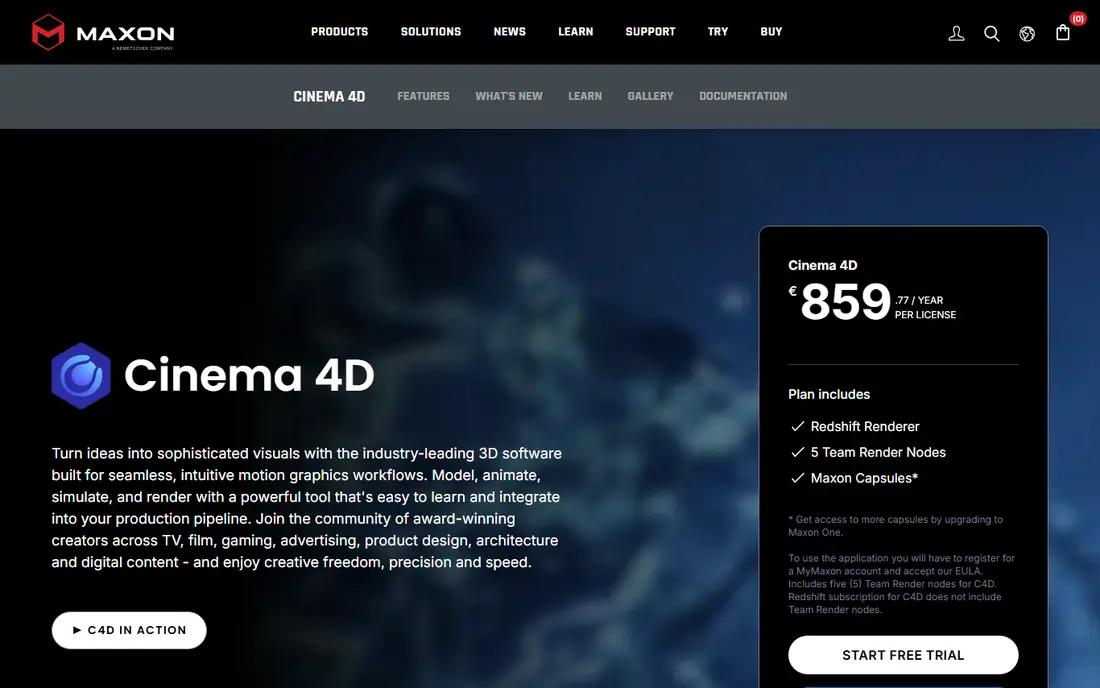
Cinema 4D is a favorite for motion graphics, title sequences, broadcast design and advertising visuals. Its MoGraph toolset makes it easy to clone, arrange and animate large groups of objects, which is exactly the kind of repetitive work that would take far longer by hand. The interface is also more approachable than Maya for many designers, so teams can get new staff productive sooner.
The trade-off is scope. Cinema 4D is excellent for visual design and animation, but it is not a replacement for a parametric CAD program when you need exact engineering dimensions. Pricing is subscription based, so check the current Maxon pricing page for your region before you commit. For studios that live in motion work, it is often worth the cost.
- Fast motion graphics workflow
- Friendly interface for a professional tool
- Strong integration with After Effects
- Subscription pricing adds up
- Less suited to heavy CAD work
- Advanced simulation needs add-ons or other tools
ZBrush treats a model more like digital clay than a set of precise measurements, and that approach shines for characters, creatures, jewelry and other organic forms. Artists can push and pull millions of polygons, add fine skin detail, and build forms that would be painful to model polygon by polygon. Game and film studios use it for high-resolution sculpts that are later retopologized for animation.
Beginners should expect an adjustment period, because ZBrush uses its own navigation and terminology. It also works best as part of a pipeline, paired with a tool like Blender or Maya for rigging and animation. If sculpting is your main craft, though, few tools reward practice as directly as ZBrush does.
- Unmatched detail for organic sculpting
- Widely used for characters and creatures
- Strong brush system
- Unusual interface for newcomers
- Not a general CAD tool
- Subscription or bundle pricing can confuse buyers
SketchUp is the quickest route from an idea to a believable building, room or garden layout. You draw, push and pull surfaces, and a simple structure takes shape in minutes rather than hours. The 3D Warehouse adds ready-made furniture, fixtures and components, which helps when you need to present a concept to a client or a contractor without modeling every chair from scratch.
The free web version covers basic work well, but serious users will likely need a paid plan for desktop tools, solid modeling and professional export options. SketchUp is not the right pick for character animation or detailed sculpting. For architecture, interior design, woodworking and early-stage product concepts, its speed is hard to beat.
- Easy to learn for basic modeling
- Large 3D Warehouse library
- Good for architecture and interior concepts
- Free web version is limited
- Advanced features need a paid plan
- Less suited to organic sculpting or film animation
Fusion is built for things that must fit together in the real world, such as brackets, enclosures, furniture parts and mechanical assemblies. Parametric modeling means you can change a dimension and watch related features update, which saves time when a client asks for a part that is 5 mm longer. It also includes tools for rendering, simulation and computer-aided manufacturing, so a design can move closer to production without switching programs.
The personal use option makes Fusion accessible for hobbyists and makers, but check the current limits on that plan, since Autodesk changes them from time to time. Commercial users should budget for a subscription. If your goal is a printable part or a manufactured product rather than a film character, Fusion is a stronger fit than Blender or Cinema 4D.
- Parametric modeling for real parts
- Integrated CAM and simulation
- Personal use option available
- Cloud-based workflow needs an internet connection for some tasks
- Learning curve for complete beginners
- Commercial pricing is subscription based
Houdini is the effects specialist on this list. Its procedural, node-based workflow lets artists build smoke, water, destruction, crowds and complex environments that can be changed by adjusting parameters rather than rebuilding the whole scene. That approach is why large visual effects teams rely on it for shots that would be impractical to animate by hand.
The same power makes Houdini hard to learn. New users need to think in nodes and data flow, not just in shapes, and simple tasks can take longer at first. The free Apprentice edition is a good way to learn, with limits on commercial use and some export options. Choose Houdini when effects, simulation or procedural generation are central to your work, not as a first general modeling tool.
- Procedural workflow for effects and environments
- Powerful simulation tools
- Apprentice edition for learning
- Very steep learning curve
- Procedural thinking takes time to learn
- Full commercial pricing is high
Tinkercad is the best software for 3D drawing in the sense of a first drawing board: simple shapes, clear controls and instant results. You combine boxes, cylinders and other primitives, group them, and export a file for a 3D printer. Teachers, students and new makers can build a usable keychain, phone stand or simple bracket in a single sitting, with no install and no cost.
Its limits show up quickly for professional work. Tinkercad lacks the fine sculpting, animation and parametric controls found in the other tools here, and complex models become hard to manage. Treat it as a starting point and a teaching tool. When you outgrow it, Blender, SketchUp or Fusion are natural next steps, depending on whether you lean artistic or mechanical.
- Free and browser based
- Very easy first steps
- Good for classrooms and simple printed parts
- Limited detail and precision
- Not suited to professional animation
- Browser performance depends on your connection
How we picked these
We compared official feature pages, pricing pages, app and desktop listings, and public user reviews for tools that are actively maintained in 2026. We favored tools with a clear use case, a working free option or trial where available, and a real user community or studio track record. We left out tools that are discontinued, that only render models made elsewhere, or that are too narrow for a general 3D design list.
We did not claim hands-on lab testing. Our comparison rests on documented features, published pricing, file format support and the kind of project each tool is built to serve. That approach keeps the list honest about trade-offs, especially where a free tool beats a paid one for beginners but loses on studio compatibility.
What to check before you pay
Start with your output, not with a feature list. If you need a printed part, check measurement tools, export formats and printer compatibility. If you need animation, check rigging, timeline controls and renderer support. If you need a building concept, check how fast you can model, present and revise it. A tool that is excellent for one of those jobs can be a poor fit for another.
Next, check the total cost over two years, not just the first month. Subscription tools, add-ons, render credits and training time all count. A free tool with a steep learning curve can still be cheaper than a paid tool you abandon, but only if you finish the learning phase. Finally, test file exchange early. Import and export a sample project in the formats your clients, printers or game engine require, and confirm that materials, scale and units survive the move.
Free versus paid
Free tools are not automatically weaker, and paid tools are not automatically better. Blender and Tinkercad prove the first point, while Maya and Houdini prove the second for specialist work. Paid tools often add support, studio pipelines and polished workflows, which matter when deadlines and client files are involved. Free tools often win on access, community tutorials and experimentation.
Hardware and learning time
3D work rewards a capable computer, especially for rendering and simulation. Check each vendor's system requirements before you buy, and budget time for tutorials. A tool you can learn in a weekend, like Tinkercad or basic SketchUp, serves a different purpose than a tool that takes months to master, like Houdini. Match the learning investment to how often you will use the skill.
FAQ
What is the best software for 3D design for beginners?
Tinkercad is the easiest first step, and SketchUp is a good next step for architecture and product concepts. Blender is the best free long-term choice if you want animation and rendering as well, but expect a longer learning curve. Start with a small project in each free tool and keep the one whose workflow feels natural to you.
What is the best 3D drawing software for 3D printing?
Tinkercad works well for simple prints, Fusion works well for measured parts, and Blender works well for artistic prints that need sculpting. Check your printer's accepted file formats, usually STL or 3MF, and confirm that scale and units export correctly before you print a large or costly part.
Is Blender really free for commercial work?
Yes, Blender is free and open source, and you can use it for commercial projects without a license fee. You should still check the licenses for any add-ons, textures or models you bring into a project, since those may have separate terms. The Blender Foundation publishes its license terms on its official site.
Do I need Maya or 3ds Max to work in games or film?
Not always, but it helps for studio jobs. Many studios list Maya or 3ds Max in job postings because their pipelines are built around them. Independent games, short films and freelance work are often completed in Blender, and a strong portfolio matters more than the logo on your software. If a target studio names a tool, learn that tool.
Which tool is best for product design?
Fusion is the strongest choice here for measured, manufacturable products, and FreeCAD is a free alternative for parametric work. SketchUp can work for early concepts, but Fusion gives you better control over dimensions, assemblies and manufacturing output. For product visuals and marketing renders, Blender or Cinema 4D can then present the finished design.
Can one tool do everything?
No single tool does every job equally well, which is why many professionals use two or three. A common pairing is Blender for modeling and animation plus ZBrush for sculpting, or Fusion for parts plus Blender for presentation renders. Start with one main tool, then add a specialist only when a project shows you a clear gap.