Best 3D Maker Software in 2026: 8 Tools Compared
Find the best 3d maker software for beginners and makers, with free and paid modelling tools for printing, design and prototyping, plus costs in 2026.

- Editor's choice
 Tinkercad
Absolute beginners and classrooms
Starts atFreeVisit tinkercad.comFull review - Great alternative
 Blender
Free organic and artistic modelling
Starts atFreeVisit blender.orgFull review - Also consider
 Fusion 360
Precise parts and prototyping
Starts atFreeVisit autodesk.comFull review
TL;DR:
- Beginners should start with Tinkercad or SelfCAD, since both teach 3D thinking without a steep learning curve or a paid licence.
- Blender is free and very capable for organic and artistic models, but it takes longer to learn than a maker-focused CAD tool.
- Fusion 360 is the strongest step up for makers who want precise, printable parts with drawings and manufacturing tools.
- Paid tools such as SketchUp, Onshape and Shapr3D suit different workflows, so pick by device, teamwork needs and file formats before paying.
Quick comparison
| Tool | Best for | Starts at | Free plan? | |
|---|---|---|---|---|
| Tinkercad | Absolute beginners and classrooms | Free | Yes | Visit |
| Blender | Free organic and artistic modelling | Free | Yes | Visit |
| Fusion 360 | Precise parts and prototyping | Free | Yes | Visit |
 SketchUp | Fast concept models and buildings | Free | Yes | Visit |
 Onshape | Browser-based team design | Free | Yes | Visit |
 FreeCAD | Free open-source mechanical design | Free | Yes | Visit |
 SelfCAD | Beginner-friendly maker modelling | See website | Free trial | Visit |
 Shapr3D | Tablet and touch-based modelling | Free | Yes | Visit |
The best 3D maker software
Maker software turns an idea into a printable file. The tools below cover first models, detailed parts and team projects, with clear notes on cost and learning time.
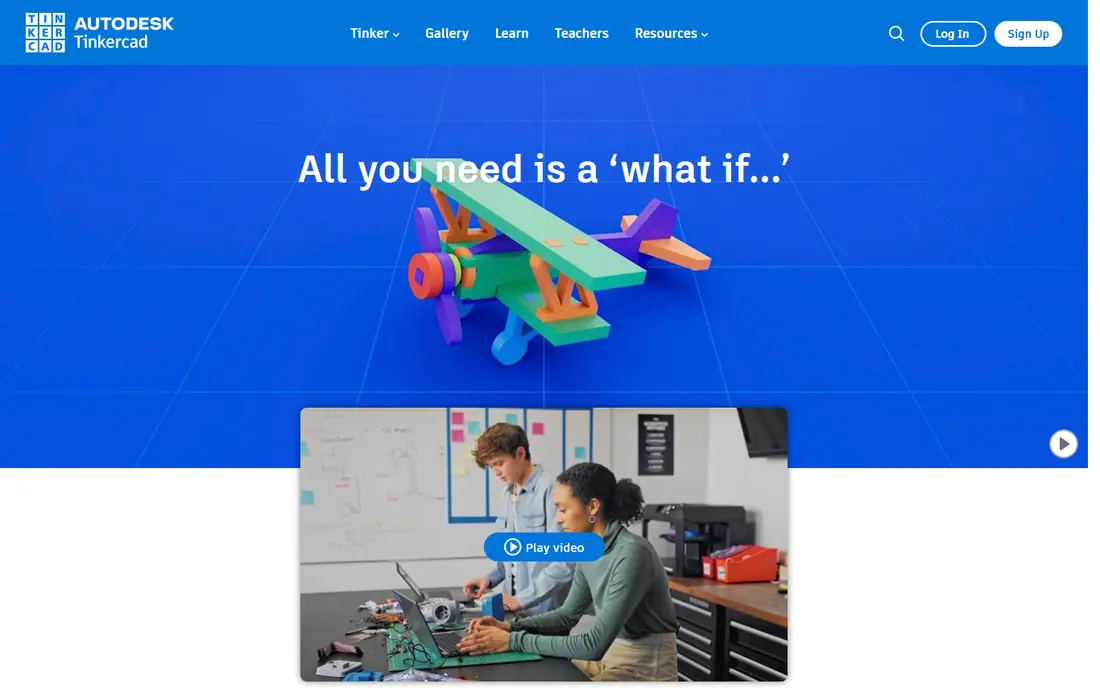
Tinkercad, from Autodesk, is the easiest place to make a first 3D model. Users combine blocks, cylinders and other shapes in a browser, then export the result for printing. No install is needed, and classrooms use it widely because accounts and lessons are simple to manage.
The limit arrives quickly for serious makers. Tinkercad lacks parametric history, detailed measurements and advanced surfacing, so a precise bracket or enclosure is hard to control. Treat it as a learning tool and a fast sketch pad, then move on when parts need exact dimensions.
- Free and browser-based
- Drag-and-drop shapes
- Easy export for 3D printing
- Limited precision
- Not suited to complex mechanical parts

Blender is a free, open-source creation suite used for modelling, sculpting, animation and rendering. Makers use it for figures, cosplay parts, jewellery-style shapes and artistic prints that need smooth, organic forms. The community produces a vast library of free tutorials, add-ons and shared models.
Blender is not a traditional CAD tool. Dimensioned parts, threads and assemblies take more manual work than in Fusion 360 or FreeCAD, and the interface can overwhelm newcomers. Makers who want art-led models, and who are willing to learn, get professional power for no licence cost.
- Completely free and open source
- Strong sculpting and rendering
- Huge community tutorials
- Steep learning curve
- Less direct for dimensioned engineering parts
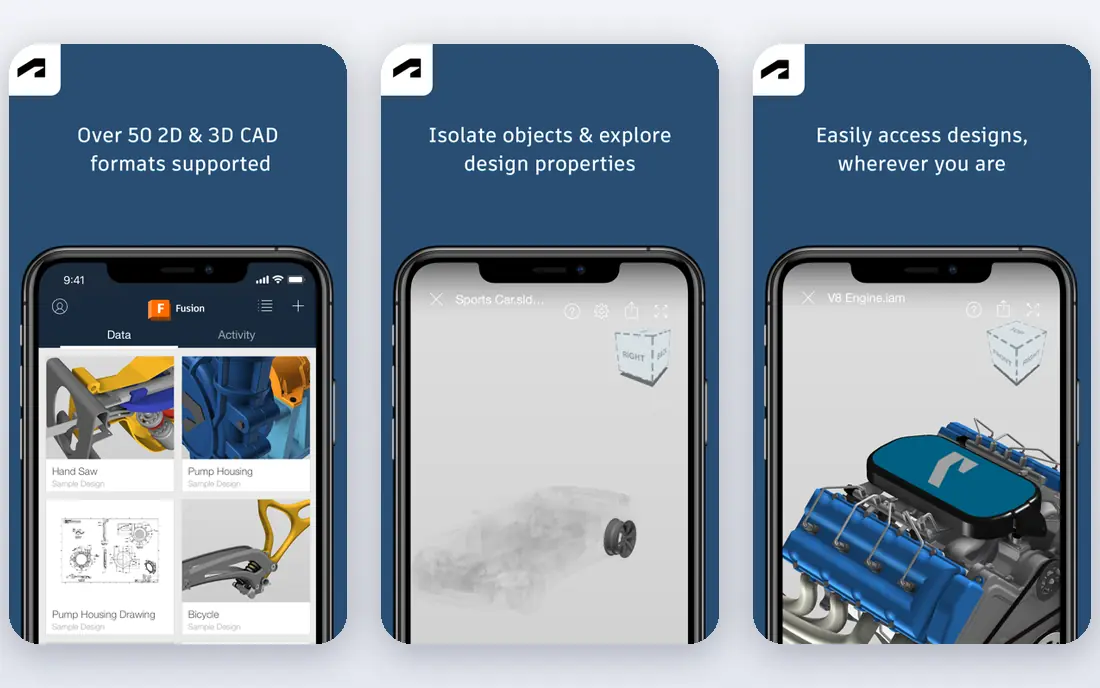
Fusion 360 is our pick for makers who move from hobby prints to working parts. Sketches drive parametric models, so changing one dimension updates the part, and built-in tools cover drawings, rendering and toolpaths for CNC work. Autodesk offers a free personal use tier for non-commercial projects, which makes it easy to learn before paying.
The personal tier limits active documents and some manufacturing features, and commercial pricing is a subscription, so makers should check current terms on the vendor site. Cloud storage and collaboration are strengths, but a steady internet connection helps. For functional parts, few maker tools match this balance of power and price.
- Parametric modelling
- Drawings, simulation and CAM in one app
- Free personal use tier
- Personal tier has limits
- Subscription cost rises for commercial use
SketchUp wins on speed. A maker can draw a room, a piece of furniture or a workshop layout in an afternoon, using push-and-pull tools that feel direct. The free web version suits concepts and learning, while SketchUp Pro adds desktop tools, solid modelling and professional export options.
Precision engineering is not its strength. Curved and organic forms take more effort, and makers who need parametric parts should look at Fusion 360 or Onshape instead. For visual concepts, client mock-ups and woodworking plans, SketchUp remains one of the fastest tools available.
- Very fast to learn
- Strong for rooms, furniture and buildings
- Large model library
- Free web version is limited
- Pro is a paid subscription
Onshape is a professional cloud CAD tool that runs in a browser on almost any computer. Teams can edit the same assembly, track versions and branch designs without installing software or managing files. That workflow suits maker groups, schools and small studios that collaborate across devices.
The free plan is a real way to learn, but designs created on it are public, which rules it out for commercial secrets. Paid plans are subscription-based, so solo makers should compare the cost with Fusion 360 before committing. For collaborative design, Onshape is hard to beat.
- Runs fully in a browser
- Strong version control
- Good for team projects
- Free plan makes designs public
- Paid plans are priced per user
FreeCAD is a free, open-source parametric modeller for mechanical parts, assemblies and technical drawings. Makers who want full control, Python scripting and no subscription will appreciate it, and files stay in open formats. It runs on Windows, Mac and Linux, and handles dimensioned parts far better than Tinkercad.
Polish is the trade-off. The interface feels rougher than paid rivals, and some workbenches vary in quality, so beginners need patience and tutorials. Support comes from forums and documentation rather than a vendor help desk. For makers on a zero budget who want real CAD, FreeCAD is the honest pick.
- Free forever
- Parametric and scriptable
- No vendor lock-in
- Interface is less polished
- Community support rather than a help desk
SelfCAD targets makers who find Blender too complex and Tinkercad too limited. It combines modelling, sculpting and slicing preparation in a browser app, with tutorials aimed at beginners and students. Users can shape, refine and prepare a model for printing without juggling several programs.
It will not replace a full engineering CAD tool for assemblies or detailed drawings. Pricing is best confirmed on the vendor site, since plans and trial terms change. As a middle step between first models and professional CAD, SelfCAD earns its place.
- Simple tools with sculpting and slicing
- Browser-based
- Aimed at makers and schools
- Less powerful than Fusion 360
- Pricing details sit behind the vendor site
Shapr3D brings CAD to a tablet in a way that feels natural. Makers sketch with an Apple Pencil, push and pull faces, and export standard CAD files for printing or manufacture. It suits designers who sketch on the move, woodworkers planning a piece on site, and engineers who want quick concepts away from a desk.
The free tier limits how many designs can be kept active, and full use needs a paid plan, listed from about $38 per editor per month for Solo in recent vendor listings, so check the current page before buying. Desktop users who prefer keyboard CAD may still favour Fusion 360. For touch-first makers, Shapr3D is the standout.
- Excellent Apple Pencil and touch workflow
- Direct modelling on iPad, Mac and Windows
- Exports CAD formats
- Paid plans are subscription-based
- Free tier limits design count
How we picked these
We compared official feature pages, pricing pages and export options, and checked that each tool is still available and able to produce printable or manufacturable files in 2026. We favoured tools with a free tier or trial, clear export formats and active tutorials, and we left out slicers alone and discontinued products.
How to choose the right maker tool
Match the tool to the object, not to the hype. A decorative figure suits Blender, a mounting bracket suits Fusion 360 or FreeCAD, and a room layout suits SketchUp. Trying to force one tool into every job wastes time and produces weak prints.
Check exports and printer fit
Confirm the tool exports STL or 3MF files your slicer accepts, and that units and scale stay correct. A model that looks right on screen but prints at the wrong size is a common beginner frustration, so run a small test print early.
Plan your learning path
Start free, learn the basics, and only pay when a limit blocks real work. Tinkercad to Fusion 360, or SelfCAD to Onshape, are natural paths that keep skills transferable. Paid plans should follow a project need, not a feature list.
FAQ
What is the easiest 3D maker software for beginners?
Tinkercad is the easiest start, since it runs in a browser and uses simple shapes. SelfCAD is the next step for makers who want sculpting and more control without a professional CAD learning curve.
Is Blender good for 3D printing?
Yes, for artistic and organic models, and it exports files suitable for slicing. For precise mechanical parts with exact dimensions, a parametric CAD tool such as Fusion 360 or FreeCAD usually gives more control.
Can I use Fusion 360 for free as a maker?
Autodesk offers a free personal use tier for non-commercial projects, with limits on active documents and some features. Commercial work needs a paid subscription, so check the current terms on the Autodesk site.
Do I need a powerful computer for 3D maker software?
Browser tools such as Tinkercad and Onshape run on modest machines, while Blender rendering and large Fusion 360 assemblies benefit from more memory and a decent graphics card. Start with a browser tool if your computer is older.
Which file format should I export for 3D printing?
STL is the most widely supported format, and 3MF is a newer option that can carry more model data. Check what your slicer accepts, and confirm scale in the slicer before printing.