Best Font Design Software for Beginners Free in 2026: 9 Tools Compared
Compare the best font design software for beginners free in 2026, with browser, desktop and handwriting tools, plus paid upgrades when you are ready today.
- Editor's choice
 FontForge
Serious free desktop editing
Starts atFreeVisit fontforge.orgFull review - Great alternative
 FontStruct
Easiest browser start
Starts atFreeVisit fontstruct.comFull review - Also consider
 Glyphr Studio
Free browser Bezier editing
Starts atFreeVisit glyphrstudio.comFull review
TL;DR:
- FontForge is our pick for a serious free start, with full editing, many formats and no cost on Windows, Mac and Linux.
- FontStruct is the easiest first step, free in a browser, using blocks to build geometric fonts without drawing skills.
- Glyphr Studio gives beginners free Bezier control in a browser, a good bridge toward professional tools.
- Calligraphr turns your handwriting into a font, free to start, with a paid plan for more characters and styles.
- Start with capital and lowercase letters, numbers and basic punctuation, then expand, rather than trying to design 200 glyphs at once.
Quick comparison
| Tool | Best for | Starts at | Free plan? | |
|---|---|---|---|---|
| FontForge | Serious free desktop editing | Free | Yes | Visit |
| FontStruct | Easiest browser start | Free | Yes | Visit |
| Glyphr Studio | Free browser Bezier editing | Free | Yes | Visit |
 BirdFont | Simple desktop editing | Free | Yes | Visit |
 Calligraphr | Handwriting fonts | Free | Yes | Visit |
 Fontself | Adobe users making fonts fast | $49 | No | Visit |
 Glyphs | Mac users ready for professional work | $299 | Free trial | Visit |
 FontLab | Professional foundry work | $459 | Free trial | Visit |
 FontCreator | Windows and Mac professional editing | See website | Free trial | Visit |
The best font design software for beginners free
Designing a font sounds hard, and the first full alphabet is hard, but the tools below make the first steps friendly. Some run in a browser with no install, some turn handwriting into a usable font, and some give you a full professional editor for free. We compared official product pages, pricing and feature documentation for tools in active use in 2026, and kept only tools a beginner can actually start with.
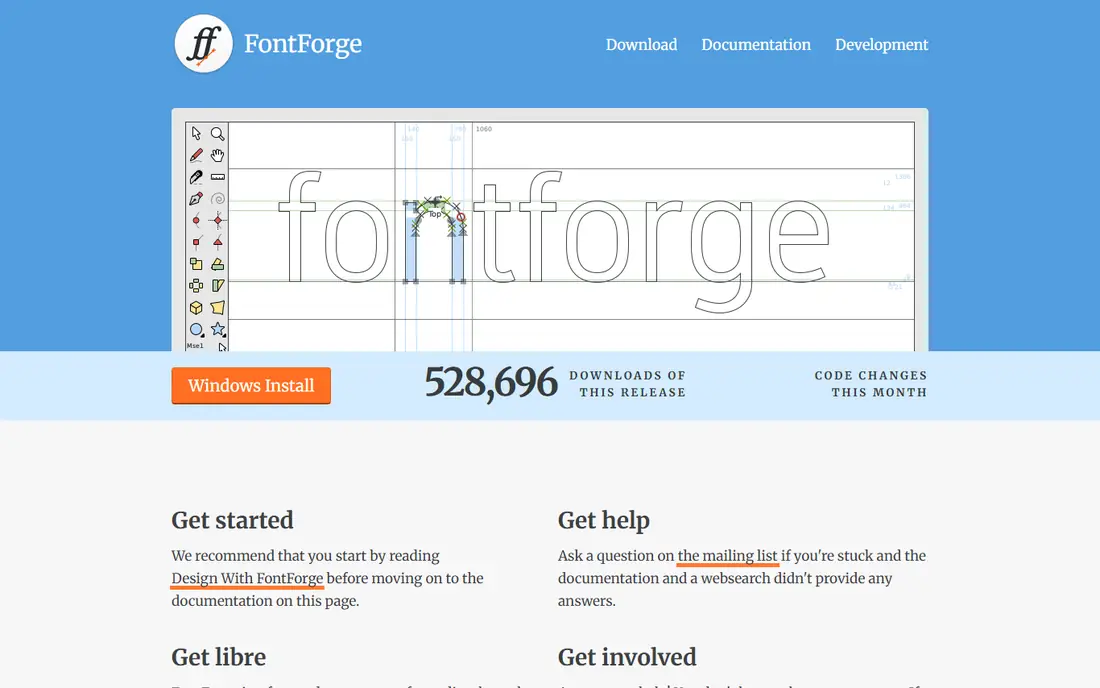
FontForge is the most capable free font editor available, and it costs nothing. It lets you draw glyphs, edit metrics and kerning, add OpenType features, and export TrueType, OpenType and web formats, on Windows, Mac and Linux. For a beginner who wants to learn real type design without paying, it is the tool that grows with you the longest.
The trade-off is the interface, which feels dated and can confuse a first-time user. Tutorials and community guides help, but expect a few evenings of learning before your first font feels polished. If you are willing to invest that time, FontForge gives you professional capability for free, which no other tool here matches.
- Completely free and open source
- Supports many formats
- Runs on Windows, Mac and Linux
- Interface feels dated
- Learning curve is steeper than browser tools
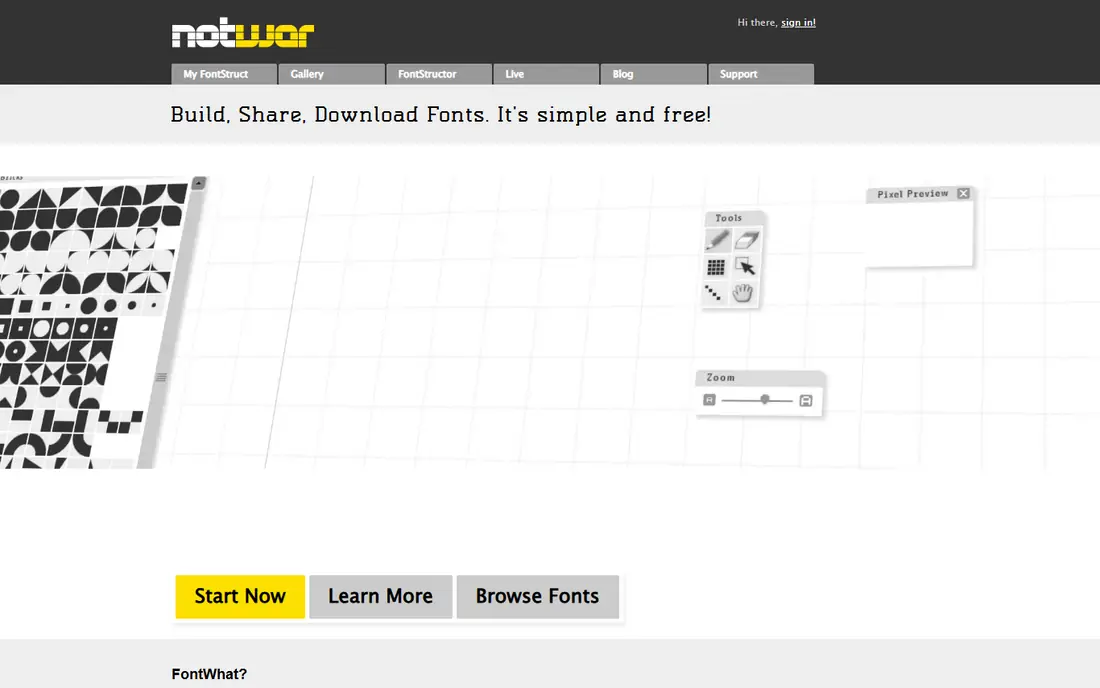
FontStruct is the friendliest way to make a first font. It runs in a browser, needs no install, and builds letters from blocks on a grid, like digital Lego. That constraint is actually a help for beginners: you cannot get lost in Bezier handles, and you can finish a usable alphabet in an afternoon. The community gallery also gives endless examples to study and remix under its sharing rules.
The limit is style. Block construction suits geometric, pixel and display fonts, but it cannot produce smooth, calligraphic curves. If you want a flowing script font, FontStruct is not the tool. As a first step, a learning aid, or a way to make a display font for a poster or game, it is excellent and free.
- Free in a browser
- No drawing skill needed
- Huge community gallery
- Block-based style limits smooth curves
- Fonts look geometric by nature
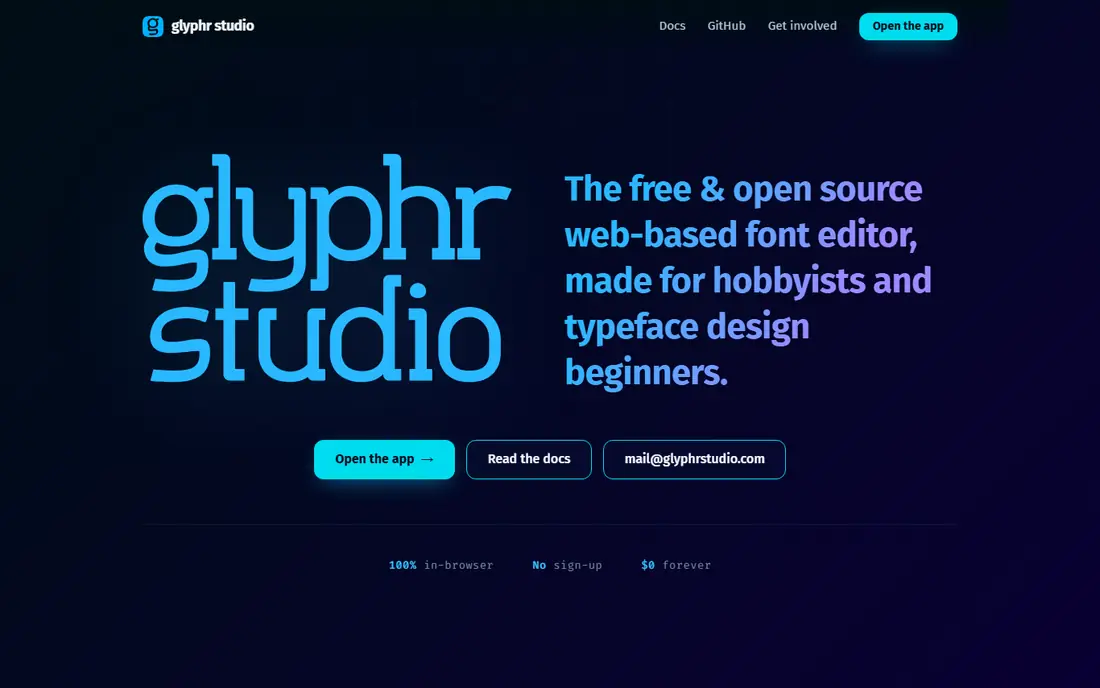
Glyphr Studio sits between FontStruct and FontForge: it runs in a browser, costs nothing, and gives you real Bezier curves to shape letters smoothly. That makes it a good second tool after FontStruct, or a first tool for a beginner who already knows basic vector drawing. You can design glyphs, set metrics, test words as you work, and export fonts for desktop and web use.
It does not match FontForge on advanced OpenType features or large-project handling, and a very large font family can feel slow in a browser tab. For a first serious font, a logo font, or a small family with a few weights, Glyphr Studio is a strong free choice that teaches skills that transfer directly to paid tools.
- Free in a browser
- Real Bezier curve control
- Good step toward professional tools
- Fewer advanced features than FontForge
- Large projects can feel slow in a browser
BirdFont is a free, open-source font editor for Windows, Mac and Linux, with a straightforward approach to drawing glyphs and setting metrics. It imports SVG files, so you can sketch letters in another vector tool and bring them in, and it supports OpenType features for more advanced work. The free version covers monochrome fonts, while the Plus version, at about $10, adds colour and OpenType export options in recent reports.
The free version limits some exports, so check whether your planned format is covered before starting a large project. The interface is simpler than FontForge but still needs a little learning. For a beginner who wants a desktop editor with SVG import and a low-cost upgrade path, BirdFont is a sensible middle ground.
- Free desktop editor
- SVG import
- Supports colour and variable fonts on paid tiers
- Free version limits some exports
- Interface takes a little learning
Calligraphr does one thing beautifully: it turns your handwriting into an installable font. You print a template, write each letter by hand, scan or photograph the sheet, and Calligraphr builds the font. The free plan covers a basic alphabet, while the Pro plan, at $8 per month in recent reports, adds more characters, ligatures and fonts. That workflow suits invitations, journals, comics and personal branding.
Handwriting fonts live or die by consistency, so write carefully and evenly, and expect to redo a few letters. The free plan also limits how many characters and fonts you can create, so a full professional family needs the paid plan. For a personal font that actually looks like you, Calligraphr is the easiest path here.
- Turns handwriting into a real font
- Very easy workflow
- Good for personal projects
- Free plan limits characters and fonts
- Handwriting quality varies with your writing
Fontself is a plug-in for Adobe Photoshop and Illustrator that turns lettering artwork into a font without leaving Adobe tools. If you already draw letters in Illustrator, Fontself lets you assign each drawing to a character, set spacing, and export a working font in an afternoon. The price is $49 for one Adobe app, or more for both, as a one-time purchase rather than a subscription.
It is not free, and it needs Adobe software, so it is not a starting point for a beginner on a zero budget. It also offers less depth than FontLab or Glyphs for large families. For a lettering artist who already pays for Adobe and wants fonts fast, Fontself is a smart, focused purchase.
- Works inside Photoshop and Illustrator
- Fast for lettering artists
- One-time purchase
- Not free
- Needs Adobe software
- Less depth than a standalone editor
Glyphs is the professional standard for many Mac-based type designers, and its Mini version historically offered a cheaper entry point, though current pricing centres on Glyphs 3 at $299. It handles drawing, spacing, kerning, OpenType features and variable fonts with a polish that free tools cannot match, and its plug-in community adds tools for almost every workflow.
Glyphs is Mac only, and $299 is a lot for a first font, so we list it here as the upgrade path, not the starting point. Start free with FontForge or Glyphr Studio, learn the basics, and move to Glyphs when you are designing families for clients or sale and need its speed and depth. A free trial lets you test that jump before paying.
- Professional Mac editor
- Excellent variable font support
- Strong community and plug-ins
- Mac only
- Price is high for a beginner
- Learning curve for advanced features
FontLab is a professional font editor for Windows and Mac, used by foundries for large, complex families with many weights, scripts and OpenType features. Its current version, FontLab 8, is priced around $459 in recent reports, with a free trial. Drawing, interpolation, metrics and variable font tools are all deep, and it handles multi-script projects that smaller tools struggle with.
That depth comes with cost and complexity that a beginner does not need. FontLab belongs on this list as the professional destination, not the first download. Learn on a free tool, sell or publish a few fonts, and consider FontLab when client work or a large family justifies the price.
- Deep professional feature set
- Strong for large families
- Runs on Windows and Mac
- Expensive for beginners
- Steep learning curve
FontCreator, from High-Logic, is a professional font editor for Windows and Mac that balances power with a more approachable interface than FontLab. It lets you create and edit TrueType, OpenType and variable fonts, with strong drawing tools, kerning controls and preview features. It is a good choice for designers who want to edit an existing font as well as create new ones.
FontCreator is paid only, and pricing varies by edition, so check the current High-Logic store page. A free trial lets you test it first. For a designer moving from free tools to a paid editor on Windows, FontCreator is one of the most approachable professional options.
- Intuitive interface for a professional editor
- Strong TrueType and OpenType support
- Good for editing existing fonts
- Paid only
- Pricing varies by edition
- Less Mac history than Glyphs
How we picked these
We compared official product pages, pricing and feature documentation for font editors in active use in 2026, with a focus on free entry points for beginners. We favoured tools with a real free tier or free version, clear export formats, and a path to grow, and we noted where a tool was paid-only but useful as an upgrade. We did not design a full commercial font in every tool, and we did not invent pricing. Confirm current prices and free plan limits on each vendor site before starting a large project.
A beginner workflow that actually finishes a font
Start small, on purpose. Design capital letters, lowercase letters, numbers and basic punctuation first, which covers most everyday use, and test the font by typing real sentences, not just the alphabet. Spacing problems show up in words, not in single letters, so type your name, a headline and a paragraph early and often. Fix kerning for the pairs that look wrong, such as capital A followed by V, before adding more characters.
Next, keep one style consistent across letters. Pick a stroke width, a height for lowercase letters, and a personality, such as friendly rounded or sharp geometric, and check every new letter against those choices. A font with mixed styles looks unfinished even if each letter is good alone. Use guides and a grid in your editor to keep heights and widths steady.
Finally, export and test on real devices. Install the font, try it in a document, a slide deck and a web page if you plan web use, and export web formats for sites. Check licensing if you remix an existing font: do not edit system fonts or commercial fonts without permission. Start from your own drawings or open-licensed sources, and your first font will be yours to share or sell.
FAQ
What is the best free font design software for beginners?
FontForge is our pick for a serious free start, with full editing and no cost, while FontStruct is the easiest first step in a browser. Glyphr Studio sits between them, with free Bezier editing online. Choose FontStruct for a first afternoon project, Glyphr Studio for smooth curves, and FontForge when you want full control.
Can I really make a font for free?
Yes. FontForge, FontStruct, Glyphr Studio and BirdFont all offer free versions that export usable fonts, and Calligraphr offers a free plan for handwriting fonts. Paid tools add polish, speed and advanced features, but a complete, usable font is possible without paying. Check export limits on free plans before starting a large family.
How long does it take to design a first font?
A simple display font can take an afternoon in FontStruct, while a full text font with careful spacing can take weeks. Start with capital and lowercase letters, numbers and punctuation, test with real sentences, and expand from there. Most beginners quit by trying to design 200 glyphs at once, so keep the first scope small.
What format should I export my font in?
Export OpenType or TrueType for desktop use in Word, Photoshop and similar apps, and WOFF2 for websites, since it is smaller and faster. Most editors here export both desktop and web formats. Test the installed font in the apps you actually use before sharing it widely.
Can I sell a font I make with free software?
Yes, if the font is your own original work. Free tools like FontForge and Glyphr Studio do not claim your font, and you can sell or share it under your own licence. Do not edit or resell existing commercial fonts without permission, and check the licence of any template or sample you start from.
Do I need drawing skills to design a font?
It helps, but FontStruct and Calligraphr lower the barrier. FontStruct builds letters from blocks, so no drawing skill is needed, and Calligraphr uses your handwriting. For smooth, professional text fonts, basic vector drawing helps, and Glyphr Studio and FontForge tutorials cover the skills you need step by step.