Best Editing Software for YouTubers for 2026: Our 5 Vetted Picks
Best editing software for YouTubers in 2026: 5 tools with starting prices, free plans and limits. Verdicts stay brief and factual. Read before you buy.
- Editor's choice
 CapCut
Quick AI-assisted social video edits
Starts atSee websiteVisit capcut.comFull review - Great alternative
 CyberLink PowerDirector
AI tools with a large effects library
Starts at$54.99 a monthVisit cyberlink.comFull review - Also consider
 Adobe Premiere Pro
Professional editing and postproduction workflows
Starts atSee websiteVisit adobe.comFull review
Direct answer
CapCut leads the list, best for fast AI-assisted social video edits. Listed starting prices: CyberLink PowerDirector from $54.99 a month. Look at CyberLink PowerDirector for AI tools with a large effects library, and at Adobe Premiere Pro for professional editing and postproduction workflows. The remaining 2 options are covered below with prices and limits.
TL;DR:
- CapCut is the opening pick, best for fast AI-assisted social video edits.
- One limit worth knowing about CapCut: less suited to complicated long-form projects.
- The lowest published monthly entry price here is $54.99 per month, from CyberLink PowerDirector.
- DaVinci Resolve suits all-in-one editing, color and audio.
- Just one of the 5 tools, CapCut, has a free plan.
Last checked November 2026. Prices and plan details were read from the vendors' own pages in November 2026; vendors change plans often, so confirm the current price on the vendor site before you buy.
Quick comparison
| Tool | Best for | Starts at | Free plan? | |
|---|---|---|---|---|
| CapCut | Quick AI-assisted social video edits | See website | Yes | Visit |
| CyberLink PowerDirector | AI tools with a large effects library | $54.99 a month | Not stated | Visit |
| Adobe Premiere Pro | Professional editing and postproduction workflows | See website | Not stated | Visit |
 Filmora | Approachable editing with AI features | See website | Not stated | Visit |
 DaVinci Resolve | All-in-one editing, color and audio | See website | Not stated | Visit |
The full editing software for YouTubers list
Short on time? The summary and table above give the quick view of 5 editing software for YouTubers, and the profiles that follow give the detail behind each entry.
CapCut was built for quick AI-assisted social video edits. As for the details, creators who require granular color and audio control should look at Resolve or Premiere Pro.
Beyond that, choose CapCut when speed, AI assistance and mobile convenience matter more than fine-grained postproduction. Template-driven editing can make videos feel similar to others, and deep long-form projects may outgrow its workflow. No starting price is listed for CapCut here; confirm pricing on the vendor site. CapCut offers a free plan.
Watch-outs: Less suited to complicated long-form projects.
- AI-powered editing tools
- Desktop
- Template style can look repetitive
CyberLink PowerDirector was built for AI tools with a large effects library. CyberLink PowerDirector is video editing software with AI tools, pro-grade effects and a large royalty-free asset library, as described on its product page.
What to check first: Asset library can distract from editing.
The feature-heavy interface and sprawling asset library can slow down simple edits or distract from storytelling. Creators who want a leaner timeline may prefer Filmora or CapCut. Starting cost for CyberLink PowerDirector: $54.99 per month. On free options: Not stated.
- Pro-grade effects and royalty-free assets
- AI tools for quicker editing
- Feature-heavy interface
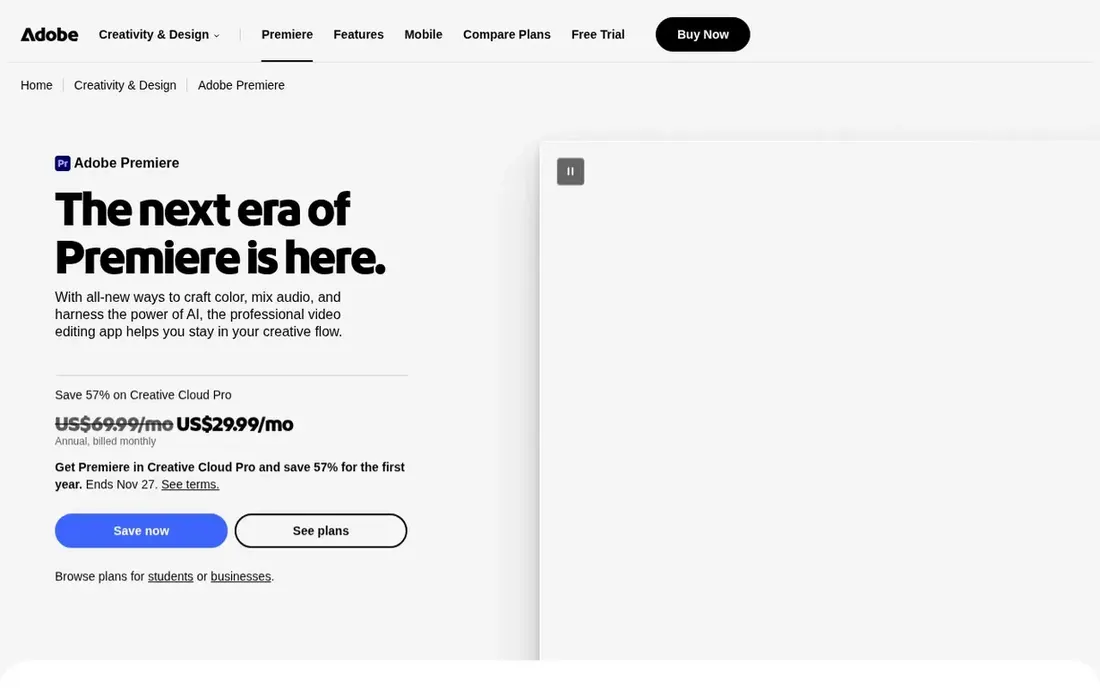
For professional editing and postproduction workflows, Adobe Premiere Pro is a natural candidate. Premiere Pro is Adobe's professional video editing and postproduction application.
Honest limits: Subscription-based access.
The homepage flags editing and trimming, adding effects, mixing audio and extending video, which points to a full production workflow instead of a quick-cut tool. The depth includes a ramp-up time, and the interface can feel crowded for creators who only trim clips and add captions. Adobe Premiere Pro shows no starting price here, so confirm the cost on the vendor site. Free options: Not stated.
- Effects and audio toolset
- Wide editing
- Dense interface for beginners
In short, Filmora is for approachable editing with AI features. Filmora from Wondershare is AI-powered editing software for desktop and mobile, with intuitive timeline tools alongside AI features, effects, captions and audio tools. It provides fewer granular controls than flagship professional editors, so advanced color and audio work may feel restricted.
Pick Filmora when approachability and built-in creative assistance matter more than maximum depth. Creators planning complicated multi-track productions should consider Premiere Pro or Resolve. Check the vendor site for Filmora pricing; none is listed in this comparison. Free options: Not stated.
Watch-outs: Fewer deep pro controls than flagship editors.
Best features of Filmora: Easy-to-learn timeline tools; Desktop and mobile versions.
- AI features
- Effects and captions
- Some features tied to the premium product
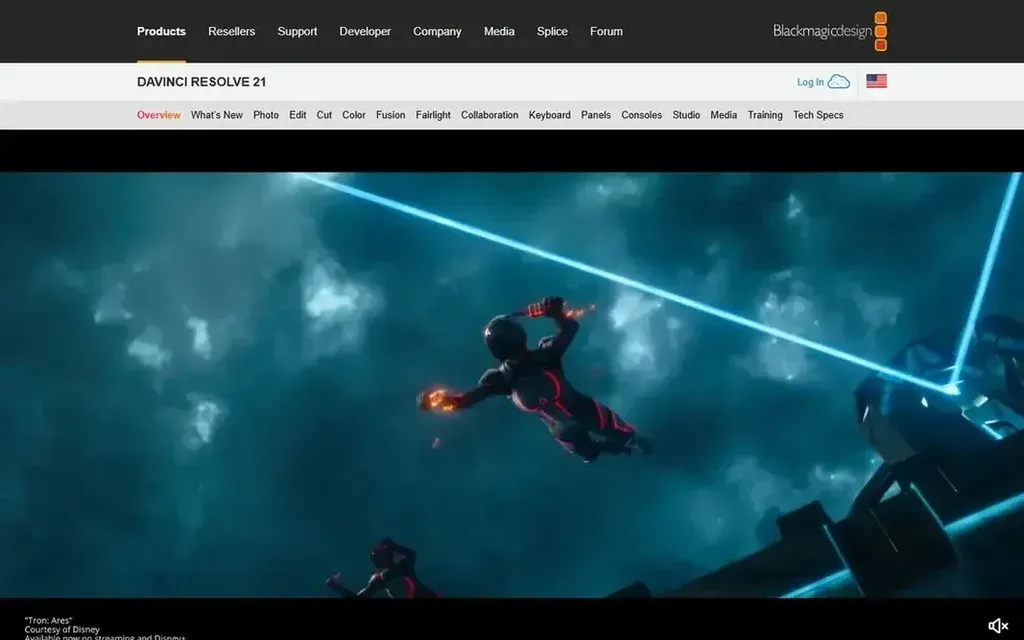
Where DaVinci Resolve fits: all-in-one editing, color and audio. The homepage notes free and premium versions for Mac, Windows and Linux. On top of that, the breadth of panels and pages means a steeper start, and older machines may struggle with heavier timelines.
Trade-offs to know: Plenty of panels can overwhelm newcomers.
In daily use, choose Resolve when color and audio quality are central to your channel and you are willing to invest time learning the workspace. Creators who only need quick template-based edits may find it more than necessary. No starting price is listed for DaVinci Resolve here; confirm pricing on the vendor site. As for free access: Not stated.
- Free and premium versions offered
- Windows and Linux
- Demanding on older hardware
How the list was put together
Selection started from tools commonly considered for editing software for YouTubers, then narrowed to 5 that have clear pricing information or a clear quote process. Where a vendor does not publish a price, the entry says quote. Where a price depends on seats or billing term, the entry says so. We ordered the tools by general fit, then by how clearly pricing is shown, then by free access. A buyer with unusual needs may reorder them.
Things to verify first
- Ask CapCut, Adobe Premiere Pro, Filmora and DaVinci Resolve for a written quote, since no starting price is shown.
- Test the free plan from CapCut against your real workload before relying on it.
- Before choosing CapCut, weigh its main limit: less suited to complicated long-form projects.
- Before rolling out CapCut, verify the integrations your workflow depends on.
- Ask Filmora how an export works before you move any records in; an easy exit lowers the risk.
FAQ
Do these tools publish their prices?
Not all of them. CapCut, Adobe Premiere Pro, Filmora and DaVinci Resolve publish no starting price, so expect a quote request for those. The rest, CyberLink PowerDirector included, show a starting price, though seats and billing terms still change the final cost.
How are the editing software for YouTubers ordered?
The order follows typical fit for editing software for YouTubers, with CapCut first and DaVinci Resolve last, then price clarity and free access. It is editorial judgement, not a score, so another team could rank the tools differently.
Do I need professional software for YouTube?
Not necessarily. Professional tools for example Premiere Pro and DaVinci Resolve matter more when you need precise color, audio mixing and complex multi-track edits.
Which editing software for YouTubers have a free plan?
CapCut is the only tool in this list with a free plan. Free plans usually cap users, projects or features, so check the limits on the vendor page. For the full picture, the cards above cover all 5 entries of this editing software for YouTubers list, including price, free plan and limits.
Is CapCut the right pick for everyone comparing editing software for YouTubers?
No single tool suits every team. CapCut comes first because it fits fast AI-assisted social video edits, while CyberLink PowerDirector suits AI tools with a large effects library and Adobe Premiere Pro suits professional editing and postproduction workflows. Match the tool to your own size, budget and workflow before deciding.
Sources
- https://www.capcut.com
- https://www.cyberlink.com/products/powerdirector/overview_en_US.html
- https://www.adobe.com/products/premiere.html
- https://filmora.wondershare.com
- https://www.blackmagicdesign.com/products/davinciresolve