Best Collaborative Video Editing Software in 2026: 8 Tools Compared
Compare the best collaborative video editing software for 2026, with shared timelines, review, comments, and cloud editing for teams. See our top pick.

- Editor's choice
 Adobe Premiere Pro
Professional team editing
Starts atSee websiteVisit adobe.comFull review - Great alternative
 DaVinci Resolve
Pro editing and color
Starts atFreeVisit blackmagicdesign.comFull review - Also consider
 Kapwing
Browser team editing
Starts atFreeVisit kapwing.comFull review
TL;DR:
- Adobe Premiere Pro and DaVinci Resolve suit professional teams that need full timeline control, shared projects, and color and audio depth.
- Kapwing, VEED, WeVideo, and Flixier suit browser-based teams that need fast shared editing, captions, and review without installing heavy software.
- Descript suits teams that edit talk-led video by transcript, while Clipchamp suits Microsoft 365 teams that need simple shared edits.
- Shared editing works best when roles are clear, with one editor on the timeline and reviewers using time-stamped comments.
- Check export quality, storage limits, and seat pricing before a project grows, since team plans can cost far more than solo plans.
Quick comparison
| Tool | Best for | Starts at | Free plan? | |
|---|---|---|---|---|
| Adobe Premiere Pro | Professional team editing | See website | Free trial | Visit |
| DaVinci Resolve | Pro editing and color | Free | Yes | Visit |
| Kapwing | Browser team editing | Free | Yes | Visit |
 VEED | Browser editing and captions | Free | Yes | Visit |
 WeVideo | School and business teams | Free | Yes | Visit |
 Descript | Transcript-led editing | Free | Yes | Visit |
 Flixier | Fast browser editing | Free | Yes | Visit |
 Clipchamp | Microsoft 365 teams | Free | Yes | Visit |
The best collaborative video editing software
Collaborative editing means more than sharing a file. It means shared projects, comments tied to a timecode, version history, and a review step that does not require exporting a new file for every note. These eight handle that work in different ways.

Premiere Pro is the standard for many professional video teams. Team Projects let multiple editors work on shared projects with version control, while Productions help large projects stay organized across episodes or campaigns. Integration with After Effects, Audition, and Photoshop keeps a team in one workflow.
The cost and hardware needs are real. A team should budget for Creative Cloud seats, fast storage, and a review tool such as Frame.io, which Adobe owns, for time-stamped feedback. For client work, broadcast, and long-form content, that investment usually pays off.
- Full timeline and effects control
- Team Projects for shared editing
- Deep Adobe integration
- Subscription cost
- Needs a capable computer
- Learning curve for new editors
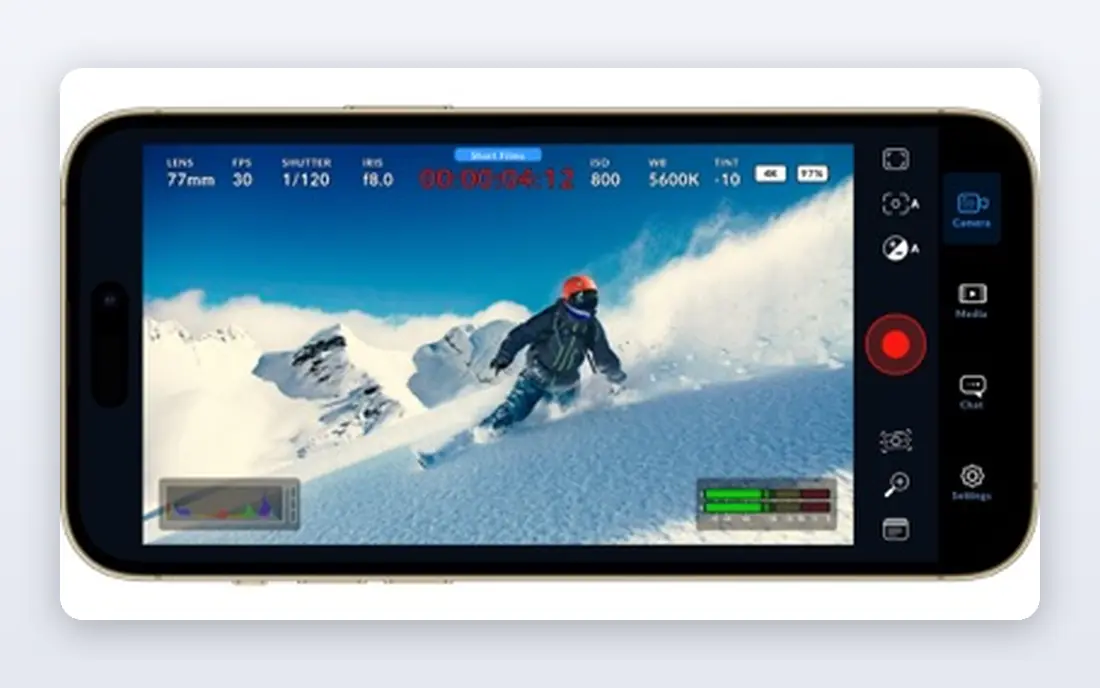
DaVinci Resolve offers a free version that covers editing, color, effects, and audio at a professional level. Its Studio version adds multi-user collaboration, with shared projects, bins, and timelines that teams can work on together. Color grading remains its standout strength, especially for film and high-end brand work.
Collaboration needs proper setup, including shared storage and Studio licenses, so small teams should plan that step before a deadline. For a team that values color and a one-time Studio cost over a subscription, Resolve is a strong alternative to Premiere Pro.
- Free version is very capable
- Strong color grading
- Multi-user collaboration on Studio
- Collaboration needs Studio and setup
- Interface can overwhelm beginners
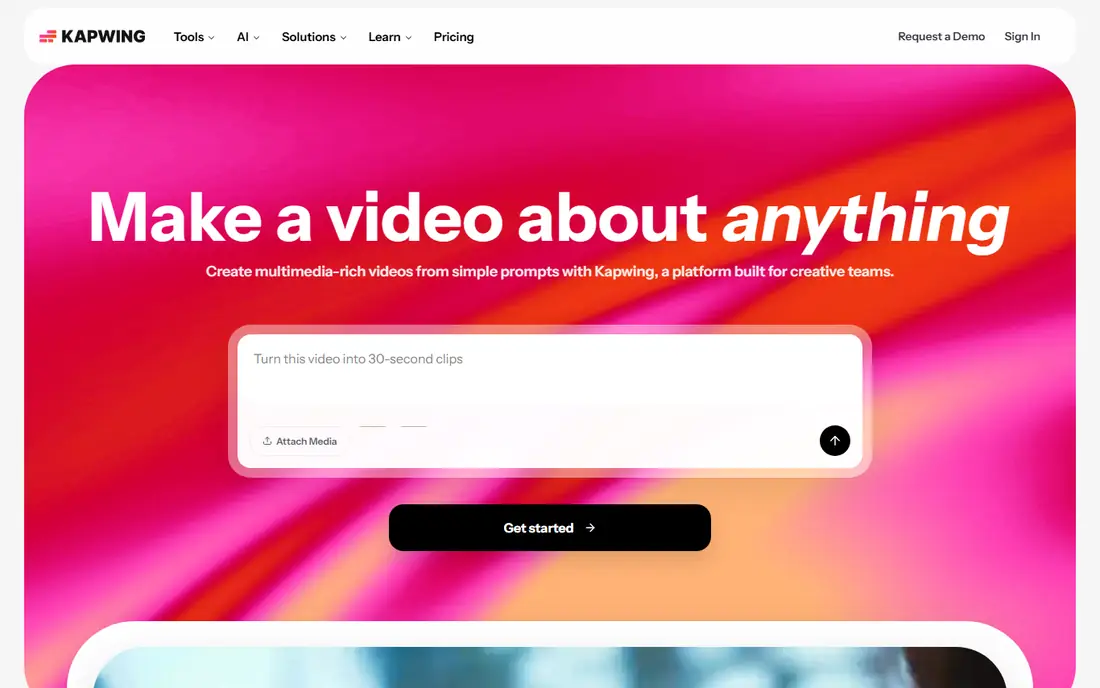
Kapwing suits marketing, social, and education teams that edit in a browser. Team members can share a workspace, edit the same project, leave comments, and export for social sizes without installing software. Captions, templates, and a large asset library speed up short-form work.
Free exports carry a watermark and limits, so teams that publish daily should check paid pricing. For short social videos, tutorials, and internal clips, Kapwing offers a fast shared workflow that desktop tools cannot match for speed.
- Browser editing with shared workspaces
- Captions and templates
- Easy link sharing
- Free exports carry a watermark
- Long or 4K projects need a paid plan and good bandwidth
VEED is a good pick for teams that publish captioned video often. Auto captions, translations, and subtitle styling are built in, and shared workspaces let reviewers comment and editors update the same project. That helps training videos, social clips, and tutorial content where captions matter for accessibility and silent viewing.
The free plan is best for tests and short drafts, with watermark and length limits. For regular publishing, check paid plans for export quality, storage, and team seats. VEED is less suited to long-form film editing than Premiere Pro or Resolve.
- Strong auto captions and subtitles
- Browser collaboration
- Brand kits on paid plans
- Free plan limits length and quality
- Advanced effects are lighter than desktop editors
WeVideo works well for schools, districts, and businesses that need many users editing in a browser. Teachers can assign projects, students can collaborate, and admins can manage accounts and storage. Business teams get a similar shared workspace without heavy desktop installs.
It is not a replacement for a professional desktop editor on complex projects. For classroom videos, training clips, and internal communications, its simplicity and account management are strengths.
- Cloud editing with classroom and business plans
- Shared projects
- Simple timeline
- Free plan limits export quality
- Advanced color and effects are limited
Descript changes how teams edit talk-led video. You edit the transcript, and the video follows, so cutting ums, pauses, and repeated lines feels like editing a document. Teams can comment on the transcript, suggest edits, and publish with captions, which suits podcasts, tutorials, interviews, and courses.
Visual effects, complex timelines, and color work are weaker than in Premiere Pro or Resolve. Use Descript for the story and talk edit, then move to a desktop editor only if a project needs heavy visual finishing.
- Edit video by editing text transcript
- Filler word removal
- Shared comments and versions
- Less suited to visual-heavy edits
- Free plan limits transcription and export
Flixier focuses on speed in the browser, with cloud rendering that avoids long local exports. Teams can share projects, comment, and publish social and tutorial videos quickly. Its timeline is more capable than many simple online editors, which helps teams that need cuts, text, and transitions without a desktop app.
Check free export limits and paid team pricing before a large project, since rendering speed and storage can vary by plan. For fast turnaround social and training content, Flixier is a practical shared option.
- Fast cloud rendering
- Shared projects and comments
- Timeline editing in browser
- Free plan limits exports
- Some features need a paid plan for teams
Clipchamp suits teams already using Microsoft 365, since it fits into that account and storage workflow. Shared editing, templates, captions, and text to speech cover internal videos, training, and social posts without a new desktop install. Export at 1080p on the free plan is useful for many business uses.
For film, broadcast, or complex color work, a desktop editor remains better. For everyday team video, Clipchamp offers a low-friction, shared starting point that most staff can learn quickly.
- Browser editing
- Microsoft 365 integration
- Templates, captions, and text to speech
- Some assets and features need a paid plan
- Less depth than Premiere Pro or Resolve
How we picked these
We compared official feature pages, pricing pages, collaboration features, and review workflows for video tools that work in October 2026 and offer real shared editing or review. We favored tools with shared projects, time-stamped comments, version history, or transcript collaboration, and we left out solo-only editors with only file sharing. Prices shown are free where a vendor offers a free plan, and See website where pricing depends on seats, seats, or a trial.
How to collaborate on video without version chaos
Assign roles and lock the timeline
Give one person timeline control at a time, even in tools that allow simultaneous editing. Reviewers should use time-stamped comments with a clear action, such as cut this line, fix this caption, or swap this clip. Keep a short change log for each version, so no one reopens a settled decision.
Organize media before editing starts
Use a shared folder structure for raw footage, audio, graphics, and exports, with clear file names that include date and version. Upload proxies or lower-resolution copies for review when full files are large, and keep master files in one place. A messy media library slows a team more than any editing feature can fix.
Review in stages, not all at once
Review story and structure first, then captions and audio, then color and final polish. Early comments on color waste time if a scene will be cut. Set a review deadline, limit reviewers to those who can approve, and export a clean review link rather than emailing large video files.
FAQ
What is the best software for tutorial videos with a team?
Descript suits talk-led tutorials, because editing the transcript is fast and reviewers can comment in text. Kapwing, VEED, and Flixier suit browser teams that need captions and quick social exports. For polished, long tutorials with complex visuals, Premiere Pro or DaVinci Resolve are stronger.
Can multiple people edit the same video at the same time?
Some tools allow it, such as Premiere Pro Team Projects, DaVinci Resolve Studio collaboration, and browser tools with shared workspaces. Even then, teams should assign timeline control and use comments to avoid overwriting each other. Simultaneous editing works best when editors work on different sections.
Is there a free collaborative video editor for PC?
Yes, DaVinci Resolve offers a capable free version for PC, and Kapwing, VEED, WeVideo, Flixier, and Clipchamp offer free browser plans. Free plans may limit export quality, length, or add a watermark, so check terms for your project type. For professional collaboration, Resolve Studio or a Premiere Pro team plan may still be needed.
How do time-stamped comments work in video review?
Reviewers click a point in the video timeline and leave a note tied to that timecode. Editors can jump straight to the note, fix the issue, and mark it resolved. This avoids vague feedback such as fix the middle part, and it keeps review history with the project rather than in email threads.
Do I need a fast computer for collaborative video editing?
Browser tools such as Kapwing, VEED, and Flixier need a good internet connection more than a powerful computer, since rendering happens in the cloud. Desktop tools such as Premiere Pro and DaVinci Resolve need a capable CPU, GPU, RAM, and fast storage, especially for 4K projects. Check system requirements before a team rollout.