Video Software for YouTube in 2026: The 5 Best Options Side by Side
Comparing the best video software for YouTube? 5 contenders, each with entry cost, free tier and best-fit buyer. Plus the drawbacks of each tool. Plain facts.
- Editor's choice
 Camtasia
Screen recording and tutorials
Starts atPricing on requestVisit techsmith.comFull review - Great alternative
 CapCut
Fast AI-powered YouTube edits
Starts atPricing on requestVisit capcut.comFull review - Also consider
 Adobe Premiere Pro
Professional YouTube video editing
Starts atPricing on requestVisit adobe.comFull review
Direct answer
If you need screen recording and tutorials, Camtasia is the first tool to look at here. Alternatives: CapCut for fast AI-powered YouTube edits, and Adobe Premiere Pro for professional YouTube video editing. Free plan facts and limits for all 5 tools follow. None of these vendors publish plan prices, so pricing is on request for every option.
TL;DR:
- Camtasia is the opening pick, best for screen recording and tutorials.
- Filmora fits easy-to-learn editing with AI features.
- CapCut is the only tool of the 5 with a free plan.
- No starting price is shown for any of the 5 tools, Camtasia and Filmora included, so plan time for sales calls.
Last checked November 2026. Pricing on request: vendors did not publish plan prices when this guide was last checked (November 2026), so ask each vendor for a written quote.
Quick comparison
| Tool | Best for | Starts at | Free plan? | |
|---|---|---|---|---|
| Camtasia | Screen recording and tutorials | Pricing on request | Not stated | Visit |
| CapCut | Fast AI-powered YouTube edits | Pricing on request | Yes | Visit |
| Adobe Premiere Pro | Professional YouTube video editing | Pricing on request | Not stated | Visit |
 Final Cut Pro | Mac and iPad video editing | Pricing on request | Not stated | Visit |
 Filmora | Easy-to-learn editing with AI features | Pricing on request | Not stated | Visit |
The best video software for YouTube
LinkVetted put together this guide to video software for YouTube for readers who want a clear shortlist without reading every vendor page. It compares 5 tools on starting price, free plans, who each one suits and where each one falls short.
Camtasia is a good fit for screen recording and tutorials. Camtasia is a screen recorder and video editor made for creating professional tutorials, training videos, and software demos. It is especially handy for YouTube creators who focus on educational content, as it merges screen recording with editing tools in one package.
Choose Camtasia for screen-centric tutorials. In practice, for general YouTube content, consider Premiere Pro or Filmora. Also, Camtasia is not intended for advanced video editing or cinematic projects, and its feature set is more restricted than dedicated editors. Check the vendor site for Camtasia pricing; none is listed in this comparison. Free access: Not stated.
Watch-outs: Restricted advanced editing.
- Simple tutorial creation
- Approachable interface
- Not well suited to cinematic videos
CapCut is designed for quick AI-powered YouTube edits. CapCut is well-suited for fast edits and short-form content.
What to check first: Watermarks on some assets.
CapCut may lack the advanced features needed for complicated projects and some assets contain watermarks. No starting price is listed for CapCut here; confirm pricing on the vendor site. CapCut includes a free tier.
- Smart templates and effects
- Available on desktop, mobile, online
- Restricted advanced features
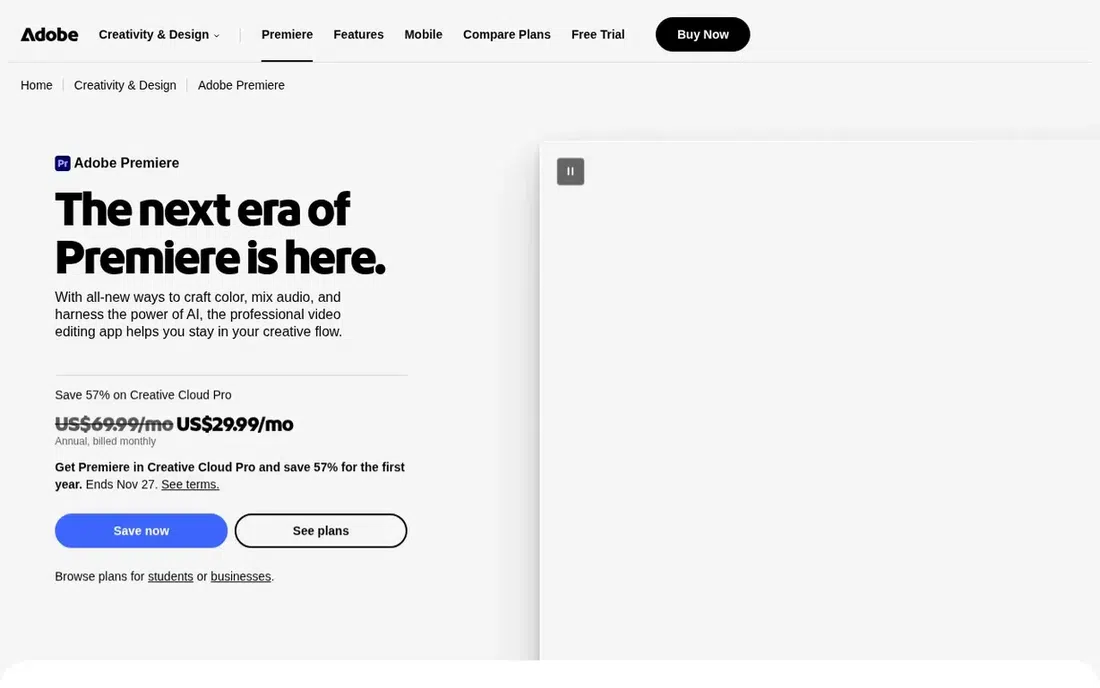
Adobe Premiere Pro works best for professional YouTube video editing. Adobe Premiere Pro is a professional video editing software that supplies full tools for editing, trimming, adding effects, mixing audio, and more.
It is well-suited for YouTube creators who require advanced features and a solid workflow. No starting price is listed for Adobe Premiere Pro here; confirm pricing on the vendor site. As for free access: Not stated.
The main drawbacks: Needs subscription.
- Professional editing and post-production
- Broad effects and audio mixing
- Can be resource-intensive
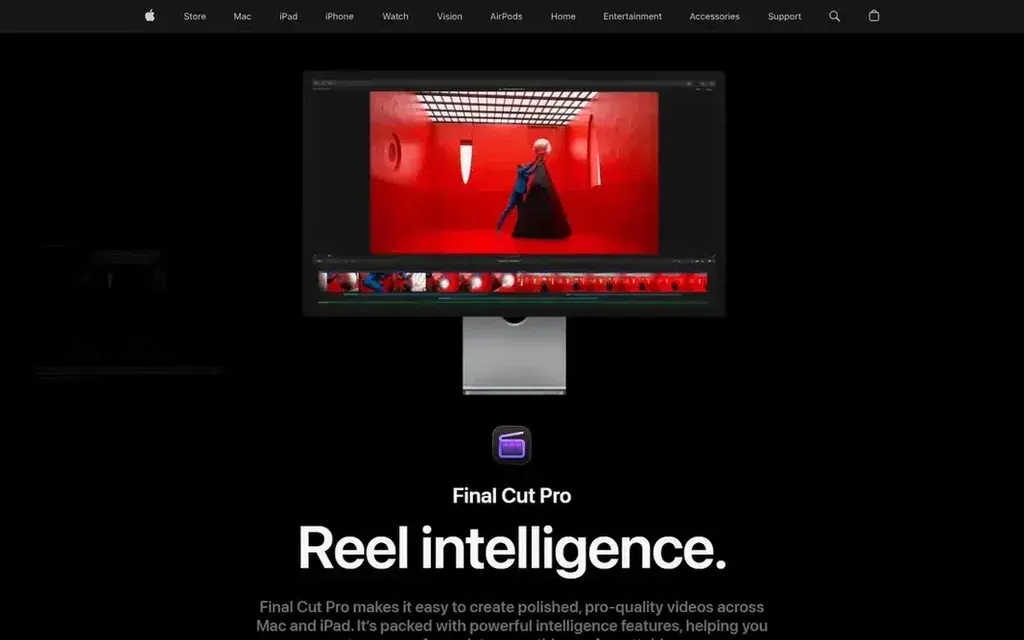
Final Cut Pro is designed for Mac and iPad video editing. Final Cut Pro is Apple's professional video editing software packed with capable intelligence features that make pro-quality video creation and editing simple on Mac and iPad. It is well suited to YouTube creators who work within the Apple ecosystem and want a smooth editing experience with optimized performance.
Final Cut Pro is only available on Mac and iPad, so Windows users cannot use it. It also has a higher upfront cost compared with some alternatives. Pricing for Final Cut Pro is not stated here, so ask the vendor for current figures. Trial and free access: Not stated.
Where it is weaker: Mac-only.
- Capable intelligence features
- Smooth performance
- Higher upfront cost
In short, Filmora is for easy-to-learn editing with AI features. Filmora is a solid choice for beginners and intermediate users.
What to check first: Watermark on exports in some cases.
For advanced editing, consider Premiere Pro or Final Cut Pro. Pricing for Filmora is not stated here, so ask the vendor for current figures. Trial and free access: Not stated.
- Approachable timeline
- Desktop and mobile apps
- Limited advanced color tools
How these tools were picked
The comparison looks at four things: starting price, free access, how well the feature set matches video software for YouTube, and the main limit of each tool. Figures are shown as the vendors publish them. Billing terms, seat minimums and add-ons can change the real cost. Tools are placed by general fit for video software for YouTube, with price clarity and free access as tie-breakers. A different team can reasonably rank them differently.
What to confirm before you sign up
- Request quotes from Camtasia, Filmora and the others; the list shows no fixed prices.
- Look at the free plan from CapCut closely: its caps decide whether it is usable for real work.
- Before choosing Camtasia, weigh its main limit: restricted advanced editing.
- Check the support hours and onboarding help CapCut offers; smaller vendors vary a lot here.
- The entry price of Camtasia is only the starting point; model the full cost with seats and extras.
FAQ
Can I try these tools before paying?
Often, yes. CapCut has a free plan. Use your own data and a real task during the test, and check what the free tier or trial limits before you rely on it. Prices, free plan details and limits for all 5 tools in this video software for YouTube roundup sit on the individual cards above.
How are the tools for video software for YouTube ordered?
Camtasia sits first and Filmora last because the order follows typical fit for video software for YouTube, then price clarity and free access. It is a judgement call, so read each profile for fit and limits.
Is Camtasia the right pick for everyone comparing video software for YouTube?
No single tool suits every team. Camtasia comes first because it fits screen recording and tutorials, while CapCut suits quick AI-powered YouTube edits and Adobe Premiere Pro suits professional YouTube video editing. Match the tool to your own size, budget and workflow before deciding.
What is the best video editing software for YouTube beginners?
Camtasia comes first here and is built for screen recording and tutorials. Buyers with other needs may prefer CapCut (for quick AI-powered YouTube edits) or Adobe Premiere Pro (for professional YouTube video editing). Compare costs and limits first.
Which options for video software for YouTube have a free plan?
CapCut is the only tool in this list with a free plan. Free plans usually cap users, projects or features, so check the limits on the vendor page. Each of the 5 options in this video software for YouTube guide has its own card above with the price, free plan and limits.
Sources
- https://www.techsmith.com/camtasia.html
- https://www.capcut.com
- https://www.adobe.com/products/premiere.html
- https://www.apple.com/final-cut-pro
- https://filmora.wondershare.com