Software to Fix PC Backup in 2026: The 5 Best Options Side by Side
Comparing the best software to fix PC backup? 5 contenders, each with entry cost, free tier and best-fit buyer. Real limits included. Refreshed for 2026.
- Editor's choiceActive@ Disk Image
Full drive backup and cloning
Starts atSee websiteVisit disk-image.comFull review - Great alternativeGenie Backup Manager
Business cloud backup and recovery
Starts at$5 per user a monthVisit genie9.comFull review - Also consider
 EaseUS Todo Backup
Everyday backup and disaster recovery
Starts atSee websiteVisit easeus.comFull review
Direct answer
Active@ Disk Image comes first here, mainly for full drive backup and cloning. Listed starting prices: Genie Backup Manager from $5 per user a month. If your case is different, Genie Backup Manager suits business cloud backup and recovery and EaseUS Todo Backup suits everyday backup and disaster recovery. The other 2 tools in the list cover narrower or pricier cases.
TL;DR:
- Active@ Disk Image takes the first slot, best suited to full drive backup and cloning.
- Check the limits for Active@ Disk Image before you commit: technical focus may deter beginners.
- AOMEI Backupper fits Windows PC and server protection.
- Genie Backup Manager is the lowest-priced starter here at $5 per user per month.
- None of the 5 tools, from Active@ Disk Image to AOMEI Backupper, has a free plan, so budget for a subscription or use a trial.
Last checked November 2026. Prices and plan details were read from the vendors' own pages in November 2026; vendors change plans often, so confirm the current price on the vendor site before you buy.
Quick comparison
| Tool | Best for | Starts at | Free plan? | |
|---|---|---|---|---|
| Active@ Disk Image | Full drive backup and cloning | See website | Not stated | Visit |
| Genie Backup Manager | Business cloud backup and recovery | $5 per user a month | Free trial | Visit |
| EaseUS Todo Backup | Everyday backup and disaster recovery | See website | Not stated | Visit |
 Macrium Reflect | Capable scheduled disk imaging | See website | Not stated | Visit |
 AOMEI Backupper | Windows PC and server protection | See website | Not stated | Visit |
Software to Fix PC Backup compared in detail
Choosing software to fix PC backup usually comes down to price, fit and limits. This LinkVetted guide sets 5 tools side by side on those three points, with the facts kept short and checkable.
Active@ Disk Image
Best for: Full drive backup and cloning
Where Active@ Disk Image fits: full drive backup and cloning. Cloning also needs a suitable target drive. The cloning capability sets it apart from file-only tools.
If you prefer guided wizards for straightforward file backup, a consumer tool may be less demanding. The drive-level focus assumes comfort with partitions and disk concepts, so beginners may need guidance. This comparison lists no price for Active@ Disk Image; ask the vendor. Free plan details: Not stated.
Honest limits: Technical focus may deter beginners.
- Supports Windows and servers
- Can back up and clone a full hard drive
- Cloning needs target drive planning
Genie Backup Manager
Best for: Business cloud backup and recovery
Genie Backup Manager targets business cloud backup and recovery. It suits organizations that want cloud-based protection across mixed operating systems and need a recovery path after a serious failure.
Watch-outs: Cloud focus shapes how backups work.
For everyday use, recovery planning relies on how cloud storage is arranged. Starting cost for Genie Backup Manager: $5 per user per month. As for free access: Free trial.
- Handles Windows
- Mac and Linux
- Business framing may not suit home users
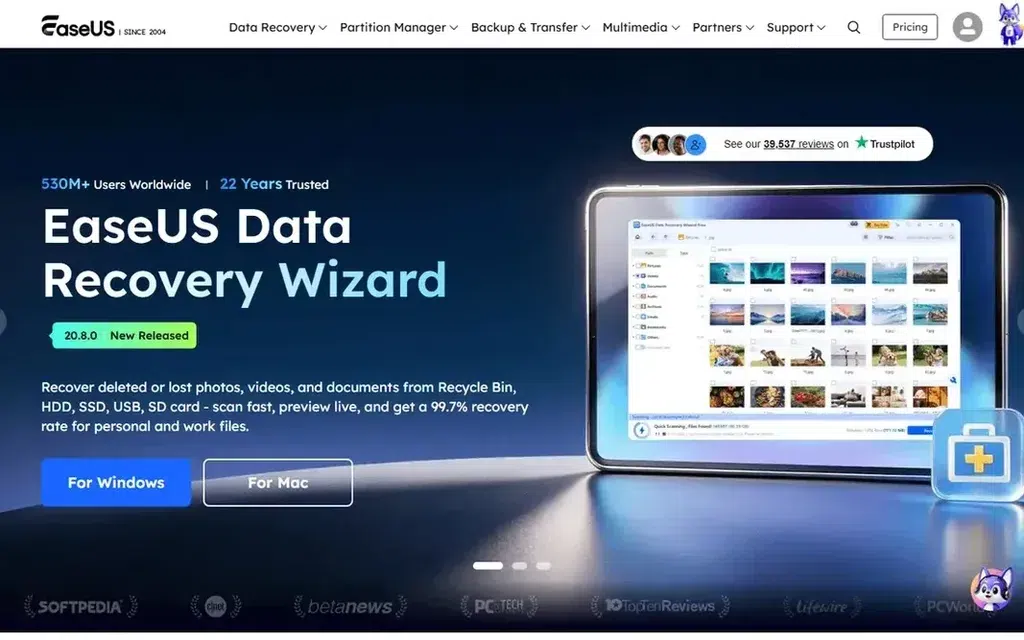
For everyday backup and disaster recovery, EaseUS Todo Backup is a natural candidate. EaseUS Todo Backup is a data backup and disaster recovery program targeted at personal, home office and enterprise users. It positions itself around secure backup and recovery, so it suits people who want one place to handle protecting files and restoring a system after a failure.
The main drawbacks: Advanced recovery may need planning.
In daily use, compare its recovery workflow against your own hardware before committing. If your current backup routine keeps breaking, it supplies a structured way to rebuild it. EaseUS Todo Backup does not show a starting price in this comparison, so check the vendor site for current pricing. Free plan details: Not stated.
- Home office and enterprise users
- Suits home
- Feature depth can overwhelm beginners
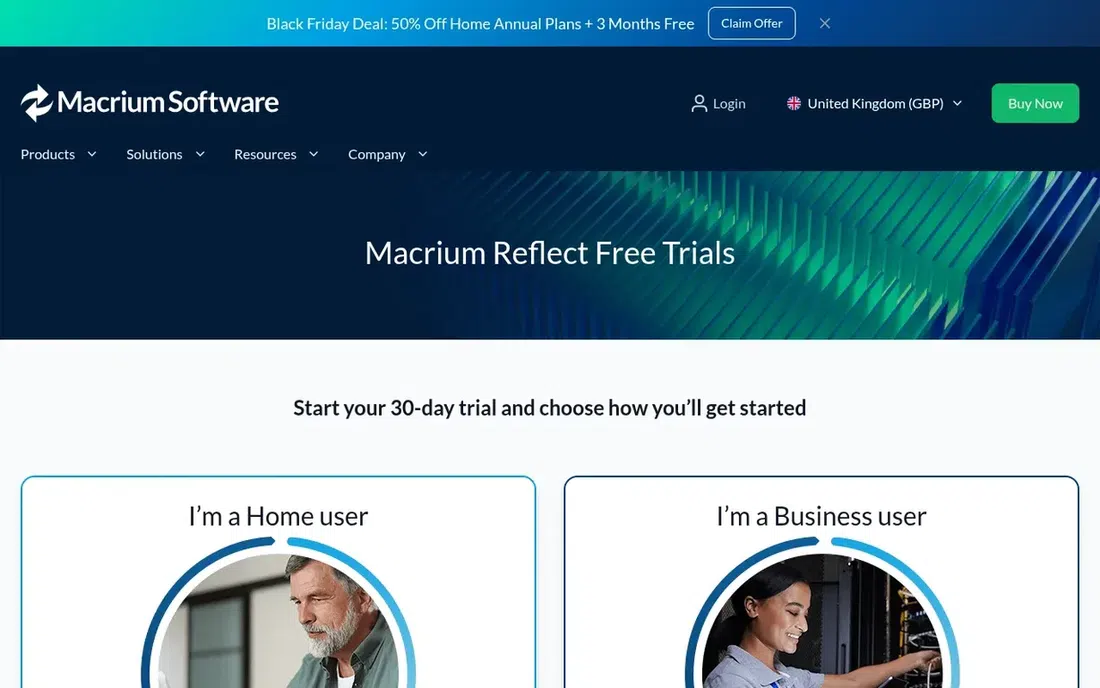
Choose Macrium Reflect for capable scheduled disk imaging. Macrium Reflect is described as capable software for creating and scheduling effective backups. Its strengths come with a ramp-up time, and beginners may find imaging concepts less easy-to-learn than straightforward file backup.
Where it falls short: Recovery media setup takes attention.
If you prefer guided, consumer-friendly menus, a more straightforward tool may suit you better. More specifically, recovery relies on having working rescue media prepared in advance. This comparison lists no price for Macrium Reflect; ask the vendor. Free options: Not stated.
- Designed for creating and scheduling backups
- Imaging approach supports full recovery
- Interface assumes some technical comfort
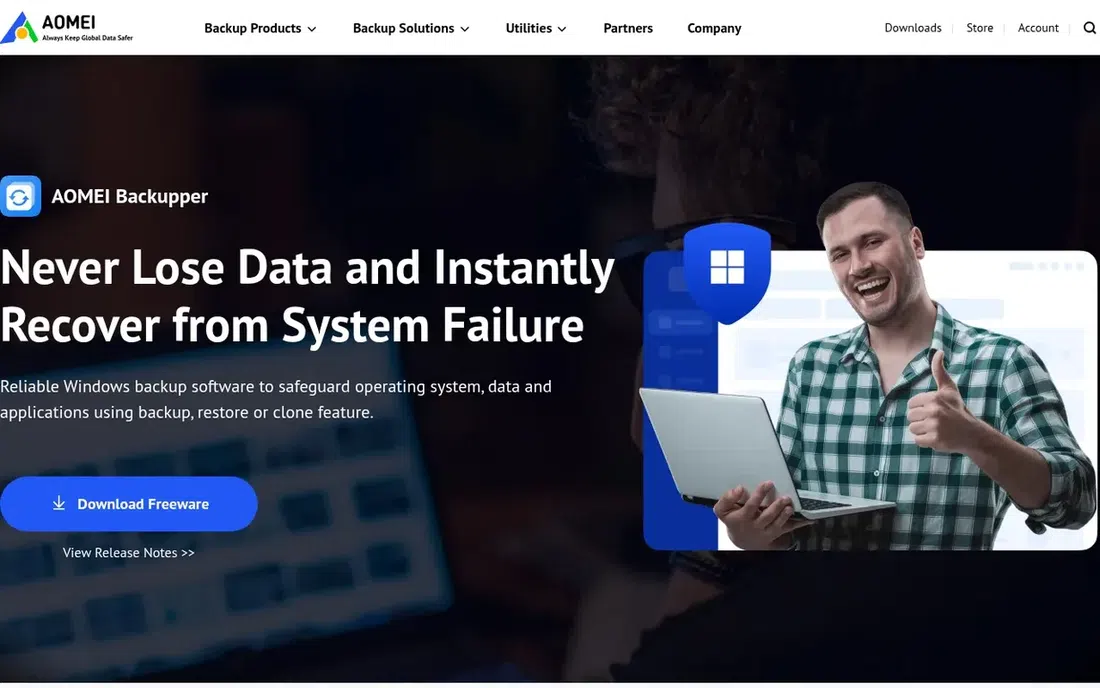
AOMEI Backupper works best for Windows PC and server protection. Setting up recovery properly still needs planning and testing. For everyday use, AOMEI Backupper is presented as backup and disaster recovery software that guards computers, with a focus on Windows PC and server use.
Where it falls short: Server features add complexity.
More specifically, if your needs are restricted to occasional file copies, a more straightforward utility could be a better fit than a full suite. The server-oriented scope means the interface carries choices that home users may never touch. Pricing for AOMEI Backupper is not stated here, so ask the vendor for current figures. Free plan details: Not stated.
- Targets both computers and servers
- Backup and disaster recovery in one suite
- Some choices need careful setup
How we built this list
We compared the tools on published pricing, free plan or trial availability, feature coverage for software to fix PC backup, and the limits each vendor documents. Prices and plan limits come from vendor pages and can change, so confirm them on the vendor site before you buy. Position on the page reflects fit for a typical buyer first, with price clarity and free access breaking ties. Treat it as a guide, not a ruling.
Pre-purchase checklist
- Ask Active@ Disk Image, EaseUS Todo Backup, Macrium Reflect and AOMEI Backupper for a written quote, since no starting price is shown.
- Take the trial from Genie Backup Manager and push a live task through it before you pay.
- Before choosing Active@ Disk Image, weigh its main limit: technical focus may deter beginners.
- Check the integration list for Genie Backup Manager against the tools you run today, and note which ones need a higher plan.
- Check whether the features you need in Macrium Reflect sit on the entry plan or only on higher tiers.
FAQ
Can I try these tools before paying?
Often, yes. Genie Backup Manager offers a free trial. Use your own data and a real task during the test, and check what the free tier or trial limits before you rely on it.
What does it mean to fix PC backup?
It normally means restoring a backup routine that has stopped working, or recovering a system after a failed backup. The right tool relies on whether you need file-level copies or full disk images.
Does any tool for software to fix PC backup here have a free plan?
No tool in this list, Active@ Disk Image and AOMEI Backupper included, has a permanent free plan. Genie Backup Manager offer a trial. Trials and quotes are the usual route, so plan a short evaluation period.
How are the tools for software to fix PC backup ordered?
The order follows typical fit for software to fix PC backup, with Active@ Disk Image first and AOMEI Backupper last, then price clarity and free access. It is editorial judgement, not a score, so another team could rank the tools differently.
Do these tools publish their prices?
Not all of them. Active@ Disk Image, EaseUS Todo Backup, Macrium Reflect and AOMEI Backupper publish no starting price, so expect a quote request for those. The rest, Genie Backup Manager included, show a starting price, though seats and billing terms still change the final cost.
Sources
- https://www.disk-image.com
- https://www.genie9.com
- https://www.easeus.com/backup-software
- https://www.macrium.com/reflectfree
- https://www.aomeitech.com/aomei-backupper.html