Best Recording Software for PC in 2026: 8 Tools Compared
Compare the best recording software for PC in 2026, from OBS Studio and Camtasia to Loom, Bandicam, and ShareX, for tutorials, games, and team videos.

- Editor's choice
 OBS Studio
Free tutorials, games, and streams
Starts atFreeVisit obsproject.comFull review - Great alternative
 Camtasia
Polished courses and editing
Starts at$179.88 per yearVisit techsmith.comFull review - Also consider
 Loom
Quick team video messages
Starts atSee websiteVisit loom.comFull review
TL;DR:
- OBS Studio is the best free PC recorder for tutorials, games, and live streams, with no watermark or time limit.
- Camtasia is the best paid choice for polished courses, thanks to its built in editor, captions, and course exports.
- Loom suits teams that need quick screen and webcam messages shared by link, rather than full course editing.
- ShareX is a strong free utility for quick captures, while Bandicam suits high frame rate game and app recording.
Quick comparison
| Tool | Best for | Starts at | Free plan? | |
|---|---|---|---|---|
| OBS Studio | Free tutorials, games, and streams | Free | Yes | Visit |
| Camtasia | Polished courses and editing | $179.88 per year | Free trial | Visit |
| Loom | Quick team video messages | See website | Yes | Visit |
 Bandicam | High frame rate capture | See website | Free trial | Visit |
 Movavi Screen Recorder | Simple one off recordings | See website | Free trial | Visit |
 Snagit | Short clips and screenshots | See website | Free trial | Visit |
 ShareX | Free quick captures and sharing | Free | Yes | Visit |
 Screencastify | Browser based classroom recordings | See website | Yes | Visit |
The best recording software for pc
PC recording covers tutorials, gameplay, meetings, and product demos, and the best tool depends on whether you need editing, sharing, or raw capture. These eight cover free and paid options for Windows users, with clear trade offs for each workflow.

OBS Studio is our pick for most PC users because it records and streams for free, without the limits that many free tools impose. You can capture a full screen, a window, or a game, add a webcam and microphone, and build scenes for tutorials, presentations, and live streams. Hardware encoding keeps performance strong on many modern PCs, which matters for gameplay.
The main gap is editing. OBS records well, but you will need another app, such as DaVinci Resolve or Shotcut, to cut, add titles, and polish a finished video. That trade off is worth it for free, high quality capture. If you want recording and editing in one paid app, Camtasia is the next step.
- Free and open source
- No watermark or recording limit
- Scenes, sources, and multi track audio
- No built in video editor
- Setup can feel technical at first

Camtasia is the best choice when a recording needs to become a finished course. It records screen, webcam, and audio, then offers a multitrack editor with annotations, transitions, captions, and interactive quizzes. Teachers and trainers value its course exports, which let lessons report scores to a learning system.
It is overkill for a quick bug report or a two minute team update, and the yearly price needs to be weighed against how often you publish courses. For creators who sell or deliver training regularly, the time saved in editing often justifies the cost. Try the trial on a real lesson before buying, and check whether your plan includes stock media or AI features.
- Record and edit in one app
- Cursor effects, callouts, captions, and quizzes
- Course exports for learning systems
- Yearly cost
- Heavier than a quick capture tool
- Not built for live streaming
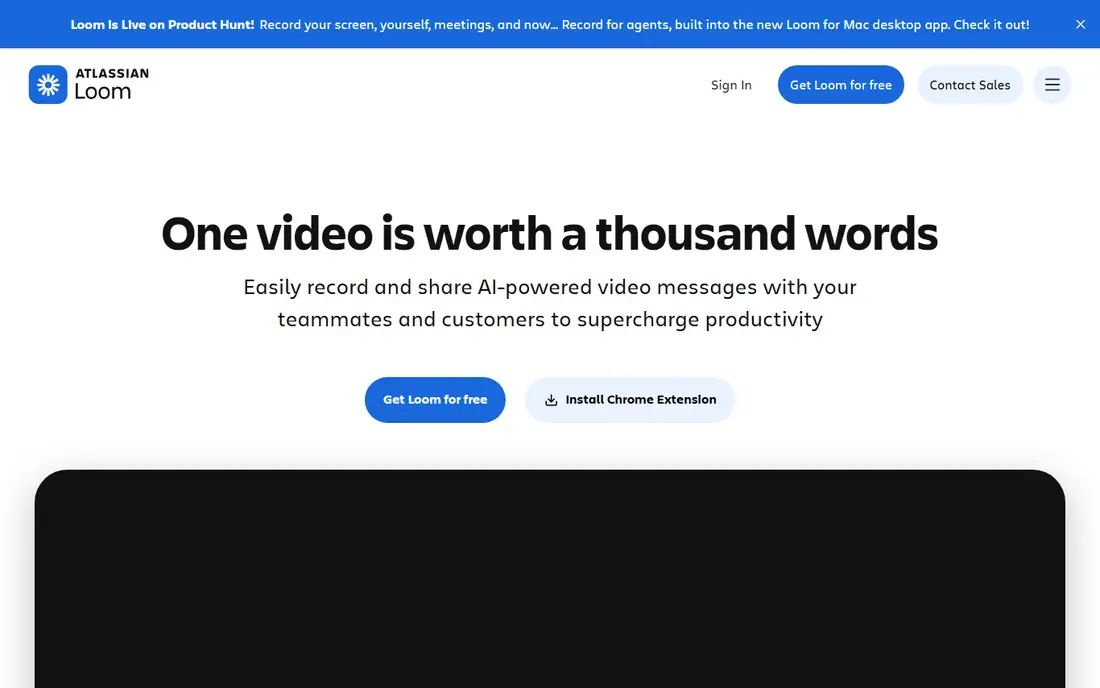
Loom is built for speed. Record your screen and webcam, stop, and share a link, without rendering or uploading a large file yourself. Teams use it for feedback, onboarding, bug reports, and async updates, where a short video explains more than a long email. Comments on the video keep discussion in one place.
It is not a course editor. Trimming and stitching cover basic fixes, but detailed editing, captions, and polished production need another tool. If your goal is fast communication, Loom is excellent. If your goal is a polished course, pair it with Camtasia or use Loom only for drafts and reviews.
- Fast recording and link sharing
- Webcam plus screen in one view
- Viewer comments and basic analytics
- Editing is basic compared with Camtasia
- Cloud hosting and limits depend on plan
Bandicam suits gamers and users who record fast moving software, CAD, or 3D apps. It is designed to capture at high frame rates with low impact on performance, and its controls are simple enough for quick sessions. You can record a region, a window, or a full screen, with webcam overlay when needed.
The free trial limits recording length, so test performance on your own game or app before buying. Bandicam is a capture tool first, not an editor, so plan to edit in another app if a video needs cuts and titles. For raw, smooth capture on Windows, it remains a popular choice.
- Strong performance for games and fast apps
- High frame rate recording
- Simple capture controls
- Windows only
- Free trial has a recording time cap
- Editing tools are basic
Movavi Screen Recorder is a good middle ground for users who want something simpler than OBS but more polished than a basic capture utility. You can record screen and webcam, schedule a recording, and make simple cuts and annotations without learning a full editor. That makes it useful for occasional tutorials, webinars, and product demos.
The trial is limited, with watermarked exports, so the real test is whether the paid plan fits how often you record. Heavy creators will outgrow it and want Camtasia or OBS plus an editor. Occasional recorders who value a clean interface will find Movavi easy to pick up and use.
- Easy setup for beginners
- Scheduled recording and simple edits
- Useful for short tutorials
- Trial exports are watermarked
- Editing depth is less than Camtasia
- Paid plan needed for full use
Snagit, also from TechSmith, is best for documentation and support work. It captures screenshots with annotations, steps, and templates, and it records short video clips for how to guides and bug reports. Support teams, trainers, and technical writers use it daily because a marked screenshot often answers a question faster than a long video.
It is not a course platform. Long recordings, multitrack editing, and quizzes belong in Camtasia, while Snagit handles the short, visual explanations that fill help docs and tickets. If you already use Camtasia, Snagit pairs well with it. If you only need short clips, the trial will show whether its screenshot tools justify the price.
- Excellent screenshots plus short video
- Annotations and templates
- Quick sharing for support and docs
- Not built for long courses
- Video editing is light
- Yearly cost for a mainly capture tool
ShareX is a powerful free utility for Windows users who capture constantly. It handles screenshots, scrolling captures, GIFs, and screen recordings, with workflows that can upload, copy a link, or save to a folder automatically. Power users love its custom hotkeys and actions, which turn a repetitive capture task into one key press.
New users may find the settings overwhelming at first, since ShareX exposes many options. Start with the default capture and upload settings, then customise only what you use. For quick, free PC capture without a subscription, ShareX is one of the best tools available, even though it is not a video editor.
- Free and open source
- Screenshots, GIFs, and screen video
- Many upload and workflow options
- Interface can feel crowded
- Video editing is minimal
- Windows only
Screencastify is popular in schools because it runs as a browser extension and is easy for teachers and students to learn. You can record a tab, a desktop window, or a webcam, add simple annotations, and share a link for feedback. That simplicity helps in classrooms and training sessions where setup time matters.
It is not the best tool for high frame rate games or complex desktop production, since browser capture has limits compared with OBS or Bandicam. For lessons, demos, and student work in Chrome, it is fast and accessible. Check the current free plan limits on video length and storage before planning a class project around it.
- Runs in Chrome
- Easy for teachers and students
- Quick sharing and classroom tools
- Browser based limits for games and heavy apps
- Free plan has limits
- Desktop capture is less deep than OBS
How we picked these
We compared official feature pages, pricing pages, and app listings for PC recording tools widely available in October 2026. We looked for capture quality, performance, ease of use, editing and sharing options, and whether a free plan or trial lets you test real work. We favoured tools that cover different PC needs, from free capture to paid course production, rather than listing eight similar apps.
How to choose PC recording software
Start with the end product. If you need a polished course, choose Camtasia. If you need fast team messages, choose Loom. If you need free, high quality capture for tutorials or games, choose OBS Studio, and edit in a separate free editor. If you need constant quick captures for docs, ShareX or Snagit will save more time than a full editor.
Check your PC specs too. High frame rate and high resolution recording need a capable processor and graphics card, plus free disk space, since raw video files grow quickly. Test audio before an important recording, close heavy apps, and record a short test clip to check sound, frame rate, and file size. A good recorder is only useful when the final video is clear and easy to watch.
FAQ
What is the best free screen capture software for PC?
OBS Studio is the best free screen capture software for PC for most users, with no watermark, no time limit, and strong game and tutorial capture. ShareX is also free and excellent for quick captures, screenshots, and GIFs.
What is the best screen recording software for PC for tutorials?
Camtasia is best for polished tutorials and courses, thanks to its editor, captions, and annotations. OBS Studio is best for free tutorial capture, with editing done in a separate app such as DaVinci Resolve or Shotcut.
What is the best video recording software for PC for games?
Bandicam and OBS Studio are both strong for games. Bandicam focuses on smooth, high frame rate capture, while OBS Studio adds scenes, overlays, and live streaming for creators who also stream.
Does free recording software add a watermark?
OBS Studio and ShareX do not add a watermark to recordings. Some free trials, including Movavi and Snagit trials, do watermark exports, so check trial limits before recording an important project.
How much disk space does screen recording use?
It depends on resolution, frame rate, and length, but high resolution recordings can use several gigabytes per hour. Record at the resolution you need, use hardware encoding where available, and move finished files to external storage regularly.
Can I record my PC screen without installing software?
Yes, Screencastify runs in Chrome, and Loom offers browser and desktop options for quick recordings. For heavy games, long sessions, or high frame rates, a desktop app such as OBS Studio or Bandicam usually performs better.