Best Clipping Software for Low End PC in 2026: 8 Tools Compared
We compared the best clipping software for low end pc setups, focusing on low CPU load, GPU encoding, instant replay and free options that run well for gamers.
- Editor's choice
 Medal
Free auto clipping for popular games
Starts atFreeVisit medal.tvFull review - Great alternative
 OBS Studio
Flexible free recording and replay buffer
Starts atFreeVisit obsproject.comFull review - Also consider
 NVIDIA ShadowPlay
NVIDIA PCs with instant replay
Starts atFreeVisit nvidia.comFull review
TL;DR:
- On a low end PC, the encoder matters more than the feature list: GPU encoding and cloud clipping beat CPU-only recording.
- Medal and Outplayed are the easiest free clippers for supported games, with automatic event detection and hotkey clipping.
- OBS Studio is the most flexible free option, but it needs careful setup to stay light on weak hardware.
- Eklipse suits streamers, because highlights are made in the cloud from a stream or upload, with no local recording load.
- Lower your resolution and bitrate first, then pick a tool, because settings often matter more than the app name.
Quick comparison
| Tool | Best for | Starts at | Free plan? | |
|---|---|---|---|---|
| Medal | Free auto clipping for popular games | Free | Yes | Visit |
| OBS Studio | Flexible free recording and replay buffer | Free | Yes | Visit |
| NVIDIA ShadowPlay | NVIDIA PCs with instant replay | Free | Yes | Visit |
 AMD Software | AMD PCs with instant replay | Free | Yes | Visit |
 Xbox Game Bar | Built-in Windows clipping | Free | Yes | Visit |
 Outplayed | Game-aware clipping profiles | Free | Yes | Visit |
 Eklipse | Cloud AI highlights for streamers | Free | Yes | Visit |
 Bandicam | Lightweight paid recording | See website | Free trial | Visit |
The best clipping software for low end PC
Clipping on a weak PC is a performance problem first and an editing problem second. The best tools use your GPU hardware encoder, keep background use low, or move the work to the cloud. The eight below cover those routes.
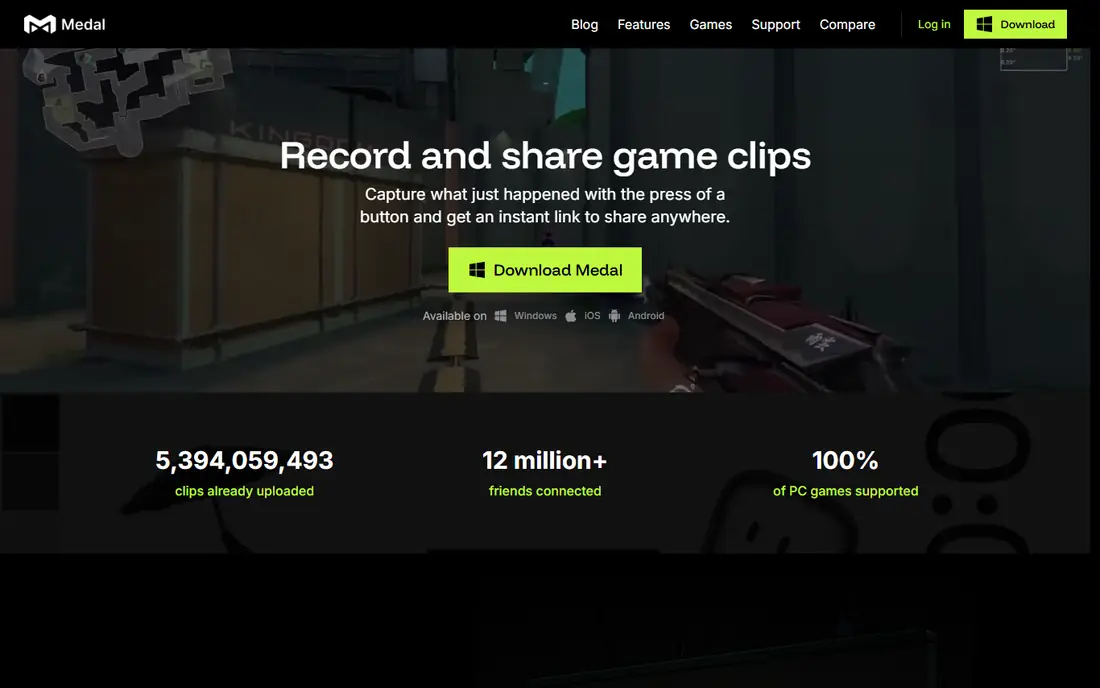
Medal is the default answer for many PC players, because the free plan covers the core loop: press a hotkey after a play, or let the app detect kills and wins in supported games, then trim and share. Recording uses GPU acceleration where available, and the app stays light compared with a full studio recorder. For a low end PC, that combination of free price and low setup is hard to beat.
The limits are platform and coverage. There is no Mac or Linux version, and auto detection only covers major titles, so players of niche games will rely on manual hotkeys. Cloud storage on the free plan is also limited before paid tiers apply. For Windows players of popular games, Medal is the easiest place to start.
- Free core clipping with auto detection in major titles
- Hotkey clipping and built-in trimming
- Share links play in Discord
- Windows only
- Auto detection covers major titles, not niche games
- Free cloud storage has limits
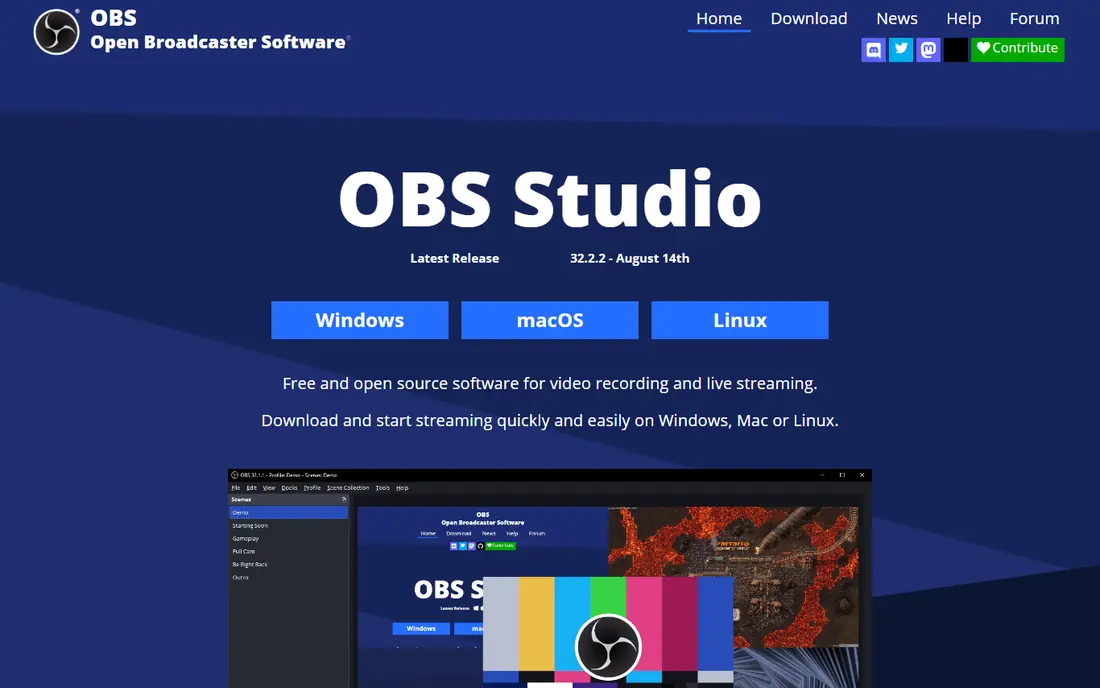
OBS Studio is the most flexible free recorder, and its replay buffer is the key feature for low end PCs. Instead of recording a full session, the buffer keeps only the last set period in memory, and a hotkey saves that clip to disk. That saves storage and avoids a long recording session running in the background.
The catch is configuration. OBS rewards users who set the encoder to NVENC on NVIDIA or AMF on AMD, lower the resolution to 720p or 1080p, and cap bitrate and frame rate. With default settings on a weak CPU, it can cost frames. For players willing to spend twenty minutes on setup, OBS is the most powerful free option here.
- Free and open source
- Replay buffer for last moments clipping
- GPU encoding with NVENC and AMF
- Huge plugin and guide library
- Setup takes effort
- Wrong settings can hurt performance on weak PCs
- No built-in cloud sharing
ShadowPlay, now part of the NVIDIA App experience, uses the NVENC hardware encoder on supported NVIDIA graphics cards. That dedicated encoding hardware keeps the performance cost small, which is exactly what a low end PC needs. Instant replay saves the last moments of play without recording a full session.
The obvious limit is hardware. Without a supported NVIDIA GPU, ShadowPlay is not an option, and it is not a full editing suite. Players who already have an NVIDIA card should try it before installing another recorder, because it adds almost no new software load.
- Instant replay with low performance cost on supported NVIDIA GPUs
- Hardware encoding
- Built into GeForce Experience and NVIDIA App
- Needs a supported NVIDIA GPU
- Not a full editor
- Feature availability varies by app version
AMD Software is the AMD equivalent of ShadowPlay, with instant replay, recording and streaming built into the driver software for supported AMD graphics cards. It uses AMD hardware encoding, so the CPU is not doing the heavy lifting. For a low end PC with an AMD card, it is the lightest route to clipping, because the tool is already installed with the driver.
Older AMD cards and integrated graphics vary in encoding quality, so test at 720p first and raise settings only if frame rates stay stable. AMD Software is also not a dedicated clipping community or editor, so players who want sharing and trimming may pair it with Medal or a simple editor. As a free, low load recorder, it is hard to fault.
- Instant replay and recording through AMD Software
- AMF hardware encoding
- No extra purchase for supported AMD GPUs
- Needs a supported AMD GPU
- Recording quality settings need tuning on older cards
Xbox Game Bar is already on most Windows PCs, which makes it the zero-install option. Press the built-in hotkey to record the last moments or start a clip, and the file saves to the captures folder. For a player who only clips occasionally, that simplicity beats installing and learning a new app.
The trade-off is depth. Game Bar has no automatic kill detection, no built-in clipping community and limited trimming. Performance also varies, so players on very weak hardware should test it with their normal game settings. For occasional clips on a low end PC, Game Bar is a sensible first try.
- Built into Windows with no download
- Simple hotkey clipping and screenshots
- Works across many games
- Fewer clipping and sharing features than Medal
- Performance varies by PC
- No auto event detection
Outplayed lives inside the Overwolf platform and takes a game-aware approach to clipping. Instead of one generic recorder, it ships profiles tuned per title, so it knows what a kill looks like in one game versus a goal in another. Full-match capture with an event timeline also helps competitive players review their play after the match.
The price of admission is Overwolf itself, which must run alongside the game. Most users find it light, but some report overlay issues with certain titles. If you already run Overwolf for other apps, Outplayed is an obvious pick. If you want a standalone tool, Medal or ShadowPlay may suit better.
- Per-game capture profiles for kills, deaths and match events
- Full-match recording with an event timeline
- Free core features
- Requires the Overwolf platform running
- Overlay can interfere with some titles
- Windows only
Eklipse is the lightest option in a different way: it does not record on your PC at all. It reads a Twitch, Kick or YouTube stream, or an uploaded video, and makes highlights in the cloud. That makes it ideal for streamers on weak hardware, because the PC only needs to run the game and the stream, not a local recorder and editor.
The limit is clear. If you play offline with no stream and no upload, Eklipse cannot clip live play. Free plan limits also apply to processing and exports. For streamers who want hands-off highlights without local load, Eklipse is the best fit on this list.
- Cloud processing adds no local recording load
- AI highlights from streams or uploads
- Supports many games
- Needs a stream or upload to process
- Free plan limits apply
- Not an instant replay tool for offline play
Bandicam is a long-running Windows recorder known for a light footprint and hardware acceleration. It records games, screens and devices in a simple interface, with settings that can be tuned for lower end hardware. For players who want full session recording rather than instant replay, Bandicam is a straightforward paid option.
The main weakness for clipping is the lack of a true instant replay buffer. Bandicam records sessions that you trim afterwards, which uses more storage and requires more manual work than Medal or OBS replay buffer. The free version also limits recording length. For simple, light recording, Bandicam still earns a place.
- Lightweight recorder with hardware acceleration
- Game, screen and device recording modes
- Simple interface
- No built-in instant replay buffer like OBS or ShadowPlay
- Full features need a paid licence
- Free version limits recording length
How we picked these
We compared official feature pages, low end PC clipping guides and public reviews, with a focus on encoder type, background load, instant replay support and free plan limits. We favoured tools that work in 2026 on Windows, plus cloud options that remove local load entirely. We did not claim hands-on testing, and we used vendor pricing or free plan details where vendors publish them.
How to keep clipping light on a weak PC
Start with settings, not software. Lower recording resolution to 720p, cap frame rate at 30 or 60, and use your GPU encoder if one is available. Close browsers, launchers and background apps before you play, and store clips on a fast drive with free space. Test with your normal game settings, not in an empty lobby, because frame cost only shows under real load.
Choose GPU or cloud, not CPU
Software-only CPU encoding is the heaviest option and the first to avoid on a weak PC. NVENC on NVIDIA and AMF on AMD move encoding to dedicated hardware, while Eklipse moves it to the cloud. If your PC has no usable GPU encoder, a cloud clipper or a low resolution CPU recording is the safer route.
Use instant replay instead of full recording
Instant replay and replay buffer tools only save the moments you choose, which saves storage and background load. Full session recording is useful for montages, but it costs more disk space and editing time. For most clips, a 30 to 60 second replay window is enough.
Check storage and sharing before you commit
Ask how long free cloud storage lasts, what export quality is included, and whether clips can be downloaded as files. A free clipper with short storage or watermarked exports may cost more in time than a paid tool. Keep local copies of clips you want to keep.
FAQ
What is the best clipping software for a low end PC?
For most Windows players, Medal is the easiest free start, and OBS Studio with GPU encoding is the most flexible free option. NVIDIA and AMD owners should try ShadowPlay or AMD Software first, because hardware encoding keeps the cost low. Streamers should also look at Eklipse for cloud highlights.
What clipping software uses the least resources?
A cloud tool such as Eklipse uses the least local resources, because nothing runs on your PC. Among local tools, recorders that use GPU hardware encoding are lightest, because encoding moves to dedicated hardware instead of the CPU.
Does clipping software lower FPS?
Local recorders can lower frame rates, because they encode video on the same hardware that runs the game. GPU encoding keeps that cost small, while CPU encoding on a weak PC can cost more. Lower resolution, bitrate and frame rate to reduce the impact.
Can I clip without recording on my PC at all?
Yes, if you stream or upload a video. Eklipse processes streams and uploads in the cloud and returns highlights, so there is no local recording and no large files on your disk. Offline players still need a local recorder.
Is free clipping software good for low end PCs?
Yes, when configured well. Medal, OBS Studio, Xbox Game Bar and GPU tools from NVIDIA and AMD all offer solid free clipping. The main limits are platform, game coverage and cloud storage, not price alone.
Should I record at 1080p on a low end PC?
You can, with GPU encoding and a stable frame rate, but 720p is safer on very weak hardware. Test at 720p first, then raise resolution only if frame rates and clip quality stay stable during real gameplay.