Best Software for Adding B-Roll to Videos in 2026: Prices, Free Plans and 5 Picks
Best software for adding B-Roll to videos in 2026: 5 contenders with entry costs and free tiers. Weaknesses are named for every tool. Read the profiles.
- Editor's choice
 Final Cut Pro
Mac and iPad editors wanting speed
Starts atPricing on requestVisit apple.comFull review - Great alternative
 CapCut
Quick social video b-roll edits
Starts atPricing on requestVisit capcut.comFull review - Also consider
 Filmora
Approachable editing with AI assists
Starts atPricing on requestVisit filmora.wondershare.comFull review
Direct answer
Start with Final Cut Pro if you need Mac and iPad editors wanting speed. If your case is different, CapCut suits quick social video b-roll edits and Filmora suits approachable editing with AI assists. The remaining 2 options are covered below with pricing notes and limits. None of these vendors publish plan prices, so pricing is on request for every option.
TL;DR:
- Final Cut Pro takes the first slot, best suited to Mac and iPad editors wanting speed.
- Check the limits for Filmora before you commit: less depth than pro NLEs.
- Only CapCut offers a free plan among these 5 tools.
- Final Cut Pro, DaVinci Resolve and the 3 others all sell by quote; expect sales conversations before you see a price.
- DaVinci Resolve fits all-in-one edit, color and audio.
Last checked November 2026. Pricing on request: vendors did not publish plan prices when this guide was last checked (November 2026), so ask each vendor for a written quote.
Quick comparison
| Tool | Best for | Starts at | Free plan? | |
|---|---|---|---|---|
| Final Cut Pro | Mac and iPad editors wanting speed | Pricing on request | Not stated | Visit |
| CapCut | Quick social video b-roll edits | Pricing on request | Yes | Visit |
| Filmora | Approachable editing with AI assists | Pricing on request | Not stated | Visit |
 Adobe Premiere Pro | Professional timeline editing with effects | Pricing on request | Not stated | Visit |
 DaVinci Resolve | All-in-one edit, color and audio | Pricing on request | Not stated | Visit |
The best software for adding B-Roll to videos
Choosing software for adding B-Roll to videos usually comes down to price, fit and limits. This LinkVetted guide sets 5 tools side by side on those three points, with the facts kept short and checkable.
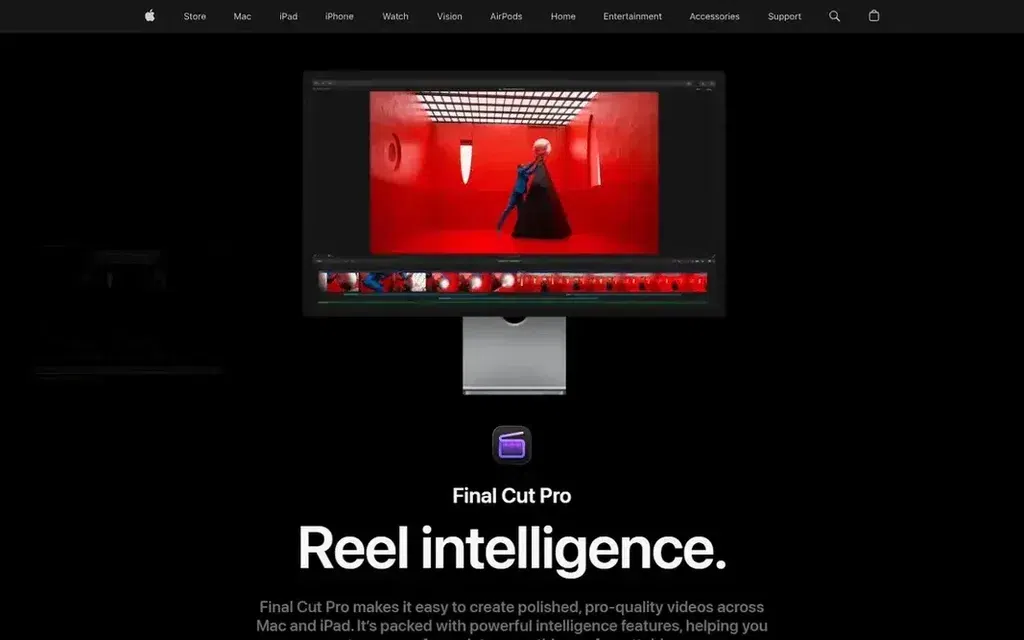
Final Cut Pro works best for Mac and iPad editors wanting speed. Choose Final Cut Pro when you work primarily in the Apple ecosystem and want efficient b-roll assembly.
Final Cut Pro is Apple's professional editing application for Mac and iPad, packed with intelligence features that make pro-quality creation simpler. Its magnetic timeline helps b-roll snap into place and stay organized as you build sequences. Final Cut Pro shows no starting price here, so confirm the cost on the vendor site. Free options: Not stated.
Where it is weaker: Limited to Apple devices.
- Intelligence features accelerate editing
- Magnetic timeline aids clip placement
- Library management takes adjustment
In short, CapCut is for quick social video b-roll edits. It runs on desktop, mobile and online, so you can drop b-roll into short-form edits rapidly and apply effects with minimal setup.
Best features of CapCut: AI-powered editing tools.
Points against: Most useful for shorter social content.
Check the vendor site for CapCut pricing; none is listed in this comparison. CapCut has a free plan.
- Desktop
- Smart templates and creative effects
- Fewer deep pro controls
Think of Filmora for approachable editing with AI assists. Filmora is AI-powered video editing software for desktop and mobile with easy-to-learn timeline tools, effects, captions and audio features.
Where it is weaker: Less depth than pro NLEs.
Choose Filmora when simplicity and built-in creative features matter more than deep technical control. From a buyer's view, adding b-roll is straightforward: drag clips onto the timeline, trim them and apply effects or captions without a steep ramp-up time. This comparison lists no price for Filmora; ask the vendor. Free options: Not stated.
- Desktop and mobile versions
- AI features for effects and captions
- Advanced workflows may feel restricted
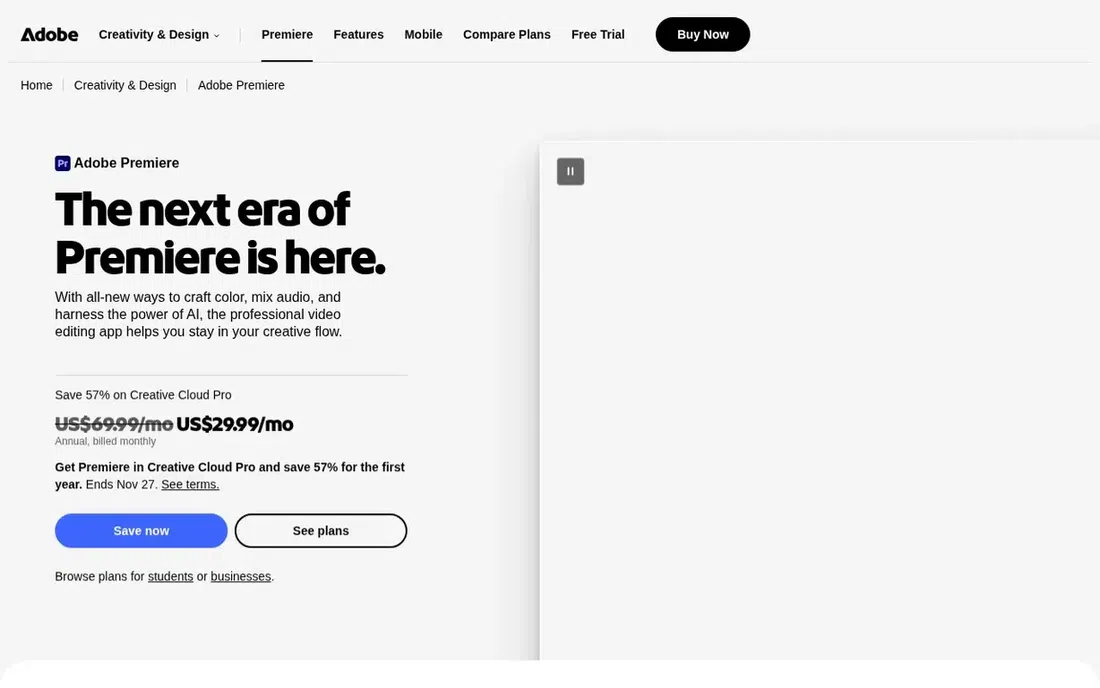
Pick Adobe Premiere Pro if this describes you: professional timeline editing with effects. Adobe Premiere Pro is professional video editing and postproduction software for trimming, adding effects, mixing audio and more.
Also, choose Premiere Pro when you need professional-grade control across complicated projects. In daily use, if you only need fast b-roll overlays for social clips, a lighter editor may be more straightforward. Adobe Premiere Pro does not show a starting price in this comparison, so check the vendor site for current pricing. On free options: Not stated.
Watch-outs: Subscription-based access.
- Deep format support
- Deep effects and trimming tools
- Needs a capable computer
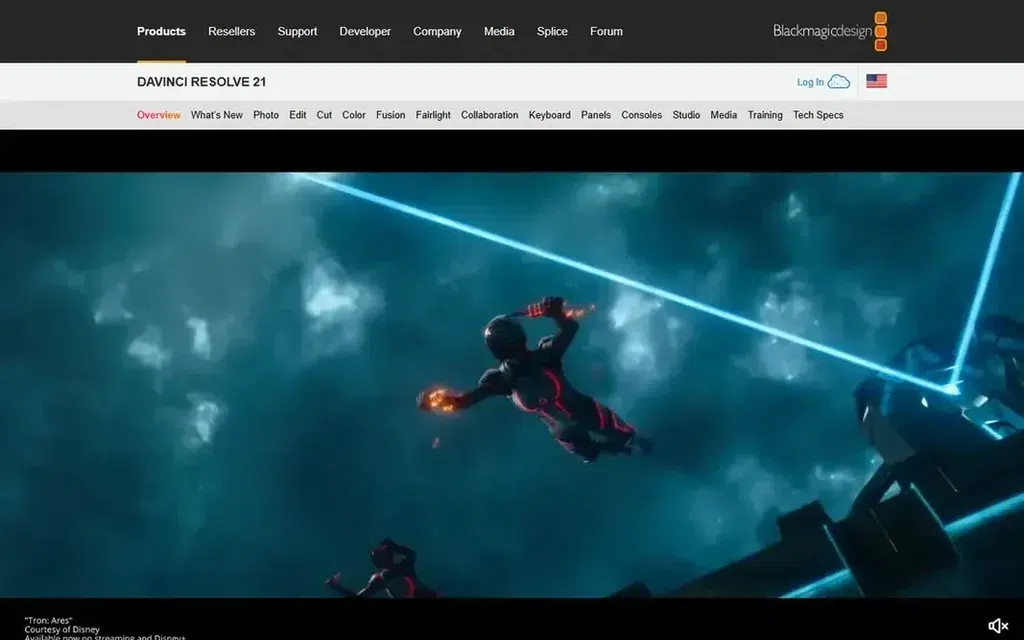
Think of DaVinci Resolve for all-in-one edit, color and audio. The depth of the interface can be intimidating for newcomers, and smooth playback of high-resolution b-roll benefits from a capable machine.
For b-roll, that means you can cut clips on the timeline and then grade them to match your primary footage without switching tools. In daily use, pick Resolve when color and finishing work are central to your b-roll workflow. Check the vendor site for DaVinci Resolve pricing; none is listed in this comparison. Free access: Not stated.
Limits to weigh: Needs a capable system for smooth playback.
- VFX and audio in one app
- Available for Mac
- Feature-rich interface can overwhelm beginners
Selection criteria
LinkVetted looked at what each vendor publishes: pricing, plan limits, feature coverage for software for adding B-Roll to videos and stated drawbacks. No hands-on testing is claimed. Figures are shown as the vendors publish them. Billing terms, seat minimums and add-ons can change the real cost. The ranking is editorial: typical fit first, then clear pricing, then free access. If your needs are unusual, read the profiles rather than relying on position.
Before you commit
- Confirm the entry price with every vendor: no tool from Final Cut Pro to DaVinci Resolve shows a fixed starting price.
- Test the free plan from CapCut against your real workload before relying on it.
- Before choosing Final Cut Pro, weigh its main limit: restricted to Apple devices.
- A short pilot of Adobe Premiere Pro with your real workflow tells you more than a feature table.
- Look at the renewal terms for DaVinci Resolve: auto-renewal, notice periods and price changes can matter more than the first-year price.
FAQ
Can I try these tools before paying?
Often, yes. CapCut has a free plan. Use your own data and a real task during the test, and check what the free tier or trial limits before you rely on it. For the full picture, the cards above cover all 5 entries of this software for adding B-Roll to videos list, including price, free plan and limits.
Is Final Cut Pro the right pick for everyone comparing software for adding B-Roll to videos?
No single tool suits every team. Final Cut Pro comes first because it fits Mac and iPad editors wanting speed, while CapCut suits fast social video b-roll edits and Filmora suits approachable editing with AI assists. Match the tool to your own size, budget and workflow before deciding.
Do these tools publish their prices?
No. None of the tools, from Final Cut Pro to DaVinci Resolve, shows a fixed starting price here, so budget time for quotes.
How are the tools for software for adding B-Roll to videos ordered?
The order follows typical fit for software for adding B-Roll to videos, with Final Cut Pro first and DaVinci Resolve last, then price clarity and free access. It is editorial judgement, not a score, so another team could rank the tools differently.
Sources
- https://www.apple.com/final-cut-pro
- https://www.capcut.com
- https://filmora.wondershare.com
- https://www.adobe.com/products/premiere.html
- https://www.blackmagicdesign.com/products/davinciresolve