Top 5 Drawing Software for Surface Pro for 2026 (Prices and Free Plans)
Best drawing software for surface pro, compared. 5 tools with published prices, free plans and limits. Every profile names its biggest catch. Jump to the table.
- Editor's choice
 Procreate
IPad drawing and animation
Starts atPricing on requestVisit procreate.comFull review - Great alternative
 Affinity Photo
Precise photo editing and retouching
Starts atPricing on requestVisit affinity.serif.comFull review - Also consider
 Clip Studio Paint
Comics, manga, and illustration
Starts atPricing on requestVisit clipstudio.netFull review
Direct answer
Procreate leads the list, best for iPad drawing and animation. Look at Affinity Photo for precise photo editing and retouching, and at Clip Studio Paint for Comics, manga, and illustration. All 5 tools are compared below on fit, free plan and limits. None of these vendors publish plan prices, so pricing is on request for every option.
TL;DR:
- The list opens with Procreate, aimed at iPad drawing and animation.
- Procreate, Adobe Illustrator and the 3 others all need a premium plan or a trial, since no free plan is listed.
- The main caution on Affinity Photo: not a dedicated illustration app.
- No starting price is shown for any of the 5 tools, Procreate and Adobe Illustrator included, so plan time for sales calls.
Last checked November 2026. Pricing on request: vendors did not publish plan prices when this guide was last checked (November 2026), so ask each vendor for a written quote.
Quick comparison
| Tool | Best for | Starts at | Free plan? | |
|---|---|---|---|---|
| Procreate | IPad drawing and animation | Pricing on request | Not stated | Visit |
| Affinity Photo | Precise photo editing and retouching | Pricing on request | Not stated | Visit |
| Clip Studio Paint | Comics, manga, and illustration | Pricing on request | Not stated | Visit |
 Adobe Photoshop | Versatile drawing and photo editing | Pricing on request | Not stated | Visit |
 Adobe Illustrator | Scalable vector graphics and AI-assisted design | Pricing on request | Not stated | Visit |
Drawing Software for Surface Pro profiles
Short on time? The summary and table above give the quick view of 5 tools for drawing software for surface pro, and the profiles that follow give the detail behind each entry.
Procreate is built with iPad drawing and animation in mind. Surface Pro users should note that Procreate is an iPad app. So it is relevant primarily as a comparison point or for those who also own an iPad.
For everyday use, Procreate is a drawing and animation app designed for iPad, described on its homepage as feature-rich and simple to use for both creative professionals and aspiring artists. It is recognised for a responsive touch and stylus experience. For everyday use, since Procreate is made for iPad, it does not run natively on a Surface Pro. It remains a handy reference for artists who split work between devices, but it is not a direct Surface Pro option. Procreate does not show a starting price in this comparison, so check the vendor site for current pricing. As for free access: Not stated.
What to check first: Not a Windows application.
- Drawing and animation apps
- Made for touch and stylus
- Made for iPad, not Surface Pro
Where Affinity Photo fits: precise photo editing and retouching. Affinity Photo is a professional photo editor designed for precision, speed, and creative freedom, based on its homepage. It hands Surface Pro users a capable workspace for retouching, compositing, and image correction, and its toolset is pitched at photographers and designers who require control over pixels.
Where it is weaker: Not a dedicated illustration app.
Pick it when photo editing is the priority and drawing is secondary. Artists who primarily draw instead of edit photos may find its workflow less direct. No starting price is listed for Affinity Photo here; confirm pricing on the vendor site. Trial and free access: Not stated.
- Focused interface
- Solid for retouching and compositing
- Fewer comic or animation tools
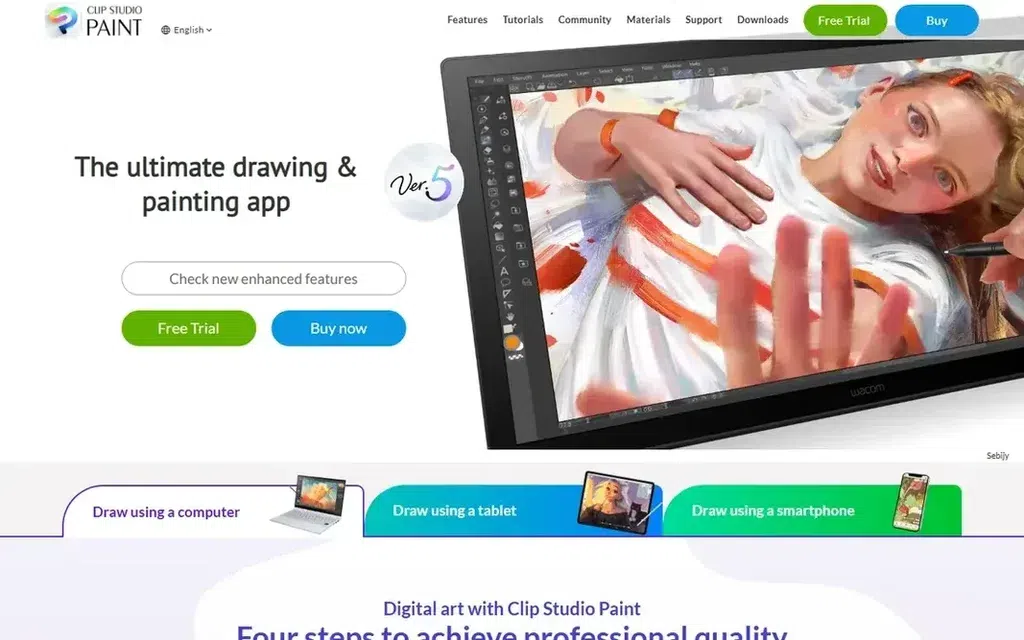
Where Clip Studio Paint fits: Comics, manga, and illustration. The feature set is wide, and new users may need time to learn where tools live.
If you want a more straightforward sketching app or primarily edit photos, consider a more general-purpose editor instead. Worth adding: some terminology and defaults reflect its manga roots, which may feel less familiar to general illustrators. This comparison lists no price for Clip Studio Paint; ask the vendor. Free plan details: Not stated.
Where it falls short: Interface can feel dense at first.
- Comic and animation features
- Available on PC, tablet, phone
- Some features are geared to Japanese workflows
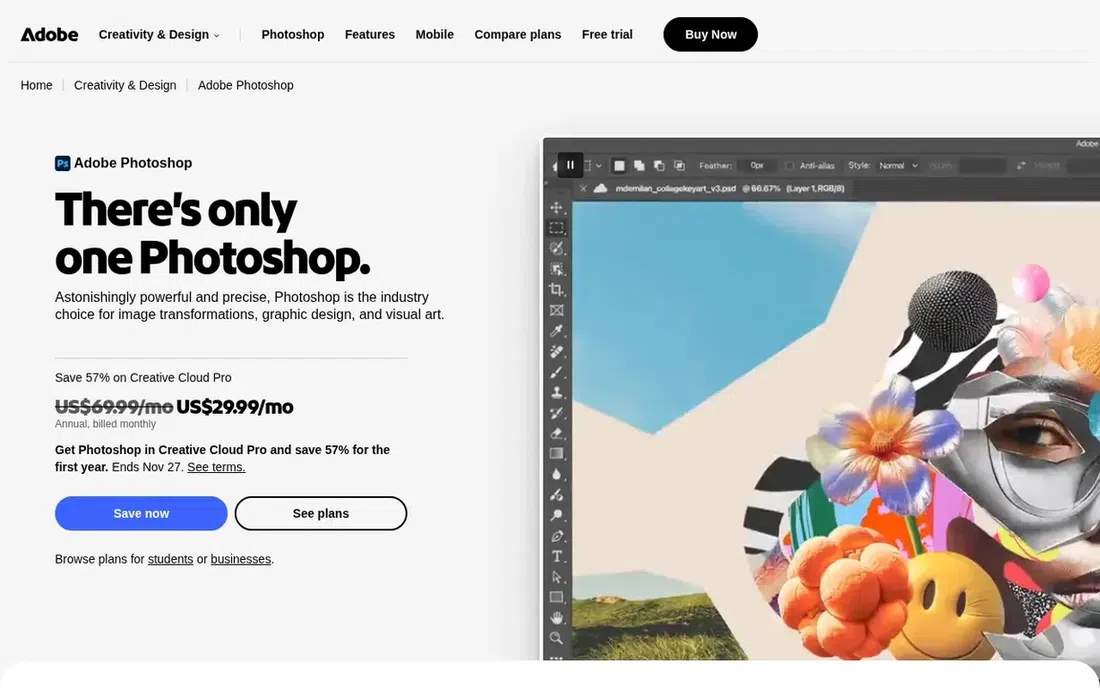
Adobe Photoshop serves versatile drawing and photo editing. Adobe Photoshop is a long-standing image editor that also supports digital painting and drawing.
If you only need light drawing or prefer a one-time purchase, a more straightforward dedicated drawing app may be a better match. More specifically, Photoshop is a large application, and its depth can slow down fast sketching sessions or overwhelm beginners. Adobe Photoshop shows no starting price here, so confirm the cost on the vendor site. On free options: Not stated.
Watch-outs: Can feel heavy for straightforward sketches.
- Wide brush and editing toolset
- Manages both raster art and image edits
- Subscription-based access
Adobe Illustrator makes the most sense for scalable vector graphics and AI-assisted design. Adobe Illustrator is a vector graphics application used for logos, illustrations, and layout-ready artwork. Its homepage highlights generative AI that can turn a text prompt into an editable vector graphic, alongside its established drawing tools.
Limits to weigh: Subscription-based access.
For Surface Pro users centred on scalable design, Illustrator provides precise path and shape control that fits professional graphic work. More specifically, Illustrator is a deep application, and beginners may find its panels and terminology slow to learn. Pricing for Adobe Illustrator is not stated here, so ask the vendor for current figures. Free options: Not stated.
- Industry-standard vector tools
- Editable vector output
- Can be complicated for beginners
How we chose
We compared the tools on published pricing, free plan or trial availability, feature coverage for drawing software for surface pro, and the limits each vendor documents. Figures are shown as the vendors publish them. Billing terms, seat minimums and add-ons can change the real cost. The order reflects how well each tool fits the most common buying scenario for drawing software for surface pro, then price clarity, then free plan access. It is a starting point, not a verdict.
Questions to settle before buying
- Ask each vendor, from Procreate to Adobe Illustrator, for a written quote; none of them publishes a starting price.
- Before choosing Procreate, weigh its main limit: made for iPad, not Surface Pro.
- Price Clip Studio Paint for your actual team size; headline prices rarely include add-ons or overage.
- Map your must-have features to a specific Adobe Photoshop plan before you compare prices.
- Confirm minimum seats and billing terms with Affinity Photo before you commit to an annual plan.
FAQ
Can I try these tools before paying?
Not by default. None of the tools, from Procreate to Adobe Illustrator, lists a free plan or a free trial here, so ask each vendor for a demo before committing.
Does any tool for drawing software for surface pro here have a free plan?
No tool in this list, Procreate and Adobe Illustrator included, has a permanent free plan. Trials and quotes are the usual route, so plan a short evaluation period.
How are the tools for drawing software for surface pro ordered?
The order follows typical fit for drawing software for surface pro, with Procreate first and Adobe Illustrator last, then price clarity and free access. It is editorial judgement, not a score, so another team could rank the tools differently.
Do I need a subscription for drawing software on Surface Pro?
Check the vendor's current licensing terms before you commit. Your choice may rely on how frequently you draw and whether you need continuing updates.
Do these tools publish their prices?
No. None of the tools, from Procreate to Adobe Illustrator, shows a fixed starting price here, so budget time for quotes.
Sources
- https://procreate.com
- https://affinity.serif.com/photo
- https://www.clipstudio.net
- https://www.adobe.com/products/photoshop.html
- https://www.adobe.com/products/illustrator.html