Best Drawing Software for PC in 2026: 8 Products Compared
Compare the best drawing software for PC in 2026, from free painting apps to pro illustration tools, with pricing, brush engines, and honest limits for artists.
- Editor's choice
 Krita
Free digital painting
Starts atFreeVisit krita.orgFull review - Great alternative
 Clip Studio Paint
Comics and manga
Starts atSee websiteVisit clipstudio.netFull review - Also consider
 Adobe Photoshop
All-round painting and editing
Starts at$22.99 per monthVisit adobe.comFull review
TL;DR:
- Krita, Affinity, MediBang Paint, and Inkscape give PC artists strong free options for painting, illustration, comics, and vector work.
- Clip Studio Paint is the strongest pick for comics and manga, while Photoshop remains the broadest all-round tool for painting and photo work.
- Check license type before you buy: subscriptions, one-time licenses, and free tools have very different long-term costs.
- Your tablet matters less than brush feel and file support, so trial the brush engine and export options before committing.
Quick comparison
| Tool | Best for | Starts at | Free plan? | |
|---|---|---|---|---|
| Krita | Free digital painting | Free | Yes | Visit |
| Clip Studio Paint | Comics and manga | See website | Free trial | Visit |
| Adobe Photoshop | All-round painting and editing | $22.99 per month | Free trial | Visit |
 Affinity | Free pro illustration and design | Free | Yes | Visit |
 Corel Painter | Traditional media painting | See website | Free trial | Visit |
 MediBang Paint | Free comics on any device | Free | Yes | Visit |
 Rebelle | Watercolor and oil simulation | See website | Free trial | Visit |
 Inkscape | Free vector drawing | Free | Yes | Visit |
The best drawing software for pc
PC drawing software ranges from free painting apps to full professional suites. We compared tools that run well on Windows, with attention to brushes, layers, comic tools, vector support, and price.

Krita is the first tool most PC artists should try, simply because it costs nothing and still feels professional. It offers a large brush library, layer and blending controls, brush stabilizers for shaky lines, and animation tools, all without a subscription or a trial clock. The limits are specific rather than general. Vector work is possible but not as refined as in Inkscape or Affinity, and very large canvases can strain older machines. For painting, illustration, concept art, and comics on a PC, Krita covers most needs at no cost, which makes paid tools a choice rather than a necessity.
- Free and open source
- Strong brush engine and stabilizers
- Animation and comic tools included
- Weaker vector tools than dedicated vector apps
- Can feel slow on older PCs with large canvases
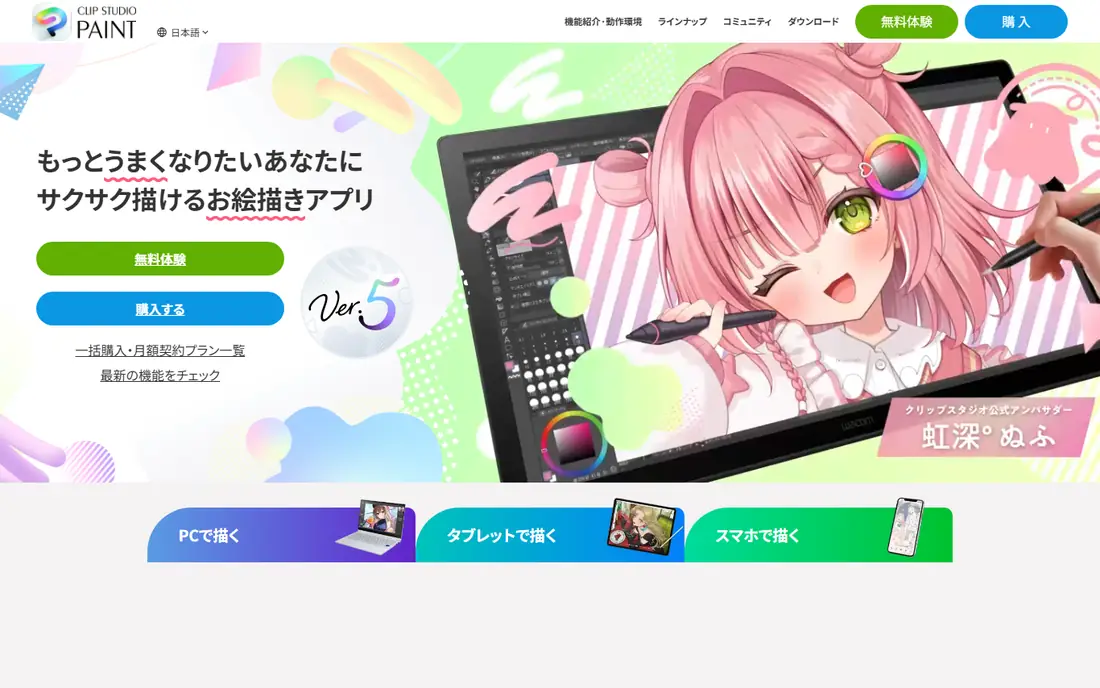
Clip Studio Paint was built for comics first, and that focus shows everywhere. Panel tools, perspective rulers, screen tones, word balloon tools, and inking brushes save comic artists hours compared with adapting a general painting app. Illustration and animation work also fit well. Pricing needs care. Desktop versions offer a one-time Pro license, with prices starting around $49.99, while mobile and higher tiers use subscriptions, and the EX tier is needed for full multi-page comic management. If you draw comics or manga on a PC, this is the tool to trial first, despite the license maze.
- Panel, tone, and inking tools built for comics
- Strong brush customization
- Animation support
- License options are confusing across desktop and mobile
- Higher tier needed for multi-page work
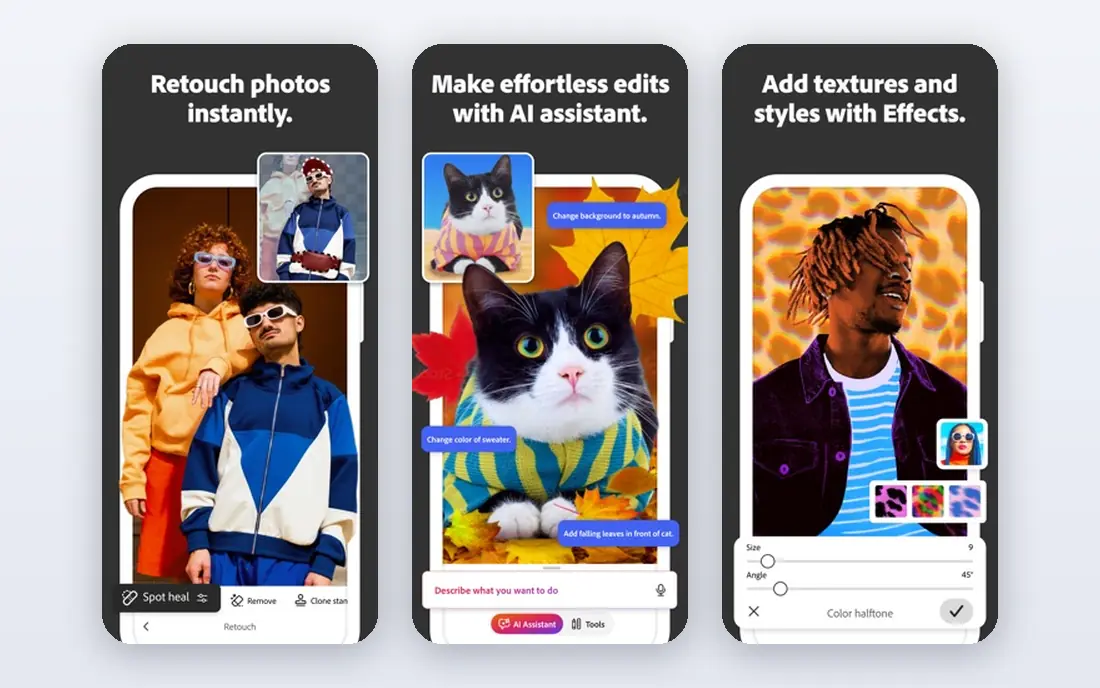
Photoshop remains the broadest tool on this list. It handles painting, illustration, photo editing, and compositing in one program, and most tutorials, courses, and client files assume it. Brushes, layers, masks, and color controls are deep, and files open reliably across studios. The cost model is the main drawback. The single-app plan starts at $22.99 per month billed yearly, and you never own the software. Beginners may also find the sheer number of panels daunting. If you need one tool for client work across painting and photo tasks, Photoshop earns its fee. If you only paint, Krita or Clip Studio Paint may serve you better.
- Deepest all-round toolset for painting and photo work
- Huge tutorial and brush library
- Wide file compatibility
- Subscription only, so costs never stop
- Interface can overwhelm beginners
Affinity, now from Canva, became free in late 2025, which changed the value picture for PC artists. The suite covers photo editing, vector design, and page layout, with strong brush and pen tools for illustration. Performance on typical PCs is brisk, and the interface feels modern without excess clutter. The trade-off is ecosystem size. You will find fewer third-party plugins and fewer courses that assume Affinity than you will for Photoshop. Workflows also differ in small ways that take adjustment. For artists who want professional tools without a subscription, Affinity is now a serious, no-cost option.
- Free professional-grade design suite
- Strong vector and raster tools
- Fast performance on PC
- Smaller tutorial and plugin library than Adobe
- Some workflows differ from Photoshop habits
Corel Painter aims to feel like real paint, paper, and canvas. Its brushes simulate oils, watercolor, pastels, and pencils with a depth that general painting apps rarely match, and paper textures change how strokes behave. For fine artists moving to digital work, that feel is the selling point. Price and complexity limit its audience. A one-time license costs around $429, and the interface rewards painters who already know traditional media terms. Casual sketchers will get more value from Krita. If natural media feel is your top priority and you paint often, Painter is the specialist to consider.
- Most convincing traditional media simulation
- Huge brush and paper library
- Good tablet response
- High one-time price
- Interface and learning curve suit experienced painters
MediBang Paint is a light, free option that works well for comic creators and beginners. It includes comic page templates, panel tools, tones, and cloud saving, so work started on a PC can continue on a phone or tablet. It also runs well on modest hardware, which matters for students. Painting depth is more modest than Krita or Photoshop, with fewer advanced brush controls and blending options. Cloud features also work best with an account. For free comic creation, classroom use, or a first drawing app on a PC, MediBang Paint is friendly and capable.
- Free comic page tools and cloud saving
- Light on PC resources
- Works across PC and mobile
- Fewer advanced painting features than Krita
- Some features need an account and cloud connection
Rebelle focuses on how paint behaves. Watercolor spreads, pools, and dries in ways that feel closer to paper than most painting apps, and oils blend with a similar sense of weight. The interface stays out of the way, which helps painters focus on the canvas rather than menus. That focus narrows its scope. Rebelle is not a comic production tool or a vector editor, and its plugin and file ecosystem is smaller than Photoshop or Krita. Prices start around $89.99 for a one-time license, with a free trial available. If watercolor and oil effects matter most to you, Rebelle offers a distinctive, affordable specialist.
- Realistic wet paint, drying, and blending behavior
- Clean interface for painting
- Good value versus Painter
- Narrower toolset for comics and vector work
- Fewer integrations than larger suites
Inkscape completes this list because drawing on a PC is not only painting. For logos, icons, diagrams, and print illustration, vector tools matter, and Inkscape offers full path editing, shape tools, text on paths, and color controls at no cost. Files scale cleanly to any size, which raster painting apps cannot match. It is not a substitute for Krita or Photoshop for brush painting. The interface also feels technical at first, with more dialogs and settings than a casual sketch app. Pair Inkscape with Krita and you cover painting and vector work on a PC without paying for either.
- Free full vector editing
- Precise paths, shapes, and text tools
- Strong file support for print work
- Not a painting app
- Interface feels technical for beginners
How we picked these
We checked official product pages, pricing pages, and app listings for each tool, and read public reviews and 2026 comparison pages that quoted vendor pricing. We favored software that runs on Windows PCs, is actively maintained, and covers different needs, from free painting to comics, traditional media, and vector work. We excluded tablet-only apps because this list is for PC users, and we did not claim hands-on testing we did not do.
How to choose drawing software for your PC
Start with the kind of art you make most. Painters should trial brush feel, stabilizers, and layer controls. Comic artists should check panel tools, tones, and page management. Vector artists should check path editing and text tools. A tool that excels in one area can disappoint in another, so match the tool to the work, not to popularity alone. Next, check your hardware and files. Large canvases, many layers, and high resolutions need memory and a decent processor, and some free tools run better on modest PCs than heavy suites. Also check file support: PSD compatibility, export to PNG and PDF, and CMYK support for print all affect whether you can share work with clients or printers. Finally, weigh license cost over time. A $22.99 monthly subscription costs about $276 in a year, while a one-time license or a free tool costs far less over the same period. Trials help here: paint a real piece, export it, and see how the tool feels after a few sessions, not just on first open.
Tablets and pens
Most tools on this list work with common tablets from Wacom, Huion, and XP-Pen, with pressure sensitivity as the key feature. An entry-level tablet is enough to start, and a pen display becomes useful once you know your software well. Check driver support for your tablet model before buying expensive software.
Free versus paid drawing apps
Free apps now cover most hobbyist and many freelance workflows, especially for painting and vector work. Paid apps earn their cost through specialist tools, such as comic production in Clip Studio Paint, traditional media in Painter and Rebelle, or broad client compatibility in Photoshop. Start free, then pay only for a feature you actually miss.
FAQ
What is the best free drawing software for PC?
Krita is the best free all-round choice for painting and illustration on PC. MediBang Paint is a good free choice for comics, Inkscape is the best free choice for vector drawing, and Affinity now offers free professional design tools as well.
What is the best drawing app for PC for beginners?
Krita and MediBang Paint are both beginner-friendly and free, with large brush libraries and simple starting setups. Krita suits painters, while MediBang Paint suits comic beginners. Both let you learn without paying before you know what you need.
Is Clip Studio Paint better than Photoshop for comics?
For comic production, yes, in most cases. Clip Studio Paint includes panel, tone, balloon, and page tools that Photoshop lacks, which speeds up comic work. Photoshop remains broader for photo editing and general client work, so some artists use both.
Do I need a drawing tablet to use these apps?
A mouse can work for vector work and basic sketching, but a tablet with pressure sensitivity makes painting far more natural. Entry-level tablets are affordable and work with all the apps on this list, so a tablet is a better first purchase than expensive software.
Can I use these apps for professional client work?
Yes, with the right file checks. Krita, Affinity, Clip Studio Paint, Photoshop, and Inkscape all support professional export formats, and many freelancers use them for paid work. Check client file requirements, color modes, and print specs before delivery, especially for print jobs.