Best PC Editing Apps in 2026: 10 Apps Compared
Best PC editing apps compared for video on Windows and Mac, from free DaVinci Resolve to Premiere Pro, Filmora, CapCut, and open source picks. For PC.

- Editor's choice
 DaVinci Resolve
Free professional editing
Starts atFreeVisit blackmagicdesign.comFull review - Great alternative
 Adobe Premiere Pro
Professional and team editing
Starts at$22.99 per monthVisit adobe.comFull review - Also consider
 CapCut
Fast social video
Starts atFreeVisit capcut.comFull review
TL;DR:
- DaVinci Resolve is our pick for most PC users, because the free version covers editing, colour, audio, and effects with no watermark.
- Adobe Premiere Pro suits professionals and teams already using Adobe tools, but it is a subscription with no perpetual licence.
- Filmora, CapCut, and Clipchamp are faster to learn for social video, tutorials, and everyday YouTube content.
- Open source editors Shotcut, OpenShot, and Kdenlive cost nothing and work well for simple to mid level projects.
- Check your PC specs first, since 4K editing, effects, and colour work need a capable processor, graphics card, and fast storage.
Quick comparison
| Tool | Best for | Starts at | Free plan? | |
|---|---|---|---|---|
| DaVinci Resolve | Free professional editing | Free | Yes | Visit |
| Adobe Premiere Pro | Professional and team editing | $22.99 per month | Free trial | Visit |
| CapCut | Fast social video | Free | Yes | Visit |
 Filmora | Beginner friendly YouTube editing | See website | Yes | Visit |
 Clipchamp | Simple Windows editing | Free | Yes | Visit |
 PowerDirector | Enthusiast editing on PC | See website | Yes | Visit |
 VEGAS Pro | Windows editing with strong audio | See website | Free trial | Visit |
 Shotcut | Free open source editing | Free | Yes | Visit |
 OpenShot | Simple open source editing | Free | Yes | Visit |
 Kdenlive | Free editing on Windows and Linux | Free | Yes | Visit |
The best PC editing apps
PC editing apps range from free tools that rival paid suites to simple editors built for speed. We focused on desktop apps for Windows, with Mac options noted where relevant, and on real editing work such as cutting, titles, audio, colour, and export.

DaVinci Resolve is unusual because its free version is a complete professional editor, not a trial with a watermark. You get timeline editing, advanced colour tools, Fairlight audio mixing, and Fusion visual effects in one download. For many creators, the free version alone replaces a paid subscription.
The paid Studio version, a $295 one time purchase, adds AI tools, higher frame rates, stereoscopic tools, and collaboration features. Most beginners will not need those on day one. Start free, learn the Cut and Edit pages first, and move to Colour only when you want more control over the look of your footage.
- Full editor plus colour, Fairlight audio, and Fusion effects
- Free version has no watermark
- Strong 4K support
- Steep learning curve for colour and Fusion pages
- Studio upgrade costs $295 one time
- Needs a capable PC for heavy projects
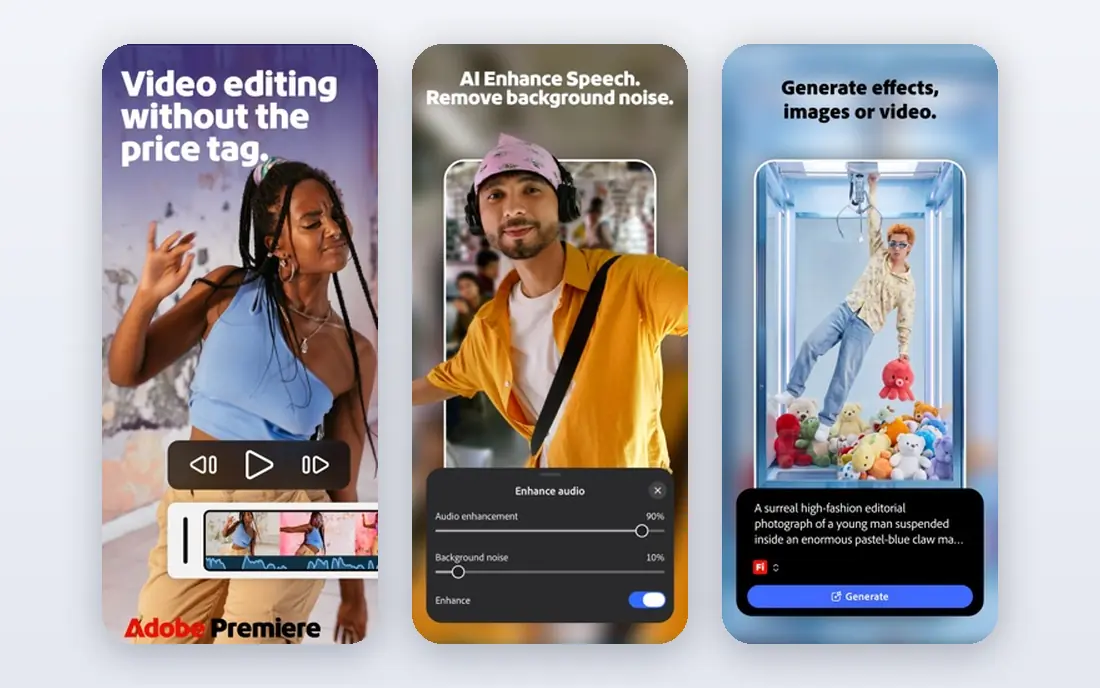
Premiere Pro remains the standard in many studios and agencies, and that matters if you share projects, templates, or jobs with other editors. Its trimming tools, multicam support, captions, and Essential Graphics panel cover broadcast and client work well. Dynamic Link to After Effects and Audition keeps motion graphics and audio work inside the Adobe family.
The cost is the main drawback. At $22.99 per month on an annual plan for a single app, the price adds up over years, and there is no perpetual licence to fall back on. If you already pay for Creative Cloud, Premiere Pro is a natural pick. If you work alone and want to avoid subscriptions, Resolve is the stronger value.
- Industry standard timeline and multicam tools
- Strong links to After Effects, Photoshop, and Audition
- Wide plugin and template support
- Subscription only, so access ends if you stop paying
- Can feel heavy on modest PCs
- Full Creative Cloud costs more
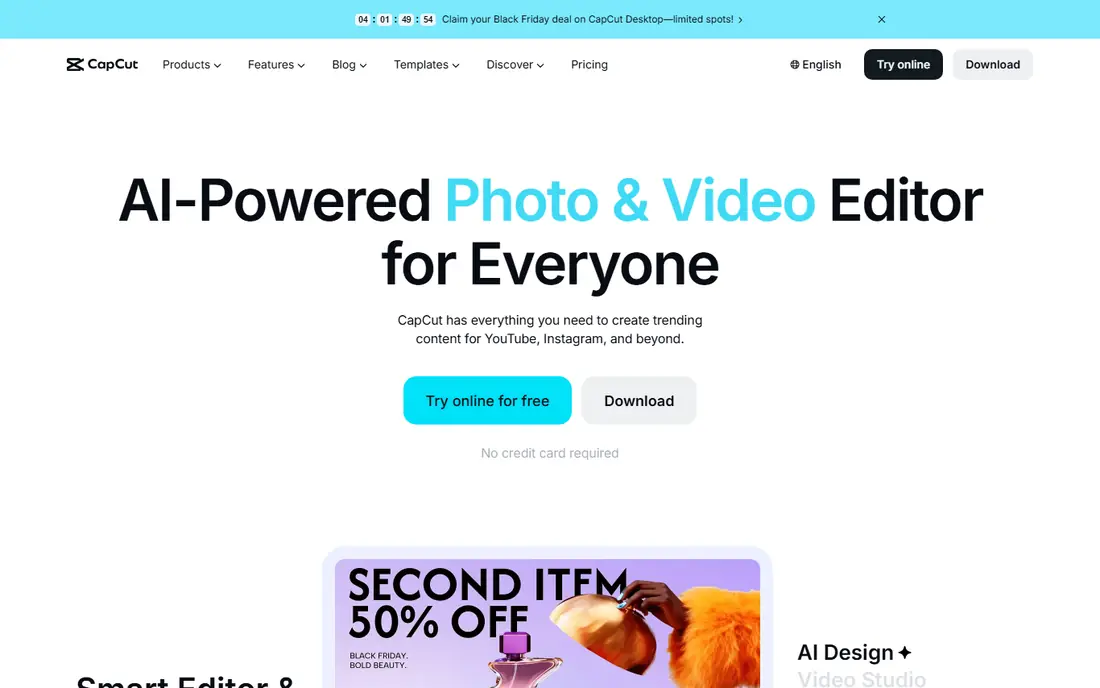
CapCut started on phones and now has a capable desktop app for PC creators who make short form video. Templates, auto captions, trending effects, and simple trimming let you turn raw clips into a finished Reel, Short, or TikTok video in minutes. For creators who post often, that speed matters more than deep colour control.
Serious long form editors will notice limits in audio mixing, colour grading, and project organisation. Think of CapCut as a social first editor, not a replacement for Premiere Pro or Resolve on a documentary or a client film. Used for its strengths, it is one of the fastest ways to publish regularly.
- Fast templates and auto captions
- Easy vertical video for social platforms
- Desktop and mobile versions sync
- Pro features and some templates need payment
- Colour and audio tools are shallower than Resolve
- Cloud features need an account
Filmora is built for people who want a polished YouTube video without learning a professional suite. The interface is clear, effects and titles are easy to apply, and AI features such as auto captions and smart cutout save time on routine tasks. A beginner can produce a clean video on the first day, which is not true of every editor here.
The free version adds a watermark to exports, so budget for a paid plan if you publish regularly. Advanced users may miss the colour depth of Resolve and the plugin range of Premiere Pro. For vlogs, tutorials, product videos, and family projects, Filmora hits a friendly middle ground.
- Clear interface with drag and drop editing
- Large effects, titles, and music library
- AI tools for captions and background removal
- Free exports carry a watermark
- Some effects need payment
- Less depth for advanced colour work
Clipchamp is Microsoft video editor for Windows, and it is the easiest starting point on a new PC. You can trim clips, add text, use templates, and export a finished video without installing a large suite. The browser version also works when you are on a different machine.
It is not a rival to Resolve or Premiere Pro for complex work. Colour tools, audio mixing, and effects are simpler, and premium stock and features sit behind Microsoft 365. For school projects, work presentations, and quick social clips, Clipchamp is fast, free to start, and hard to get wrong.
- Free basic editor included with Windows
- Browser based as well as app based
- Simple templates and stock media
- Advanced features need a Microsoft 365 plan
- Export options are limited on free tiers
- Less control than desktop suites
PowerDirector from CyberLink has long been a favourite for Windows enthusiasts who want more than a basic editor but do not want a steep professional learning curve. It offers motion tracking, masks, titles, effects, and AI tools in a layout that is easier to learn than Resolve. Rendering performance is often strong, even on mid range hardware.
The 365 subscription gives ongoing updates and effects packs, while a perpetual version is also sold at times, so check the current offer before you buy. If you edit travel videos, family films, or YouTube content on Windows and want effects without a subscription only workflow, PowerDirector deserves a trial.
- Fast rendering on many PCs
- Strong effects and title tools
- Good 360 and AI features for enthusiasts
- Subscription model for the full 365 version
- Interface has many panels
- Some AI tools need an internet connection
VEGAS Pro grew out of an audio background, and that heritage still shows in its timeline and audio tools. Editors who care about music, voice, and sound design often find its workflow natural, and its flexible timeline suits event films, music videos, and long form projects on Windows.
It is Windows only, so Mac users should look elsewhere, and its community of templates and tutorials is smaller than the Adobe world. A trial is the best way to judge it, since the timeline feel is personal. If audio matters as much as picture in your work, VEGAS Pro is a serious option.
- Strong audio editing heritage
- Flexible timeline
- Good for music videos and event films
- Windows only
- Smaller template and plugin community than Adobe
- Full price is high for casual users
Shotcut is a free, open source editor for Windows, Mac, and Linux, and it handles real projects far better than its plain interface suggests. You get timeline editing, filters, transitions, audio tools, and 4K export, with support for a wide range of video formats. There is no watermark and no subscription.
The trade off is polish. There are fewer ready made templates, fewer AI helpers, and less hand holding for beginners. If you are comfortable learning from documentation and community forums, Shotcut is a strong free pick for YouTube, school, and hobby projects.
- Free with no watermark
- Wide format support
- Filters, transitions, and 4K export
- Interface feels plain
- Fewer templates and AI tools
- Learning resources are thinner than major paid apps
OpenShot is the simplest open source editor on this list, and it is a good first editor for a student or a casual creator. Clips drag onto a timeline, titles and transitions are straightforward, and exports cover common formats. The lack of cost and watermark makes it easy to recommend for simple work.
Large projects with many clips and effects can strain OpenShot, and it lacks the colour and audio depth of Resolve. Use it for short videos, slideshows, and simple edits, and move to Shotcut or Resolve when a project grows in length or complexity.
- Very easy to learn
- Free with no watermark
- Works on Windows, Mac, and Linux
- Can slow down on large projects
- Fewer advanced tools
- Stability varies with project size
Kdenlive is a free, multitrack editor that is especially popular on Linux, with a Windows version as well. It offers effects, transitions, titles, audio mixing, and proxy editing for smoother playback on slower machines. For a free tool, its timeline depth is impressive.
Beginners may find the interface less welcoming than Filmora or Clipchamp, and template support is thinner. If you use Linux, or you want a free editor with more depth than OpenShot, Kdenlive is a solid choice that grows with your skills.
- Free and open source
- Multitrack timeline with effects and titles
- Strong for Linux users
- Windows version can feel less polished
- Fewer templates than Filmora
- Setup takes more care
How we picked these
We compared official feature pages, pricing pages, system requirements, and public reviews for desktop editors that are actively maintained in 2026. We favoured apps that export without a forced watermark on a usable free or paid plan, support common formats and 4K where claimed, and suit a clear user, from a beginner to a professional. We noted subscription costs, platform limits, and hardware needs honestly.
How to choose the right PC editor
Start with your video type
Short social clips, YouTube vlogs, tutorials, and client films need different tools. Social creators benefit from templates and captions, while client work benefits from colour, audio, and reliable export. Pick the editor that matches most of your output, not the one with the longest feature list.
Check hardware before you buy
Editing 4K footage with effects needs a modern processor, a capable graphics card, at least 16 GB of memory for comfortable work, and fast SSD storage. Proxy editing, where the app uses smaller preview files, helps on slower PCs. Try a trial with your own footage before committing to a paid plan.
Think about cost over three years
A subscription that looks cheap monthly can cost more than a one time purchase over three years. Compare Resolve Studio at $295 once with Premiere Pro at $22.99 per month, and with Filmora or PowerDirector annual plans. Free editors cost nothing, but they may cost time in learning and in missing templates.
Test export early
Before you invest hours in a project, export a short test clip in the format and resolution you need. Check quality, file size, captions, and audio levels. An editor that exports cleanly on your PC is worth more than one with features you never use.
FAQ
What is the best PC editing app for beginners?
Filmora and Clipchamp are the easiest starts for most beginners, with clear interfaces and templates. OpenShot is a good free alternative for very simple projects. Move to DaVinci Resolve when you want deeper colour and audio control.
Is DaVinci Resolve really free?
Yes, the standard version of DaVinci Resolve is free and exports without a watermark. The Studio version costs $295 as a one time purchase and adds AI tools, higher frame rates, and collaboration features. Most creators can start free and upgrade only if they need those extras.
Is Premiere Pro worth the subscription?
It is worth it for professionals, teams, and anyone who shares projects with Adobe users. For a solo creator who wants to avoid ongoing costs, DaVinci Resolve offers similar professional depth for free or for a one time Studio fee. Judge by your workflow and your budget over three years, not by one month.
Can a basic laptop edit video?
Yes, for 1080p social clips and short projects, especially with proxy editing and a simple editor such as Clipchamp or CapCut. For 4K, long timelines, and heavy effects, a desktop or a capable laptop with a dedicated graphics card and fast storage will save a lot of waiting time.
What is the best free PC editing app?
DaVinci Resolve is the best free editor for serious work, thanks to its colour, audio, and effects tools. Shotcut and Kdenlive are strong free open source alternatives, and OpenShot suits the simplest projects. All three export without a watermark.
Do I need a Mac for professional editing?
No. DaVinci Resolve, Premiere Pro, Filmora, PowerDirector, and VEGAS Pro all run on Windows PCs, and many studios edit on PC. Mac only tools such as Final Cut Pro are a separate choice, but they are not required for professional results on a PC.