Best Design to Code Tools in 2026: 8 Tools Compared
Find the best design to code tools that turn Figma and mockups into clean code. We compare 8 tools for web, mobile, and product teams and agencies in 2026.
- Editor's choice
 Figma Dev Mode
Figma handoff to code
Starts atSee websiteVisit figma.comFull review - Great alternative
 Anima
Figma to React and HTML
Starts atSee websiteVisit animaapp.comFull review - Also consider
 Locofy
Figma and Adobe XD to code
Starts atSee websiteVisit locofy.aiFull review
TL;DR:
- Figma Dev Mode and Anima lead for teams already working in Figma, while Framer and Webflow suit designers who want a live site without heavy coding.
- Locofy and Builder.io suit developers who want production-ready code for React and other frameworks.
- Generated code still needs review, since layout, accessibility, and performance can suffer if code is shipped without checks.
- Test each tool on a real screen from your own project, not only on a demo file, before choosing.
Quick comparison
| Tool | Best for | Starts at | Free plan? | |
|---|---|---|---|---|
| Figma Dev Mode | Figma handoff to code | See website | Free trial | Visit |
| Anima | Figma to React and HTML | See website | Free trial | Visit |
| Locofy | Figma and Adobe XD to code | See website | Free trial | Visit |
 Framer | Design to live site | See website | Yes | Visit |
 Webflow | Visual site building | See website | Yes | Visit |
 Builder.io | Visual code for apps | See website | Yes | Visit |
 TeleportHQ | Low-code site building | See website | Yes | Visit |
 Supernova | Design system to code | See website | Free trial | Visit |
The best design to code tools
We compared design to code tools on input support, code quality, framework options, responsive handling, and team workflow. The best design-to-code software saves time on layout and components, but it does not replace a developer review. Use this list to match a tool to whether the goal is a live site, production app code, or a design system.

Figma Dev Mode is the default handoff tool for teams that already design in Figma. Developers can inspect a frame, copy CSS, iOS, or Android snippets, see spacing and color tokens, and track which designs are ready for development. That workflow keeps design and code in one place, without exporting files to a separate tool.
Dev Mode also helps design systems. Components, variables, and styles are shown with names and values, so a developer can match code to tokens rather than guessing hex codes. Annotations and version comparison help a team see what changed between design rounds.
The catch is code quality. Dev Mode snippets are a starting point, not production code, and they often need cleanup for responsive layout, accessibility, and component reuse. Teams that expect copy-paste production code will be disappointed. Use Dev Mode for specs and handoff, then build components with developer review.
- Built into Figma
- Clear specs and code snippets
- Design system support
- Snippets need developer cleanup
- Full features need a paid plan
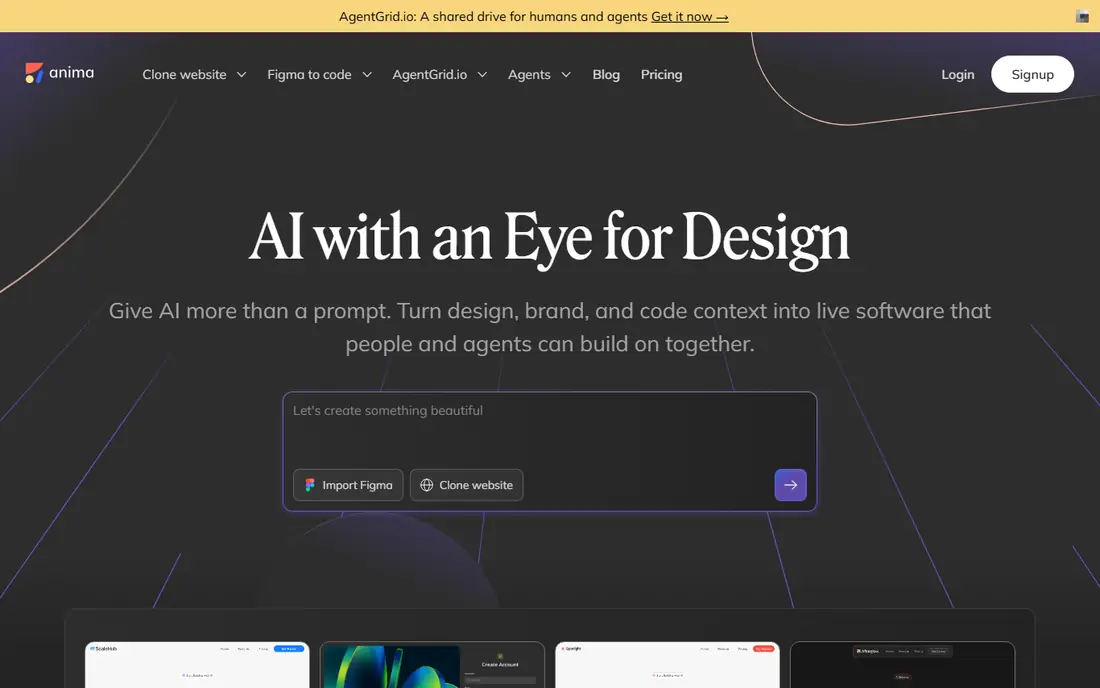
Anima turns Figma designs into React, HTML, and Vue code through a plugin and web app. Designers can select frames, set breakpoints, and export code that is closer to production than a simple snippet. That output helps a developer start a screen quickly, rather than rebuilding layout from scratch.
The tool also supports interactive prototypes, with links and animations that can be previewed before export. Anima handles common components such as buttons, inputs, and cards, and it lets teams set code preferences for frameworks and styling. That flexibility suits teams that use React for web apps.
The drawback is cleanup for complex screens. Dense layouts, overlapping layers, and poorly named Figma layers produce messy code, so design hygiene matters. Anima works best when Figma files are organized with clear names and auto layout. Test it on a real project screen, and budget time for developer review.
- Exports React, HTML, and Vue code
- Good Figma plugin
- Responsive options
- Complex layouts need cleanup
- Pricing scales with projects
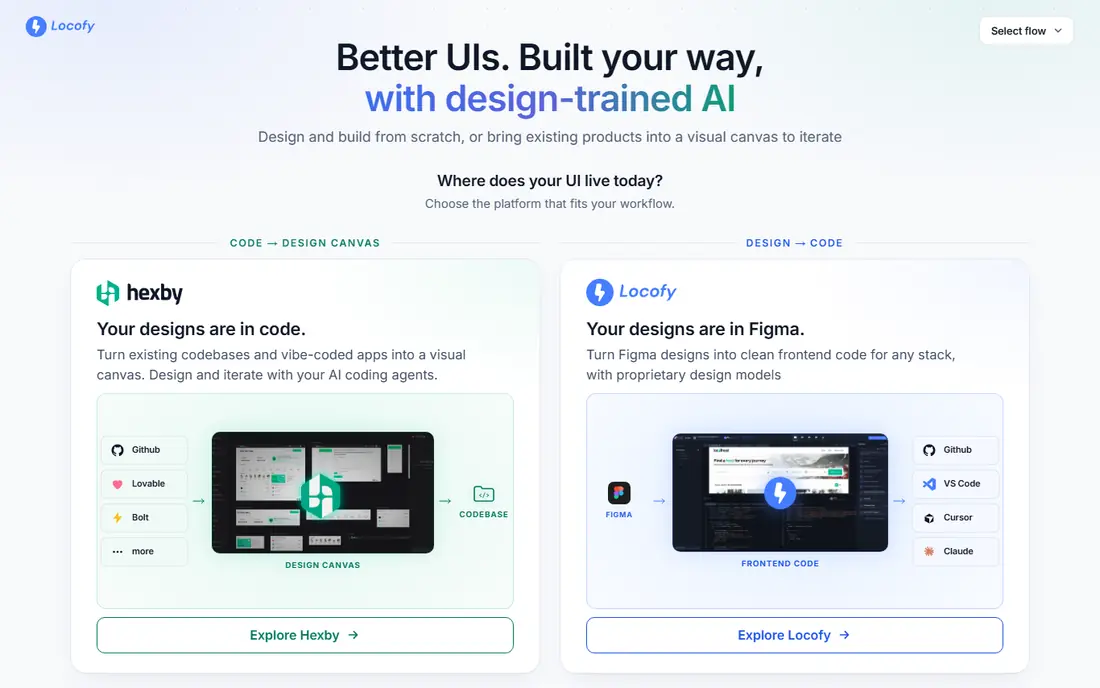
Locofy converts Figma and Adobe XD designs into code for React, React Native, Next.js, Flutter, and other frameworks. Its plugin lets a designer tag layers as components, set props, and preview the result before export. That tagging step gives developers more control than a blind export.
The tool also supports responsive design, with breakpoints that can be set in the design file. Developers can choose styling options and see how code maps to design layers, which helps when a screen needs changes after export. Locofy suits teams building both web and mobile apps from one design source.
The catch is setup time. Tagging and organizing a design file takes effort, and a messy Figma file will still produce messy code. Large apps also need developer review for state, data, and navigation, which Locofy does not generate. Use Locofy for screens and components, not for a full app logic layer.
- Exports to many frameworks
- Live preview
- Component tagging
- Learning curve for tagging
- Output needs review for large apps
Framer lets designers build a site visually and publish it live without writing code. Its canvas feels like a design tool, with layout, text, and animation controls that produce a real website. That workflow suits marketing sites, portfolios, and landing pages where speed matters more than custom app code.
Templates and components speed up common pages, and Framer includes hosting, SEO settings, and analytics in paid plans. Designers can add CMS content for blogs and case studies, and preview sites on mobile and desktop before publishing. The free plan lets a user test the canvas and publish a simple site.
The drawback is code control. Framer is not the best choice for teams that need to export clean React code for an existing app, since its strength is publishing from Framer itself. Complex app logic, databases, and custom backends also sit outside its focus. Choose Framer for live sites, not for code export to another stack.
- Design and publish in one tool
- Strong animations
- Free plan to start
- Code export is limited
- Less suited to complex app logic
Webflow is a visual builder that produces HTML, CSS, and JavaScript for websites, with CMS and hosting built in. Designers can build responsive layouts, animations, and interactions without writing code, while developers can inspect the underlying code and structure. That mix suits agencies and marketing teams that need polished sites fast.
The CMS helps blogs, portfolios, and product pages, with collections that can be edited without touching layout. Webflow also offers templates, a large community, and courses that teach layout, responsive design, and interactions. The free plan lets a user learn the builder and stage a site.
The catch is learning curve and export rules. Advanced layouts take time to master, and code export sits in paid plans. Webflow suits sites built and hosted in Webflow more than code that will be moved to another system. Test a real page in the free plan before committing to a paid tier.
- Visual HTML and CSS building
- CMS and hosting
- Strong community
- Learning curve for advanced layouts
- Code export needs a paid plan
Builder.io lets teams edit web pages and app screens visually, while developers keep control of code and data. It integrates with React, Next.js, and other frameworks, so a marketing team can change copy, images, and layout without a developer deploy for every edit. That workflow suits product and marketing teams that share a site.
The platform also includes a CMS, targeting, and testing tools, so different page versions can be shown to different audiences. Developers can register custom components, which then appear as drag-and-drop blocks for non-developers. That balance of control and freedom is Builder.io's main strength.
The drawback is setup. Builder.io needs developer integration first, and its pricing scales with traffic, users, and features. Small teams with a simple site may find Framer or Webflow simpler. Builder.io suits teams that already run a React or Next.js app and want visual editing on top of it.
- Visual editing for React and Next.js
- CMS for pages
- A/B testing
- Setup needs developer help
- Pricing scales with traffic and users
TeleportHQ is a low-code builder that lets users design a site visually and export code for React, Vue, Angular, and HTML. That export option sets it apart from tools that only publish from their own platform. Designers can build pages, set responsive layouts, and then hand code to developers for further work.
The builder includes components, templates, and CMS options for common site types, plus collaboration tools for small teams. TeleportHQ also offers AI-assisted generation for starting points, which can speed up a first draft. The free plan lets a user test the builder and export basics.
The catch is community size. TeleportHQ has fewer templates, tutorials, and third-party resources than Webflow or Framer, so finding help for a niche problem can take longer. Test code export on a real page, and check that the output fits the team's framework and styling rules before choosing it for a large project.
- Visual builder with code export
- Supports React and Vue
- Free plan
- Smaller community than Webflow
- Fewer templates than larger tools
Supernova focuses on design systems, turning Figma tokens and components into code for web, iOS, Android, and other platforms. Teams can define colors, typography, spacing, and components once, then export them as code packages for each platform. That workflow keeps design and code in sync as a system grows.
Documentation is another plus. Supernova can generate design system docs from the same source, so designers and developers share one reference. That helps large teams avoid drift, where web and mobile versions of a component slowly differ. Integrations with Figma keep tokens updated when designs change.
The drawback is scope. Supernova is not a general design to code tool for one-off pages, and it needs a disciplined design system to pay off. Small teams without tokens and components may find it heavy. For a team building a multi-platform design system, Supernova is a strong and focused choice.
- Turns design tokens into code
- Supports many platforms
- Good for systems
- Not a general page builder
- Setup needs design system discipline
How we picked these
We compared official feature pages, input formats, output frameworks, responsive handling, and team workflows. We gave extra weight to code quality, framework support, and real project testing, since demo files can hide cleanup work. We included handoff tools, page builders, and design system tools, so readers can match a tool to the goal. Prices and features change, so confirm current details on the vendor site.
How to choose a design to code tool
Start with the end goal. A live marketing site suits Framer or Webflow, production app screens suit Anima or Locofy, Figma handoff suits Dev Mode, and a design system suits Supernova. Picking a tool before defining the goal leads to a mismatch, where a page builder is asked to produce app code or vice versa.
Next, test on a real screen. Export a screen from your own project, check responsive behavior at mobile and desktop sizes, and review the code for naming, structure, and accessibility. Look for semantic HTML, alt text handling, and keyboard focus support. A tool that looks good in a demo but fails on a real screen will cost more time than it saves.
Finally, plan developer review into the workflow. Generated code should pass linting, accessibility checks, and performance review before shipping. Set naming rules in Figma, use auto layout, and keep components consistent, since clean design input produces cleaner code output. Treat the tool as a starting point, not a finished product.
FAQ
Which design to code tool is best?
Figma Dev Mode is best for handoff inside Figma, Anima and Locofy are best for production code export, and Framer and Webflow are best for live sites. The best tool depends on whether the goal is code, a live site, or a design system. Test each on a real screen before deciding.
What is the best design to code tool for React?
Anima and Locofy both export React code from Figma, and Builder.io adds visual editing for React apps. Anima suits straightforward screens, while Locofy suits teams that want component tagging and multi-framework output. Review exported code for component reuse and styling before shipping.
Can design to code tools replace developers?
No, these tools speed up layout and component work, but developers still need to handle data, state, navigation, accessibility, and performance. Generated code needs review, testing, and integration with backends and APIs. Treat the tool as an accelerator, not a replacement for engineering.
Does Figma Dev Mode generate production code?
Dev Mode gives code snippets and specs for handoff, not full production code. Snippets help developers match spacing, colors, and layout, but they need cleanup for responsive design and component reuse. Teams that need fuller code export should test Anima or Locofy.
How do I get clean code from Figma?
Use auto layout, name layers clearly, group components, and define tokens for colors and type. Avoid overlapping layers and hidden elements, since those produce messy code. A clean Figma file is the single biggest factor in clean exported code, regardless of tool.
Is Webflow a design to code tool?
Webflow is a visual site builder that produces HTML, CSS, and JavaScript, and it can export code on paid plans. It suits sites built in Webflow, while Anima and Locofy suit code for an existing app stack. Choose based on whether the site will live in Webflow or in your own codebase.