6 Best Collaborative Document Editing Software for Nonprofits for 2026, Vetted and Compared
Compare 6 best collaborative document editing software for nonprofits, with prices, free plans and who each fits. Details on cost, catches and fit. Plain facts.
- Editor's choice
 Coda
Docs that behave like light apps
Starts atSee websiteVisit coda.ioFull review - Great alternative
 Microsoft 365
Organizations standardized on Office files
Starts atSee websiteVisit microsoft.comFull review - Also consider
 Quip
Documents tied to Salesforce workflows
Starts at$10 per user per monthVisit quip.comFull review
Direct answer
For docs that behave like light apps, Coda is where this list starts. Listed starting prices: Quip from $10 per user per month and Notion from $10 per member a month. Microsoft 365 fits organizations standardized on Office files; Quip fits documents tied to Salesforce workflows. The other 3 tools in the list cover narrower or pricier cases.
TL;DR:
- Number one here is Coda, a fit for docs that behave like light apps.
- For knowledge bases and project documentation, Confluence is worth a look.
- Notion is the only tool of the 6 with a free plan.
- What to know about Microsoft 365 first: feature depth can overwhelm occasional users.
- Starting prices begin at $10 per user per month with Quip.
Last checked November 2026. Prices and plan details were read from the vendors' own pages in November 2026; vendors change plans often, so confirm the current price on the vendor site before you buy.
Quick comparison
| Tool | Best for | Starts at | Free plan? | |
|---|---|---|---|---|
| Coda | Docs that behave like light apps | See website | Not stated | Visit |
| Microsoft 365 | Organizations standardized on Office files | See website | Free trial | Visit |
| Quip | Documents tied to Salesforce workflows | $10 per user per month | No | Visit |
 Google Workspace | Everyday live editing across teams | See website | Not stated | Visit |
 Notion | Docs, wikis and databases in one workspace | $10 per member a month | Yes | Visit |
 Confluence | Knowledge bases and project documentation | See website | Not stated | Visit |
Collaborative Document Editing Software for Nonprofits, one by one
LinkVetted put together this guide to collaborative document editing software for nonprofits for readers who want a clear shortlist without reading every vendor page. It compares 6 tools on starting price, free plans, who each one suits and where each one falls short.
Coda works best for docs that behave like light apps. Choose Coda when tracked, structured work matters; choose a plainer editor when the goal is simply shared writing.
Where it is weaker: App-like features need setup effort.
Pricing for Coda is not stated here, so ask the vendor for current figures. Trial and free access: Not stated.
- Automations and buttons inside documents
- Docs blended with spreadsheet-like tables
- Can feel complicated for straightforward writing tasks
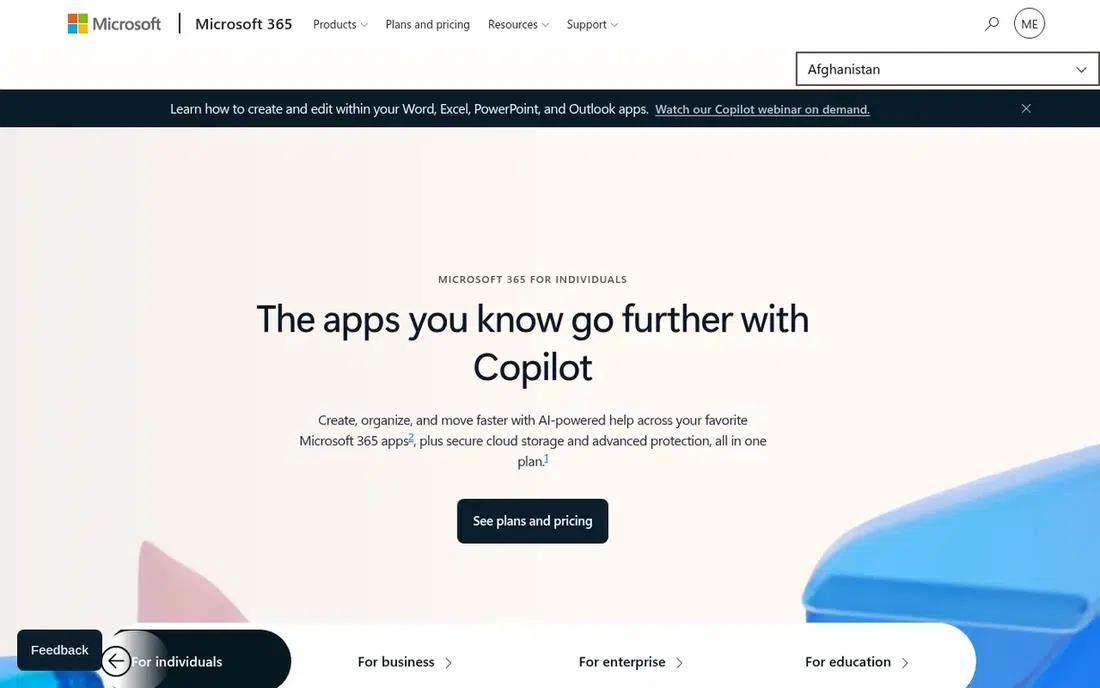
Microsoft 365 is a good fit for organizations standardized on Office files. Microsoft 365 is a subscription suite of productivity apps and cloud services with world-class security and feature-rich AI. Also, since it centers on the Office applications plenty of nonprofits already use, existing templates, reports and spreadsheets carry over with little disruption.
Honest limits: Mixing desktop and web versions takes coordination.
From a buyer's view, pick something more straightforward if your team chiefly needs light shared drafts instead of full desktop productivity. The breadth of apps and settings can slow down volunteers who only edit occasionally, and license administration takes some care. Microsoft 365 does not show a starting price in this comparison, so check the vendor site for current pricing. Free plan details: Free trial.
Highlights: Excel and PowerPoint formats.
- AI assistance built into the apps
- Cloud collaboration with solid security features
- Feature depth can overwhelm occasional users
In short, Quip is for documents tied to Salesforce workflows. Quip gives you live collaborative documents, spreadsheets and chat embedded inside Salesforce to transform business processes.
Consider a general-purpose suite first if your document work is not tied to that system. Also, documents and conversation live side by side, which helps teams working through donor, partner or program records keep context in one place. Starting cost for Quip: $10 per user per month. Quip does not include a free plan.
The main drawbacks: Narrower fit for teams outside that ecosystem.
- Embedded inside Salesforce processes
- Live documents
- Value relies on Salesforce use
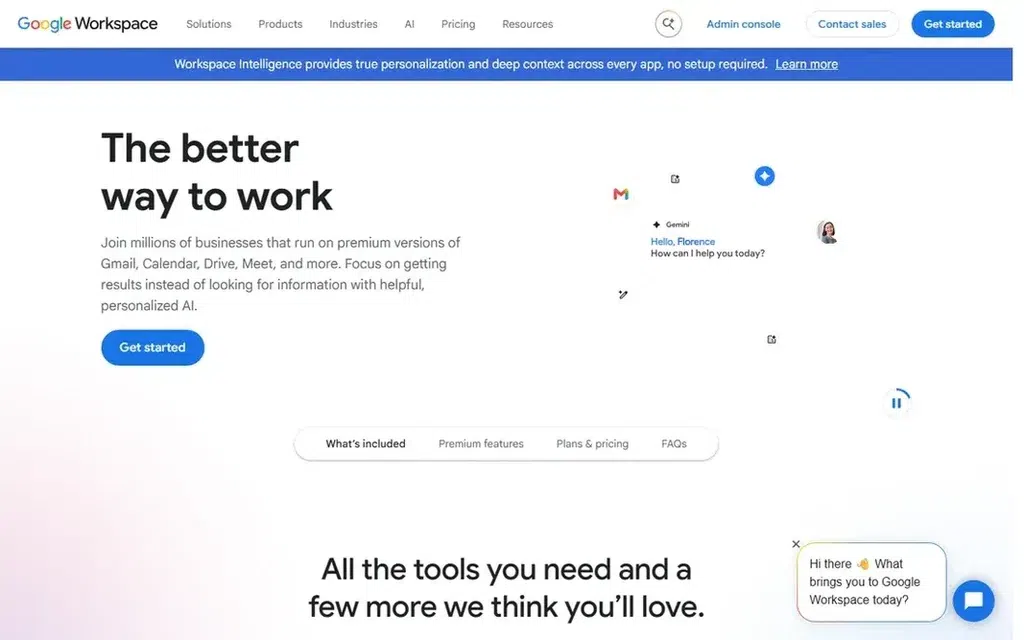
Pick Google Workspace if this describes you: everyday live editing across teams. For nonprofits that run on shared drafts, meeting notes and grant documents, it keeps editing and commenting in one connected place with centralized administration. Google Workspace is a suite of secure online productivity and collaboration tools geared toward teams of all sizes.
Worth adding: documents, spreadsheets and presentations are edited together in the browser, with sharing settings that staff and volunteers typically grasp rapidly. Offline work and heavy formatting needs can feel restricted compared to desktop-first suites, and organizations with strict file-format requirements may prefer Microsoft 365. No starting price is listed for Google Workspace here; confirm pricing on the vendor site. Free access: Not stated.
The main drawbacks: Best experience needs consistent browser use.
- Live co-editing in Docs
- Straightforward sharing and permission controls
- Advanced controls sit in higher admin levels
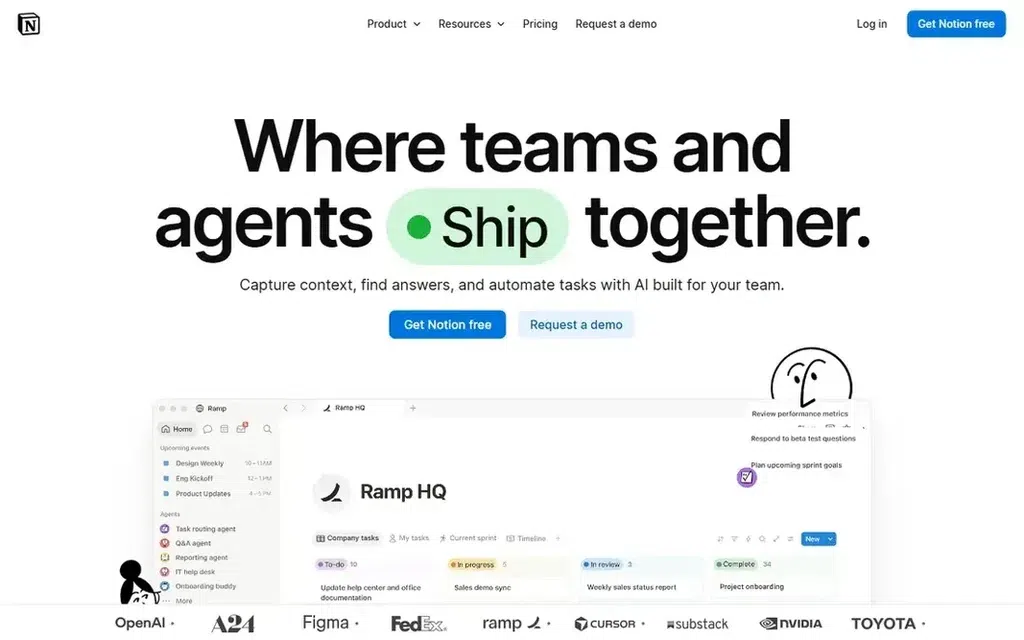
Notion is built with docs, wikis and databases in one workspace in mind. If you need strict document formatting or tightly governed records, a more conventional suite may be the better fit. The openness that makes Notion adaptable also invites clutter, and heavier database setups demand patience from new users.
As for the details, Notion describes itself as an AI workspace where teams get more done, quicker, with custom agents, cross-app search and automation. Pages combine documents, databases and embedded content, so a nonprofit can keep policies, project trackers and meeting notes in one connected space. The starting price for Notion: $10 per member per month. You can start on Notion without paying.
Points against: Adaptable structure can sprawl without conventions.
- Adaptable pages that mix text
- AI features for drafting and searching
- Complicated databases have a ramp-up time
Confluence was built for knowledge bases and project documentation. If your priority is fast shared drafts instead of a maintained knowledge base, a more straightforward tool may serve better. Confluence is presented as an AI workspace for knowledge and collaboration, where teams build and share knowledge and use AI to draft, summarize and find answers.
Limits to weigh: Page organization needs planning.
From a buyer's view, without a clear structure, page hierarchies can become hard to navigate. The editing experience is less spontaneous than in light editors. Confluence does not show a starting price in this comparison, so check the vendor site for current pricing. On free options: Not stated.
- Solid fit for continuing project documentation
- Summarizing and search
- Editing can feel heavier than straightforward docs
How we built this list
Pricing pages, product documentation and feature lists were the main sources, and every entry carries at least one honest drawback. Treat prices as a snapshot: vendors change plans often, so check the vendor site for the figure that applies today. The order reflects how well each tool fits the most common buying scenario for collaborative document editing software for nonprofits, then price clarity, then free plan access. It is a starting point, not a verdict.
A buyer's checklist
- Get a written quote from Coda, Microsoft 365, Google Workspace and Confluence; the list shows no starting price for them.
- Test the free plan from Notion against your real workload before relying on it.
- Run a trial of Microsoft 365 with real work before paying for a year; your own workflow is the best test.
- Before choosing Coda, weigh its main limit: app-like features need setup effort.
- Check whether the features you need in Coda sit on the entry plan or only on higher tiers.
- Check the integration list for Notion against the tools you run today, and note which ones need a higher plan.
FAQ
What is the cheapest option for collaborative document editing software for nonprofits in this list?
On published monthly entry prices, Quip is the lowest here at $10 per user per month. Entry price is only part of the cost, because seats, add-ons and billing terms can change the total. Each of the 6 options in this collaborative document editing software for nonprofits guide has its own card above with the price, free plan and limits.
Which options for collaborative document editing software for nonprofits have a free plan?
Notion is the only tool in this list with a free plan. Free plans usually cap users, projects or features, so check the limits on the vendor page. One other tool offers a trial instead. All 6 picks in this collaborative document editing software for nonprofits comparison list a starting price, free plan details and the main limits on their cards above.
Can we combine tools rather than choosing one?
Yes, and plenty of nonprofits do, pairing a document suite for everyday editing with a content product for governed storage or a workspace for internal knowledge. The key is agreeing on where the authoritative copy of each document lives.
Do nonprofits need a knowledge base or just shared documents?
If your team keeps returning to policies, procedures and program guides, a knowledge-focused tool such as Confluence or Notion pays off. For meeting notes and one-off drafts, a standard document suite is more straightforward.
Is Coda the right pick for everyone comparing collaborative document editing software for nonprofits?
No single tool suits every team. Coda comes first because it fits docs that behave like lightweight apps, while Microsoft 365 suits organizations standardized on Office files and Quip suits documents tied to Salesforce workflows. Match the tool to your own size, budget and workflow before deciding.
How are the tools for collaborative document editing software for nonprofits ordered?
The order follows typical fit for collaborative document editing software for nonprofits, with Coda first and Confluence last, then price clarity and free access. It is editorial judgement, not a score, so another team could rank the tools differently.
Sources
- https://coda.io
- https://www.microsoft.com/microsoft-365
- https://quip.com
- https://workspace.google.com
- https://www.notion.com
- https://www.atlassian.com/software/confluence