Best Calendar Apps in the United States in 2026: 8 Apps Compared
Our guide to the best calendar apps in united states covers free and paid picks for work, family, and school, with pricing and sharing compared. for 2026.
- Editor's choice
 Google Calendar
Free all-round calendar
Starts atFreeVisit calendar.google.comFull review - Great alternative
 Apple Calendar
Free calendar for Apple users
Starts atFreeVisit apple.comFull review - Also consider
 Outlook Calendar
Calendar for Microsoft 365 users
Starts atFreeVisit outlook.live.comFull review
TL;DR:
- Google Calendar is the best free starting point for most people in the United States, thanks to wide sharing and Gmail integration.
- Apple Calendar is the simplest free pick for iPhone and Mac owners, while Outlook Calendar fits Microsoft 365 households.
- Fantastical and Morgen suit power users who want natural language entry and time blocking, but both cost more.
- Any.do and TickTick combine calendars with tasks, which helps if your to-do list keeps getting lost.
Quick comparison
| Tool | Best for | Starts at | Free plan? | |
|---|---|---|---|---|
| Google Calendar | Free all-round calendar | Free | Yes | Visit |
| Apple Calendar | Free calendar for Apple users | Free | Yes | Visit |
| Outlook Calendar | Calendar for Microsoft 365 users | Free | Yes | Visit |
 Fantastical | Polished calendar for Apple users | See website | Yes | Visit |
 Notion Calendar | Free calendar for Notion users | Free | Yes | Visit |
 Any.do | Calendar plus tasks in one app | See website | Yes | Visit |
 TickTick | Calendar with strong task tools | See website | Yes | Visit |
 Morgen | Time blocking for professionals | See website | No | Visit |
The best calendar apps in the United States
A good calendar app in the United States needs to handle work meetings, school dates, and family plans without forcing everyone onto the same phone or email service. The eight apps below cover that range, from free defaults built into phones to paid tools with smarter scheduling. We compared sharing, device support, and pricing, and we kept the focus on apps that work well with US time zones, holidays, and common work tools.
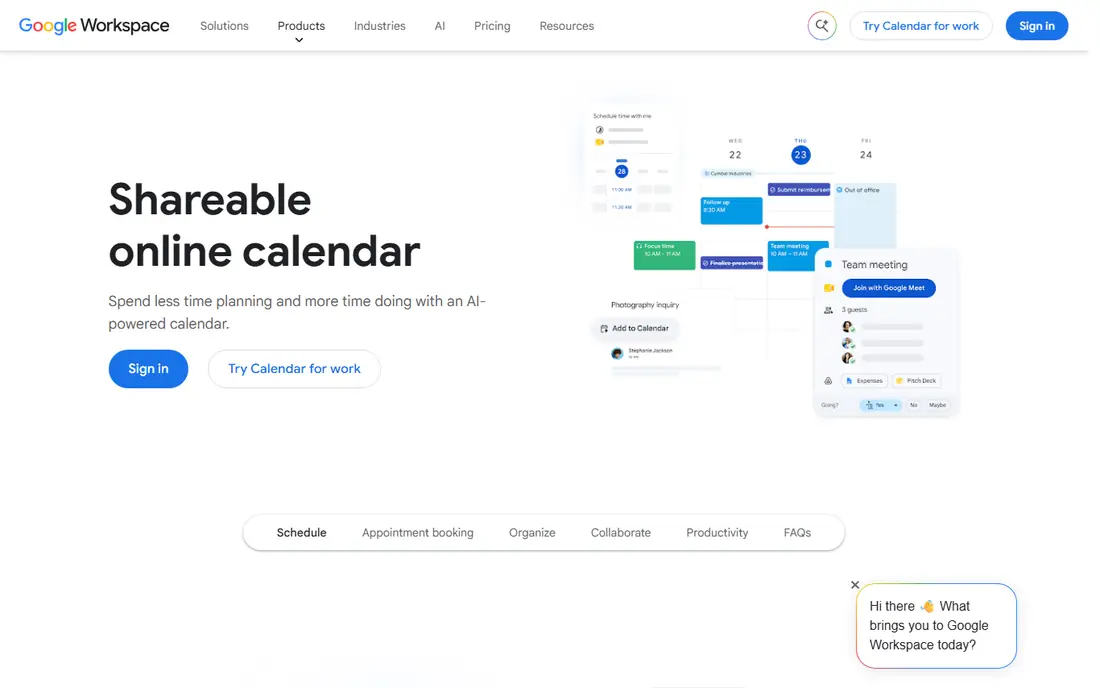
Google Calendar is the default we recommend first, because it works on iPhone, Android, and the web, and almost everyone you meet can share an event with it. Gmail can add flights and reservations automatically, and Meet links attach to events in one step. Multiple calendars, colors, and shared family calendars make it easy to separate work from home life.
The weakness is depth: time blocking and advanced scheduling need add-ons or a paid Workspace plan. If you want a calendar that simply works everywhere and costs nothing, Google Calendar is the safe pick, and most of the paid apps below can sync with it anyway.
Before you settle on this one, check the official site for the current plan details and device support, since catalogs and prices change during the year. The free tier or trial, where one exists, is the cheapest way to confirm it fits your daily routine. If it passes that short test, it is worth keeping for a full month before you pay for anything.
- Free and cross-platform
- Strong sharing and Gmail integration
- Good event search
- Fewer power features than paid rivals
- Needs a Google account for full use
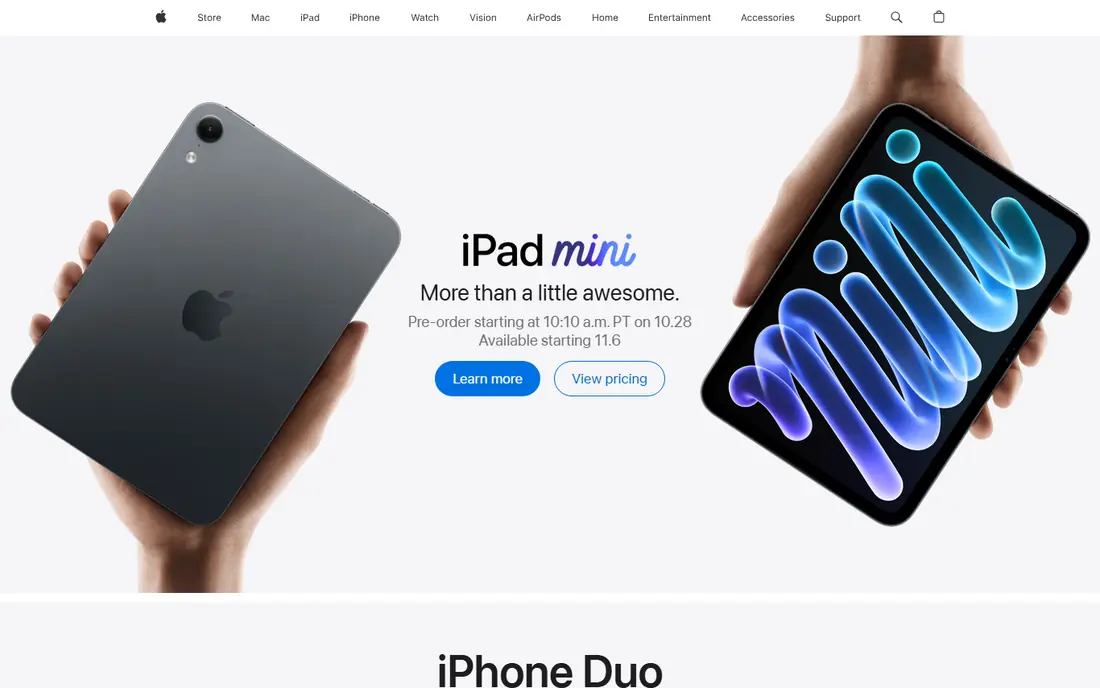
Apple Calendar is built into every iPhone, iPad, and Mac, and it syncs through iCloud without extra setup. Siri can create events by voice, and you can add Google and Exchange accounts so work events appear beside personal ones. The design stays calm, which helps on a small phone screen.
The limit is platform: there is no native Android or Windows app, so mixed-device households need another app as the shared hub. For an all-Apple household, though, Apple Calendar is free, fast, and hard to beat for everyday planning.
We suggest starting with the free option and testing it on the device you use most, whether that is a phone, a TV, or a laptop. Look at how often you actually open it in the first two weeks, and check whether the features you need sit behind a paywall. That simple check saves more money than any feature list, and it keeps the choice grounded in real use.
- Preinstalled and free
- Clean design
- Siri and iCloud sync
- No Android or Windows app
- Fewer scheduling extras
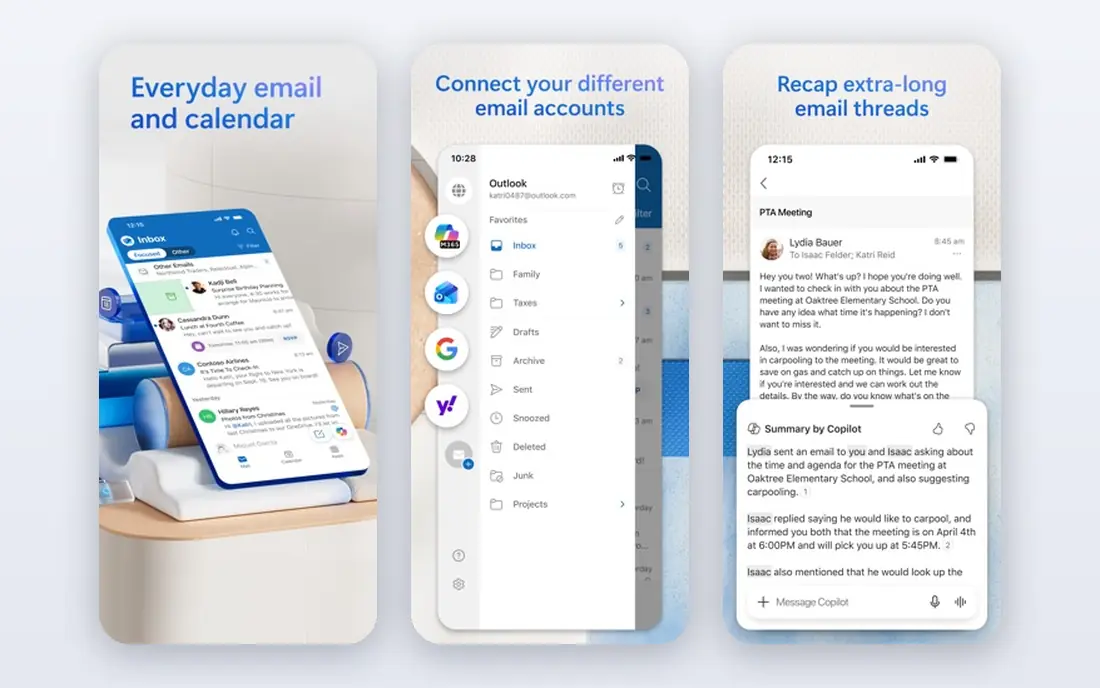
Outlook Calendar is the natural pick if your job or school runs on Microsoft 365. It lives inside Outlook on the web, Windows, Mac, and mobile, and it handles room booking, Teams meetings, and shared team calendars well. The free version on Outlook.com covers personal use, while paid Microsoft 365 adds more storage and Office apps.
The drawback is sync: subscribed Google calendars refresh slowly, and some booking features need a business plan. If your work inbox is Outlook, use Outlook Calendar for work and keep Google or Apple Calendar for personal plans, or sync both into one view.
A quick way to judge this option is to try one ordinary task end to end, from setup to the result you wanted, and note where it slows you down. If the setup is clear and the result arrives without extra steps, the service earns its place. If you hit a paywall or a missing feature early, move on rather than working around it.
- Free on Outlook.com
- Strong Teams and Exchange integration
- Good work scheduling
- Google calendar sync is one-way in places
- Full features need Microsoft 365
Fantastical stands out for how fast it creates events: type a sentence like lunch with Sam on Friday at 1pm, and it parses the date, time, and people correctly. The app shows calendar and tasks together, offers strong widgets, and lets you group calendars into sets for work, family, or travel. It runs on Apple devices and Windows, with sync across Google, iCloud, and Exchange.
The free tier covers basic use, but the features that make Fantastical special, such as full calendar sets and advanced scheduling links, need Flexibits Premium. If you live on Apple devices and you value speed and design, the paid plan is worth testing during the trial.
Check the vendor page for current pricing and for any limits on the free plan before you commit, because those details shift often. Test it with your own content and your own schedule for a week, and keep notes on what frustrated you. The best choice is usually the one with the fewest daily frictions, not the longest feature list.
- Excellent natural language entry
- Attractive widgets
- Calendar sets and tasks
- Premium features need a paid plan
- Windows support is newer than Apple support
Notion Calendar, formerly Cron, gives Notion users a fast calendar that connects to notes and databases. You can view events beside tasks, share availability with booking links, and sync Google calendars in both directions. The design is minimal, which suits people who dislike cluttered calendar apps.
The catch is fit: if you do not use Notion, much of its appeal fades, and it lacks some of the deep email integrations found in Google and Outlook. For Notion households and small teams, though, it is a strong free addition that keeps plans and notes in one place.
Before you settle on this one, check the official site for the current plan details and device support, since catalogs and prices change during the year. The free tier or trial, where one exists, is the cheapest way to confirm it fits your daily routine. If it passes that short test, it is worth keeping for a full month before you pay for anything.
- Free
- Clean design
- Connects to Notion docs and tasks
- Best for Notion users
- Fewer native email integrations
Any.do suits people whose problem is not meetings but everything else: chores, errands, and deadlines that never make it onto a calendar. The app puts tasks and events in one timeline, with reminders and a daily planner view. It runs on iPhone, Android, and the web, so it fits mixed-device homes.
The calendar itself is simpler than Fantastical or Morgen, and the best features, such as unlimited reminders and custom views, need a paid plan. If you want one app for tasks and dates, Any.do is a friendly starting point, and the free tier is enough to test the habit.
We suggest starting with the free option and testing it on the device you use most, whether that is a phone, a TV, or a laptop. Look at how often you actually open it in the first two weeks, and check whether the features you need sit behind a paywall. That simple check saves more money than any feature list, and it keeps the choice grounded in real use.
- Combines calendar, tasks, and reminders
- Good mobile design
- Cross-platform
- Advanced features need Premium
- Calendar power is lighter than Fantastical
TickTick is a task app first, with a calendar view that turns tasks and habits into planned time. You can set repeat tasks, use Pomodoro timers, and share lists with family or a small team. The app runs on mobile, desktop, and the web, and its paid plan is priced lower than many rivals.
The trade is focus: TickTick will not match Fantastical for pure calendar polish, and new users may need a few days to learn its views. If your week is driven by tasks and habits as much as meetings, TickTick keeps both in one place without a high monthly cost.
A quick way to judge this option is to try one ordinary task end to end, from setup to the result you wanted, and note where it slows you down. If the setup is clear and the result arrives without extra steps, the service earns its place. If you hit a paywall or a missing feature early, move on rather than working around it.
- Good task and habit tools
- Calendar view included
- Affordable paid plan
- Calendar features trail dedicated calendar apps
- Learning curve for new users
Morgen is built for professionals who juggle several calendars and want to block real work time, not just log meetings. It pulls Google, Outlook, and other calendars into one view, offers an AI planner to suggest placements, and includes scheduling links. It also runs on Linux, which few calendar apps do well.
The barrier is price: Morgen is a paid tool, and casual users may not need its planning depth. If your calendar is your work system, and you lose hours to context switching, Morgen can pay for itself in calmer weeks. Try the trial with your real calendars before you subscribe.
Check the vendor page for current pricing and for any limits on the free plan before you commit, because those details shift often. Test it with your own content and your own schedule for a week, and keep notes on what frustrated you. The best choice is usually the one with the fewest daily frictions, not the longest feature list.
- Time blocking across providers
- AI planner
- Scheduling links included
- Paid only for full use
- Price is high for casual users
How we picked these
We compared official feature pages, pricing pages, and app store listings, and we checked that each product is still offered in October 2026. We favored options with a clear free tier or trial, current device support, and honest limits stated on the vendor site. We left out products we could not verify, and we noted where a paid plan is needed for the full feature set.
How to choose a calendar app in the United States
Start with the accounts you already use. If your family shares Google accounts, Google Calendar wins on simplicity. If your job uses Microsoft 365, Outlook Calendar will cause fewer sync headaches. Apple households should start with Apple Calendar and only pay for Fantastical if natural language entry saves real time each week. Check sharing next: can a partner, a coach, or a client see only the right calendar, and can you hide private details? Finally, test time zones and holiday calendars for US states, since travel and school dates depend on them.
FAQ
What is the best free calendar app in the United States?
Google Calendar is the best free all-round choice, because it runs everywhere and shares easily. Apple Calendar is the best free pick if everyone in your household uses Apple devices.
Can I use two calendar apps at once?
Yes, most people do. You can sync Google, iCloud, and Exchange calendars into one app, or keep work in Outlook and personal plans in Google Calendar. Just pick one app as your daily view so events do not get missed.
Do I need a paid calendar app?
Most people do not. Free apps cover events, sharing, and reminders. Pay only if you need time blocking, advanced scheduling links, or natural language entry every day, and test the paid trial first.
Which calendar app is best for families?
Google Calendar and Apple Calendar both handle shared family calendars well, with colors per person and event invites. TimeTree and Cozi are also worth a look if you want chat and lists beside the calendar.
How do US holidays and time zones work in these apps?
Google, Apple, and Outlook all offer US holiday calendars and automatic time zone handling for events. Add the holiday calendar for your country in settings, and check event times when you travel across zones.