Best Cloud Storage Services in United States in 2026: 8 Services Compared
Compare the best cloud storage services in united states, with US pricing, free tiers, privacy, backup tools, and family plans for homes and small businesses.
- Editor's choice
 Google Drive
Best all round US storage
Starts at$1.99 per monthVisit drive.google.comFull review - Great alternative
 Microsoft OneDrive
Office users and families in the USA
Starts at$1.99 per monthVisit onedrive.comFull review - Also consider
 Dropbox
Fast sync for US professionals
Starts at$11.99 per monthVisit dropbox.comFull review
TL;DR:
- Google Drive suits most US users, thanks to 15 GB free, low paid prices, and strong collaboration.
- Microsoft 365 Family is the best household value, because six users get 1 TB each plus Office apps.
- Proton Drive and IDrive suit users who prioritise privacy or backup, rather than joint editing.
- Check renewal prices and version history, because both affect the real value of a storage plan over time.
Quick comparison
| Tool | Best for | Starts at | Free plan? | |
|---|---|---|---|---|
| Google Drive | Best all round US storage | $1.99 per month | Yes | Visit |
| Microsoft OneDrive | Office users and families in the USA | $1.99 per month | Yes | Visit |
| Dropbox | Fast sync for US professionals | $11.99 per month | Yes | Visit |
 Apple iCloud | Apple households in the USA | $0.99 per month | Yes | Visit |
 Box | Business sharing in the USA | See website | No | Visit |
 pCloud | Lifetime storage for US users | See website | Yes | Visit |
 Proton Drive | Private encrypted storage in the USA | See website | Yes | Visit |
 IDrive | Backup focused storage for US users | See website | No | Visit |
The best cloud storage services in United States
US cloud storage buyers face a crowded market, from big tech bundles to privacy focused services and backup specialists. The list below covers everyday storage, family plans, business sharing, and backup, with US prices and honest limits for each service.
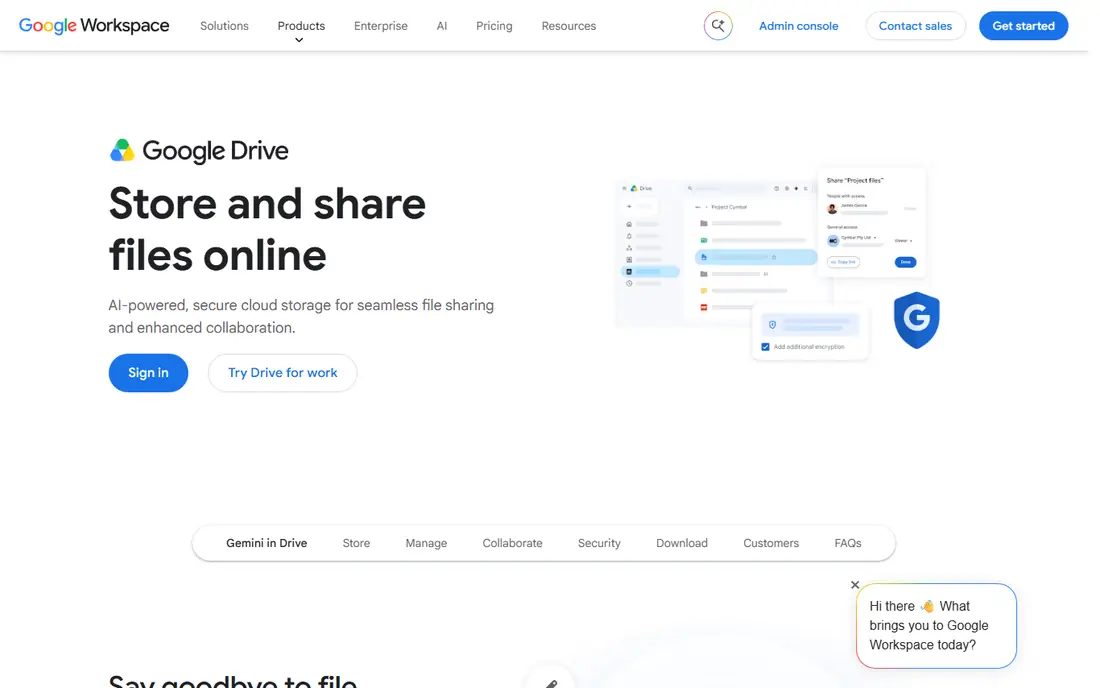
For readers who want a clear starting point, this option is worth a close look. Google Drive offers 15 GB of free storage shared across Drive, Gmail, and Photos, with Google One plans from $1.99 per month for 100 GB in the United States. The main catch is that the free tier fills fast with photos and email, and users who want end to end encryption by default should look at Proton Drive or MEGA instead.
The day to day experience matters most here, so check the dashboard, the support pages, and the plan limits before you commit. In daily use, the details that matter are reliability, clear billing, and support that answers in plain language when something goes wrong.
It suits US households, students, and small teams that use Gmail and Google Docs, and that want easy sharing and powerful search. That balance of strengths and limits is why it stays on our list, even though it is not the right pick for every buyer.
- 15 GB free
- Strong search and sharing
- Low entry price
- Free tier shared across Gmail and Photos
- Privacy trade offs for some users
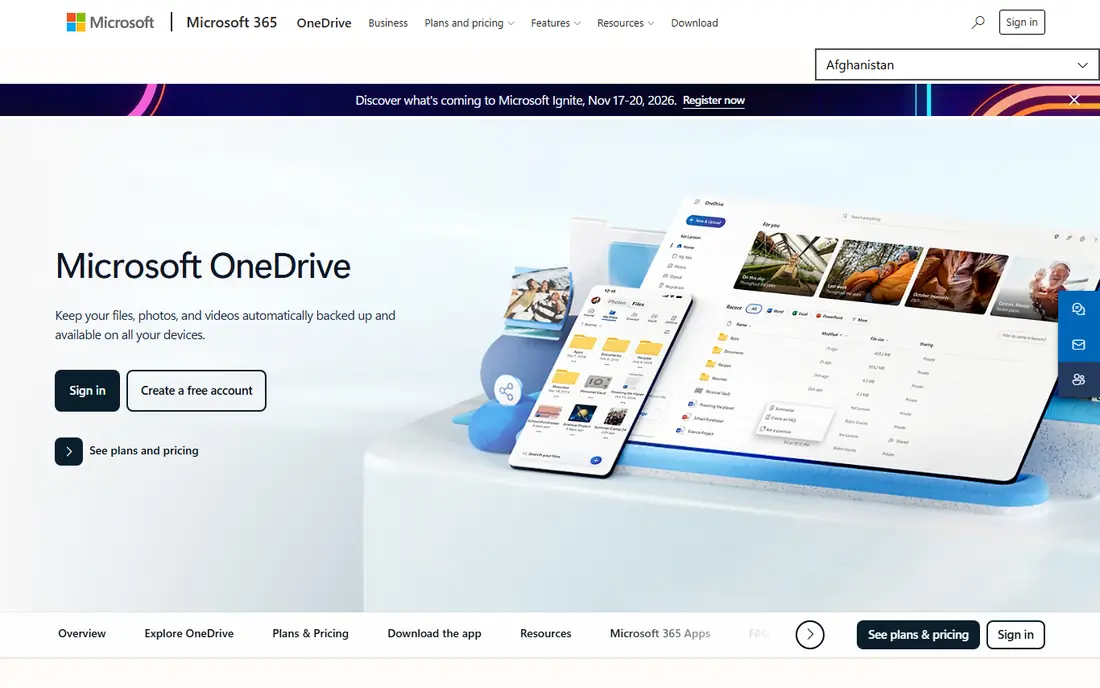
This is a practical choice when the basics matter more than a long feature list. OneDrive is bundled with Microsoft 365, giving users Office apps, 1 TB of storage on Personal plans, and family plans with 1 TB per person for up to six people. The main catch is that the headline storage price alone is less useful, because the real value comes from the full Microsoft 365 bundle, so compare bundle prices, not storage alone.
We compared the published features, the plan structure, and the support options, and this option held up on the points that affect daily use. In daily use, the details that matter are reliability, clear billing, and support that answers in plain language when something goes wrong.
It suits US families and offices that already use Word, Excel, and PowerPoint, because storage, email, and apps can sit under one bill. If those trade offs look acceptable, this is a dependable option to shortlist and compare on price at checkout.
- Office bundle value
- Family plans
- Ransomware recovery tools
- Best value needs Microsoft 365
- Standalone storage is thinner
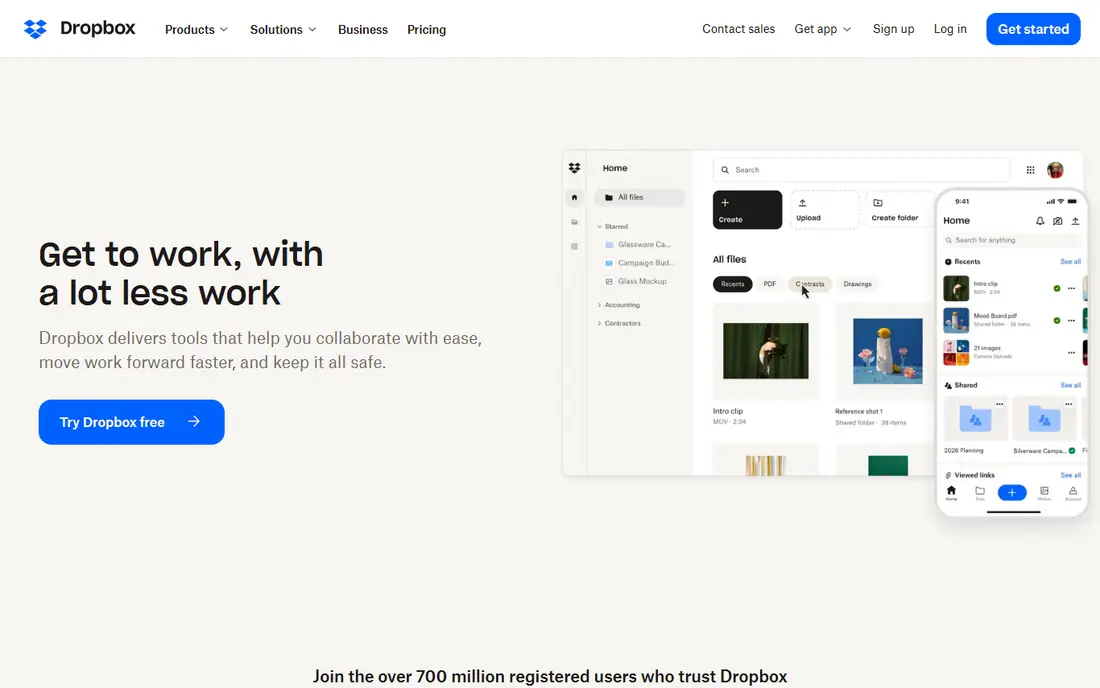
If you want a service that stays out of the way once it is set up, start here. Dropbox is known for fast, reliable sync, with block level sync for many files, plus sharing links, version history, and file requests for client work. The main catch is price, because Dropbox costs more than Google Drive for the same storage, and the 2 GB free tier is only enough to test the service.
What matters in practice is how it behaves under normal use, not only on a launch day, so look for trial terms, limits, and renewal terms. In daily use, the details that matter are reliability, clear billing, and support that answers in plain language when something goes wrong.
It suits US professionals, studios, and agencies that share large files often and need sync that just works across devices. Our view is that it suits buyers who value clarity and steady performance over the longest possible feature list.
- Excellent sync
- Strong sharing controls
- Broad app support
- Higher price
- Only 2 GB free
This option earns its place because it does one job well and states its limits plainly. Apple iCloud backs up iPhones, iPads, and Macs, syncs photos and files, and shares storage with up to five other family members on paid plans. The main catch is platform fit, because iCloud works best inside Apple devices, and Windows or Android users will usually prefer Google Drive or OneDrive.
Setup is usually straightforward, and the official documentation covers the main steps without assuming expert knowledge. In daily use, the details that matter are reliability, clear billing, and support that answers in plain language when something goes wrong.
It suits US Apple households that want device backup and photo sync to work without extra setup or a separate app. In short, it is a sound pick for the buyer described above, provided the limits in this section fit your plans.
- Automatic Apple backup
- Family sharing
- Low entry price
- Only 5 GB free
- Weaker on Windows and Android
For readers who want a clear starting point, this option is worth a close look. Box is a business content platform with secure sharing, permissions, version control, and admin controls, used by many US companies for client and team files. The main catch is that Box is built for teams, so solo users will usually get better value and simpler apps from Google Drive, OneDrive, or iCloud.
The day to day experience matters most here, so check the dashboard, the support pages, and the plan limits before you commit. In daily use, the details that matter are reliability, clear billing, and support that answers in plain language when something goes wrong.
It suits US businesses that need controlled sharing, audit trails, and compliance features, rather than a simple personal photo backup. That balance of strengths and limits is why it stays on our list, even though it is not the right pick for every buyer.
- Strong business controls
- Secure client sharing
- Compliance tools
- Business pricing
- Less suited to casual personal backup
This is a practical choice when the basics matter more than a long feature list. pCloud offers monthly, annual, and lifetime plans in the United States, with media playback, sharing controls, and version history across desktop and mobile. The main catch is the lifetime price, which only pays off after several years, and joint document editing is thinner than on Google or Microsoft platforms.
We compared the published features, the plan structure, and the support options, and this option held up on the points that affect daily use. In daily use, the details that matter are reliability, clear billing, and support that answers in plain language when something goes wrong.
It suits US users who want a long term backup copy, or who prefer a one time payment over a monthly subscription that never ends. If those trade offs look acceptable, this is a dependable option to shortlist and compare on price at checkout.
- Lifetime plan option
- Media playback
- File versioning
- High upfront lifetime cost
- Thinner collaboration tools
If you want a service that stays out of the way once it is set up, start here. Proton Drive provides end to end encrypted storage from Proton, with secure sharing, file versioning, and a privacy focused approach that appeals to US users who want stronger data protection. The main catch is that collaboration is newer and thinner than on Google Drive, so teams that edit documents together daily may need a second tool.
What matters in practice is how it behaves under normal use, not only on a launch day, so look for trial terms, limits, and renewal terms. In daily use, the details that matter are reliability, clear billing, and support that answers in plain language when something goes wrong.
It suits US users who store sensitive personal or work files and want encryption by default, even at the cost of fewer collaboration features. Our view is that it suits buyers who value clarity and steady performance over the longest possible feature list.
- End to end encryption
- Swiss based privacy focus
- Secure sharing
- Smaller free tier
- Collaboration tools are newer
This option earns its place because it does one job well and states its limits plainly. IDrive is a backup focused service that backs up multiple computers and mobile devices to one account, with versioning and large capacity plans for US users. The main catch is that IDrive is backup first, so sharing and joint editing are thinner than on Google Drive or OneDrive, and it suits a backup job more than daily collaboration.
Setup is usually straightforward, and the official documentation covers the main steps without assuming expert knowledge. In daily use, the details that matter are reliability, clear billing, and support that answers in plain language when something goes wrong.
It suits US households and small businesses that want a true backup, with multiple devices and file versions, rather than only a sync folder. In short, it is a sound pick for the buyer described above, provided the limits in this section fit your plans.
- Large backup capacity
- Multi device backup
- Versioning
- Backup focused
- Not a full collaboration suite
How we picked these
We compared official feature pages, pricing pages, support documentation, and public reviews for each service on this list. We kept only services that are available now, that fit the topic directly, and that publish enough detail for a buyer to check the price and the limits before signing up. Where a vendor does not publish a price, we say so plainly instead of guessing, and we note the main limits that could change the total cost or the day to day experience.
How to choose cloud storage in the United States
Decide backup, sync, or collaboration first
Backup keeps old versions safe even if you delete a file. Sync keeps the same files on all devices. Collaboration lets several people edit together. Most users need at least two of these, so pick a main service for your top job and add a second service or an external drive for backup. Do not rely on sync alone for irreplaceable files.
Check version history and recovery
Version history decides whether you can recover an overwritten file, and the trash window decides how long you have after deletion. Check both before you buy, because they vary by plan. Also test restore with a real file during a trial, because a backup you have never restored is only a hope, not a plan.
Compare family and renewal prices
Family plans often offer far better value per person than individual plans, especially with Office or Google bundles. Check the renewal price after any first year discount, and check storage per person, not only total storage. A family plan that shares one pool can fill unevenly if one person stores far more than the others.
FAQ
How much cloud storage do I need in the USA?
Most individuals do well with 100 GB to 200 GB to start, while families with photos and video often need 2 TB. Check your current usage across phones, computers, and photos, then add room for a year of growth. It is cheaper to upgrade later than to pay for a large tier you never use.
Is cloud storage safe for sensitive files?
Major providers encrypt files in transit and at rest, but only some offer end to end encryption by default. For sensitive files, use a service with end to end encryption, turn on two factor authentication, and review sharing links regularly. For highly sensitive work files, follow your employer data policy as well.
What is the difference between Google Drive and Google One?
Google Drive is the storage product, while Google One is the subscription that buys extra storage shared across Drive, Gmail, and Photos. When you pay for Google One, you are buying more Drive space, plus other Google One benefits on some plans. Check the plan page for the exact storage and benefits included.
Can I share storage with my family?
Yes, on Google One, iCloud, and Microsoft 365 Family plans, with different rules per provider. Google One and iCloud share a storage pool or plan, while Microsoft 365 Family gives each person their own 1 TB. Check per person limits before you choose, especially if one family member stores much more than the others.
Should I keep a local backup as well?
Yes, for important files. Cloud storage protects against device loss, but account lockout, accidental deletion, or a service outage can still cause trouble. Keep a copy on an external drive or a second provider, and test restoring a file at least once, so you know the backup actually works.