Best Calendar Apps in 2026: 8 Calendar Apps Compared
Looking for the best calendar app? We compared 8 calendar apps on price, platforms, scheduling, privacy and free plans, from Google Calendar to Fantastical.
- Editor's choice
 Google Calendar
Most people, especially on mixed Android, iPhone and Windows setups
Starts atFreeVisit calendar.google.comFull review - Great alternative
 Apple Calendar
People who own an iPhone, iPad or Mac and want no extra app
Starts atFreeVisit apple.comFull review - Also consider
 Outlook
Workplace users already inside Microsoft 365
Starts atFreeVisit outlook.comFull review
TL;DR:
- Google Calendar is the safest default for most people: it runs on the web, Android, iOS, Wear OS and Apple Watch, and a personal Google Account can create one free booking page.
- Apple Calendar costs nothing extra on an iPhone, iPad or Mac, and its shared calendars and invitations sync through iCloud, which includes 5 GB of free storage.
- Fantastical and Notion Calendar are the two polished "layer on top" apps: both read your existing Google, Outlook and iCloud calendars, and Notion Calendar is free.
- Proton Calendar is the privacy pick. Its free plan includes 3 end-to-end encrypted calendars, while Mail Plus ($3.99 per month billed yearly) raises that to 25.
- Morgen is the only app here with no free plan: it costs $15 per month billed yearly ($30 billed monthly) after a 14-day trial, so it suits people who want calendar and task planning in one place.
Quick comparison
| Tool | Best for | Starts at | Free plan? | |
|---|---|---|---|---|
| Google Calendar | Most people, especially on mixed Android, iPhone and Windows setups | Free | Yes | Visit |
| Apple Calendar | People who own an iPhone, iPad or Mac and want no extra app | Free | Yes | Visit |
| Outlook | Workplace users already inside Microsoft 365 | Free | Yes | Visit |
 Fantastical | Power users who want natural-language entry and scheduling links | See website | Yes | Visit |
 Notion Calendar | People who plan work in Notion and want to time-block it | Free | Yes | Visit |
 Proton Calendar | Privacy-focused users who want encrypted events | Free | Yes | Visit |
 Morgen | Planning tasks and calendar events in one place | $15 per month | Free trial (14 days) | Visit |
 TickTick | People who keep a to-do list and want it on a calendar | See website | Yes | Visit |
The best calendar apps
A calendar app is only useful if it is on every device you own, so we weighted platform support and sync heavily. Several apps below do not store your events themselves. They sit on top of a Google, Outlook or iCloud account, and we flag which is which.
Google Calendar
Best for: Most people, especially on mixed Android, iPhone and Windows setups
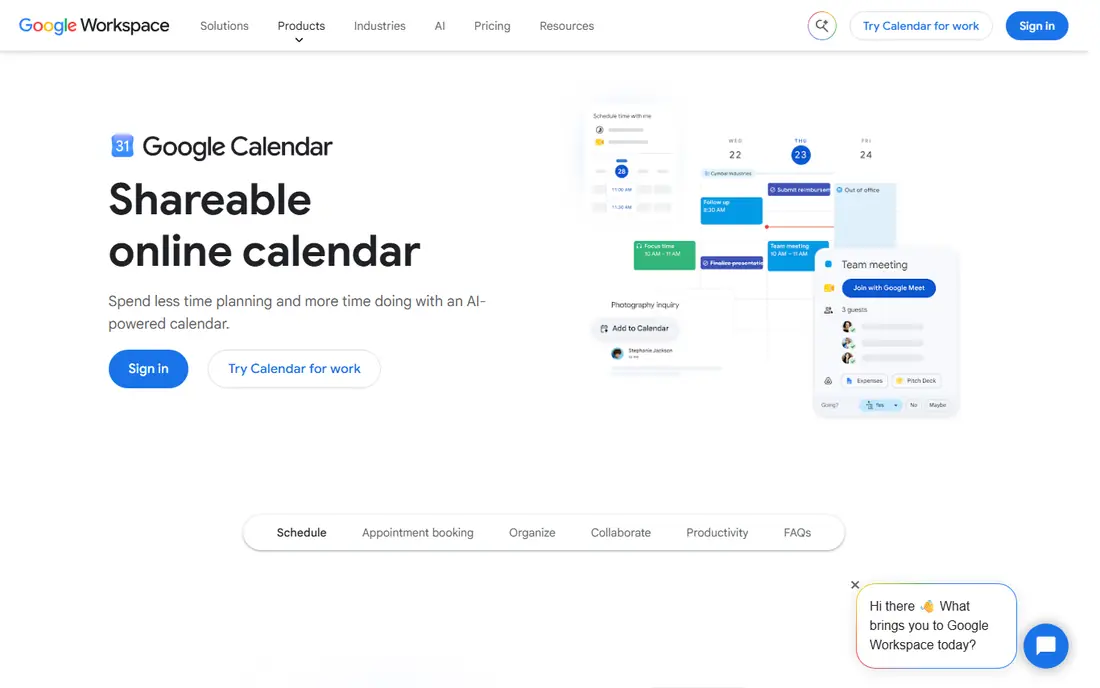
Google Calendar is our pick for most people because it works nearly everywhere and almost every other calendar app can connect to it. Google lists support for the web, Android, iOS, Wear OS and Apple Watch, with everything kept in sync between them.
The feature list is practical rather than flashy. Tasks with a date and time appear on the calendar, flight, hotel and restaurant reservations from Gmail are added automatically, and you can attach a Google Meet link to any event. Focus time silences notifications and can decline meetings for you, and Time Insights shows where your hours went. Anyone with a personal Google Account can set up one booking page for appointments. Workspace subscribers get unlimited booking pages and Stripe payments, and Business Starter is listed at $7 per user per month on an annual plan.
The honest catch is that the smart features Google promotes, such as Gemini finding meeting times from your email, are described as premium and need a Workspace plan. For plain scheduling you will not miss them, but do not expect the headline AI features on a free account.
- Works on web, Android, iOS, Wear OS and Apple Watch
- Reservations from Gmail appear automatically
- Easy calendar sharing and Google Meet links
- The best Gemini scheduling features need a paid Workspace plan
- Design is plain compared with newer rivals
Apple Calendar
Best for: People who own an iPhone, iPad or Mac and want no extra app

Apple Calendar is already on your phone, so it is the lowest-effort choice if you live in Apple's ecosystem. Apple's support pages cover the basics well: multiple calendars, shared iCloud calendars, sending invitations and replying to them, and linking events with Reminders. A free Apple Account includes 5 GB of iCloud storage, and the paid iCloud+ tiers start at $0.99 per month for 50 GB if you need more room for the rest of your backups.
Apple's macOS page also describes adding and editing events by typing what you want in plain language, and Messages and Mail can suggest a calendar event from a conversation (English only, per Apple). Apple notes that features may change, so check them on your own device.
The limit is reach. There is no Android app, and iCloud's own pages focus on browser and Apple device access. If you share a family calendar with someone on Android, you will usually end up subscribing to it from a Google account instead.
- Included on Apple devices at no extra cost
- Share iCloud calendars and send invitations
- Newer macOS lets you create and edit events by describing them
- No dedicated Android app
- Fewer scheduling tools than Google or Fantastical

Outlook is the natural calendar for anyone whose employer, school or clients run on Microsoft. A free Outlook.com account includes the calendar alongside mail, and Microsoft says it works on the web, in desktop apps and on mobile. Meeting invitations from colleagues land in the same inbox where you answer them, which is the real advantage.
If the ads in the free version bother you, Microsoft sells Microsoft 365 Basic at $19.99 per year in the US, which removes them and adds storage. That is a small price for a clean workspace, though you are paying mostly to remove ads rather than to get a better calendar.
Outlook is less appealing as a personal planner. The interface is built for office work, so it can feel crowded if all you need is a family schedule. You can keep Outlook as the account and read it through another app, such as Fantastical or Notion Calendar.
- Free calendar with an Outlook.com account
- Mail and calendar in one place
- Web, desktop and mobile versions
- Free accounts show ads
- Dense layout feels heavier than lighter apps
Fantastical
Best for: Power users who want natural-language entry and scheduling links
Fantastical is the app to try when a built-in calendar stops being enough. You can type something like "Lunch with Sarah at 1pm tomorrow" and it creates the event, and you can forward an event email so its built-in AI extracts the details. It combines work and personal calendars into one view, shows tasks next to events, and offers day, week, month, quarter and year views plus a DayTicker.
The scheduling tools are the main reason to pay. Openings are shareable availability links, Proposals let you offer several times, and conference links are added automatically. Flexibits lists apps for Mac, iPhone, iPad, Apple Watch, Apple Vision Pro and Windows.
Pricing needs a caveat. Flexibits has a Free plan plus Individual, Family and Team plans with a 14-day trial, but its pricing page only reveals dollar amounts at checkout, so we list it as See website. On the free tier you get one calendar set, one invitee per event, and a three-day weather forecast. Android is not available yet, which rules it out for mixed households.
- Type events in plain language
- Connects Google, Microsoft 365, Exchange, iCloud, Todoist and CalDAV
- Shareable availability links and event proposals
- Free tier is limited to one calendar set and one invitee per event
- Android support is listed as coming in 2027
Notion Calendar (the app that grew out of Cron) is a clean front end for the calendars you already have. It supports Google, Outlook and iCloud accounts, and Notion's own page promotes it as free. Desktop apps exist for macOS and Windows, with iPhone and Android apps as well.
What sets it apart is the link to Notion. Dates and deadlines from your Notion databases appear next to meetings, and you can drag to update a database item. It also has a command menu with keyboard shortcuts, a time zone view for working across regions, booking links that share your availability, and automatic blocking of busy slots across connected calendars to avoid double bookings.
The weakness is audience. If you never open Notion, much of the appeal disappears and you are left with a tidy but fairly minimal calendar. Notion says an optimized tablet version is still in development, so iPad owners are better served elsewhere for now.
- Free to use
- Shows Notion dates beside your events
- Supports Google, Outlook and iCloud calendars
- IPad version is still in development
- Most useful if you already use Notion
Proton Calendar encrypts event titles, descriptions, locations and invitees, and Proton says it cannot read them. Events from people on other calendars use zero-knowledge encryption, according to Proton. These are the company's own claims and the page cites no independent audit, but the product design is clear about privacy as its main selling point. Proton is a Swiss company.
The free plan keeps 3 personal calendars and supports sending and receiving invitations. Paid plans such as Mail Plus ($3.99 per month on a yearly plan) or Proton Unlimited ($9.99 per month on a yearly plan) raise that to 25 calendars and add calendar sharing and one appointment booking page. It integrates with Proton Mail, so you can send invitations from your Proton address and add events from your inbox.
The trade-off is convenience. Encrypted data cannot do everything an unencrypted service can, and the ecosystem is smaller, so fewer third-party tools connect to it. If you are leaving Google for privacy reasons, this is the most complete alternative on the list.
- End-to-end encryption for events
- Free plan includes 3 personal calendars
- Apps for iOS, Android, macOS, Windows, Linux and web
- Calendar sharing and booking pages are listed on paid plans only
- Smaller feature set than Google or Fantastical
Morgen describes itself as a daily planner rather than a plain calendar. It pulls tasks from Notion, ClickUp, Linear and Todoist and schedules them as blocks on your calendar, and its AI Planner suggests a daily plan and re-plans when conflicts appear. Frames let you set a template for your ideal week.
The calendar side is also capable. Calendar Sets let you view accounts together or in subsets, events can sync between calendars, and it can add travel time and buffer time around meetings. Booking links check your real-time availability, and you can see teammates' availability to find meeting times.
Cost is the issue. Morgen's pricing page lists individual plans at $15 per month billed yearly or $30 billed monthly, with a 14-day trial and no credit card required. Team plans start at $10 per seat per month billed yearly. The page does not mention a free plan, so this is the priciest option here and best for people who will use the planning features every day.
- Combines Google, Outlook, Apple and Fastmail calendars
- Time-blocks tasks from Notion, ClickUp, Linear and Todoist
- Apps for Windows, Mac, Linux, web and mobile
- No free plan listed on its pricing page
- Priced well above other calendar apps
TickTick is a task manager first and a calendar second, which is exactly why some people prefer it. If your day is mostly a to-do list with a few appointments, seeing both in one place beats juggling two apps. TickTick lists yearly, monthly, weekly, daily and agenda views, plus multi-day and multi-week layouts for rearranging your schedule.
It syncs in real time across phones, computers, tablets and watches, according to the company. The homepage does not describe free-plan limits or show a Premium price, so check the pricing screen in the app before you commit.
Pick TickTick when tasks drive your week. If you mostly manage meetings, invitations and shared family events, a dedicated calendar such as Google Calendar or Fantastical will serve you better.
- Yearly, monthly, weekly, daily and agenda views
- Multi-day and multi-week views
- Syncs across phones, computers, tablets and watches
- Primarily a task app, so calendar features are secondary
- Premium price not shown on its homepage
How we picked these
We compared official product pages, pricing pages, support documentation and app store listings for each calendar app, then checked which platforms each one supports and what the free tier actually includes. We did not run long-term hands-on tests, so where a feature depends on your device or region, such as Apple's English-only event suggestions, we say so. Where a company does not publish a price, we write See website instead of guessing.
We kept apps that are available now and have a clear reason to exist. Google Calendar, Apple Calendar and Outlook are included because most people already have one of them. The other five each add something the big three lack.
How to choose a calendar app
Start with the account, not the app. Your events live in Google, Microsoft or iCloud, or inside a service such as Proton, so the question is which one your family, employer and devices already share.
Match the platform to your devices
If anyone in your household uses Android, avoid apps that are Apple-only. Fantastical lists Android as coming in 2027, and Apple Calendar has no Android app. Google Calendar and Notion Calendar cover both sides.
Decide whether you need scheduling links
Booking pages and availability links save the back-and-forth of finding a time. Google gives personal accounts one booking page, Proton offers one on paid plans, and Fantastical and Morgen include their own scheduling tools. If you never schedule with outsiders, skip paying for them.
Think about privacy and cost
Free calendars are usually paid for in some way, whether through ads, a wider ecosystem or data. Proton is built around encryption, and Outlook.com shows ads on the free tier. Paying a few dollars a year can remove ads, but only pay for features you will use weekly.
FAQ
What is the best free calendar app?
Google Calendar is the best free option for most people because it works across web, Android and iOS and nearly every other app can connect to it. Apple Calendar is the better free pick if you only use Apple devices, and Notion Calendar is a free front end for existing accounts.
What is the best calendar app for iPhone?
Apple Calendar is already installed and syncs through iCloud, so it is the simplest choice. Fantastical is the upgrade to consider if you want natural-language entry and scheduling links, and its free tier is limited to one calendar set. Google Calendar also has an iOS app if you share events with Android users.
Which calendar app is the most private?
Proton Calendar is the most privacy-focused here, with end-to-end encryption for event details and a free plan of 3 calendars. Proton publishes this as its own claim, so read its privacy documentation if the details matter to you.
Can one app show Google, Outlook and iCloud calendars together?
Yes. Fantastical, Notion Calendar and Morgen all combine several accounts in one view. Fantastical connects Google, Microsoft 365, Exchange, iCloud and CalDAV, while Notion Calendar supports Google, Outlook and iCloud.
Do I need to pay for a calendar app?
Usually not. The built-in options are free, and paid plans mostly add scheduling links, extra calendars or advanced planning. Pay only if a specific feature, such as Fantastical's unlimited calendar sets or Proton's 25 calendars, solves a problem you have.
Sources
- https://workspace.google.com/intl/en/products/calendar/
- https://workspace.google.com/pricing
- https://www.apple.com/icloud/
- https://www.apple.com/macos/
- https://support.apple.com/guide/iphone/calendar-iph3d1110d4/ios
- https://www.microsoft.com/en-us/microsoft-365/outlook/outlook-email-plans-and-pricing
- https://flexibits.com/fantastical
- https://flexibits.com/pricing?product=fantastical
- https://www.notion.com/product/calendar
- https://proton.me/calendar
- https://proton.me/pricing
- https://www.morgen.so/
- https://www.morgen.so/pricing
- https://ticktick.com/home