Best App to Remove Background From Photos in 2026: 8 Apps Compared
Find the best app to remove background from photos in 2026. We compare 8 tools for clean cutouts, product photos, batch editing and free plans for every budget.

- Editor's choice
 Adobe Express
Free background removal with clean exports
Starts atFreeVisit adobe.comFull review - Great alternative
 Adobe Firefly
Free batch background removal
Starts atFreeVisit firefly.adobe.comFull review - Also consider
 Canva
Cutouts inside a design workflow
Starts atFreeVisit canva.comFull review
TL;DR:
- Adobe Express is the best free starting point, with background removal included and no watermark on free exports.
- Adobe Firefly is the strongest free batch option in recent listings, with batch removal available with a free Adobe account.
- PhotoRoom is the best pick for online sellers, since cutouts, backgrounds, shadows and batch export sit in one mobile flow.
- Canva is the best choice when the cutout will go straight into a design, a post or a presentation.
- For hair, fur and tricky edges, a manual tool such as Clipping Magic or a full editor still beats a one-click automatic cutout.
Quick comparison
| Tool | Best for | Starts at | Free plan? | |
|---|---|---|---|---|
| Adobe Express | Free background removal with clean exports | Free | Yes | Visit |
| Adobe Firefly | Free batch background removal | Free | Yes | Visit |
| Canva | Cutouts inside a design workflow | Free | Yes | Visit |
 PhotoRoom | Product photos for sellers | Free | Yes | Visit |
 Fotor | Budget all-round photo editing | Free | Yes | Visit |
 Pixlr | Browser editing with AI cutout | Free | Yes | Visit |
 Slazzer | High-volume and developer workflows | See website | Free trial | Visit |
 Clipping Magic | Precise manual touch-ups | See website | Free trial | Visit |
The best app to remove background from photos
A background remover should do one thing well: separate the subject cleanly, including hair and edges, without leaving a halo or cutting off a hand, a shoe or a product corner. The apps below all remove backgrounds automatically, but they differ in free limits, batch handling, export quality and how much manual fixing they allow when the automatic result is not quite right.

Adobe Express is our pick for most people who need a background removed once in a while. Upload a photo, remove the background in one step, and place the cutout on a colour, a new image or a design, all without paying. Free exports avoid a watermark when only free elements are used, which makes it genuinely usable for social posts, slides and small business graphics.
Premium at $9.99 per month adds premium templates, assets and more AI credits, but background removal itself is not locked behind the paywall. The limit is volume and control: Adobe Express is not built for hundreds of product photos at once, and fine edge refinement is lighter than in a manual tool. For occasional clean cutouts, it is hard to beat for free.
- Background removal included on the free plan
- No watermark on free exports
- Easy to place the cutout in a design
- Premium plan costs $9.99 per month
- Batch tools are lighter than a dedicated seller tool
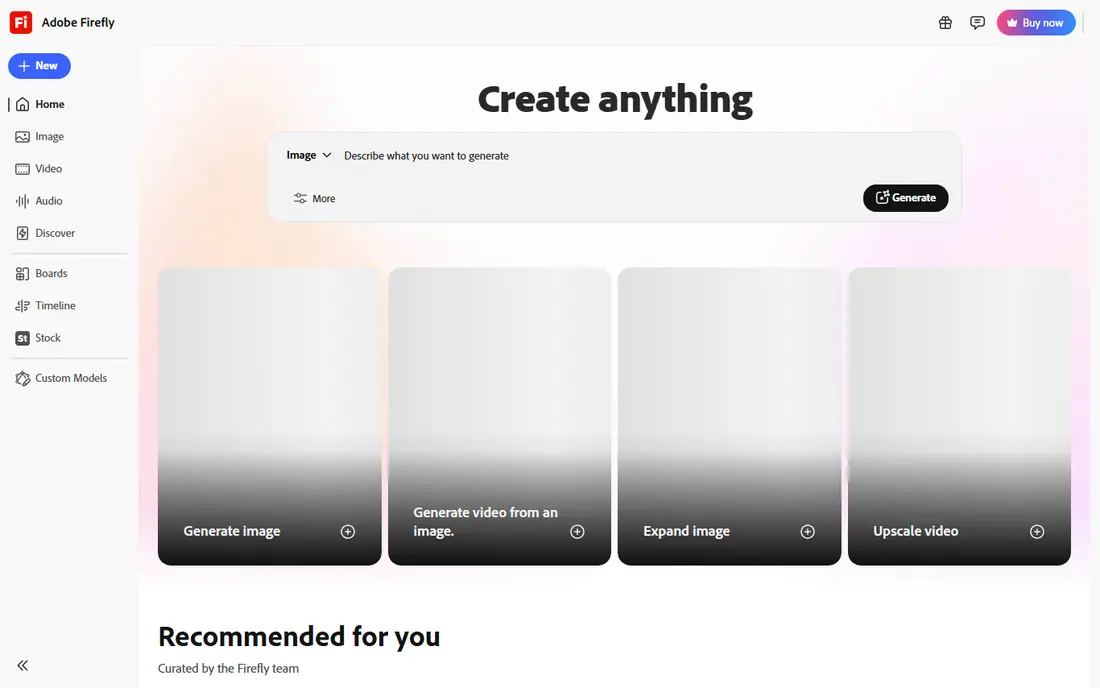
Adobe Firefly has become a strong free option for background removal, especially when you have more than one photo to process. Recent comparisons describe batch background removal as available free with an Adobe account, which suits a seller or a creator preparing a set of images at once. Results come from Adobe image models, and exports can move into Express or another editor for final design work.
The catch is credits. Free use includes a credit allowance, and paid plans add more credits plus other generation features, so heavy users need to check the current credit rules before building a workflow on it. For a batch of product or profile photos, Firefly is worth trying before paying for a specialist tool, since the free batch path covers a common job well.
- Batch background removal with a free Adobe account in recent listings
- Clean results from Adobe models
- Easy export for further editing
- Paid plans add credits and features, and credit limits can confuse new users
- Web-first workflow

Canva is the best choice when the cutout is only the first step. Remove the background, drop the subject into a social post, a flyer or a presentation, add text and brand colours, and export, all in one place. Pro also supports bulk background removal for up to 50 images, which helps a small team preparing a set of graphics.
The clear limit is price: background removal is a Pro feature, and Pro costs $18 per month, or $144 per year. If you only need one cutout, Adobe Express or Firefly will do it free. If you already pay for Canva Pro for design work, using its remover inside the same workflow saves time and keeps brand assets together.
- One-click removal inside a huge design library
- Easy to place cutouts in posts, ads and slides
- Bulk removal on Pro for up to 50 images
- Background remover needs Pro at $18 per month
- Free plan cannot remove backgrounds
PhotoRoom is built for sellers who photograph products on a phone and need listing-ready images quickly. Open the app, snap or upload a photo, and you get a clean cutout with a generated background, realistic shadow and marketplace-sized export in seconds. Batch processing on Pro suits a seller listing many items, and templates keep listings looking consistent.
The free plan includes background removal, but exports carry a watermark and are limited for commercial use in recent listings, with 250 exports per month noted for free users. Pro costs $12.99 per month billed monthly, or $7.50 per month billed annually, and removes the watermark while adding batch export and AI backgrounds. For casual personal cutouts, a free tool is cheaper; for selling, PhotoRoom speed is the point.
- Fast mobile cutouts with generated backgrounds
- Batch export on Pro
- Templates sized for marketplaces
- Free exports carry a watermark and are limited for commercial use
- Pro costs $12.99 per month billed monthly
Fotor suits someone who wants background removal inside a broader photo editor, not a single-purpose tool. Remove a background, adjust light and colour, add text or a template, and export, without switching apps. Pro costs $8.99 per month and adds batch editing and more design assets, which makes it a budget all-rounder for small businesses and creators.
Free exports are watermarked in recent listings, so Fotor is less appealing as a free-only cutout tool than Adobe Express. Automatic results are also good rather than perfect on fine hair or busy backgrounds, and some photos will need manual touch-ups. If you already edit photos in Fotor, the remover is a handy extra; if you only need cutouts, start free elsewhere.
- Background removal plus full photo editing and design tools
- Batch editing on Pro
- Low starting price for paid plans
- Free exports carry a watermark in recent listings
- Automatic cutouts can struggle with fine hair
Pixlr is a good browser choice when you want to remove a background and then keep editing the photo. The AI cutout sits inside a fuller editor, so you can refine edges, adjust colour, add layers and export without installing software. That makes it handy on a shared computer or a Chromebook, where installing an app is not practical.
The free plan is ad-supported and limits AI credits, so frequent cutouts will run into a paywall, with paid plans listed from around $2.49 per month for Plus in recent comparisons. Results on simple subjects are clean, while complex hair still benefits from manual refinement. For occasional browser cutouts with further editing, Pixlr is a flexible free start.
- Full browser photo editor with AI cutout
- No install needed
- Low-cost paid plans for heavier use
- Free plan is ad-supported with limited AI credits
- Advanced features need a subscription
Slazzer is aimed at volume and automation rather than one-off design. Upload many photos, or connect the API to an app or catalogue, and Slazzer returns cutouts quickly without manual work per image. Free credits let you test quality on your own photos before buying, which matters, since cutout quality varies by subject and background.
Pricing is credit-based and shown on the Slazzer site, with recent listings noting plans from around $11 per month for 100 credits, though you should confirm current credit packs before budgeting. Slazzer is not a design editor, so you will still need another tool to place cutouts into posts or listings. For a developer, a marketplace or a large catalogue, that automation is the reason to pick it.
- Fast automatic cutouts
- Bulk processing and API for apps and catalogues
- Free credits to test quality
- Credit-based pricing can add up at volume
- Less of a design tool than Canva or PhotoRoom
Clipping Magic is the tool to use when an automatic cutout fails. You mark the foreground and background with simple strokes, and the editor refines the edge live, so you can fix hair, fur, transparent objects and busy backgrounds that confuse automatic tools. That control is slower, but it produces a cleaner result on the photos that matter most, such as a hero product shot or a portrait.
The trade-off is speed and cost. Clipping Magic is credit-based, with plans shown on its site, and the free trial previews results without a full free export. For everyday simple photos, an automatic tool is faster and cheaper. For a handful of difficult photos where quality matters, Clipping Magic is worth the extra minutes.
- Manual mark-and-refine tools for tricky edges
- Live preview while editing
- Good for hair and fur with patience
- Slower than one-click tools
- Pricing is credit-based and shown on the site
- No free full export
How we picked these
We compared official pricing pages, product documentation and public reviews for background removal tools that are actively available in October 2026, and we favoured tools with a clear free tier, trial or credit test. We excluded tools reported as shutting down, since a workflow built on a closing product would fail within weeks, and we kept a mix of free cutout tools, seller tools, browser editors and manual precision tools. We did not claim hands-on testing, and prices are published starting points that vary by plan and region.
How to get a cleaner cutout
Start with a better photo, since no remover fixes a blurry subject or a background that matches the subject colour. Photograph against a plain, contrasting background, keep the subject sharp, and leave a little space around edges so the tool does not cut off a hand or a product corner. Good light and a clear separation between subject and background do more for quality than any paid plan.
After removal, check the result at full size, not just as a small preview. Look for halos, missing strands of hair, and cut-off edges, and zoom in before exporting. If the automatic result is close but not perfect, a manual tool such as Clipping Magic, or a refine edge option in a fuller editor, can save a photo that would otherwise need reshooting. Export as PNG when you need transparency, since JPG cannot keep a transparent background.
Choosing by use
For a single personal photo, Adobe Express is the fastest free path. For a batch of product photos, try Adobe Firefly free, then PhotoRoom if you need seller templates and batch export. For a design that needs text and branding, Canva Pro is worth it if you already design there. For a difficult edge, accept the slower manual route in Clipping Magic rather than settling for a halo that customers will notice.
FAQ
What is the best app to remove background from photos for free?
Adobe Express is the best free pick, since background removal is included and free exports avoid a watermark on free elements. Adobe Firefly is also strong for free batch removal with an Adobe account. Canva and PhotoRoom offer removal too, but Canva needs Pro and PhotoRoom watermarks free exports.
What is the best software to remove background from a photo for sellers?
PhotoRoom is the best seller pick, with fast mobile cutouts, generated backgrounds, shadows and batch export in one flow. Adobe Firefly suits free batch work, while Slazzer suits large catalogues and developer workflows. For a small shop, PhotoRoom speed usually matters more than raw cutout perfection.
Can I remove a background from a photo on my phone?
Yes. PhotoRoom, Canva, Adobe Express and Fotor all work on phones, and each removes a background in a few taps. PhotoRoom is fastest for product shots, Canva is best when the cutout goes into a design, and Adobe Express is the best free phone option for a clean single cutout.
How do I remove a background without losing hair detail?
Use a photo with good light and a contrasting background, then check the cutout at full size and refine edges manually if needed. Automatic tools handle simple edges well but struggle with fine hair and fur. For a portrait or a pet photo where hair matters, Clipping Magic or a full editor with edge refinement will give a cleaner result than a one-click tool alone.
Is a transparent background the same as a PNG file?
Not quite. Transparency is the property that lets a cutout sit on any background, while PNG is the file format that preserves it. Export as PNG to keep transparency. A JPG export will fill the transparent area with white or black, since JPG cannot store transparency.
Why does my cutout have a white halo?
A halo usually comes from a low-contrast edge, a blurry photo, or an automatic tool that includes a thin ring of background pixels. Try a sharper photo with a more contrasting background, or refine the edge in a manual tool. Shrinking the cutout slightly, or feathering the edge by a pixel or two in an editor, can also reduce a visible halo.