Best Apps to Create Video From Photos in 2026: 8 Tools Compared
Looking for the best apps to create video from photos? We compare 8 slideshow and video tools, with prices, free plans and tips for family clips for 2026.
- Editor's choice
 Animoto
Simple photo slideshows
Starts atFreeVisit animoto.comFull review - Great alternative
 Canva
Social videos from photos
Starts atFreeVisit canva.comFull review - Also consider
 CapCut
Phone first video editing
Starts atFreeVisit capcut.comFull review
TL;DR:
- Animoto and Canva are the easiest starts for photo slideshows, since templates, music and text are built in.
- CapCut and Filmora suit people who want more control over timing, transitions and sound, and both handle phone and desktop projects.
- Free plans work well for short personal videos, but check for watermarks and export limits before a big project.
- Only use photos you own or have permission to use, and get consent before sharing videos that show other people.
Quick comparison
| Tool | Best for | Starts at | Free plan? | |
|---|---|---|---|---|
| Animoto | Simple photo slideshows | Free | Yes | Visit |
| Canva | Social videos from photos | Free | Yes | Visit |
| CapCut | Phone first video editing | Free | Yes | Visit |
 Filmora | Desktop slideshow control | $49.99 per year | Free trial | Visit |
 Adobe Express | Quick branded clips | Free | Yes | Visit |
 Clipchamp | Windows and browser editing | Free | Yes | Visit |
 Movavi Slideshow Maker | Offline slideshow creation | See website | Free trial | Visit |
 InVideo | Template led marketing videos | See website | Yes | Visit |
The best apps to create video from photos
Turning still photos into a video is mostly about pacing, music and clean transitions, not about complex editing. The tools below range from one tap slideshow makers to fuller editors, and all of them accept your own photos and let you add text and sound for a finished clip.
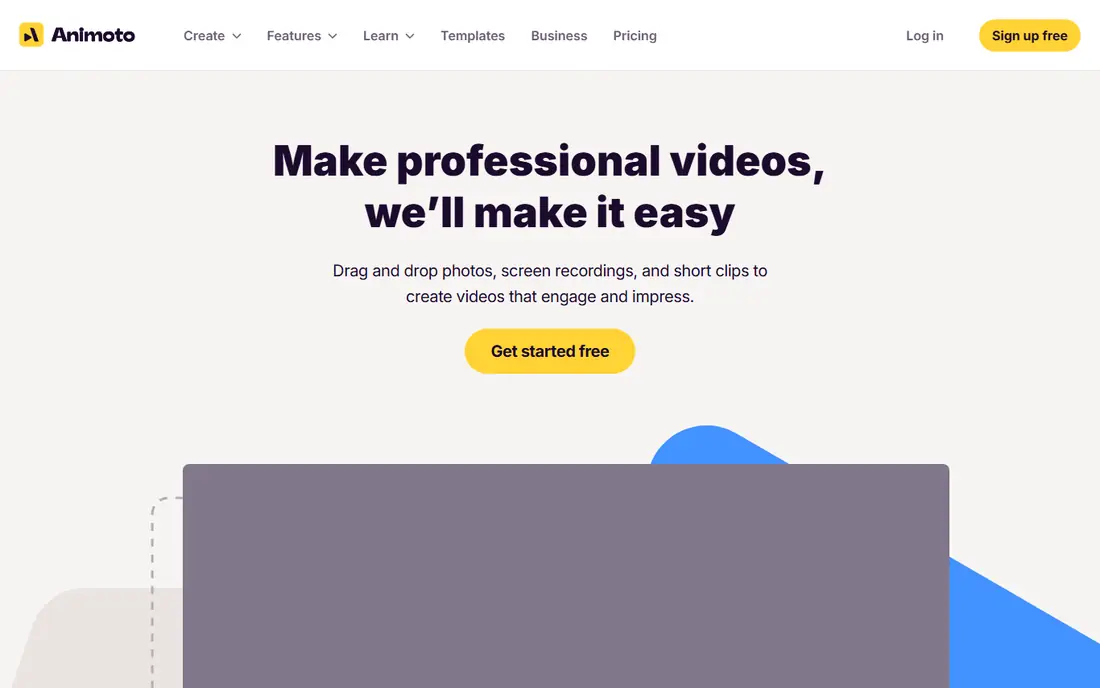
Animoto is built for exactly this job. Upload photos, pick a style, add music and text, and the app arranges the timing for you. That guided flow suits birthday videos, holiday recaps and small business posts, where you want a polished result without learning a timeline editor.
The free plan is a fair way to test it, but exports carry branding and paid plans remove it and raise quality. If you plan to share the video publicly or use it for a business, budget for a paid plan. For personal keepsakes shared with family, the free version is often enough.
- Very easy slideshow builder
- Licensed music library
- Templates for family, business and events
- Free exports carry Animoto branding
- Deeper timeline control is limited
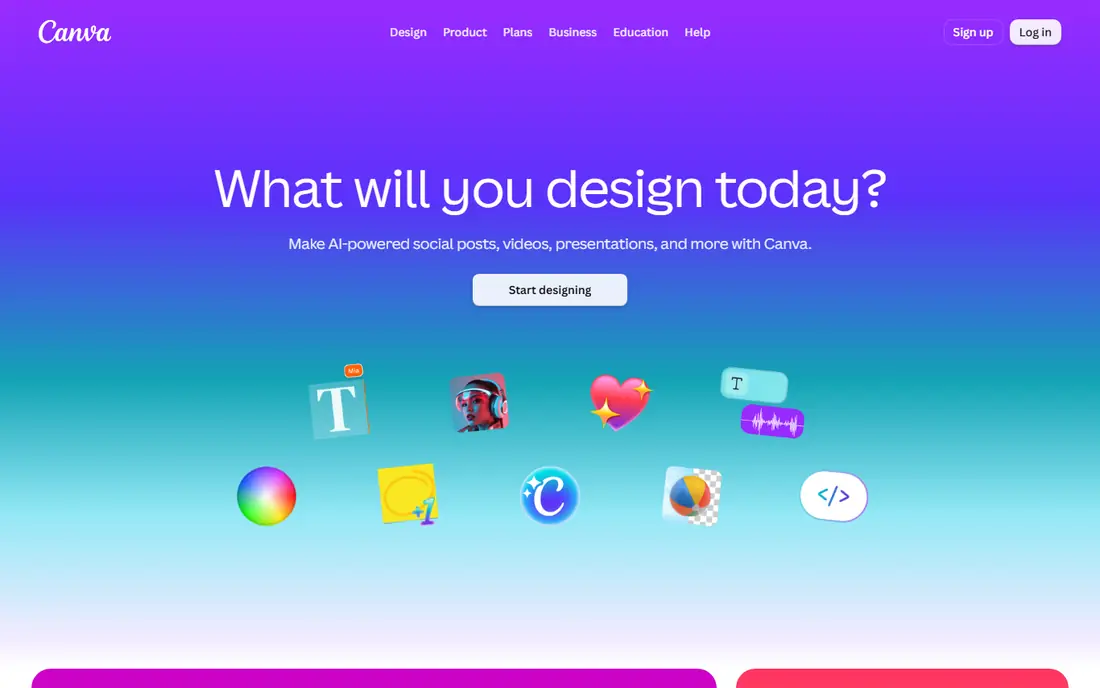
Canva turns photos into short social videos fast. Choose a vertical, square or wide template, drop in your photos, add captions, and export for the platform you use. Brand kits help small businesses keep colors and logos consistent across posts, which is a real time saver.
It is less suited to long, carefully timed slideshows with narration and complex audio. The timeline is simple by design. Use Canva when the video is short, visual and made for feeds, and move to Filmora or CapCut when timing and sound need finer control.
- Huge template and stock library
- Easy text, stickers and music
- Direct social sharing sizes
- Timeline editing is basic
- Some music and assets need a Pro plan
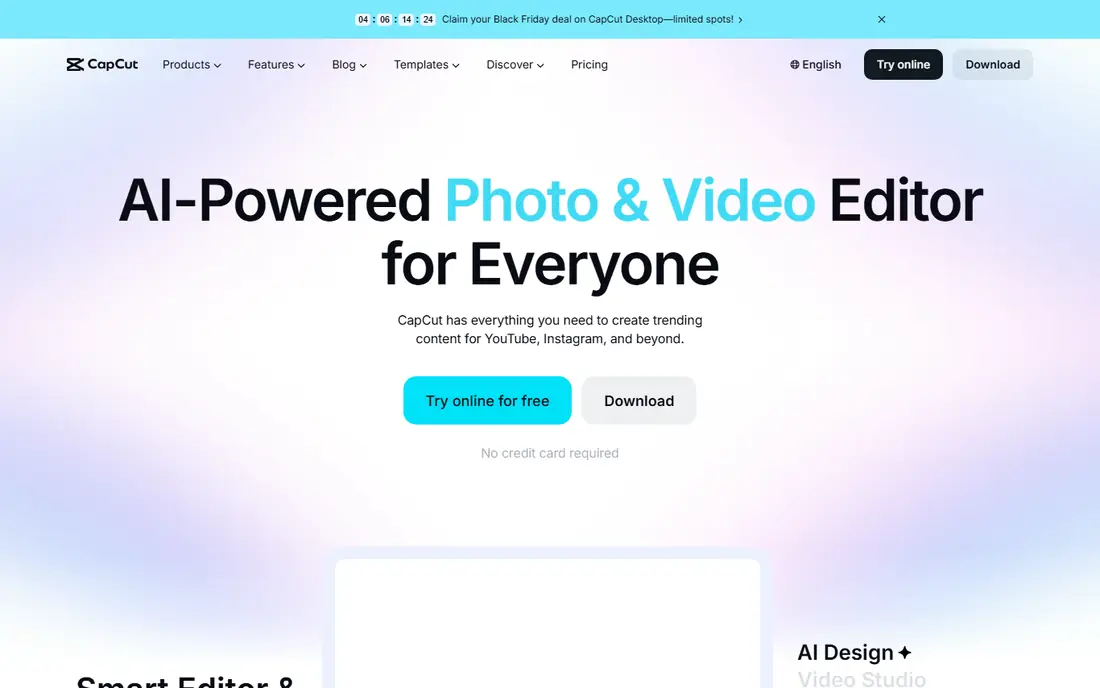
CapCut is the strongest phone option for turning photos into videos that look made for social feeds. Templates set the pacing, and you can still adjust clips, add text, captions, filters and music by hand. The mobile workflow means you can finish a video on the same phone that holds the photos.
Paid Pro adds premium assets and higher quality exports in some cases, so check the current plan page before a paid project. Also read the terms for commercial use if the video will run as an ad. For personal and creator content, the free editor covers most needs.
- Full mobile editor with effects and captions
- Photo to video templates
- Easy social export
- Some templates and assets need Pro
- Free export quality has limits on some devices
Filmora suits people who want a real timeline on a computer. You can set exact photo durations, layer music and narration, add titles, and fine tune transitions one clip at a time. That control matters for wedding recaps, memorial videos and longer family stories where pacing carries the feeling.
The trial lets you learn the editor, but exports carry a watermark, so the paid plan is the practical choice for finished work. Annual pricing is modest next to professional editors. If you make videos often, Filmora is a good middle ground between a template app and a pro suite.
- Clear multi track timeline
- Transitions, titles and audio tools
- Good for longer photo stories
- Free trial exports carry a watermark
- AI credits on paid plans have limits
Adobe Express is a fast browser and mobile route from photos to a short video, with templates for posts, ads and announcements. Adobe fonts and stock assets give business clips a clean look, and brand settings keep colors consistent. It is a good pick if you already use Adobe tools for other design work.
It will not replace a timeline editor for longer projects. Think of Express as the tool for a 30 second announcement, not a 10 minute documentary. For that short form job, its speed and template quality are strong, and the free plan handles many everyday clips.
- Simple photo to video templates
- Adobe stock and fonts
- Brand tools for businesses
- Editing depth is limited
- Premium features need a paid plan
Clipchamp is a handy choice for Windows users who do not want to install heavy software. It runs in a browser, offers slideshow templates, and lets you arrange photos, add text and music, and export a clean video. The free tier covers 1080p exports, which suits most sharing needs.
The limits show up at the top end, where 4K export and premium stock often sit behind paid plans. Clipchamp also needs a Microsoft account and cloud storage for projects. For school, work and family videos on a Windows machine, it is a practical free start.
- Runs in a browser on Windows
- Templates, stock and text tools
- Exports up to 1080p free
- 4K and premium stock need a paid Microsoft 365 plan in many cases
- Needs a Microsoft account
Movavi Slideshow Maker focuses on one job and does it plainly: photos in, slideshow out, with transitions, titles and music. Working on a desktop app avoids browser slowdowns on large photo sets, and the interface is friendly for people who do not edit video often. It suits family albums and event recaps.
Check the vendor site for the current price, since Movavi pricing varies by region and promotion. The trial is useful for learning, but finished videos need a paid license to remove the watermark. If you prefer offline software to a web app, this is a solid pick.
- Desktop slideshow workflow with transitions and music
- Works without a browser
- Simple for beginners
- Price varies by region and offer
- Trial exports carry a watermark
InVideo is aimed at marketing teams and creators who need a lot of short videos from photos, text and stock clips. Templates cover promos, explainers and social ads, and you can swap in your own photos and brand colors. That structure helps when you need volume without starting each video from scratch.
The free plan is best for testing templates, since exports carry a watermark. Paid plans raise export quality and remove branding, but credit and feature limits vary, so read the current pricing page. For one off family videos, simpler tools above are cheaper and faster.
- Large template library for business videos
- Text to video and photo workflows
- Team features on paid plans
- Free exports carry a watermark
- Pricing and credit limits change, so check the plan page
How we picked these
We compared official feature pages, pricing pages and app listings for tools that turn still photos into finished videos, not just tools that edit recorded footage. We favored apps that are available today, accept your own photos, and offer a free plan or trial, and we checked that each homepage belongs to the vendor. We excluded any tool aimed at altering images of people without consent, and we kept only legitimate slideshow and video makers.
How to make a photo video that people actually watch
Start by cutting ruthlessly. Twenty strong photos beat eighty similar ones, and a two to three minute video holds attention better than a ten minute slideshow. Put the best photo first, group the rest by moment or theme, and let each photo stay on screen long enough to be seen, usually a few seconds.
Music and captions do a lot of the work. Pick one track that fits the mood, keep volume low under any narration, and add short captions for names, places and dates. Export in the size your audience will use, vertical for phone feeds and wide for TV or YouTube, and watch the whole video once before you share it. Small fixes at this stage, like a photo shown upside down or a caption typo, are easy to miss when you are close to the project.
Photo rights and consent
Use photos you took, photos you have permission to use, or properly licensed stock. If a video shows children or other people, get consent from the people involved or their guardians before posting it publicly. This matters even more for school, team and event videos, where a private share link is often a better choice than a public post.
FAQ
What are the best apps to create videos from photos?
Animoto and Canva are the easiest starts, CapCut is best on a phone, and Filmora gives more desktop control. The right pick depends on video length, device and whether the video is for family, social feeds or business use. Try a free plan with ten photos before committing to a paid plan.
What are the best tools to create video from photo collections?
The best tools to create video from photos are slideshow makers with templates, music and text, such as Animoto, Canva and Movavi Slideshow Maker. Fuller editors like Filmora and CapCut add timeline control for longer stories. For a single photo turned into a short clip, Canva and CapCut templates are the fastest routes.
Can I create a video from photos for free?
Yes, Animoto, Canva, CapCut, Adobe Express, Clipchamp and InVideo all have free plans. Free exports may carry a watermark or branding, and some stock music and assets need a paid plan. For personal sharing, free plans are often enough, while business videos usually justify a paid plan.
How long should a photo slideshow video be?
Two to three minutes works well for most family and social videos, with each photo on screen for a few seconds. Longer videos suit weddings, memorials and year in review projects, where the audience is already invested. Cut duplicate photos and keep one music track through the whole video for a cleaner feel.
Do I need permission to use photos of other people?
Yes, for public sharing you should have consent from the people shown, or from guardians for children. Private sharing with family is lower risk, but consent still matters for sensitive moments. Only use photos you own, have permission for, or hold a proper license to use.
Which app is best for business photo videos?
Canva and InVideo suit short marketing videos with brand colors and templates, while Filmora suits longer product or event stories. Check commercial music licensing on the plan you choose, since personal music licenses do not always cover ads. Export without a watermark for any video that represents your business.