Best Apps to Animate Photos in 2026: 8 Apps Compared
Looking for the best apps to animate photos? We compared 8 tools for face animation, cinemagraphs, and 3D motion, with prices, free plans, and trade-offs.
- Editor's choice
 Motionleap
Cinemagraphs and moving skies
Starts atSee websiteVisit lightricks.comFull review - Great alternative
 MyHeritage Deep Nostalgia
Animating old family portraits
Starts atSee websiteVisit myheritage.comFull review - Also consider
 Google Photos
Free 3D-style motion
Starts atFreeVisit photos.google.comFull review
TL;DR:
- Motionleap is our pick for most people who want a moving photo in minutes, with path and anchor tools that give real control over what moves.
- MyHeritage Deep Nostalgia is the best choice for animating faces in old family portraits, with subtle blinks, smiles, and head turns.
- Google Photos is the simplest free route to a gentle 3D effect, with no extra app needed if you already use it.
- Photo animation apps vary a lot in export quality and watermarks, so check the free tier limits before you pay for a subscription.
Quick comparison
| Tool | Best for | Starts at | Free plan? | |
|---|---|---|---|---|
| Motionleap | Cinemagraphs and moving skies | See website | Yes | Visit |
| MyHeritage Deep Nostalgia | Animating old family portraits | See website | Yes | Visit |
| Google Photos | Free 3D-style motion | Free | Yes | Visit |
 HitPaw | Quick AI photo animation on desktop and mobile | See website | Yes | Visit |
 LeiaPix Converter | Free 3D depth and parallax effects | Free | Yes | Visit |
 Corel PhotoMirage | Precise looping animations on desktop | See website | Free trial | Visit |
 Reface | Fun face-swap style animation | See website | Yes | Visit |
 Canva | Animated social posts from still photos | Free | Yes | Visit |
The best apps to animate photos
A still photo can hold a moment, but a little motion can make it easier to share and harder to scroll past. These tools cover the main ways to animate a photo, from a face that blinks to water that ripples and skies that drift.
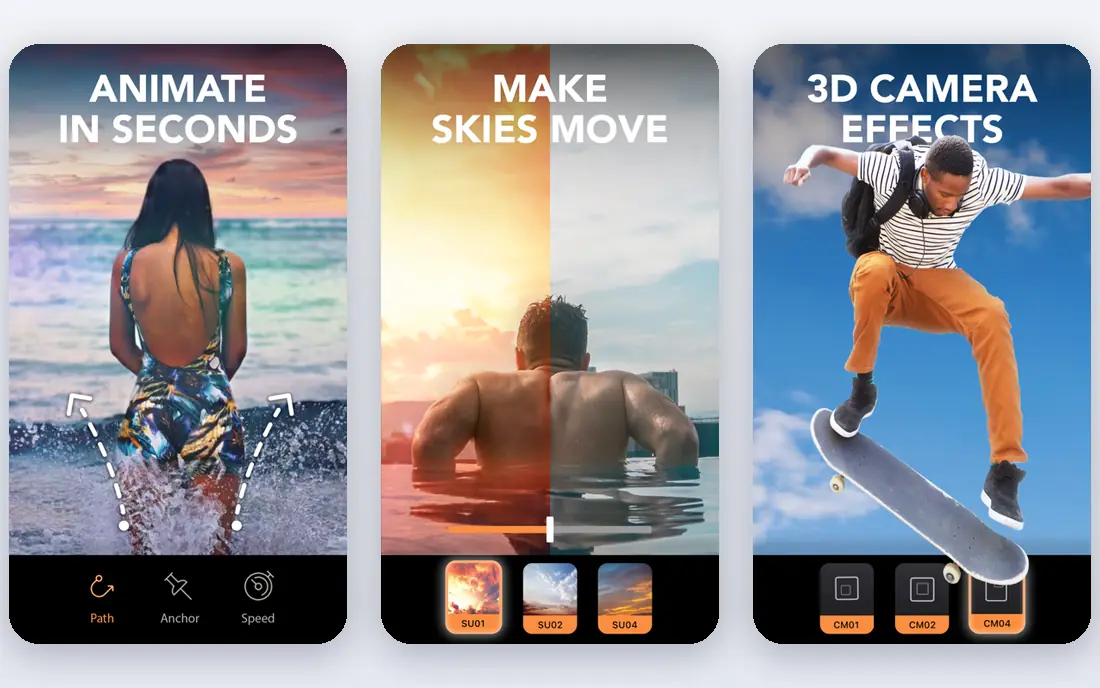
Motionleap, from Lightricks, is the app we would hand to most people first. You draw a path to show where movement should go, then place anchors on the parts that must stay still, and the result is often a convincing cinemagraph in a few minutes. Animated skies, flowing water, and drifting clouds are its strongest tricks, and the overlay library adds rain, sparkles, and light effects without much effort.
The catch is the paywall. The free version is good for trying the idea, but regular use and watermark-free exports usually mean a subscription. It is also a mobile-first app, so people who want a large desktop timeline will find it limiting. For short social clips and quick experiments, though, it is hard to beat for speed and control.
- Intuitive path and anchor tools
- Strong sky and overlay effects
- Exports as video for social sharing
- Best effects sit behind a paid plan
- Free exports can carry a watermark
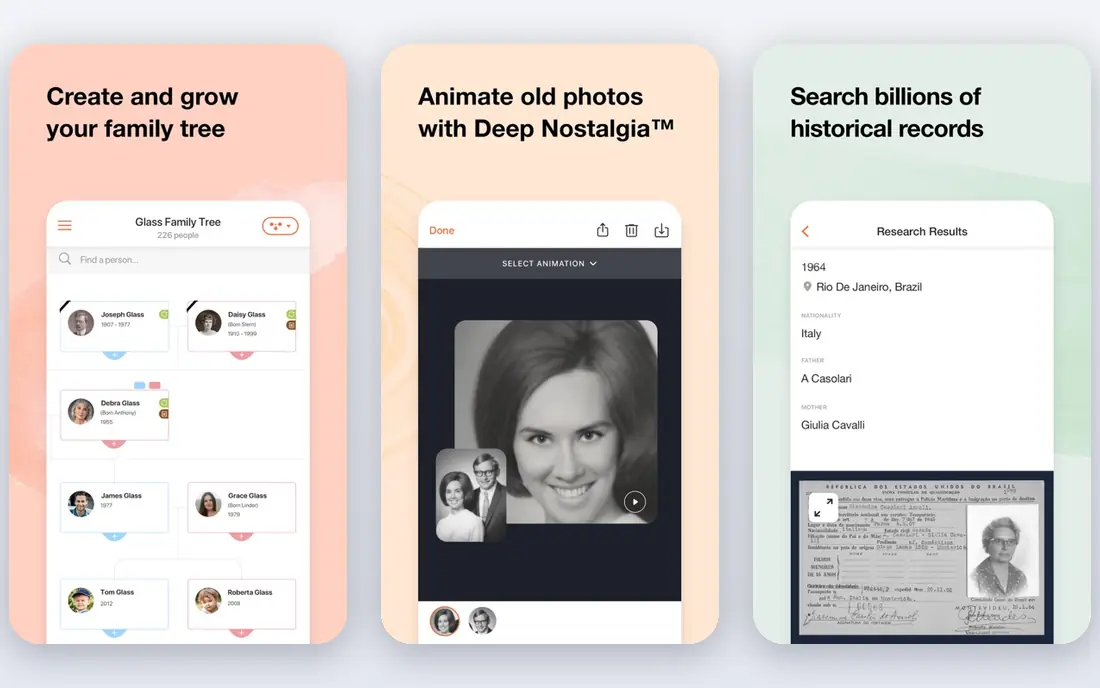
Deep Nostalgia takes a different approach from Motionleap. Instead of asking you to paint motion by hand, it detects a face and animates it with blinks, smiles, and small head movements. For old portraits of relatives, that effect can be genuinely moving, and the built-in enhancement helps faded or damaged photos look clearer before the animation runs.
The limits matter. You cannot direct the performance in detail, and the free allowance is small, so a large family archive will push you toward a paid plan. It is also tied to the MyHeritage platform, which adds steps if you only want a single animation. Still, for the specific job of bringing a portrait to life, no general animation app matches its simplicity.
- One-click face animation
- Built-in photo enhancement
- Easy sharing of short clips
- Full use needs a MyHeritage subscription
- Motion follows preset sequences rather than custom directions
Google Photos offers a cinematic photo effect that adds a slow, 3D-style pan to a still image. It will not make a face talk or a river flow, but it gives portraits and travel shots a gentle sense of depth that works well in slideshows and shared albums. Because it lives inside an app many people already use, there is nothing new to learn and no extra subscription to weigh up.
The trade-off is control. You get the effect Google creates, not a set of brushes and paths to shape yourself. Some users also find the feature appears inconsistently depending on their device. If you want a free, low-effort way to animate a photo, start here before paying for anything else.
- No extra app to install for many users
- Simple cinematic photo effect
- Easy sharing from your library
- Motion is subtle and automatic
- Availability varies by device and account
HitPaw suits people who want an AI tool that does most of the work. You upload a photo, pick an animation style, and the tool generates a short moving clip, often with enhancement applied along the way. The desktop option is useful for anyone who prefers working on a larger screen or batching several photos at once.
Quality depends on the starting image. Sharp, well-lit portraits tend to animate cleanly, while blurry or crowded photos can produce odd artifacts around hands and faces. Pricing is also credit and subscription based, so occasional users should check how many animations they actually get before committing. For fast, low-skill animation, it is a solid middle ground.
- Simple upload and generate workflow
- Photo enhancement tools in the same suite
- Works beyond mobile
- Credit and subscription costs add up with heavy use
- AI results vary with photo quality
LeiaPix Converter turns a flat photo into a depth-mapped animation, so foreground and background shift slightly as if the camera moved. It is a browser tool, which makes it easy to try on any computer, and the free tier is generous enough for casual sharing. For art, product shots, and scenic photos, the parallax effect often looks more polished than a simple zoom.
It does not animate faces or add flowing water, so it answers a narrower question than Motionleap or Deep Nostalgia. Export options and account requirements have also changed over time, so check the current terms before you build a project around it. As a free way to add depth to a still image, it remains one of the best tools to animate a photo.
- Free web converter
- Convincing depth and parallax motion
- No app install needed
- Needs an account for some exports
- Effect is depth motion only, not face animation
PhotoMirage is built for people who want a cinemagraph that loops cleanly, such as a hero image on a website or a product shot for a store. Its motion arrows and anchor points give fine control, and the loop settings help avoid a visible jump when the clip restarts. That precision is why marketers and designers still keep it in their toolkit alongside mobile apps.
The downside is that it is desktop software with a purchase price, and it takes longer to learn than tapping through a phone app. If you only animate a photo now and then for fun, a mobile app is the better value. If you publish animations regularly and care about a clean loop, PhotoMirage earns its place.
- Precise motion and anchor controls
- Loop controls for clean repeats
- Desktop exports for web and social use
- Paid desktop software, not a free mobile app
- Learning curve is steeper than mobile tools
Reface is the fun option on this list. It maps a face onto animated templates and clips, which works well for jokes, birthday messages, and short social videos. The process is fast, the templates are plentiful, and you do not need any editing skill to get a shareable result in a minute or two.
Do not buy it expecting a faithful portrait animation. The output is stylized and playful by design, and it can look odd with older or low-resolution photos. The free tier also limits how much you can do before a subscription appears. Used for entertainment rather than family history, it is an enjoyable tool to animate a photo.
- Fast, playful face animation
- Large template library
- Easy social sharing
- Results are novelty style, not realistic portraits
- Many templates need a subscription
Canva is not a dedicated photo animation app, but it is often the most practical choice for social posts. You can add pan, zoom, and fade effects to a photo, layer text and music on top, and export a short video sized for each platform. For small businesses and creators who already design in Canva, that all-in-one workflow saves time and keeps branding consistent.
The limits show when you want a specific part of the photo to move. Canva animates the frame and elements more than the contents of the image itself, so flowing water or a blinking face is not its job. Still, as a best app to animate a photo for social feeds, its free plan and templates make it a sensible starting point.
- Free plan with animation features
- Huge template library
- Text, music, and branding in one place
- Animation is template driven, not fine motion control
- Best video exports sit on paid plans
How we picked these
We compared official feature pages, pricing pages, and app store listings, plus public user reviews, and we focused on tools that still work in October 2026 and clearly animate a still photo rather than only editing it or generating a new image from text. We favored a mix of face animation, cinemagraphs, depth motion, and social templates, so different readers can find a fit for their photo and their budget. Prices change often, so we used vendor pricing where we could confirm it and wrote See website where a plan was quote based, credit based, or varied by platform.
What to check before you animate a photo
Start with the photo, not the app. A sharp, well-lit image with a clear subject animates far better than a dark or crowded one, and old portraits benefit from enhancement before animation. Next, decide what kind of motion you want. Face animation, flowing elements, depth parallax, and social templates are different jobs, and no single app leads at all four.
Free tiers and watermarks
Free plans are useful for a test, but they often limit exports, add a watermark, or cap the number of animations per month. If you plan to share the result widely or use it for a business, check the export resolution and watermark rules before you spend time on a project. A small subscription can be good value for regular use, but it is wasted money for a one-off birthday clip.
Privacy and consent
Photo animation tools process images on their servers in many cases, so read the privacy policy for any app that will handle family photos or pictures of other people. Only animate photos you have the right to use, and get consent before animating or sharing a photo of someone else, especially a child or a person who has died, where family feelings may be involved. A tool that stores uploads indefinitely is a poor choice for sensitive family images.
Export format and length
Most apps export short MP4 clips or GIFs, and length limits vary from a few seconds to a minute. Check that the format fits where you plan to post it, and that the loop looks clean if it will repeat. For websites, a short, well-compressed loop loads faster and looks better than a long clip that stutters.
FAQ
What is the best app to animate photos for free?
Google Photos and LeiaPix Converter are the strongest free starting points, with Google Photos offering a gentle cinematic effect and LeiaPix adding depth motion. Motionleap and Canva also have free plans, but their best exports and effects often need a paid plan. Try a free tool first to learn what kind of motion suits your photos.
Which tool is best to animate a photo of a person?
MyHeritage Deep Nostalgia is the best fit for a portrait, because it is built to animate faces with blinks and small head movements. Reface is better for playful, novelty clips than for a realistic portrait. For a full-body or scenic photo, Motionleap or PhotoMirage will give you more control over what moves.
Can I animate a photo without an app?
Yes, browser tools such as LeiaPix Converter and the web versions of several AI tools let you animate a photo without installing an app. Canva also runs in a browser and covers simple social animations. A desktop tool such as PhotoMirage is still worth considering if you want precise loops.
Do photo animation apps keep my photos private?
Policies differ, so read the privacy terms before uploading sensitive images. Some tools process photos in the cloud and may store them for a period, while others delete uploads sooner. If privacy matters, prefer a tool with a clear retention policy and avoid uploading photos of other people without their consent.
Why does my animated photo look strange?
Low resolution, motion blur, and busy backgrounds are the usual causes, because the AI has to guess depth and movement from limited detail. Start with the sharpest version of the photo you have, and keep the motion subtle rather than extreme. If one tool struggles, try another, since each model handles faces and textures differently.