Best App to Scan Old Photos in 2026: 9 Apps Compared
Compare the best app to scan old photos, from free glare-free scanning to batch album capture, restoration, and mail-in digitizing services in 2026 today.
- Editor's choice
 Google PhotoScan
Free glare-free single scans
Starts atFreeVisit photos.google.comFull review - Great alternative
 Photomyne
Batch album scanning
Starts at$14.99 per monthVisit photomyne.comFull review - Also consider
 MyHeritage Reimagine
Family history and photo enhancement
Starts atSee websiteVisit myheritage.comFull review
TL;DR:
- The best app to scan old photos for most people is Google PhotoScan for free glare-free scans, with Photomyne for large batches and albums.
- Batch scanning, glare removal, and restoration are different jobs, so the best choice depends on whether you have a few favorites or boxes of albums.
- Phone scanning suits dozens or hundreds of prints, while mail-in services suit very large collections or fragile prints that need professional handling.
- Always back up scans in two places, and keep originals safe, since a digital copy is only useful if you can find it later.
Quick comparison
| Tool | Best for | Starts at | Free plan? | |
|---|---|---|---|---|
| Google PhotoScan | Free glare-free single scans | Free | Yes | Visit |
| Photomyne | Batch album scanning | $14.99 per month | Yes | Visit |
| MyHeritage Reimagine | Family history and photo enhancement | See website | Yes | Visit |
 PhotoScanRestore | Scanning plus restoration and sharing | Free | Yes | Visit |
 Adobe Scan | Document and photo capture with cleanup | Free | Yes | Visit |
 Microsoft Lens | Free capture and organization | Free | Yes | Visit |
 Remini | AI enhancement of already scanned photos | See website | Yes | Visit |
 ScanMyPhotos | Mail-in bulk digitizing | See website | No | Visit |
 Legacybox | Mail-in mixed media digitizing | See website | No | Visit |
The best apps to scan old photos
These options cover phone scanning, enhancement, and mail-in digitizing, so we note clearly which ones are apps and which are services.
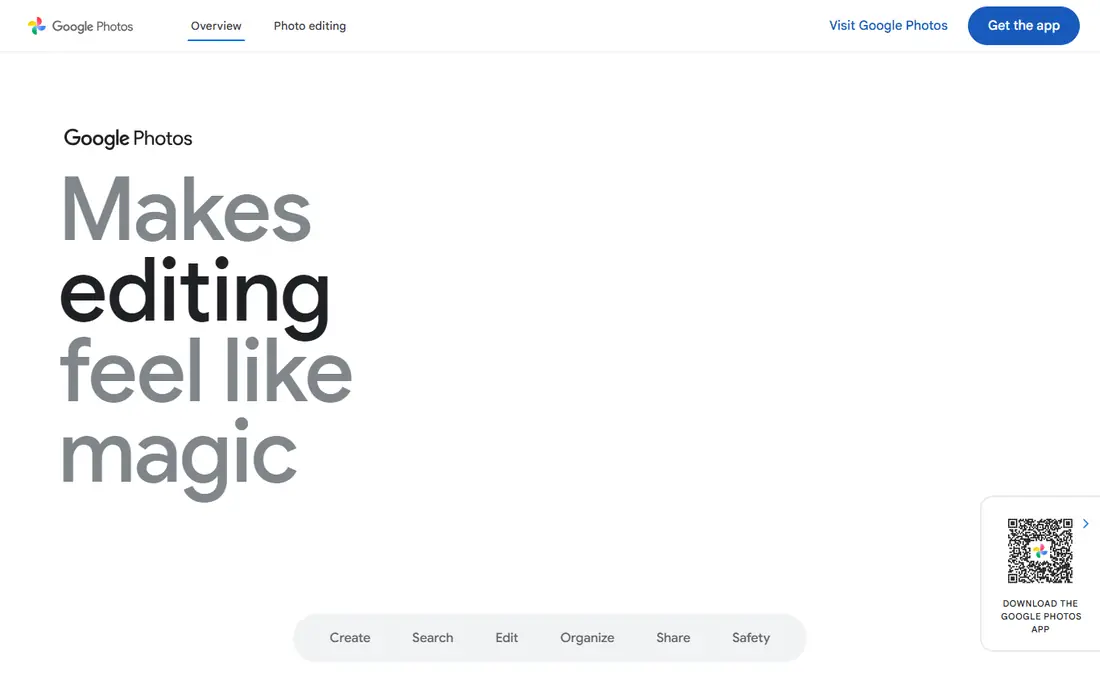
Google PhotoScan is our pick for most people with a small or medium collection. It is built specifically for printed photos, not documents, and its glare removal guides you through several captures that it combines into one corrected scan. That helps a lot with glossy and framed prints, where a normal phone photo often shows reflections. You can adjust corners and rotation after scanning, and scans save to Google Photos for backup and sharing.
The trade-off is speed. With glare removal on, every print needs several guided captures, so PhotoScan is not the fastest choice for hundreds of photos or full album pages. You can turn glare removal off for a quicker single capture when glare is not an issue. For a few dozen favorites, PhotoScan is free, simple, and hard to beat.
- Completely free
- Multi-capture glare removal for glossy prints
- Automatic cropping and saving to Google Photos
- Slower for large batches, since glare removal needs several captures
- No album organization or restoration tools
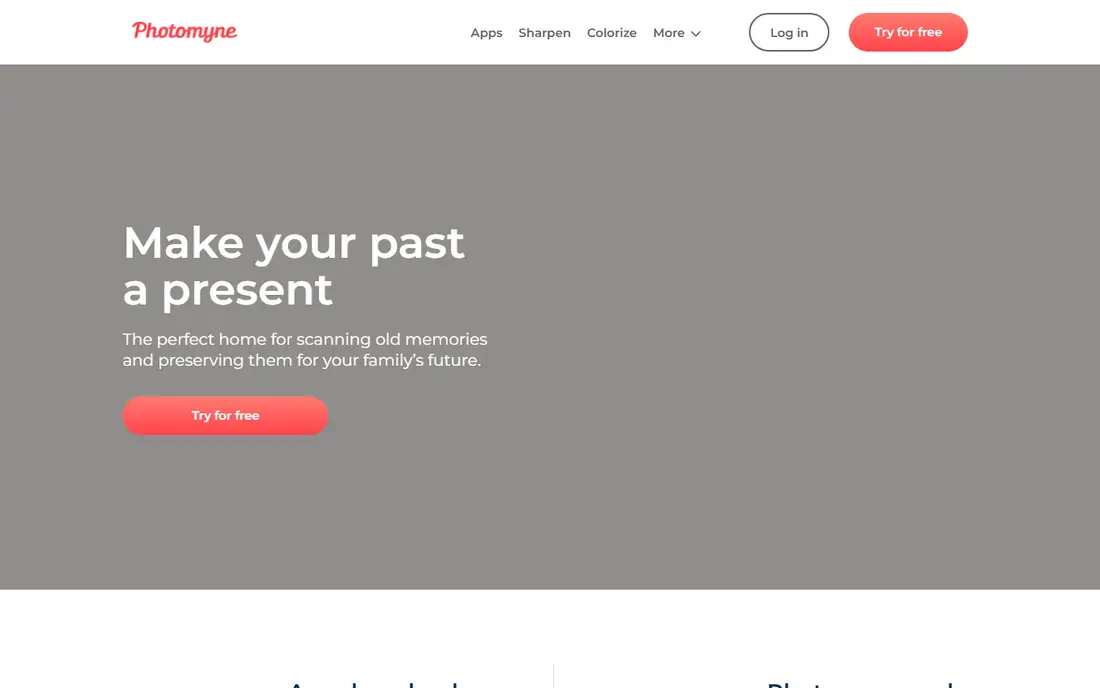
Photomyne is the best app for large collections. Instead of scanning one print at a time, you can photograph an entire album page and Photomyne automatically detects, crops, and splits it into individual photos. That turns a weekend project into an afternoon for many families, and the suite also includes tools for slides, negatives, and colorization. Pricing around $14.99 per month or $59.99 per year, with a short free trial in many listings, reflects that batch power.
Photomyne is a subscription, so it only makes sense if you have enough photos to justify a month or a year of use. For a handful of prints, Google PhotoScan is free and better. For boxes of albums, Photomyne's speed can save hours, and you can cancel after the project is done, provided you export and back up your scans first.
- Scans entire album pages and splits them into individual photos
- Includes slide, negative, and colorize tools
- Cloud backup and sharing
- Subscription needed for unlimited scanning and full features
- Monthly price is high for a small batch
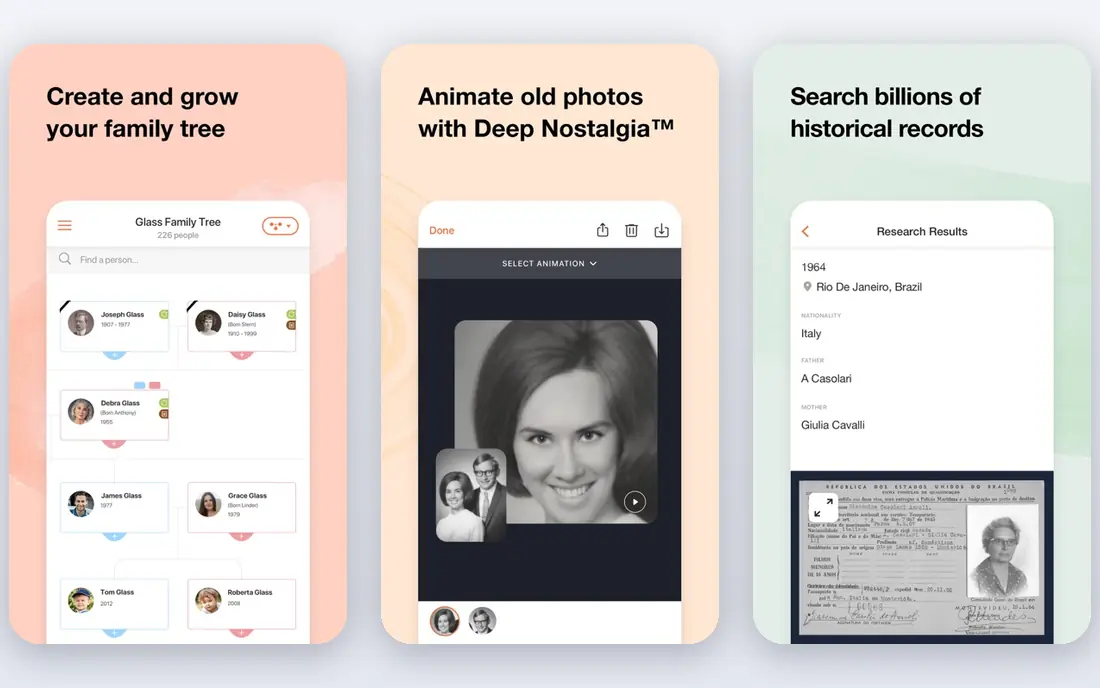
MyHeritage Reimagine is built for family history, not only for scanning. You can scan old photos, enhance faded images, colorize black-and-white prints, and link faces to people in a MyHeritage family tree. That combination suits genealogists and families who want scanned photos to live alongside family records, stories, and tree research, rather than only in a phone gallery.
The limits are cost and ecosystem. Limited free use is available, but unlimited scanning, enhancement, and restoration need a subscription, and the full value comes when you also use MyHeritage for family history. If you only need scans, PhotoScan or Photomyne is simpler. If you are building a family tree, Reimagine is a strong, focused choice.
- Scan, enhance, colorize, and animate old photos
- Face tagging and family tree links
- Good for genealogy projects
- Unlimited scanning and restoration need a subscription
- Best value inside the MyHeritage ecosystem
PhotoScanRestore focuses on the step after capture, which is restoration and sharing. Its iPhone app scans and saves prints free, one at a time, keeps every original untouched, and lets you restore only the photos worth it, with paid credits for restoration work. That model suits people who have a few damaged favorites they want to fix carefully, rather than hundreds of prints to scan quickly.
PhotoScanRestore is not a batch scanner, so it will not match Photomyne for album speed. Restoration quality also depends on the original scan and damage, and credit costs add up if you restore many photos. For a small set of important photos, though, its scan-then-restore workflow is clear and practical.
- Free iPhone scanning, one print at a time
- Originals kept untouched
- Optional paid restoration and private sharing
- Not a batch scanner
- Restoration uses credits, so costs scale with volume
Adobe Scan is a free document scanner that can also capture old photos, and it is useful when your collection mixes photos with documents, letters, and certificates. It automatically cleans up captures, detects edges, and can recognize text in documents, and it saves to PDF or image formats in Adobe cloud. That makes it a good general capture app if you already use Adobe tools.
Adobe Scan is not a dedicated photo scanner. It lacks PhotoScan's glare removal workflow and Photomyne's album-page splitting, so glossy prints and large batches will be slower or less clean. Use Adobe Scan for mixed paper collections, and use PhotoScan or Photomyne for photo-only projects where quality and speed matter more.
- Free capture with automatic cleanup
- Text recognition for documents
- Saves to Adobe cloud and PDF
- Built for documents first, not for photo glare or album splitting
- Best features need a paid Adobe plan
Microsoft Lens, formerly Office Lens, is a free capture app for photos, documents, whiteboards, and business cards, with saving to OneDrive and other Microsoft apps. That makes it handy for families and small teams already using Microsoft 365, since scans can go straight into shared folders and notebooks. Its edge detection and cleanup work well for flat paper on a table.
Like Adobe Scan, Microsoft Lens is document-first, so it does not match PhotoScan for glossy print glare or Photomyne for album batches. It also offers no built-in old-photo restoration. Use Microsoft Lens when you want free, simple capture into Microsoft storage, and use a photo-specific app when photo quality is the main goal.
- Free
- Captures photos, documents, and whiteboards
- Saves to OneDrive, OneNote, and other Microsoft apps
- Document-first design
- No dedicated photo glare removal or restoration tools
Remini is not a scanner, it is an enhancer, and it belongs here because many old photos need help after scanning. Once you have a digital copy from PhotoScan or Photomyne, Remini can improve faces, sharpness, and color with AI, which can make a faded family photo look much better for sharing and printing. Its mobile workflow is simple, and a free tier lets you test enhancement before paying.
AI enhancement has limits. Remini estimates detail, it does not recover true detail that was lost, and faces can look smoothed or altered if enhancement is pushed too far. Always keep the original scan untouched, and compare enhanced and original versions before sharing. For damaged prints with scratches and tears, a manual restoration service may be more faithful than AI alone.
- AI enhancement for faces, sharpness, and color
- Useful for faded or blurry old photos
- Easy mobile workflow
- Enhancement is AI estimation, not true restoration
- Subscription needed for full use
- Results vary by photo
ScanMyPhotos is a mail-in service, not a phone app, and it suits very large collections. You fill a prepaid box with loose prints, mail it in, and receive digital scans back, with pricing based on box size and options. That model is far faster than phone scanning thousands of prints yourself, and professional equipment can produce more consistent results than a phone for bulk work.
Mailing originals is the main risk and cost. You should photograph or inventory valuable originals before mailing, check insurance and tracking options, and confirm resolution, file format, and delivery method before ordering. ScanMyPhotos is not the right choice for a few favorites, but for boxes of loose prints, it can save weeks of phone scanning.
- Prepaid box options for large volumes
- Professional scanning for loose prints
- Good for thousands of photos
- You must mail originals
- Cost depends on box and resolution
- Turnaround time varies
Legacybox is also a mail-in service, and it stands out for mixed collections. Its kits cover photos plus tapes, film, and other media, so a family with prints, VHS tapes, and reels can digitize them in one project. Kits start around $69.98 in many listings, with separate bulk photo pricing, and delivery options include cloud access and physical media, depending on the kit.
Check kit limits, extra delivery costs, and turnaround time before ordering, since those details affect total cost. Like ScanMyPhotos, Legacybox requires mailing originals, so inventory and insurance matter. For a mixed media collection, Legacybox is a practical one-stop service. For photos only, compare it with ScanMyPhotos and with phone scanning for smaller batches.
- Kits for photos, tapes, film, and other media
- Useful for mixed family collections
- Cloud and physical delivery options
- Kit limits and delivery costs need checking
- Turnaround time varies
- Not a phone app
How we picked these
We compared official app and service pages, pricing pages, and public photo scanning guides for tools available in October 2026. We favored apps with a working photo scan path today, and we included enhancement and mail-in services only where they solve a real step in digitizing old photos. We noted where a tool is document-first, batch-first, or service-based, so readers do not buy the wrong tool for their collection size. We did not claim hands-on testing that did not happen.
How to scan old photos without losing quality
Good scanning is mostly about light, stability, and backup, not about buying the most expensive app.
Prepare prints and light before you start
Clean prints gently, remove them from sticky albums only if safe, and scan in even, indirect light to reduce glare. Lay prints flat, avoid shadows from your phone or body, and use a plain background so edge detection works well. For fragile, curled, or stuck prints, stop and consider a professional service instead of forcing them flat.
Scan in batches, then back up twice
Scan a small batch first to test quality, then work through albums in order, naming folders by year, event, or person as you go. Back up scans to at least two places, such as a cloud service and an external drive, and keep originals in a cool, dry place after scanning. A scan you cannot find later is little better than a box you never opened.
Enhance only copies, never originals
Keep the first scan as your master copy, and enhance or colorize a copy. That way you can try AI enhancement, manual restoration, or a different tool later without losing the original digital file. Compare enhanced versions side by side, and avoid over-smoothing faces, since a natural faded photo often looks better than an over-processed one.
FAQ
What is the best app to scan old photos for free?
Google PhotoScan is the best free app to scan old photos, with glare removal for glossy prints and saving to Google Photos. Microsoft Lens and Adobe Scan are also free for general capture, but they are document-first and lack PhotoScan's photo-specific glare workflow.
What is the best app to scan pictures in bulk?
Photomyne is the best phone app for bulk scanning, because it photographs album pages and splits them into individual photos automatically. For thousands of loose prints, a mail-in service like ScanMyPhotos may be faster than any phone app.
Can I scan old photos with my phone?
Yes. Modern phones with PhotoScan, Photomyne, or a similar app can produce good scans for sharing and printing at typical sizes, especially in good light. For archival prints, large enlargements, or fragile originals, a flatbed scanner or professional service may give better detail and safer handling.
How do I remove glare when scanning old photos?
Use Google PhotoScan's multi-capture glare removal, scan in even indirect light, and avoid direct lamps or windows behind you. Tilt the print slightly if reflections persist, and turn off glare removal only when the print is matte and glare is not an issue.
Should I use a scanner app or a mail-in service?
Use a scanner app for dozens or hundreds of prints, for favorites you want to control, and for a lower cost. Use a mail-in service for thousands of prints, for mixed media collections, or for fragile prints that need professional handling. Always inventory originals and check insurance before mailing.