Best AI Tool for Recoloring Images in 2026: 9 Tools Compared
We compared the best AI tool for recoloring images, from black-and-white colorization to changing colors in product photos, with free and paid top picks.
- Editor's choice
 Palette.fm
Black-and-white colorization
Starts at$49 one-timeVisit palette.fmFull review - Great alternative
 Adobe Photoshop
Precise selective recoloring
Starts atSee websiteVisit adobe.comFull review - Also consider
 Fotor
Quick online recoloring
Starts atSee websiteVisit fotor.comFull review
TL;DR:
- Palette.fm is the best focused pick for colorizing black-and-white photos with realistic skin tones.
- Adobe Photoshop suits users who need precise, selective recoloring with layers and masks.
- Fotor and iFoto AI suit quick product and clothing recolors without learning a full editor.
- MyHeritage In Color suits family archives, while Picsart and Canva suit social and marketing images.
- AI color is an interpretation, not a recovery of original colors, so keep the original file and check faces closely.
Quick comparison
| Tool | Best for | Starts at | Free plan? | |
|---|---|---|---|---|
| Palette.fm | Black-and-white colorization | $49 one-time | Yes | Visit |
| Adobe Photoshop | Precise selective recoloring | See website | Free trial | Visit |
| Fotor | Quick online recoloring | See website | Yes | Visit |
 iFoto AI | Clothing and product recolors | See website | Yes | Visit |
 MyHeritage In Color | Family photo colorization | See website | Free trial | Visit |
 Picsart | Social and marketing recolors | See website | Yes | Visit |
 Canva | Design recolors and templates | Free | Yes | Visit |
 CyberLink PhotoDirector | Photo editing with AI recolor | See website | Free trial | Visit |
 DeOldify | Free open-source colorization | Free | Yes | Visit |
The best AI tools for recoloring images
We compared color accuracy, control, resolution, batch handling, and pricing for the best AI image recoloring tools. Recoloring covers two different jobs: adding color to a black-and-white photo, and changing the color of an object in a color photo. The best AI tools for recoloring images differ by which job you need most.
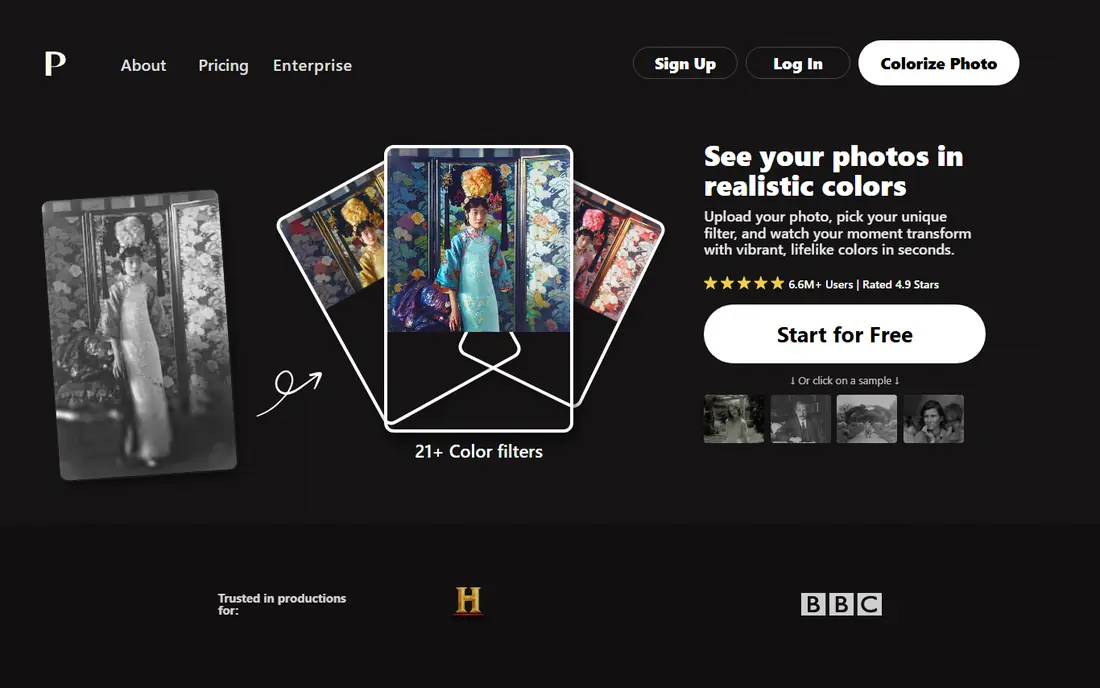
Palette.fm is purpose-built for colorization, and that focus shows in its results. It handles skin tones, clothing, and outdoor scenes with a natural look more often than general editors, and its filters let you adjust the mood without manual painting. For family archives and history projects, it is the fastest route to a believable color version.
The free tier limits resolution and adds a watermark to previews, so a clean, high-resolution result needs a paid credit pack. Its one-time pack, priced at $49 for 75 credits in recent listings, suits occasional use better than a monthly plan. Keep the original scan, because the AI invents colors it cannot know.
- Focused colorization with realistic tones
- Filters and prompt controls
- Bulk options
- Free previews are watermarked and lower resolution
- Color is estimated, not original
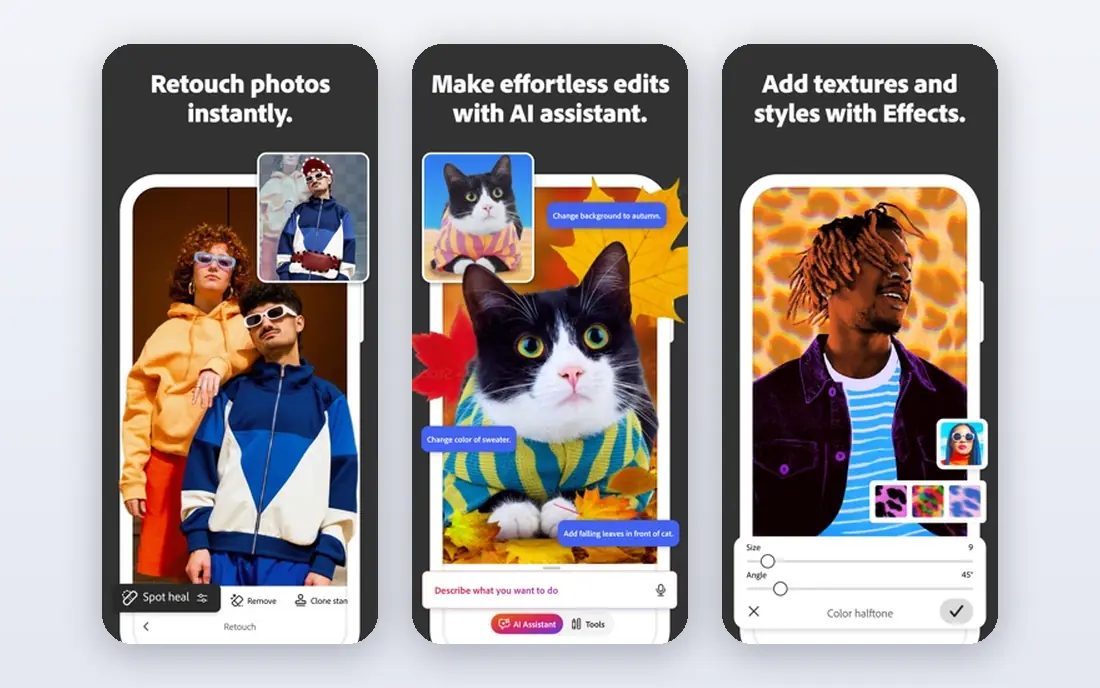
Photoshop is the choice when recoloring must be exact, such as changing a product color while keeping shadows, texture, and reflections intact. Hue and saturation layers, masks, and selection tools let you recolor one object without touching the rest of the image. Its Neural Filters also offer AI colorization for black-and-white photos as a starting point.
That control comes with cost and complexity. A beginner who only needs one quick recolor will finish faster in Fotor or Picsart. A designer, photographer, or store owner who needs repeatable, print-ready results will find Photoshop worth the learning time.
- Layers, masks, and hue controls
- Neural Filters for colorization
- Highest control for pros
- Subscription cost
- Learning curve for beginners
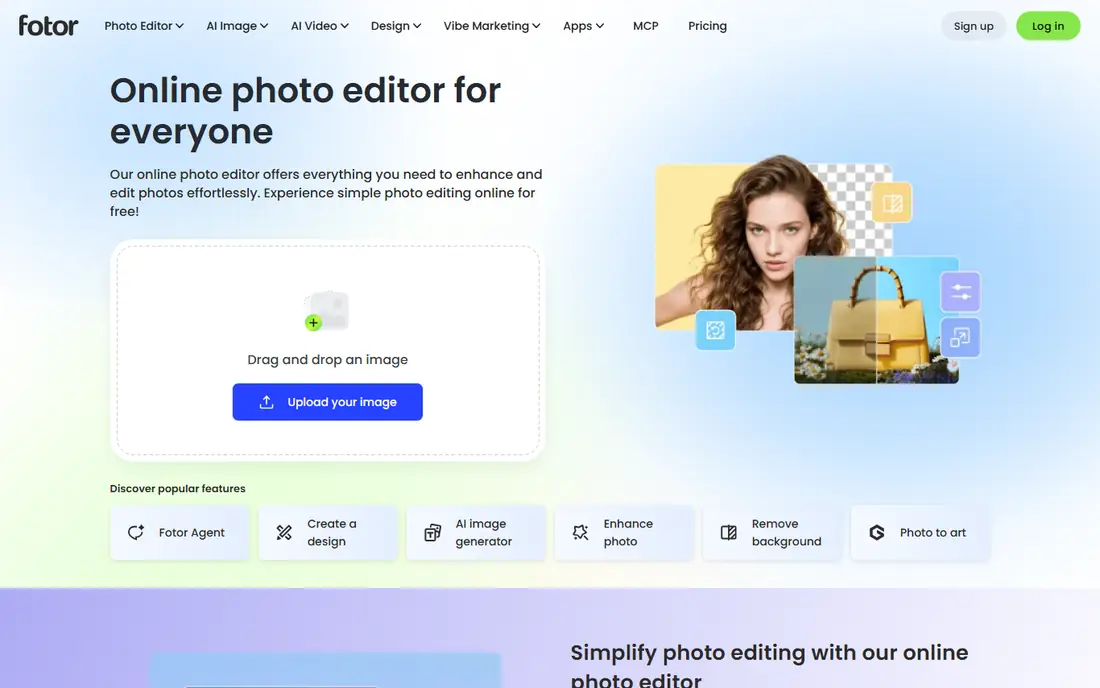
Fotor offers an online AI recolor tool that selects an area and swaps its color while keeping highlights and shadows. That makes it useful for product photos, clothing shots, and design mockups where you need to show the same item in several colors. The browser workflow needs no install, and a description box lets you guide the change.
It works best for single-color replacements rather than complex multi-tone edits. Very high-resolution images may take longer to process, and advanced layer work still belongs in Photoshop. For quick web images, Fotor is fast and practical.
- Fast browser-based recoloring
- Keeps shadows and texture
- Simple color picking
- Single-color changes work best
- High-resolution jobs can be slower
iFoto AI focuses on changing colors in product and fashion photos, including shirts and other items, while keeping fabric texture and lighting. It can show several color versions of the same item side by side, which helps a store owner pick a range or a buyer compare options. Upload, pick a color, and review the result takes only a short time.
It lacks the manual layer and brush correction of a full editor, so a complex pattern or a tricky edge may need a second tool. For flat, clear product shots, it is one of the quickest recolor options available.
- Clothing and product recoloring with texture kept
- Multiple color versions from one photo
- No design skills needed
- No layer-based manual correction
- Flat recoloring only on some tools
MyHeritage In Color is made for old family photos, and it fits naturally into a genealogy workflow. You can colorize a black-and-white portrait, enhance it, and share it with relatives from the same account. For a family history project with many portraits, that combined workflow saves switching between tools.
It works best inside MyHeritage, and full-resolution or unlimited use needs a paid plan. If you only need a few colorizations and no family tree features, Palette.fm may be cheaper. If you already use MyHeritage, In Color is the natural add-on.
- Built for family archives
- Easy colorization and enhancement in one place
- Sharing with relatives
- Best inside a MyHeritage account
- Full features need a paid plan
Picsart suits creators who recolor images for social posts, ads, and thumbnails. Its mobile app and web editor offer AI recolor and object replacement alongside stickers, text, and templates, so a recolor can become a finished post in one app. For a small marketing team, that speed matters more than pixel-level control.
Some AI features sit behind a paid plan, and results vary with image complexity. A clean product shot recolors well, while a busy scene may need manual cleanup in Photoshop. For social use, Picsart is a strong, fast option.
- Mobile and web editing
- AI recolor and replace tools
- Templates and effects
- Some AI features need a paid plan
- Output quality varies by image
Canva is best when the image is part of a design, such as a poster, ad, or social graphic. You can change colors in graphics, apply filters to photos, and use AI edit tools to adjust an element, all inside a template workflow. Teams can share brand colors and templates, which keeps marketing output consistent.
For precise photo recoloring, Canva is less exact than Photoshop or Fotor. It is a design tool first and a photo editor second. If your goal is a finished design rather than a retouched photo, Canva fits well.
- Free tier with design templates
- Easy color changes for graphics
- Team sharing
- Photo recoloring is less precise than Photoshop
- Some AI tools need a paid plan
PhotoDirector combines a full photo editor with AI tools, including recoloring, object removal, and sky replacement. That makes it useful for photographers who want to recolor and finish an image in one desktop app, without paying for Photoshop. Batch handling helps when a set of product or event photos needs the same treatment.
The full feature set needs a subscription, and the interface packs in many tools, which can overwhelm a beginner. For a hobbyist or semi-pro who edits regularly, it offers good value. For a one-off recolor, a browser tool is faster.
- Full photo editor with AI tools
- Object and sky replacement
- Batch handling
- Subscription for full features
- Interface can feel crowded
DeOldify is an open-source colorization project that appeals to users who want a free, private option and are comfortable with technical setup. It can colorize photos and video, and it has been used in many restoration projects. For a developer or a technically skilled archivist, it offers control without a monthly bill.
Setup is the drawback. It is not a simple browser upload for most users, and results still need checking for skin tones and details. If you want a one-click result, Palette.fm or MyHeritage will be easier. If you want a free research tool, DeOldify is worth the effort.
- Free and open source
- Good for old photos and video
- No subscription
- Needs technical setup
- Results vary and need review
How we picked these
We compared official product pages, colorization and recoloring features, control options, pricing, and current availability in October 2026. We favored tools that clearly handle either black-and-white colorization or object recoloring, that publish pricing or a free tier, and that are actively maintained. We left out tools that only apply a color filter with no AI selection or color estimation.
How to get a believable recolor
Test with a small image first, and inspect faces, hands, and edges before you pay for a high-resolution version. For black-and-white photos, try two tools and compare skin tones, because each model guesses differently. For product photos, keep shadows and texture by recoloring with a tool that preserves light, and check the result against a real sample of the new color.
When to edit by hand
AI works best on clear, well-lit subjects with clean edges. For a patterned fabric, a reflective surface, or a damaged scan, start with AI and finish by hand in Photoshop or PhotoDirector. Keep the original file untouched, save the recolor as a copy, and note that a colorized photo is an interpretation, not a record of the original colors.
FAQ
What is the best AI tool for recoloring images?
Palette.fm is the best focused pick for black-and-white colorization, while Photoshop is best for precise object recoloring. Fotor and iFoto AI are best for quick product recolors. The right tool depends on whether you are colorizing an old photo or changing a color in a modern product shot.
What is the best AI image recoloring tool for black-and-white photos?
Palette.fm leads for black-and-white photos, with MyHeritage In Color close behind for family archives. DeOldify is the best free open-source option if you can handle technical setup. Always compare two outputs, because AI color is estimated and skin tones vary by tool.
Can AI recoloring recover the original colors of an old photo?
No, AI colorization estimates plausible colors based on patterns it learned, but it cannot recover colors that were never recorded in a black-and-white image. That is why faces, clothing, and sky colors can differ between tools. Keep the original scan as the true record, and treat a color version as an interpretation.
What is the best free AI tool for recoloring images?
Palette.fm offers free previews, Canva offers a free tier for design recolors, and DeOldify is free for users who can set it up. Free tiers often limit resolution, add a watermark, or cap credits. For a clean, high-resolution result, a one-time credit pack or a short paid plan is usually needed.
How do I change the color of a shirt in a photo with AI?
Upload the photo to Fotor, iFoto AI, Picsart, or Photoshop, select the shirt area, and pick the new color. Tools that keep shadows and texture will look more natural than a flat color fill. Check edges around collars and folds, and compare the result with a real sample of the color before you publish it.
Is AI recoloring good for product photos?
Yes, for showing the same product in several colors, AI recoloring saves reshooting each variant. It works best on clear, well-lit product shots with simple backgrounds. For print catalogs or exact brand colors, check the recolor against a physical sample, because screen colors and AI estimates can shift.