Best AI Photo Enhancer Tools in 2026: 8 Tools Compared
Compare the best ai photo enhancer tools in 2026, from free ai photo enhancer apps to pro desktop tools, with prices, free tiers, and quality limits now.
- Editor's choice
 Topaz Photo
Professional photo quality
Starts atSee websiteVisit topazlabs.comFull review - Great alternative
 LetsEnhance
Batch upscaling for web and print
Starts at$9 per monthVisit letsenhance.ioFull review - Also consider
 Remini
Old photos and portraits
Starts at$6.99 per weekVisit remini.aiFull review
TL;DR:
- Topaz Photo suits photographers who want the most control over denoise and upscale quality.
- LetsEnhance suits batch work for web and print, while Remini suits old portraits on mobile.
- Upscayl is the strongest free, private option for desktop users.
- AI enhancement predicts detail, so it cannot restore information that was never in the photo.
Quick comparison
| Tool | Best for | Starts at | Free plan? | |
|---|---|---|---|---|
| Topaz Photo | Professional photo quality | See website | No | Visit |
| LetsEnhance | Batch upscaling for web and print | $9 per month | Yes | Visit |
| Remini | Old photos and portraits | $6.99 per week | Yes | Visit |
 Upscayl | Free private upscaling | Free | Yes | Visit |
 VanceAI | Quick web photo fixes | $4.95 per 100 credits | Yes | Visit |
 Fotor | All-in-one editing and enhance | See website | Yes | Visit |
 Cutout.pro | Free-tier web enhancement | See website | Yes | Visit |
 HitPaw FotorPea | One-click desktop enhancement | See website | Yes | Visit |
The best AI photo enhancer tools
We compared official product pages, pricing, and feature docs for AI photo enhancer tools still offered in October 2026, and we kept tools that enhance real photos rather than only generate new images.
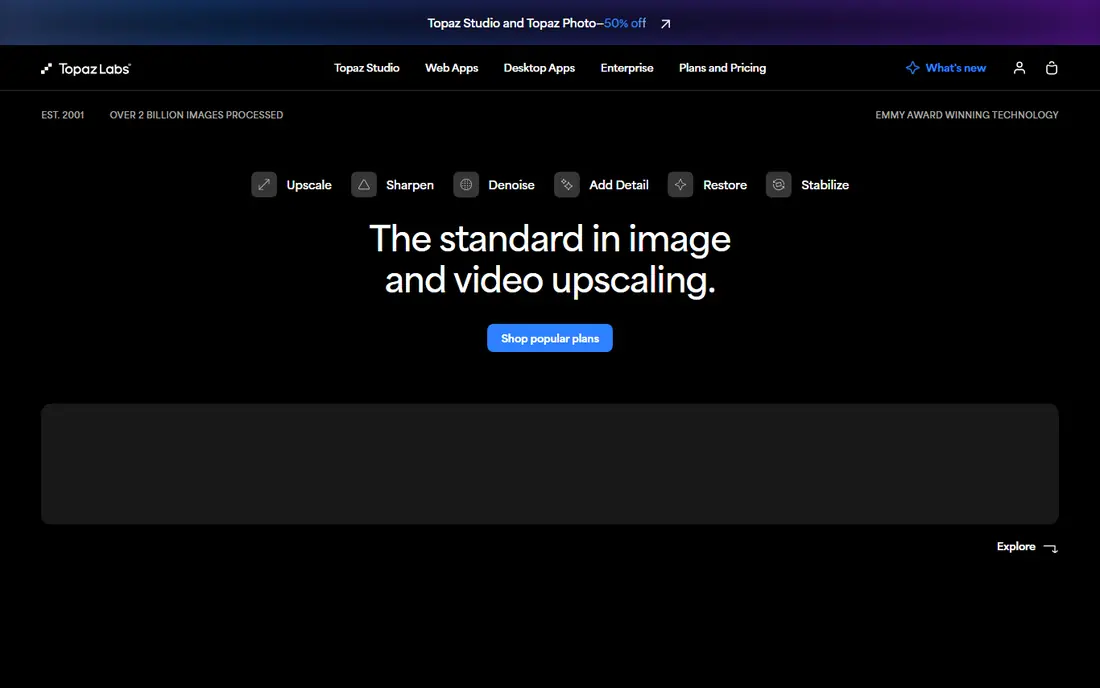
Topaz Photo fits readers who want professional photo quality. It is the pick for photographers who want control over denoise, sharpening, and upscaling, with models tuned for real camera files. In our comparison of official feature pages, pricing pages, and app store listings, it stood out for keeping the core job simple: open the app, see the number or result, and move on with the day. That focus matters more than a long feature list, because a tool you check daily has to stay easy after the first week.
The honest catch is that it is a paid desktop tool, so casual users may prefer a web tool with a free tier. It suits photographers and print work. Check the current plan details on the official site before you pay, since prices and limits change, and start with the free option when one is offered so you can judge the fit on your own phone or computer.
- Strong denoise, sharpen, and upscale models
- Desktop control for photographers
- Batch workflows
- Paid desktop product with a learning curve
- Needs a capable computer
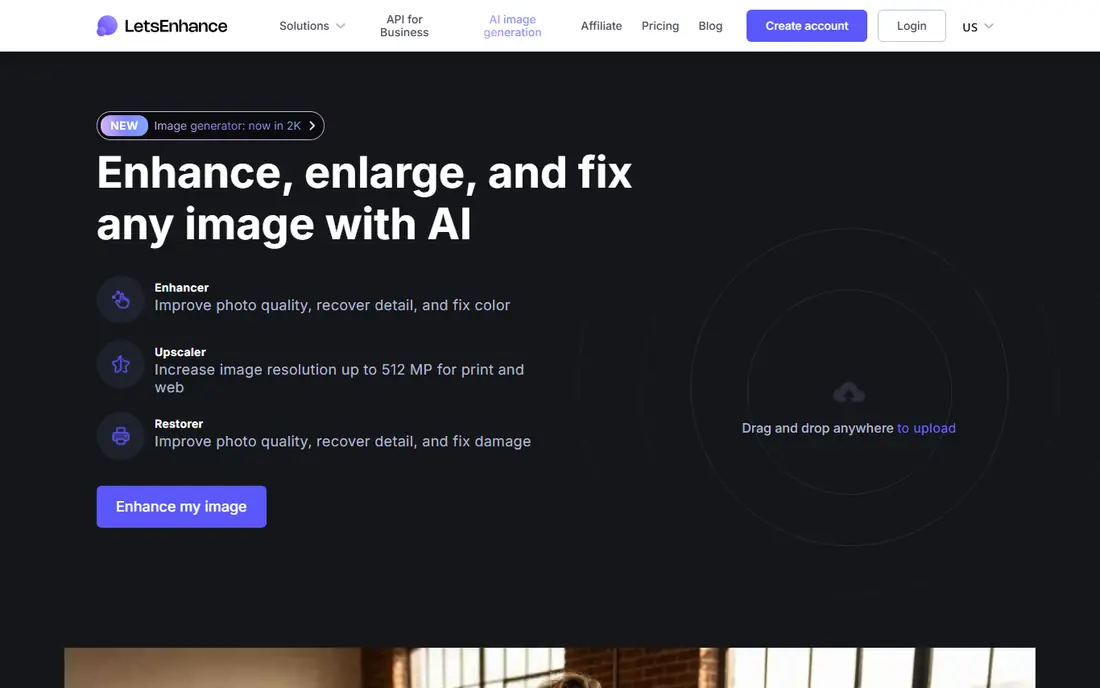
LetsEnhance fits readers who want batch upscaling for web and print. It suits sellers and publishers who need many images improved to a consistent standard, without installing desktop software. In our comparison of official feature pages, pricing pages, and app store listings, it stood out for keeping the core job simple: open the app, see the number or result, and move on with the day. That focus matters more than a long feature list, because a tool you check daily has to stay easy after the first week.
The honest catch is that credits limit how many images you can process, so check the monthly allowance against your catalog size. It suits ecommerce and content teams. Check the current plan details on the official site before you pay, since prices and limits change, and start with the free option when one is offered so you can judge the fit on your own phone or computer.
- Batch upscaling with consistent quality
- Web-based workflow
- Credits in vendor material
- Credit system needs planning for large batches
- Results vary by source image
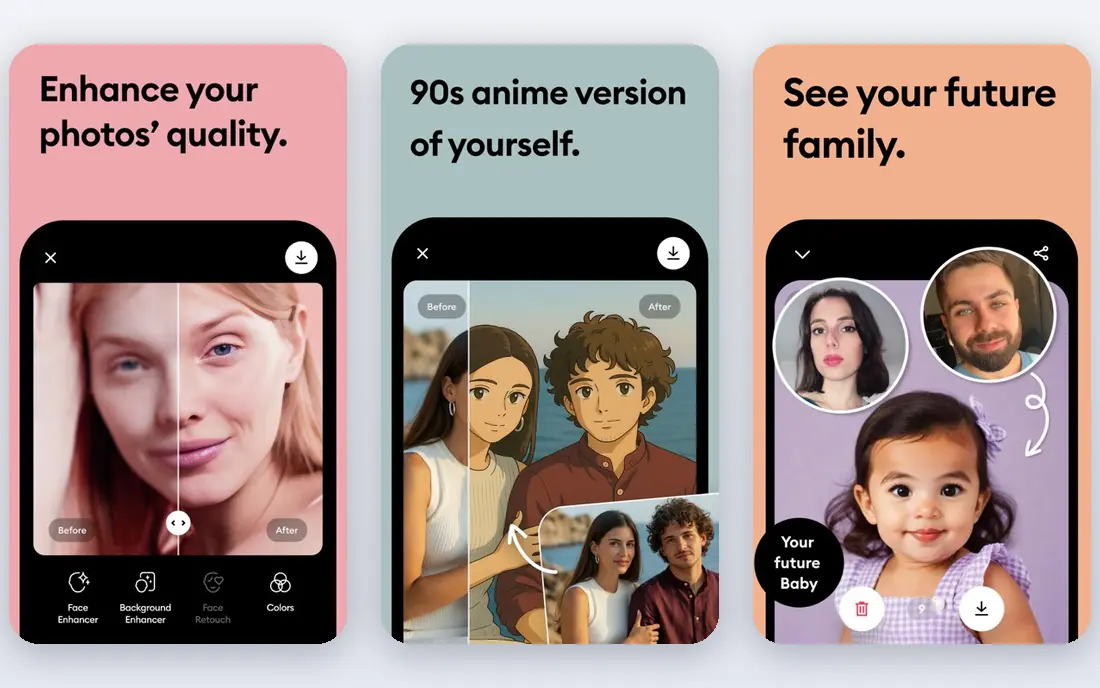
Remini fits readers who want old photos and portraits. It is best known for rescuing old family portraits and blurry faces, with a mobile flow that needs little editing skill. In our comparison of official feature pages, pricing pages, and app store listings, it stood out for keeping the core job simple: open the app, see the number or result, and move on with the day. That focus matters more than a long feature list, because a tool you check daily has to stay easy after the first week.
The honest catch is that weekly pricing can cost more than a monthly plan over time, so check the billing period before you subscribe. It suits mobile users restoring portraits. Check the current plan details on the official site before you pay, since prices and limits change, and start with the free option when one is offered so you can judge the fit on your own phone or computer.
- Strong face restoration for old and blurry portraits
- Simple mobile workflow
- Web option
- Weekly pricing adds up
- Weaker on non-portrait detail than desktop tools
Upscayl fits readers who want free private upscaling. It appeals to users who want free upscaling without uploading photos to a cloud service, since processing runs on your own computer. In our comparison of official feature pages, pricing pages, and app store listings, it stood out for keeping the core job simple: open the app, see the number or result, and move on with the day. That focus matters more than a long feature list, because a tool you check daily has to stay easy after the first week.
The honest catch is that it needs a download and decent hardware, and results depend on the model you pick. It suits budget users with a desktop computer. Check the current plan details on the official site before you pay, since prices and limits change, and start with the free option when one is offered so you can judge the fit on your own phone or computer.
- Free and open source desktop upscaling
- Works offline
- No subscription for core use
- Needs a download and a capable computer
- Fewer one-click fixes than paid tools
VanceAI fits readers who want quick web photo fixes. It suits casual users who want a fast web fix without a subscription, with credits that fit occasional jobs. In our comparison of official feature pages, pricing pages, and app store listings, it stood out for keeping the core job simple: open the app, see the number or result, and move on with the day. That focus matters more than a long feature list, because a tool you check daily has to stay easy after the first week.
The honest catch is that heavy smoothing can soften fine detail, so preview results at full size before you pay for a batch. It suits occasional web users. Check the current plan details on the official site before you pay, since prices and limits change, and start with the free option when one is offered so you can judge the fit on your own phone or computer.
- Wide set of web tools for enhance, upscale, and denoise
- Credit packs for occasional use
- Quality can smooth fine texture
- Credit math needs care
Fotor fits readers who want all-in-one editing and enhance. It suits creators who want enhance, crop, design, and export in one place, rather than a specialist tool for one job. In our comparison of official feature pages, pricing pages, and app store listings, it stood out for keeping the core job simple: open the app, see the number or result, and move on with the day. That focus matters more than a long feature list, because a tool you check daily has to stay easy after the first week.
The honest catch is that a general editor may not match a specialist on hard denoise or large upscales. It suits social and content creators. Check the current plan details on the official site before you pay, since prices and limits change, and start with the free option when one is offered so you can judge the fit on your own phone or computer.
- AI enhance inside a full photo editor
- Templates and batch tools
- Web and mobile access
- Enhance is one feature among many, so specialist quality may trail Topaz
Cutout.pro fits readers who want free-tier web enhancement. It is a useful free starting point for web users who want to test AI enhancement without installing software. In our comparison of official feature pages, pricing pages, and app store listings, it stood out for keeping the core job simple: open the app, see the number or result, and move on with the day. That focus matters more than a long feature list, because a tool you check daily has to stay easy after the first week.
The honest catch is that free limits and watermark rules vary, so check the output terms before commercial use. It suits casual web users testing enhancement. Check the current plan details on the official site before you pay, since prices and limits change, and start with the free option when one is offered so you can judge the fit on your own phone or computer.
- Web-based enhance and background tools
- Free tier for trying the service
- Simple uploads
- Free tier limits apply
- Specialist portrait quality varies
HitPaw FotorPea fits readers who want one-click desktop enhancement. It suits users who want a simple desktop button for common fixes, with batch processing for folders of photos. In our comparison of official feature pages, pricing pages, and app store listings, it stood out for keeping the core job simple: open the app, see the number or result, and move on with the day. That focus matters more than a long feature list, because a tool you check daily has to stay easy after the first week.
The honest catch is that one-click processing cannot rescue a badly damaged source, so set expectations by testing a few hard photos first. It suits beginners who want desktop speed. Check the current plan details on the official site before you pay, since prices and limits change, and start with the free option when one is offered so you can judge the fit on your own phone or computer.
- Desktop one-click enhance with auto detection
- Batch options
- Photo and video tools in the family
- Paid features need a license
- Results depend on source quality
How we picked these
We compared official feature pages, pricing pages, and model descriptions, and we favored tools with clear limits, free trials or tiers, and a real difference in use case. We did not claim hands-on testing. We weighed fidelity to the original photo more than dramatic sharpening, since over-processed faces and textures look worse at full size.
How to judge an AI photo enhancer before you pay
Test the same three photos everywhere: a portrait, a product shot, and a low-light image. Look at skin, hair, text, and fine texture at full size, not only in a small preview, since many tools look good small and fail large. Check whether the tool preserves the original or replaces detail with a plausible guess, which matters most for faces and documents. Also check output size, file format, batch limits, and whether free outputs carry a watermark. Finally, keep the original file. AI enhancement should be a copy you can redo, not a replacement for the only version you have.
FAQ
What is the best free AI photo enhancer app?
Upscayl suits desktop users who want free, offline upscaling, while Cutout.pro and LetsEnhance offer free web tiers for trying enhancement. Remini offers free daily credits in many listings. Start free and pay only if the paid quality clearly beats the free result.
What is the best AI photo enhancer tool for old photos?
Remini suits old portraits and blurry faces on mobile, while Topaz Photo suits scanned prints that need careful denoise and upscale work. Test one hard old photo in each tool before you subscribe. Keep the original scan untouched.
What are the best AI photo enhancer apps for ecommerce?
LetsEnhance suits batch product photos for web and print, while Fotor suits sellers who also need design and export tools. Check batch limits and output size against your store image rules. Consistent quality across a catalog matters more than one perfect image.
Can AI photo enhancers fix any blurry photo?
No. AI tools can sharpen, denoise, and upscale, but they predict missing detail rather than recovering it. Very blurry, tiny, or damaged photos will still look soft or altered. Use the best original you have for the best result.
Are free AI photo enhancer tools safe for private photos?
Free web tools may upload your photos to a server, so read the privacy policy before you upload sensitive images. Upscayl processes files on your own computer, which suits private photos. Avoid uploading identity documents or sensitive portraits to a tool you have not checked.