Best AI Video Enhancer App in 2026: 8 Apps Compared
Best AI video enhancer app for 2026: compare 8 AI video enhancer apps and software, prices, and free plans to upscale and restore your videos. Compare pric

- Editor's choice
 Topaz Video AI
professionals needing high-quality upscaling
Starts at$299 per yearVisit topazlabs.comFull review - Great alternative
 HitPaw VikPea
creators wanting an easy enhancer
Starts at$43.19 per monthVisit hitpaw.comFull review - Also consider
 AVCLabs Video Enhancer AI
users wanting a simple desktop enhancer
Starts at$39.95 per monthVisit avclabs.comFull review
TL;DR:
- Topaz suits professionals, while CapCut, TensorPix, and AVCLabs offer free or low-cost starting points.
- Desktop tools need a strong GPU, while cloud tools like TensorPix and CapCut need a good internet connection.
- AI enhancement creates plausible detail, so it suits viewing and presentation, not evidence or forensic use.
- Check output resolution, export limits, and whether a free plan adds a watermark before you pay.
Quick comparison
| Tool | Best for | Starts at | Free plan? | |
|---|---|---|---|---|
| Topaz Video AI | professionals needing high-quality upscaling | $299 per year | No | Visit |
| HitPaw VikPea | creators wanting an easy enhancer | $43.19 per month | Free trial | Visit |
| AVCLabs Video Enhancer AI | users wanting a simple desktop enhancer | $39.95 per month | Yes | Visit |
 Aiarty Video Enhancer | users wanting a one-time or yearly desktop tool | $79 per year | Free trial | Visit |
 CapCut | social creators wanting quick enhancement | Free | Yes | Visit |
 Remini | mobile users restoring faces and old clips | $9.99 per week | Yes | Visit |
 TensorPix | users wanting cloud enhancement without install | $5.50 per month | Yes | Visit |
 VideoProc Converter AI | users wanting enhancement plus conversion | See website | Free trial | Visit |
The best AI video enhancer apps
We compared official feature pages, pricing pages, mobile or web app listings, and public documentation for each option below. The list mixes well known leaders with smaller tools that fit specific needs, so you can shortlist two or three and trial them with real work.
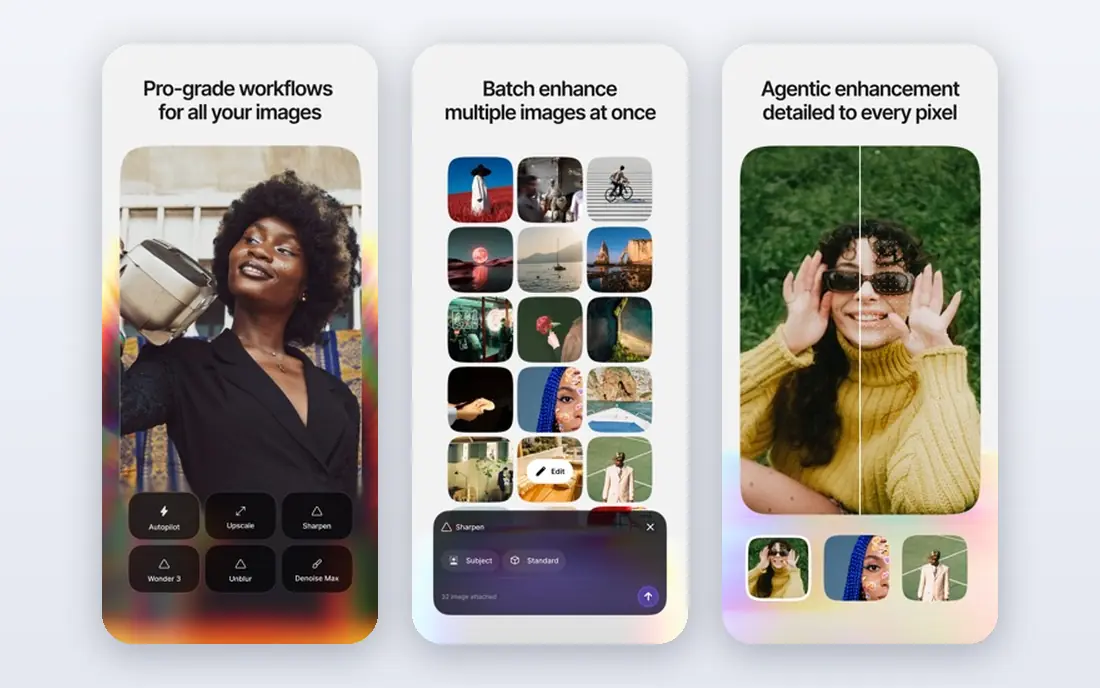
For many buyers, this is the first option worth a close look. Topaz Video AI fits professionals needing high-quality upscaling. It stands out for multiple AI models for upscaling, denoise, and stabilization; up to 8K output on supported plans; strong detail recovery. That combination makes it useful in daily work, not only on a demo page, and it helps explain why so many teams keep returning to it when they compare options side by side.
The test that matters is the same one-minute clip, checked for sharpness, faces, edges, and motion artifacts in each tool. The trade-off is needs a powerful GPU; no free plan; desktop and web plans are sold separately, so check which you need. Before you commit, check the current price of $299 per year and the free plan status of No on the vendor site, because plan limits and prices change. If the limits fit your team size and workflow, it is a sound shortlist choice.
- Multiple AI models for upscaling, denoise, and stabilization
- Up to 8K output on supported plans
- Strong detail recovery
- Needs a powerful GPU
- No free plan
- Desktop and web plans are sold separately, so check which you need

This option earns its place for a clear, practical reason. HitPaw VikPea fits creators wanting an easy enhancer. It stands out for many AI models for different video types; upscaling to 4K and 8K; colorization and stabilization tools. That combination makes it useful in daily work, not only on a demo page, and it helps explain why so many teams keep returning to it when they compare options side by side.
A good video enhancer should improve your actual footage, not only sample clips, so trial it with old, noisy, and shaky material. The trade-off is monthly pricing is high; local processing needs a capable computer. Before you commit, check the current price of $43.19 per month and the free plan status of Free trial on the vendor site, because plan limits and prices change. If the limits fit your team size and workflow, it is a sound shortlist choice.
- Many AI models for different video types
- Upscaling to 4K and 8K
- Colorization and stabilization tools
- Monthly pricing is high
- Local processing needs a capable computer
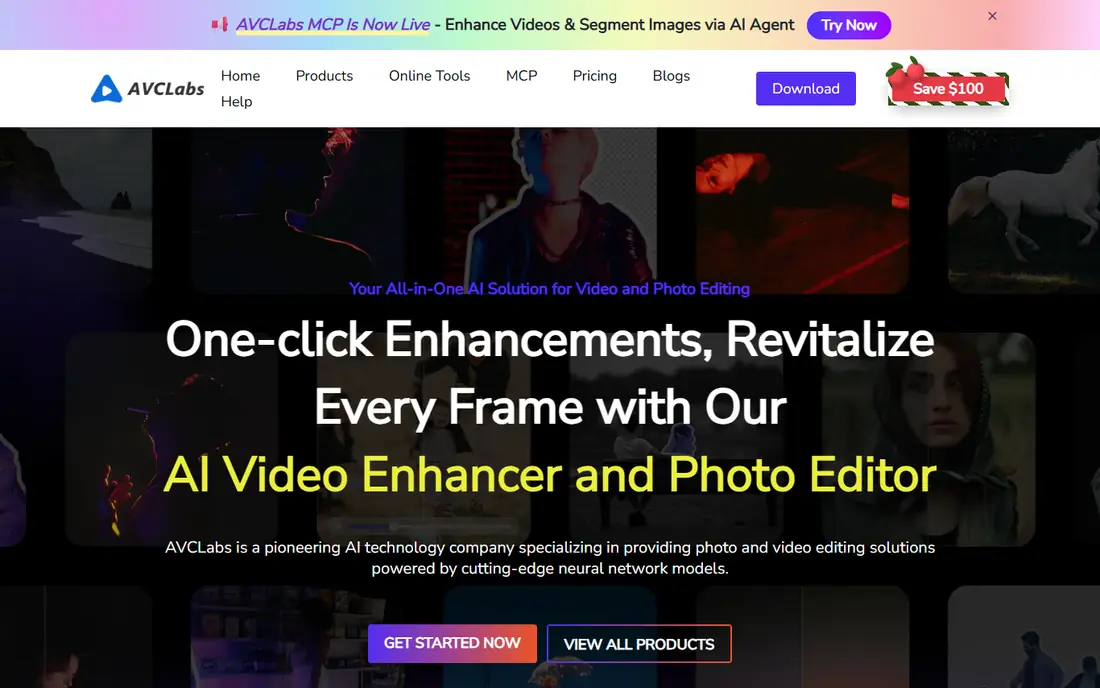
If you want a focused tool rather than a sprawling suite, start here. AVCLabs Video Enhancer AI fits users wanting a simple desktop enhancer. It stands out for upscaling to 4K and 8K; face restoration and stabilization; a simple interface. That combination makes it useful in daily work, not only on a demo page, and it helps explain why so many teams keep returning to it when they compare options side by side.
For enhancers, export rules matter most, so check watermark, resolution, and minute limits before you judge quality alone. The trade-off is enhancer and blur tools are sold separately; fine control is lighter than Topaz. Before you commit, check the current price of $39.95 per month and the free plan status of Yes on the vendor site, because plan limits and prices change. If the limits fit your team size and workflow, it is a sound shortlist choice.
- Upscaling to 4K and 8K
- Face restoration and stabilization
- A simple interface
- Enhancer and blur tools are sold separately
- Fine control is lighter than Topaz
This is a strong choice when simplicity matters more than sheer depth. Aiarty Video Enhancer fits users wanting a one-time or yearly desktop tool. It stands out for upscaling to 4K; denoise, deblur, and frame interpolation; audio cleanup. That combination makes it useful in daily work, not only on a demo page, and it helps explain why so many teams keep returning to it when they compare options side by side.
The test that matters is the same one-minute clip, checked for sharpness, faces, edges, and motion artifacts in each tool. The trade-off is maximum output is capped at 4K; it is not a full video editor. Before you commit, check the current price of $79 per year and the free plan status of Free trial on the vendor site, because plan limits and prices change. If the limits fit your team size and workflow, it is a sound shortlist choice.
- Upscaling to 4K
- Denoise, deblur, and frame interpolation
- Audio cleanup
- Maximum output is capped at 4K
- It is not a full video editor
Teams that need a dependable everyday option should weigh this one carefully. CapCut fits social creators wanting quick enhancement. It stands out for a free plan; cloud enhancement and editing in one app; web, desktop, and mobile versions. That combination makes it useful in daily work, not only on a demo page, and it helps explain why so many teams keep returning to it when they compare options side by side.
A good video enhancer should improve your actual footage, not only sample clips, so trial it with old, noisy, and shaky material. The trade-off is enhancement quality is more basic than specialist tools; cloud processing uploads your video. Before you commit, check the current price of Free and the free plan status of Yes on the vendor site, because plan limits and prices change. If the limits fit your team size and workflow, it is a sound shortlist choice.
- A free plan
- Cloud enhancement and editing in one app
- Web, desktop, and mobile versions
- Enhancement quality is more basic than specialist tools
- Cloud processing uploads your video
This pick suits buyers who want proven tools with wide support. Remini fits mobile users restoring faces and old clips. It stands out for strong face restoration for portraits and old footage; easy mobile workflow; quick results. That combination makes it useful in daily work, not only on a demo page, and it helps explain why so many teams keep returning to it when they compare options side by side.
For enhancers, export rules matter most, so check watermark, resolution, and minute limits before you judge quality alone. The trade-off is weekly pricing adds up fast; it is weaker for long, detailed video projects. Before you commit, check the current price of $9.99 per week and the free plan status of Yes on the vendor site, because plan limits and prices change. If the limits fit your team size and workflow, it is a sound shortlist choice.
- Strong face restoration for portraits and old footage
- Easy mobile workflow
- Quick results
- Weekly pricing adds up fast
- It is weaker for long, detailed video projects
For a balance of price and features, this one deserves attention. TensorPix fits users wanting cloud enhancement without install. It stands out for cloud-based upscaling and stabilization; no powerful PC needed; a free tier. That combination makes it useful in daily work, not only on a demo page, and it helps explain why so many teams keep returning to it when they compare options side by side.
The test that matters is the same one-minute clip, checked for sharpness, faces, edges, and motion artifacts in each tool. The trade-off is internet dependent; fewer fine-tuning options than desktop tools; queues can delay jobs. Before you commit, check the current price of $5.50 per month and the free plan status of Yes on the vendor site, because plan limits and prices change. If the limits fit your team size and workflow, it is a sound shortlist choice.
- Cloud-based upscaling and stabilization
- No powerful PC needed
- A free tier
- Internet dependent
- Fewer fine-tuning options than desktop tools
- Queues can delay jobs
This final pick rounds out the list with a different strength. VideoProc Converter AI fits users wanting enhancement plus conversion. It stands out for AI upscaling plus video conversion and editing tools; batch processing; a familiar desktop workflow. That combination makes it useful in daily work, not only on a demo page, and it helps explain why so many teams keep returning to it when they compare options side by side.
A good video enhancer should improve your actual footage, not only sample clips, so trial it with old, noisy, and shaky material. The trade-off is enhancement models are fewer than Topaz; check current pricing before you buy. Before you commit, check the current price of See website and the free plan status of Free trial on the vendor site, because plan limits and prices change. If the limits fit your team size and workflow, it is a sound shortlist choice.
- AI upscaling plus video conversion and editing tools
- Batch processing
- A familiar desktop workflow
- Enhancement models are fewer than Topaz
- Check current pricing before you buy
How we picked these
We compared official vendor pages, pricing pages, and public product descriptions for AI video enhancers that are still sold in 2026. We kept tools that upscale, denoise, stabilize, or restore video, and we excluded pure video generators. We weighed output quality claims, resolution limits, processing method, ease of use, and price. We did not claim hands-on testing, and we based the findings on vendor pages and public reviews. AI upscalers generate plausible detail rather than recovering detail the camera never recorded, so results vary by source footage.
How to pick an AI video enhancer
Start with your source footage and your output goal. Old, low-resolution clips need denoise and face restoration, while modern phone footage may only need stabilization and a modest upscale. A specialist desktop tool like Topaz suits long projects and high resolutions, while a mobile app like Remini suits short clips and portraits. Cloud tools suit users without a powerful PC, but they require uploads and may queue jobs. Match the tool to the footage, not to the highest resolution on the sales page.
What to check before you pay
Hardware and time matter as much as quality. Desktop enhancers can take many minutes per minute of video on a weak GPU, so check the vendor hardware guidance before you buy. Cloud tools shift that load to a server, but they add upload time and privacy questions. Test the same one-minute clip in two tools and compare sharpness, artifacts, faces, and motion. Look closely at edges and moving objects, because those areas show AI errors first. A tool that looks clean on a still frame can still shimmer in motion.
How to run a useful trial
Check export rules before you pay. Some free plans add a watermark, limit resolution, or cap monthly minutes. Some tools sell desktop and web versions separately, so confirm which version your plan covers. For client work, check commercial use terms and whether you can process video locally, because local processing keeps files on your own computer. A short trial with your own footage is the best way to avoid a costly mismatch.
FAQ
What is the best AI video enhancer app?
Topaz Video AI is the strongest choice for professionals who need high-quality upscaling and have a capable PC. CapCut suits social creators who want quick, free enhancement inside an editor. The best AI video enhancer software for you depends on footage type, budget, and whether you need desktop or mobile processing.
Is there a best free AI video enhancer app?
Yes, with limits. CapCut offers a free plan, TensorPix offers a free tier, and AVCLabs offers a free plan with limits. Free plans may cap resolution, add a watermark, or limit minutes. Check export rules before you use a free tool for client work.
Can AI video enhancers really restore old videos?
AI tools can reduce noise, sharpen details, and improve faces in old footage, but they create plausible detail rather than recovering lost detail. Results look best on viewing screens and presentations. Do not use enhanced video as evidence, because the output is not an exact record of the original scene.
Do I need a powerful computer for AI video enhancement?
For desktop tools like Topaz and HitPaw VikPea, yes, a strong GPU helps a lot. Cloud tools like TensorPix and CapCut shift processing to a server, so they work on weaker computers. Check vendor hardware guidance and trial a real clip before you buy a desktop tool.
What is the best video enhancement software for 4K?
Topaz Video AI, HitPaw VikPea, and AVCLabs all support 4K output, with Topaz supporting up to 8K on supported plans. Aiarty caps output at 4K, which is enough for most creators. Compare processing time and artifacts, not only the maximum resolution, before you choose.