Best AI Image Upscaler Tools in 2026: 10 Tools Compared
The best ai image upscaler enhancer tools compared for photos, prints and product images, with free options and honest quality limits in 2026 for buyers.
- Editor's choice
 Topaz Gigapixel
Professional photo upscaling
Starts at$29 per monthVisit topazlabs.comFull review - Great alternative
 LetsEnhance
Browser upscaling with modes
Starts at$9 per monthVisit letsenhance.ioFull review - Also consider
 Upscale.media
Quick free web upscaling
Starts atFreeVisit upscale.mediaFull review
TL;DR:
- Topaz Gigapixel leads for photo quality and local batch work, while LetsEnhance leads for simple browser upscaling.
- Free tools such as Upscayl and Upscale.media handle small jobs well, but they lack the control of paid tools.
- Upscaling cannot restore detail that was never in the photo, so expect cleaner edges, not new faces or text.
- For product and print work, test the same image in two tools before buying, since results vary by image type.
Quick comparison
| Tool | Best for | Starts at | Free plan? | |
|---|---|---|---|---|
| Topaz Gigapixel | Professional photo upscaling | $29 per month | Free trial | Visit |
| LetsEnhance | Browser upscaling with modes | $9 per month | Yes | Visit |
| Upscale.media | Quick free web upscaling | Free | Yes | Visit |
 Upscayl | Free offline upscaling | Free | Yes | Visit |
 Magnific | Creative high-detail enlargement | $39 per month | No | Visit |
 VanceAI | Flexible web and desktop upscaling | Free | Yes | Visit |
 HitPaw Photo Enhancer | Desktop enhancement and upscaling | See website | Free trial | Visit |
 ON1 Resize AI | Print-focused enlargement | See website | Free trial | Visit |
 Pixelcut | Product images for sellers | See website | Yes | Visit |
 Bigjpg | Anime and illustration upscaling | Free | Yes | Visit |
The best ai image upscaler enhancer tools
We kept tools that enlarge and clean an image with AI, and noted whether they run locally, in a browser, or both.

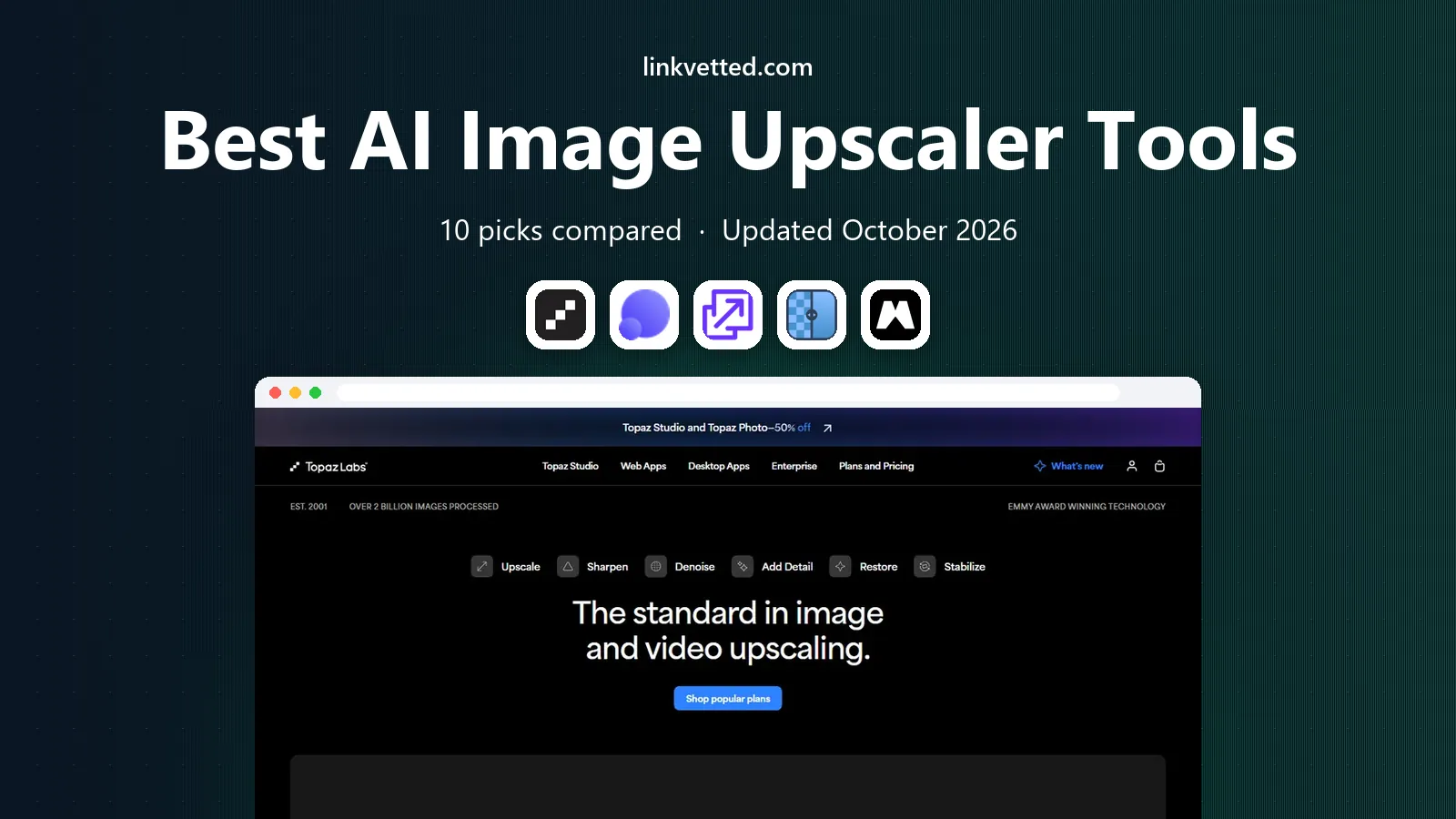
Topaz Gigapixel is our pick for photographers who need the best detail recovery. Its models handle faces, natural textures and low-resolution files differently, so you can pick a model for the image in front of you rather than using one generic setting. Batch processing through folders helps for a shoot or an archive, and local rendering keeps files on your own machine. Personal pricing is listed at $29 per month, or $149 per year.
The cost and computer needs are the limits. Local work runs best on a modern machine with a good graphics card, and cloud rendering adds its own rules. Some vendor pages also describe scale limits in different ways, so test your own images rather than trusting a headline number. For print and pro photo work, Gigapixel still sets the standard in this list.
- Nine specialised models
- Local and cloud rendering
- Batch folders
- Up to 6x in one pass
- Subscription cost
- Needs a capable computer for local work
- Scale claims vary by page
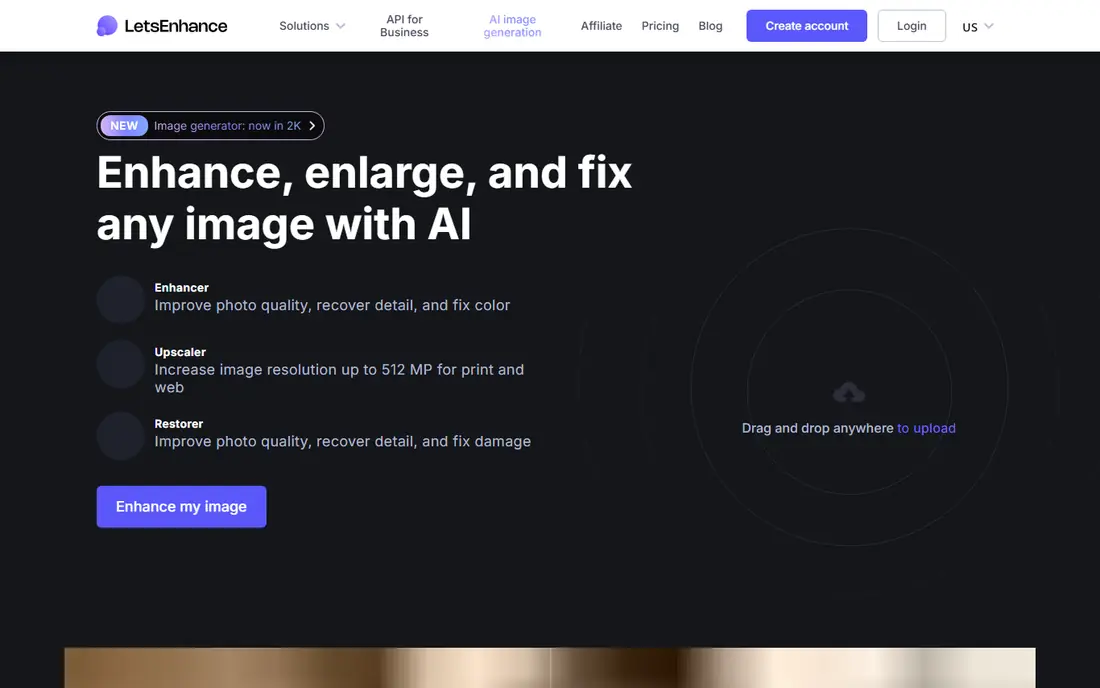
LetsEnhance is the easiest paid upgrade from a free web tool. Upload an image in a browser, pick a mode for the content type, and download a larger, cleaner version. A Gentle mode helps small text, while other modes suit products and photos. Starter pricing starts at $9 per month billed annually, with 10 free credits to test the service first.
Free credits run out fast if you test many images, and large batches sit on higher plans. Cloud processing also means you upload your images to a vendor server, which matters for private photos. For everyday browser upscaling without installing software, LetsEnhance is a strong, clear choice.
- No install needed
- Modes for photos, text and products
- Up to 16x on higher plans
- Free credits are limited
- Batch and high-resolution work need paid plans

Upscale.media suits a quick job: one small, soft image that needs to be larger for a post or a slide. The interface is simple, with no model choices to learn, and the free daily allowance covers occasional use. That simplicity is the point. You upload, upscale and download, with no desktop app to manage.
Control is thin. You cannot pick a model for faces versus products, and free output limits suit single images rather than a catalogue. Paid plans and credit packs add volume. For a one-off image, Upscale.media is a fast free start, but serious work will outgrow it quickly.
- One free image per day without sign-up on the basic flow
- Simple interface
- No install
- Limited control over models and detail
- Paid plans needed for volume and higher quality
Upscayl is the best free option for people who want local, private upscaling. It is open source, runs offline, and upscales up to 16x across Windows, Mac and Linux. That local flow keeps photos off vendor servers, which matters for private or client images. For a student, hobbyist or small seller on a tight budget, Upscayl removes the cost barrier entirely.
The interface is plain, and model guidance is thinner than in Topaz, so you may need to try more than one model to find the best result for an image. A modest computer will also process large images slowly. Even with those limits, Upscayl is a remarkable free tool and a smart first test before paying.
- Free and open source
- Runs offline on Windows, Mac and Linux
- Up to 16x
- Interface is basic
- Model choice is less guided
- Needs a decent computer
Magnific suits creative and campaign imagery where a striking, detailed enlargement matters more than a faithful copy. Its creative models let you adjust how much new detail the AI adds, which helps for posters, art and marketing visuals that need to look rich at large sizes. Bulk upload and an API help teams that process many images.
That creativity is also the risk. Magnific can invent texture, faces and text that were not in the original, so it is a poor choice for evidence, documents or faithful restoration. The price, from about $39 per month, is high for casual use. Use Magnific when you want a bold creative result and you check the output closely.
- Creative models with adjustable interpretation
- Up to 16x
- Bulk upload and API
- High price
- Creative mode can invent detail
- Not ideal for faithful photo restoration
VanceAI bundles upscaling with denoise, sharpen, background and portrait tools, so one account can handle several image jobs. The web version needs no install, while the desktop version suits larger batches. Free credits let you test the upscaler on your own images before paying, and credit packs suit occasional use better than a monthly plan for some users.
Credit math takes care, since different tools and sizes use different amounts, and quality varies across the suite. Not every VanceAI tool matches the best specialist in its job. For a user who wants one flexible suite rather than several single-purpose tools, VanceAI is a practical pick.
- Web and desktop options
- Many enhancement tools in one suite
- Free credits to start
- Credit pricing can confuse
- Quality varies by tool and image type
HitPaw Photo Enhancer, also sold under the FotorPea name in some listings, is a desktop tool that combines upscaling with denoise, sharpen and face enhancement. Previews help you compare before and after, and batch handling suits a set of product or family photos. For Windows and Mac users who prefer a desktop app to a browser upload, HitPaw feels straightforward.
The free tier watermarks output, so real use needs a paid licence, and licence prices vary by term and bundle. Older machines may also process large batches slowly. For a desktop-first workflow with several enhancement jobs in one app, HitPaw is a solid mid-range choice.
- Desktop app with denoise and face tools
- Batch handling
- Clear previews
- Free tier adds a watermark
- Pricing varies by licence type
- Heavy on older machines
ON1 Resize AI targets photographers who print large. It focuses on clean edges, texture and print size, rather than a quick social-media upscale. It can run standalone or as a plug-in, which helps photographers who already use an editing workflow. A 30-day trial lets you test a real print file before buying.
Licence pricing varies by version and bundle, so check the vendor site for the current offer. For a quick web image, ON1 is more tool than you need, and print settings take a little learning. For a photographer who sells prints or exhibits work, ON1 Resize AI deserves a trial alongside Topaz.
- Built for large prints
- Good edge and texture handling
- Standalone or plug-in use
- Licence pricing varies
- Less suited to quick web-only jobs
- Learning curve for print settings
Pixelcut suits online sellers who need a clean product image fast. It combines background removal, templates and upscaling, so a seller can turn a phone photo into a listing image in one app. Mobile and web versions help sellers who work from a phone or a laptop, and the free tier covers basic tests.
Upscaling alone is not as deep as Topaz or LetsEnhance, and high-resolution exports sit on paid plans. For a seller who needs many listing images, though, the combined workflow matters more than a single specialist feature. Pixelcut is a practical, seller-friendly pick.
- Product-focused tools
- Background removal plus upscaling
- Mobile and web apps
- Upscaling is one feature in a wider editor
- High-resolution output needs paid plans
Bigjpg has a clear niche: anime, illustration and line art. Its artwork mode preserves lines and flat colour better than many photo-first upscalers, which often smooth illustration into a blur. The free tier allows a limited number of images per month, with paid plans adding speed, size and up to 16x enlargement.
Free use is slow on shared servers, and uploads cap at 5 MB, so large scans need a paid plan or a resize first. For photos, a photo-first tool will usually do better. For anime and illustration, Bigjpg remains a useful specialist that is easy to test for free.
- Modes for artwork and photos
- Up to 16x on paid plans
- Free monthly allowance
- Free tier is slow and limited to 5 MB uploads
- Web-only feel for some users
How we picked these
We compared official feature and pricing pages, model notes and public reviews, and kept tools that enlarge and clean images with AI today. We favoured tools with a free plan or trial, and we noted where pricing is licence-based or credit-based instead of inventing a figure. We did not claim hands-on testing; our view rests on published features, scale limits and widely reported strengths.
How to test an upscaler before you pay
Use the same three images for every tool: a face photo, a product photo and a text-heavy image. Upscale each at 2x and 4x, then view the result at 100 percent, not just as a small preview. Look at eyes, hands, small text and repeating patterns, since those areas show invented detail fastest.
For print, check the output size in pixels and the print resolution you need, and print a small test crop before ordering a large print. For web use, check file size too, since a huge upscale can slow a page. Keep the original file safe, and treat upscaling as cleanup, not as a way to rescue a badly blurred photo.
FAQ
What is the best ai image upscaler enhancer tool overall?
Topaz Gigapixel leads for photo quality and batch work, while LetsEnhance leads for simple browser use. Upscayl is the best free local option. Test the same image in two tools, since results vary by image type.
Is there a free AI image upscaler?
Yes. Upscayl is free and open source, Upscale.media offers a free daily image, and LetsEnhance, VanceAI, Pixelcut and Bigjpg offer free credits or tiers. Free output often limits size, speed or volume.
How much can AI upscale an image?
Many tools advertise up to 16x, but 2x to 4x gives the most reliable quality for photos. Higher scales add more invented detail, so check the result at full size before using it for print or a client job.
Can AI upscaling restore old photos?
It can clean noise, sharpen edges and enlarge an old scan, but it cannot restore detail that was never captured. For damaged photos, pair upscaling with a restoration tool or a professional service, and keep the original scan.
Is AI upscaling good for product photos?
Yes, for listing images and small catalogues, especially with Pixelcut, LetsEnhance or Topaz. Use a consistent size and background, and check that text, logos and fine product detail stay accurate after upscaling.
Which upscaler is best for anime?
Bigjpg suits anime and illustration best in this list, thanks to its artwork mode. Upscayl also handles illustration well for free, while photo-first tools can smooth line art too much.
Sources
- https://www.topazlabs.com/pricing
- https://letsenhance.io/pricing
- https://www.upscale.media/pricing
- https://upscayl.org/pricing
- https://magnific.ai/pricing
- https://vanceai.com/pricing
- https://www.hitpaw.com/pricing
- https://www.on1.com/pricing
- https://www.pixelcut.ai/pricing
- https://bigjpg.com/pricing