Best AI Image Enhancer Tools in 2026: 9 Tools Compared
Compare the best AI image enhancer tools in 2026, including free options, upscaling, noise removal, sharpening, and pricing for photos and prints today.
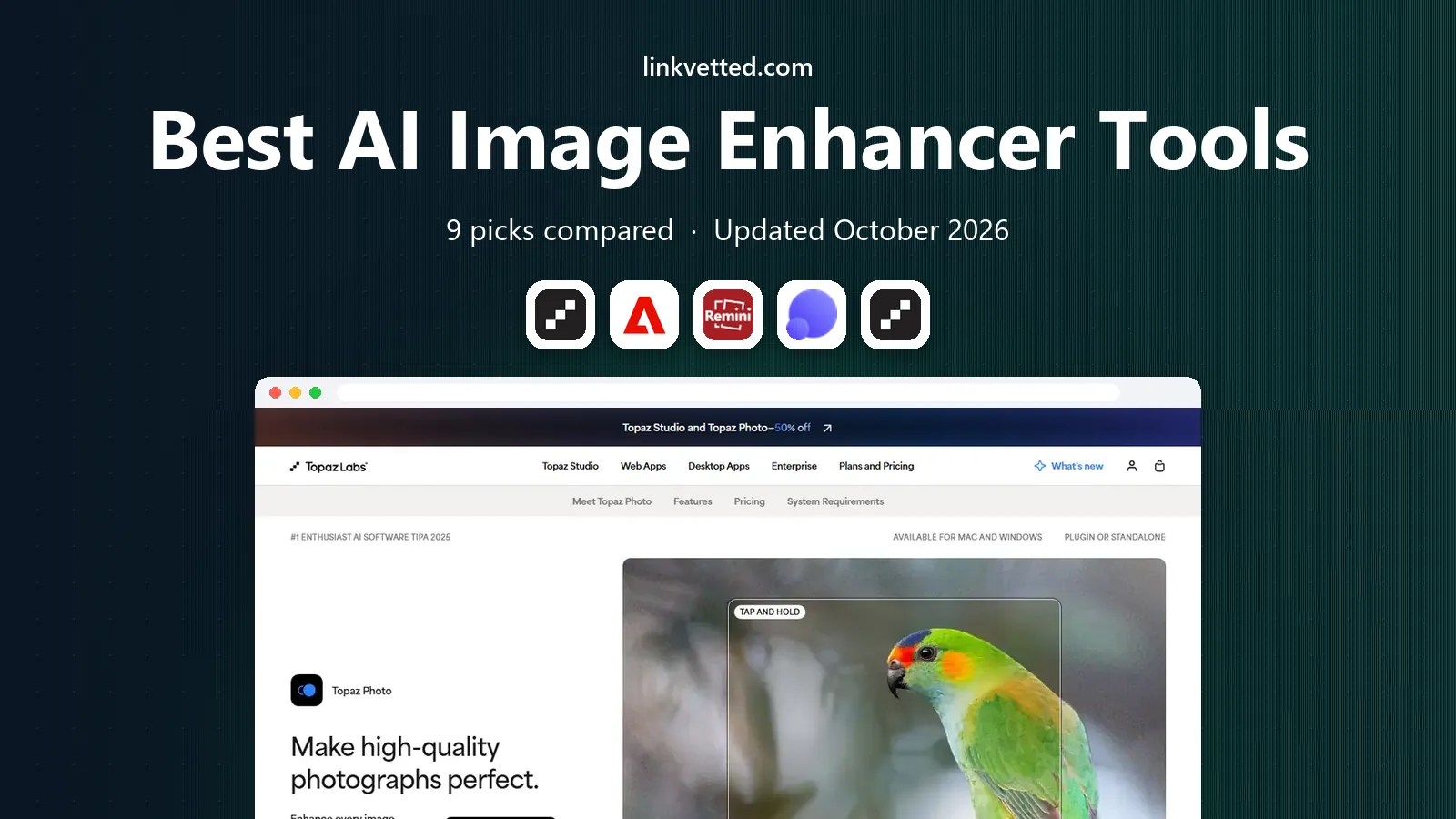
- Editor's choice
 Topaz Photo AI
Photographers overall
Starts at$39 per monthVisit topazlabs.comFull review - Great alternative
 Adobe Lightroom
Photo editing plus enhance
Starts atSee websiteVisit adobe.comFull review - Also consider
 Remini
Mobile photo restoration
Starts atSee websiteVisit remini.aiFull review
TL;DR:
- Topaz Photo AI is our pick for most photographers because it handles noise, sharpening, and upscaling in one desktop app.
- Free tools work well for one-off social images, but they often limit size, add watermarks, or compress results.
- Upscaling and enhancement are different jobs: upscaling adds pixels, while enhancement cleans noise and sharpness.
- Desktop tools suit private or client work, since processing can stay on your own computer.
- Check export size and licensing before you rely on a tool for print or commercial use.
Quick comparison
| Tool | Best for | Starts at | Free plan? | |
|---|---|---|---|---|
| Topaz Photo AI | Photographers overall | $39 per month | No | Visit |
| Adobe Lightroom | Photo editing plus enhance | See website | Free trial | Visit |
| Remini | Mobile photo restoration | See website | Yes | Visit |
 LetsEnhance | Simple online upscaling | See website | Yes | Visit |
 Topaz Gigapixel | Large print upscaling | $29 per month | No | Visit |
 VanceAI | Online enhancement suite | See website | Yes | Visit |
 Upscale.media | Free quick upscaling | Free | Yes | Visit |
 HitPaw Photo Enhancer | Easy desktop enhancement | See website | Free trial | Visit |
 DxO PhotoLab | RAW quality and denoising | See website | Free trial | Visit |
The best AI image enhancer tools
An image enhancer should make a photo look cleaner without making it look fake. The best tools remove noise, recover detail, and enlarge images while keeping skin, text, and textures natural. The tools below cover desktop apps, mobile apps, and browser tools, so you can pick by workflow rather than hype.

Topaz Photo AI is the most complete enhancer for people who edit photos regularly. It can clean high-ISO noise, sharpen soft images, and enlarge files for print, and it lets you adjust each step rather than applying one automatic fix. Because processing runs on your computer, client photos do not need to be uploaded to a cloud service.
The main costs are price and hardware. At $39 per month on monthly billing, it is a serious purchase for occasional use, and large batches can be slow on older machines. For photographers who rescue difficult files often, that cost is easier to justify than for someone enhancing a few phone photos a month.
- Noise removal, sharpening, and upscaling in one app
- Runs locally
- Lightroom and Photoshop integration
- Subscription pricing
- Needs a fairly powerful computer for large files
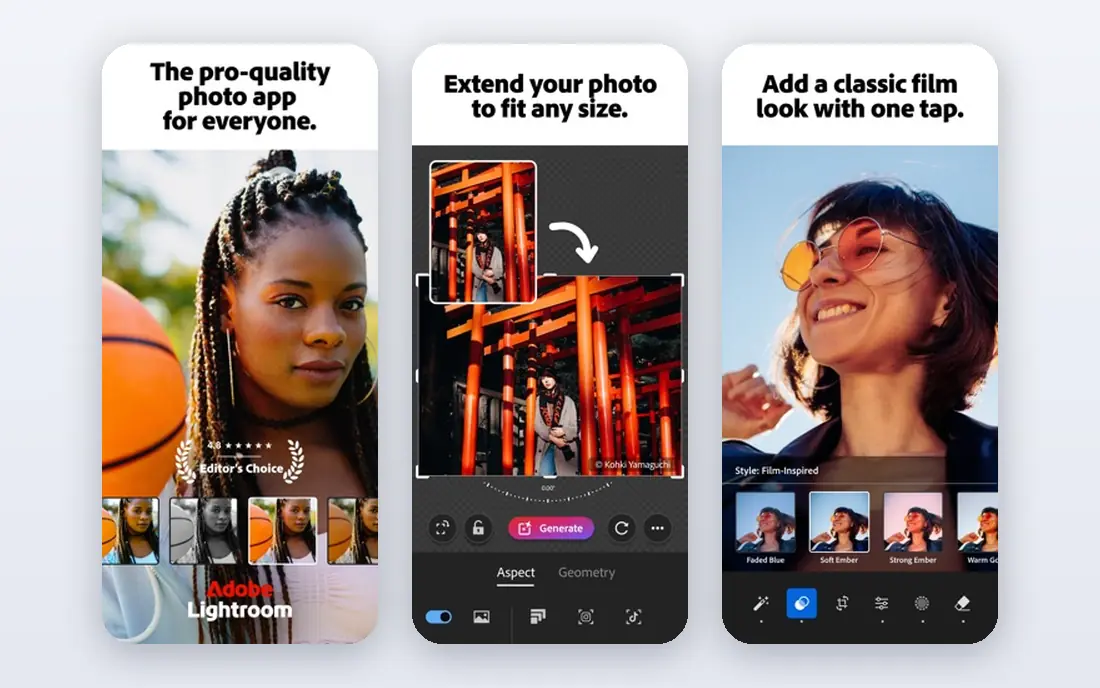
Lightroom suits photographers who already edit in Adobe apps. Its Enhance and Denoise tools improve RAW files without leaving your normal workflow, and you can apply the same settings across a whole shoot. That integration matters when you process hundreds of images, since switching apps for each file would waste hours.
Lightroom is less of a dedicated rescue tool than Topaz. It will not enlarge an image as far, and it does not focus only on enhancement. If you already pay for the Photography plan, though, it is the most convenient enhancer you own.
- Enhance Detail and Denoise built into a full editor
- Strong RAW support
- Cloud sync options
- Enhancement is part of a larger subscription
- Denoise can be slow on large catalogs
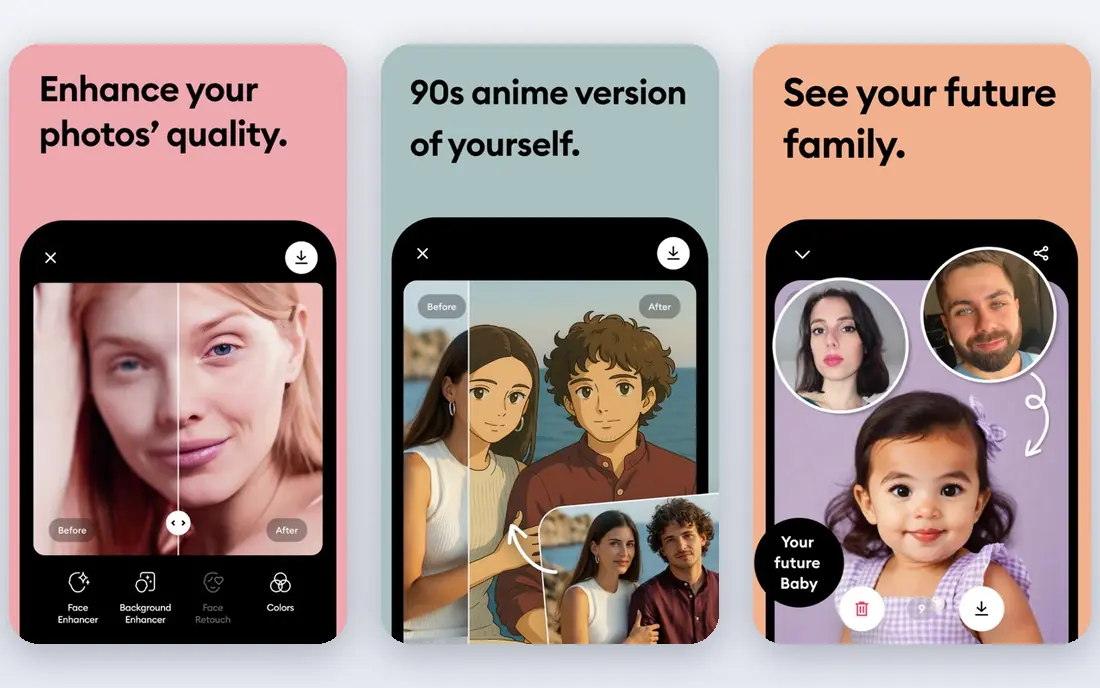
Remini is the tool most people reach for on a phone. Open an old or blurry photo, tap enhance, and you get a cleaner version in seconds, which makes it popular for family photos and social posts. Face enhancement is its clear strength, especially on low-resolution portraits.
The catch is control. Remini can smooth skin too much, and free credits run out quickly. It is best for casual restoration and social sharing, not for print work where natural texture matters. Check the result at full size before you share it as a restored original.
- Very easy mobile workflow
- Strong for faces and old photos
- Quick before and after previews
- Free use is limited
- Results can over-smooth faces
- Subscription needed for full quality
LetsEnhance is a practical browser option when you need a larger, cleaner image and do not want to install software. Upload a photo, choose an upscale factor, and download the result. It works well for product photos, real estate images, and web graphics that need to look sharper at larger sizes.
As a cloud tool, it requires uploading your images, so it is less suited to private client work with strict handling rules. Credit limits also mean heavy users should check plan sizes before committing. For occasional jobs, its simplicity is the point.
- Browser based with no install
- Simple upscaling options
- Useful for product images
- Credit based pricing
- Less control than desktop apps
Gigapixel is the specialist pick for large prints and crops. Where a general enhancer might double an image, Gigapixel is designed to enlarge much further while rebuilding detail in a way that holds up at print size. Photographers preparing exhibition prints or large wall art often use it after basic editing.
It is not a full editor, so you will still need Lightroom, Photoshop, or Photo AI for noise and color work. Buy it when size is the main problem. For everyday enhancement, Photo AI covers more ground in one purchase.
- Strong upscaling up to large sizes
- Face recovery options
- Local processing
- Focused mainly on upscaling
- Separate cost from Photo AI
VanceAI offers a suite of online tools rather than one all-purpose button. You can pick a sharpener, a denoiser, an upscaler, or a portrait tool, which gives more control than a single automatic enhancer. That modular approach helps when only one problem affects an image, such as noise in a night photo.
Free credits will not last long for regular work, and results depend on the source image. Test it on your own photos before buying credits, and compare the output at full size, not just in a small preview.
- Separate tools for sharpening, denoising, and upscaling
- Browser based
- Batch options
- Free credits are limited
- Quality varies by image type
Upscale.media is one of the best free ai image enhancer tools for a quick job. It enlarges images in the browser with minimal steps, which suits social posts, listings, and blog images. The free tier makes it easy to test whether AI upscaling helps your images at all.
It is not a replacement for a paid desktop tool. Free limits, fewer controls, and cloud uploading mean it suits occasional, non-sensitive images. Use it to learn what upscaling can do, then move to a paid tool if you need larger sizes or batch work.
- Free tier for quick jobs
- No software install
- Simple interface
- Limited features and sizes on free use
- Less control over detail
HitPaw Photo Enhancer targets users who want desktop enhancement without learning a full editor. It offers models for faces, general photos, and denoising, plus batch processing for folders of images. That combination suits small business owners enhancing product or team photos in bulk.
The default settings can be strong, so preview results and lower the effect when skin or textures start to look artificial. It is a good middle option between a free browser tool and a professional app, provided you test it on your own image types first.
- Simple desktop interface
- Face, denoise, and upscale models
- Batch processing
- Results can look over-processed on some photos
- Pricing varies by license
DxO PhotoLab is a strong pick for RAW photographers who care most about noise quality. Its DeepPRIME denoising preserves fine detail in high-ISO files, often better than general enhancers, and it pairs that with lens corrections and full RAW editing. Outdoor and event photographers who shoot in low light tend to value that combination.
PhotoLab is a full editor, not a one-click enhancer, so casual users may find it heavy. If you already edit RAW files and want the cleanest noise reduction available, it is worth the trial. If you only need occasional upscaling, a simpler tool will be faster.
- Excellent DeepPRIME denoising
- Strong RAW processing
- Lens corrections
- Enhancement is part of a full editor
- Learning curve for new users
How we picked these
We compared official product pages, pricing pages, and public feature lists for enhancers still available in October 2026, and we favored tools with clear enhancement or upscaling features rather than general AI image generators. We checked desktop, mobile, and browser options, free and paid tiers, and whether processing runs locally or in the cloud. We used See website where a vendor did not publish a clear starting price, and we avoided tools that only create new images rather than improving an existing photo.
How to get natural results
Start with the smallest fix that solves the problem. Remove noise first, then sharpen lightly, then upscale only as far as you need. Over-enhancing is the most common mistake, and it shows up as plastic skin, harsh edges, or invented texture. Always compare the result with the original at full size, and keep the original file untouched.
Choosing by use case
For print, use a desktop tool such as Topaz Photo AI or Gigapixel and test a printed proof before a large run. For social media, a free browser tool or Remini may be enough. For client work, prefer local processing and check licensing, since some free tools limit commercial use. That simple split will save both money and rework.
FAQ
What is the best free AI image enhancer?
Upscale.media and the free tiers of VanceAI and LetsEnhance are good starting points for occasional images. They work well for social and web sizes, but they limit output size and credits. For regular or print work, a paid desktop tool usually gives cleaner, more controllable results.
Can AI enhancers restore very blurry photos?
They can improve many blurry photos, especially faces and mild softness, but they cannot recover detail that was never captured. Results depend on the original file, and heavy enhancement can invent texture that looks plausible but is not real. Keep expectations modest for very low-resolution sources.
Is upscaling the same as enhancing?
No. Upscaling increases pixel size, while enhancing cleans noise, sharpness, and color. The best tools do both, but a tool that only enlarges an image may also enlarge its flaws. For print, you usually need both steps, in that order.
Do AI enhancers work on old scanned photos?
Yes, many tools help with scans, especially for faces, dust, and softness. Remini and Topaz Photo AI are common choices for old photos, but results vary by scan quality. Scan at the highest practical resolution first, since a better source gives the enhancer more to work with.
Are AI enhanced photos safe for commercial use?
It depends on the tool license and the source image. Check whether the plan allows commercial use, and avoid enhancing images you do not have rights to use. For client work, keep records of the source file and the tool license.
Sources
- https://www.topazlabs.com/topaz-photo-ai
- https://www.adobe.com/products/photoshop-lightroom.html
- https://remini.ai
- https://letsenhance.io
- https://www.topazlabs.com/topaz-gigapixel
- https://vanceai.com
- https://www.upscale.media
- https://www.hitpaw.com/photo-enhancer.html
- https://www.dxo.com/dxo-photolab/