Best AI Photo Enhancement Tools in 2026: 8 Tools Compared
Compare the best ai photo enhancement tools for portraits, product photos, and prints, with prices, free plans, and honest notes on quality limits in 2026.

- Editor's choice
 Topaz Photo AI
Photographers who need top quality repair
Starts at$199 per yearVisit topazlabs.comFull review - Great alternative
 Adobe Photoshop
Editors who need full creative control
Starts at$22.99 per monthVisit adobe.comFull review - Also consider
 Adobe Lightroom
Photographers with large photo libraries
Starts at$9.99 per monthVisit adobe.comFull review
TL;DR:
Topaz Photo AI leads for denoise, sharpening, and upscaling, while Remini leads for quick mobile face repair.
Adobe tools win when enhancement is part of a larger editing workflow, not a one-click fix.
Free tools such as Upscayl handle basic upscaling well, but face repair and batch work usually need a paid plan.
AI can invent detail, so check faces, hands, and text closely before you publish an enhanced photo.
Test any enhancer on your own photos, not sample images, because quality varies sharply by subject and original resolution.
Quick comparison
| Tool | Best for | Starts at | Free plan? | |
|---|---|---|---|---|
| Topaz Photo AI | Photographers who need top quality repair | $199 per year | Free trial | Visit |
| Adobe Photoshop | Editors who need full creative control | $22.99 per month | Free trial | Visit |
| Adobe Lightroom | Photographers with large photo libraries | $9.99 per month | Free trial | Visit |
 Luminar Neo | Portrait and nature photographers | $129 one-time | Free trial | Visit |
 Remini | Mobile users who fix old portraits | See website | Yes | Visit |
 PhotoRoom | Sellers who need clean product photos | $9.99 per month | Yes | Visit |
 Upscayl | Free offline upscaling | Free | Yes | Visit |
 Fotor | Beginners who want quick batch edits | $8.99 per month | Yes | Visit |
The best ai photo enhancement tools
We compared AI photo tools on denoise, sharpening, upscaling, face repair, and price for real photos. The best ai photo enhancement software for most people depends on whether you fix portraits, product photos, or large print files.
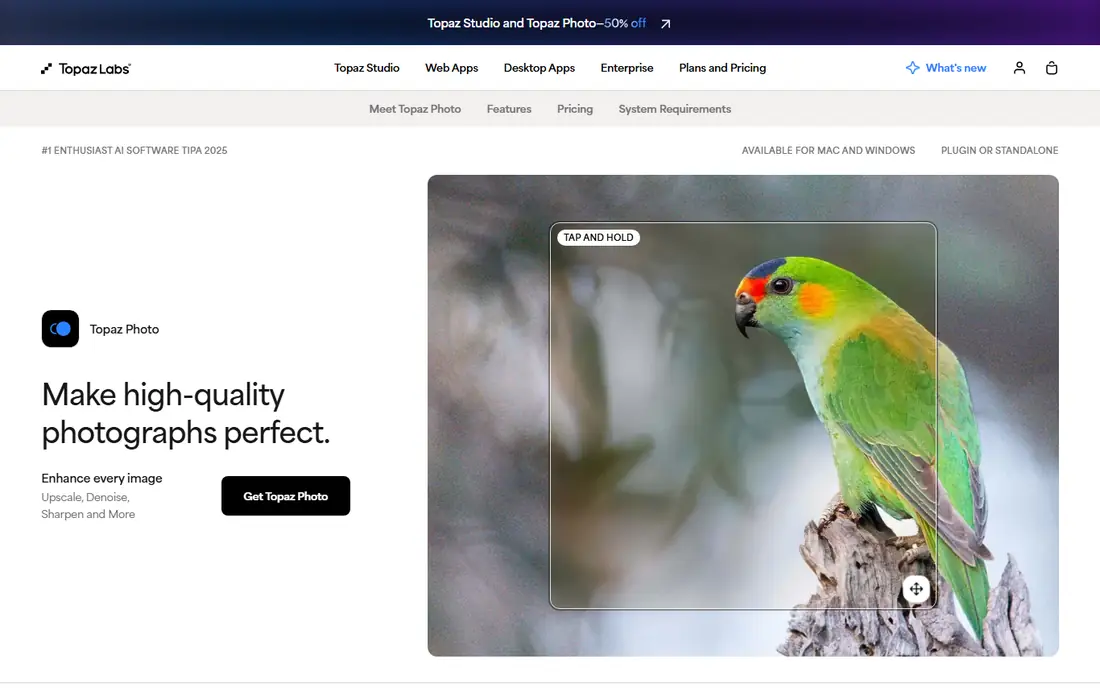
Topaz Photo AI is the tool photographers reach for when a photo is technically flawed. High ISO noise, motion blur, soft focus, and low resolution all get a dedicated model, and the results on difficult files are usually better than a general editor. It also works standalone or as a plugin for Lightroom, which fits a photographer workflow.
The catch is hardware and price. Processing is slow on older machines, and recent Topaz pricing has moved to subscription plans, so confirm the current license terms before you buy. Skin can also look too smooth if you leave defaults high, so dial back face settings on portraits.
- Strong denoise, sharpen, and upscale models
- Face recovery
- Works as a plugin
- Needs a capable computer
- Subscription pricing has replaced older one-time licenses in recent plans
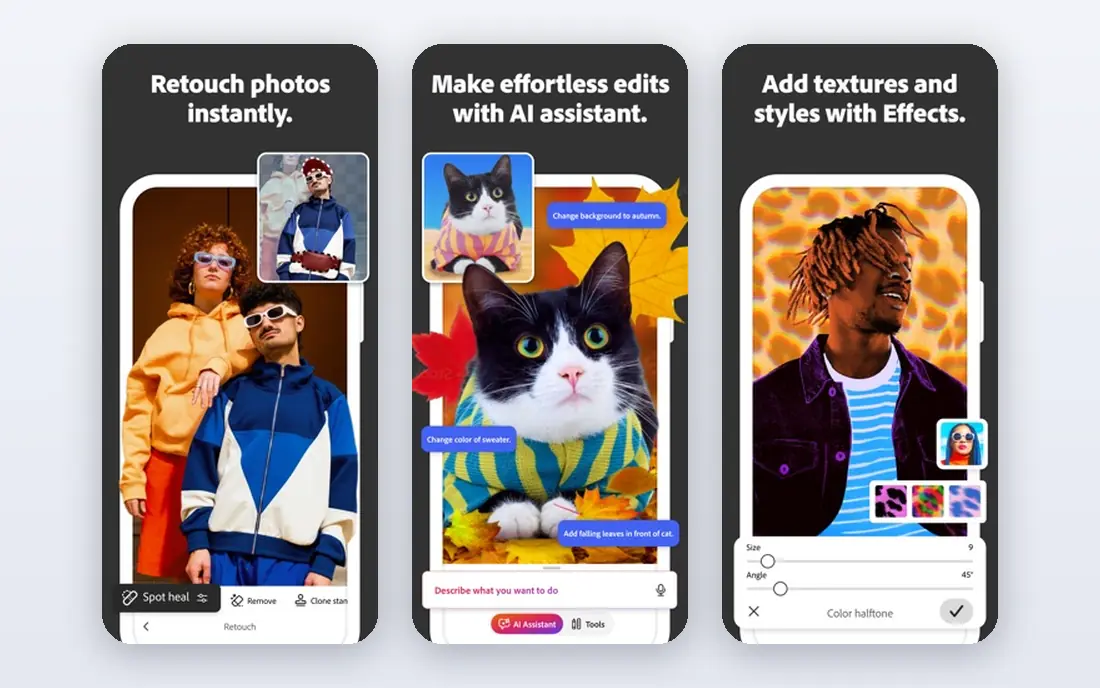
Photoshop suits editors who want enhancement plus full control. AI denoise, Super Resolution, and neural filters sit alongside layers, masks, and retouching tools, so you can fix a photo and then shape it for print or web. That depth is why professionals still keep Photoshop even when they own a one-click tool.
The trade is complexity and cost. Photoshop is a subscription, and learning layers and masks takes time. If you only need to fix a few photos a month, a simpler enhancer will be faster and cheaper.
- AI denoise and Super Resolution
- Layers and masks
- Huge plugin and tutorial base
- Subscription only
- More complex than a one-click enhancer

Lightroom is the best pick for photographers who shoot many photos and need consistent edits. AI denoise works well on RAW files, and batch presets let you apply the same fix across a whole shoot. Cloud sync also means edits follow you from desktop to mobile.
Face repair and extreme upscaling are less specialized here than in Topaz Photo AI or Remini. Lightroom wins on workflow and volume, not on rescuing a single badly damaged portrait. Choose it if you already manage a large library.
- AI denoise for RAW files
- Batch editing
- Cloud sync across devices
- Enhancement is part of a wider suite
- Face repair is less specialized than Topaz or Remini
Luminar Neo gives photographers AI portrait, lighting, and sky tools in a simpler package than Photoshop. You can improve a portrait, replace a dull sky, and adjust light without learning layers. One-time license options also appeal to users who dislike subscriptions.
Performance can vary, especially on older computers, and some advanced features sit on higher tiers. It is a strong creative enhancer, but for pure denoise and upscale quality, Topaz still leads on difficult files.
- AI portrait, sky, and lighting tools
- Simple interface
- One-time license options
- Performance varies by computer
- Some features need higher tiers
Remini dominates mobile face repair. It can turn a small, blurry face in an old photo into a clearer portrait in seconds, which is why it is popular for family photos and social posts. The mobile workflow is simple: pick a photo, pick an enhancement, and save the result.
The limit is subject range. Scenery, products, and text do not improve as reliably as faces, and results can look artificial if the original is very low quality. Pricing also varies by app store and plan, so check the in-app price before you subscribe.
- Strong face enhancement
- Old photo restoration
- Fast mobile workflow
- Quality varies on non-face subjects
- Subscription pricing varies by store
PhotoRoom suits sellers who need clean product photos fast. Background removal, shadows, and marketplace templates turn a phone photo into a listing-ready image without a design tool. Batch editing helps sellers who list many products each week.
The free plan is limited, and PhotoRoom is less suited to artistic portrait retouching than Luminar Neo or Photoshop. For product photos, though, the speed and templates are a clear advantage over a general editor.
- Background removal
- Product photo templates
- Batch editing for catalogs
- Free plan adds watermark limits
- Less suited to artistic portrait work
Upscayl is the best genuinely free upscaler in this list. It runs offline on desktop, supports batch upscaling, and offers several AI models for different photo types. For occasional upscaling, it costs nothing and keeps your photos on your own computer.
The trade is specialization. Upscayl does not focus on face repair or portrait retouching, and model quality varies by subject. It is a great free tool for size and sharpness, but not a replacement for Remini on old portraits.
- Free and open source
- Offline desktop app
- Batch upscaling
- No face repair focus
- Model quality varies by photo type
Fotor suits beginners who want quick results without learning a pro editor. One-click enhancement fixes light and color, batch editing handles many photos at once, and portrait tools help with headshots. The free tier lets you test the core workflow before paying.
AI quality is good for everyday photos but not as strong as Topaz on difficult noise or blur. Some of the best features also need a Pro plan. Fotor wins on speed and simplicity, not on maximum quality.
- One-click enhancement
- Batch editing
- Headshot and portrait tools
- AI quality is good, not class-leading
- Some features need a Pro plan
How we picked these
We compared official pricing pages, feature lists, and public reviews for AI photo tools, and we favored tools that exist and work in 2026, publish clear pricing or a free tier, and handle a distinct photo job well. We left out tools that only add filters without true enhancement, because this list is for fixing quality, not just style.
How to choose an AI photo enhancement tool
Start with the photo job, not the brand
A portrait rescue needs face repair, a product listing needs background removal, and a print needs upscaling and denoise. Pick the tool that does your main job best, because no single tool leads on every job. Test each candidate on the same three photos from your own library.
Watch for invented detail
AI enhancement can invent texture, smooth skin too far, or change text and small objects. Zoom to 100 percent and check faces, hands, jewelry, and signs before you publish. A slightly softer real photo is often better than a sharp photo with invented details.
Check batch work and export quality
If you edit many photos, batch processing and export settings matter as much as quality. Check output size, file format, and whether the tool keeps your original file untouched. A tool that forces a low-resolution export will limit print use.
FAQ
What are the best ai photo enhancement tools?
Topaz Photo AI leads for quality repair, Remini leads for mobile portraits, and Adobe Photoshop and Lightroom lead for full workflows. The best ai photo enhancement tools for you depend on whether you fix portraits, products, or large print files.
What is the best ai photo enhancement software for beginners?
Fotor and PhotoRoom are good beginner picks because they offer one-click fixes and clear templates. Luminar Neo suits beginners who want more creative control without learning Photoshop layers.
Are there best ai photo enhancement apps for phones?
Yes, Remini is the strongest mobile pick for face repair, and Fotor and PhotoRoom also offer mobile apps. For desktop quality work, Topaz Photo AI and Adobe tools still lead, because phones limit processing power.
Can AI really fix a very blurry photo?
AI can improve a blurry photo, but it cannot recover detail that was never captured. Expect better sharpness and cleaner noise, not a perfect reconstruction. Check faces and text closely, because AI may invent plausible but wrong detail.
Is a free AI photo enhancer good enough?
For basic upscaling, Upscayl is good enough for many users. For face repair, batch product work, or print quality, a paid tool usually gives cleaner results. Try the free tool on your own photos before paying.