Best Adobe Creative Cloud Alternatives in 2026: 9 Tools Compared
Searching for adobe creative cloud alternatives? We compare 9 photo, design, video and layout tools, with prices, free plans and honest trade-offs for 2026.

- Editor's choice
 Affinity
All round Adobe replacement
Starts atFreeVisit affinity.serif.comFull review - Great alternative
 Canva
Fast social and marketing design
Starts at$18 per monthVisit canva.comFull review - Also consider
 GIMP
Free photo editing and retouching
Starts atFreeVisit gimp.orgFull review
TL;DR:
- Affinity is our pick for most people leaving Adobe, since the full design, photo and layout suite is now free with a Canva account.
- No single tool replaces every Adobe app, so match the pick to the work you do most, whether that is photo editing, vector art, page layout or video.
- GIMP, Krita and Inkscape cover a lot of professional ground at no cost, but they ask for more patience with setup and file handling.
- Canva and Photopea are the fastest routes for social graphics and quick edits, while DaVinci Resolve is the strongest free video option.
Quick comparison
| Tool | Best for | Starts at | Free plan? | |
|---|---|---|---|---|
| Affinity | All round Adobe replacement | Free | Yes | Visit |
| Canva | Fast social and marketing design | $18 per month | Yes | Visit |
| GIMP | Free photo editing and retouching | Free | Yes | Visit |
 Photopea | Browser based PSD editing | Free | Yes | Visit |
 Figma | Interface and product design | Free | Yes | Visit |
 DaVinci Resolve | Video editing and color work | Free | Yes | Visit |
 Krita | Digital painting and illustration | Free | Yes | Visit |
 Inkscape | Vector illustration and logos | Free | Yes | Visit |
 CorelDRAW | Professional vector and print design | See website | Free trial | Visit |
The best adobe creative cloud alternatives
Creative Cloud covers a wide set of jobs, so the right replacement depends on which Adobe apps you actually open each week. The tools below cover photo editing, vector design, layout, interface design and video, and each one stands on its own rather than trying to copy Adobe feature for feature.
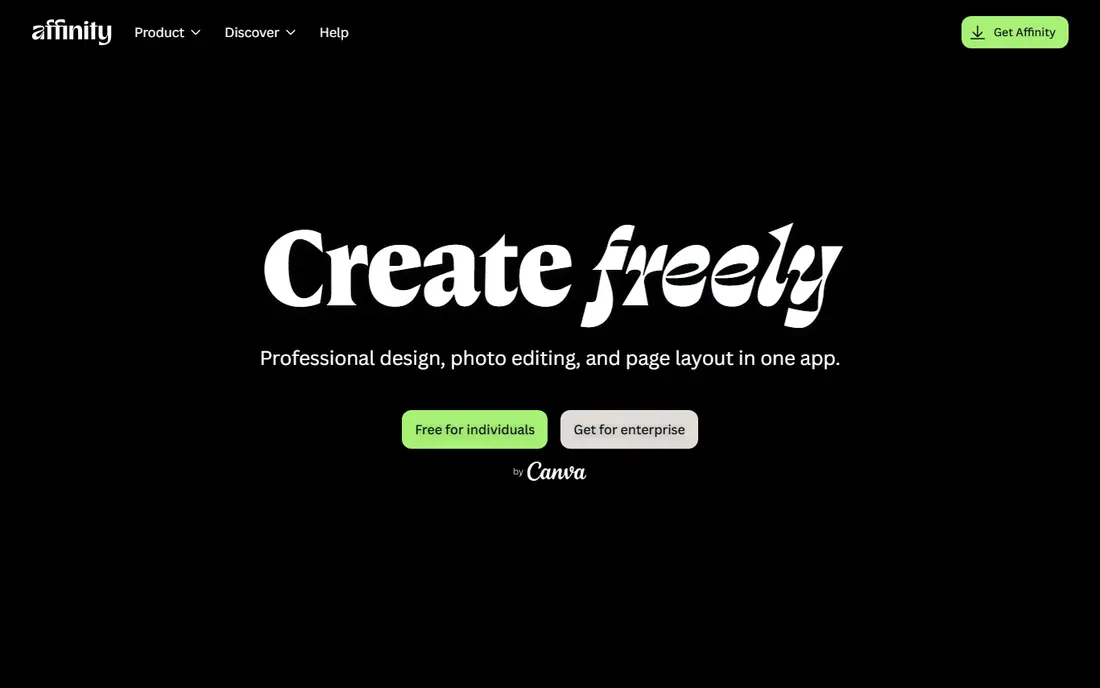
Affinity is the closest thing to a direct Creative Cloud replacement in one package. It brings together photo editing, vector design and page layout in three linked apps, and you can move between them inside a layout document. For photographers and designers who want desktop software without a monthly bill, that combination is hard to beat.
The catch is smaller than it used to be, but it still matters. The core apps are free with a Canva account, while some AI tools and premium assets sit behind a paid Canva plan. If you rely on cloud libraries or Adobe specific plugins, check those workflows before you cancel, and run a test export on a real client file first.
- Full photo, vector and layout apps
- One time free access with a Canva account
- Strong PSD and PDF handling
- Some AI features need a paid Canva plan
- File compatibility with older Affinity versions needs care

Canva is the pick when speed matters more than fine control. Templates, stock photos, brand colors and social sizes are built in, so a small business owner can produce a decent post, flyer or presentation in minutes. The free plan is genuinely useful for occasional work, and Pro adds background removal, premium content and more storage.
Serious print designers will feel the limits sooner. Precise color management, complex page layouts and detailed vector editing are not Canva strengths. Use it for marketing output and quick turnaround work, and pair it with Affinity or another desktop tool when a job needs exact control.
- Huge template library
- Easy brand kits and team sharing
- Works in a browser with no install
- Less precise than desktop design apps
- Print and long document work can feel limited
GIMP has been the free Photoshop alternative for years, and it earns that place with real depth. Layers, masks, curves, cloning and a wide set of filters cover most retouching and compositing jobs. A large community supplies plugins, brushes and tutorials, so help is easy to find when you hit a wall.
The trade off is polish. The interface takes getting used to, and some professional print workflows need extra steps or companion tools. If your work stays on screen, for web, social or personal photos, GIMP is a strong free choice. Print shops with strict CMYK needs should test files early.
- Powerful retouching, layers and masks at no cost
- Large plugin and script community
- Runs on Windows, Mac and Linux
- Interface feels dated
- CMYK and non destructive editing support is weaker than Photoshop
Photopea is the tool to try when someone sends you a PSD and you have no Adobe app open. It runs entirely in a browser, opens layered Photoshop files with good fidelity, and offers a layout that Photoshop users will recognize at once. For quick edits on a borrowed computer, that is a real advantage.
It is not a full studio replacement. Heavy files can slow down in a browser tab, and the free version shows ads. Paid access removes ads and adds more steps in history. Keep Photopea for fast edits and file checks, and use a desktop editor for long retouching sessions.
- Opens PSD, AI and Sketch files in a browser
- Familiar Photoshop style layout
- No install needed
- Ads on the free tier
- Large files can strain a browser
- No offline desktop app in the free version
Figma replaces the interface design side of Creative Cloud, the work once done in Adobe XD. Teams can design screens, build reusable components and share clickable prototypes from one browser link. Comments sit right on the design, which cuts down on long email threads about small changes.
It does not try to be Photoshop or InDesign, and that focus is a strength. Photo retouching and print layout belong elsewhere on this list. If your team designs apps, websites or product screens, Figma is the natural first choice, and the free starter plan suits solo designers and small projects.
- Real time collaboration in the browser
- Strong component and prototyping tools
- Large community file library
- Needs an internet connection for full use
- Not built for print layout or photo editing
DaVinci Resolve covers the Premiere Pro and After Effects side of video work better than any other free tool. The free version includes timeline editing, color grading, audio mixing and effects, and it exports in high quality without a watermark. Colorists in particular praise its grading tools, which were its original strength.
Beginners should expect a learning curve and a computer with decent memory and graphics power. Simple slideshow videos are faster in Canva or Animoto. For YouTube, client work or short films, Resolve gives you room to grow without a subscription hanging over every project.
- Professional editing, color and audio tools for free
- Strong 4K export
- Paid Studio adds advanced AI tools
- Needs a capable computer
- Learning curve is steep for casual editors
Krita is built for artists, not photographers. Its brush engine, stabilizers and color management suit illustration, concept art, comics and texture painting. An animation timeline is included, which makes it useful for short animated pieces and storyboards as well as still images.
Photo editors should look at GIMP or Affinity instead, since Krita photo tools are limited. The interface also packs in a lot of panels, so new users should start with one brush set and one canvas size. Once past that first week, Krita is one of the most capable free art tools available.
- Excellent brush engine for painting and comics
- Animation timeline included
- Open source with no ads
- Photo editing tools are basic
- Interface can overwhelm first time users
Inkscape is the free answer to Illustrator. It handles logos, icons, diagrams, posters and web graphics with proper vector tools, including bezier paths, boolean operations and text on a path. SVG is its native format, which fits web work well, and exports to PDF and PNG cover most sharing needs.
Print designers should note the CMYK limitation and test color output before sending work to press. Very large files with thousands of nodes can also slow down. For logo work, illustration and web graphics, Inkscape delivers professional results at no cost, and it pairs well with GIMP for mixed projects.
- Full vector drawing, text and path tools for free
- Strong SVG support
- Active extension community
- No native CMYK color mode for print
- Performance can lag on very complex files
CorelDRAW is the long standing commercial rival to Illustrator, with deep tools for vector art, page layout, typography and print preparation. Sign shops, apparel printers and packaging designers have used it for decades, and its toolset reflects that practical focus. A free trial lets you test it on real work before paying.
The main drawback is pricing clarity, since plans and purchase options vary by region and change over time, so check the vendor site for the current figure. It also has a smaller tutorial community than Adobe, though official learning material is solid. If you want a supported commercial vector suite without Adobe, CorelDRAW is the serious option.
- Mature vector, layout and typography tools
- Strong print and signage workflows
- One time purchase options exist in some regions
- Pricing is not published as a single simple figure
- Smaller community than Adobe for tutorials
How we picked these
We compared official feature pages, pricing pages, app store listings and public documentation for tools that replace at least one major Creative Cloud app. We favored tools that exist and work today, with a real free plan or a clear paid price, and we checked that each homepage belongs to the vendor. We left Adobe itself off the list, since this guide is about alternatives to Adobe Creative Cloud, and we avoided tools that only offer templates with no real editing depth.
What to check before you cancel Adobe
Start with your files, not with features. Open a recent PSD, AI or InDesign file in the replacement and export it, then check layers, fonts, colors and text flow. Font licensing is a common snag, since a font used in Adobe Fonts may not be licensed for use elsewhere, so confirm that before a deadline project.
Next, list the Adobe only features you truly use, such as cloud libraries, specific plugins or team review links. Many of those have workarounds, like shared folders or Figma links, but a workaround you discover mid project feels very different from one you plan in advance. Run the new tool alongside Adobe for one full project, then cancel only when the exported work passes your normal quality check.
A simple migration plan
Pick one app to replace first, usually the one you use most. Move a small, low risk project through it end to end, from opening the file to final export. Note every friction point, and decide if it is a learning issue or a real missing feature. Repeat with the next app only after the first switch feels stable, since changing every tool at once makes it hard to tell which one caused a problem.
FAQ
What are the best alternatives to adobe creative cloud?
Affinity is the strongest all round choice, since it covers photo, vector and layout work in one free suite. Canva suits fast marketing design, Figma suits interface design, and DaVinci Resolve suits video. Most people end up with two or three tools from this list rather than one single replacement.
Are there free creative cloud alternatives?
Yes, several are free. Affinity, GIMP, Krita, Inkscape and DaVinci Resolve all offer full free versions, and Canva, Photopea and Figma have free plans with limits. Free does not mean weak here, though paid plans or companion tools may still be needed for some print or AI features.
Can I open Photoshop files without Adobe?
Yes, Affinity and Photopea both open PSD files with layers in most cases, and GIMP opens PSD files as well. Complex smart objects, some effects and unusual fonts may not transfer perfectly, so always test a copy of an important file before relying on the conversion for client work.
Is Affinity really free now?
Affinity apps are free with a Canva account, based on the vendor change announced in 2025, while some AI features and premium assets need a paid Canva plan. Check the Affinity site at signup for the current terms, since offers can change, and confirm that the free version covers the tools you need.
Which alternative is best for video instead of Premiere Pro?
DaVinci Resolve is the best free video alternative for most editors, with professional editing and color tools. Canva and Adobe Express style tools are faster for short social clips, but they do not match Resolve for longer projects, color work or audio mixing.
Do these tools work for commercial client work?
Yes, with care around fonts, color modes and file delivery. Test exports, confirm font licenses and agree on delivery formats with clients in advance. Print work needs extra checks for CMYK and bleed, while web and social work is generally straightforward in these tools.