Top 5 Video Lesson Creation Software for Teachers for 2026 (Prices and Free Plans)
Best video lesson creation software for teachers: 5 contenders ranked by fit, with entry costs and free tiers. Read the caveats before you buy. Compare quickly.
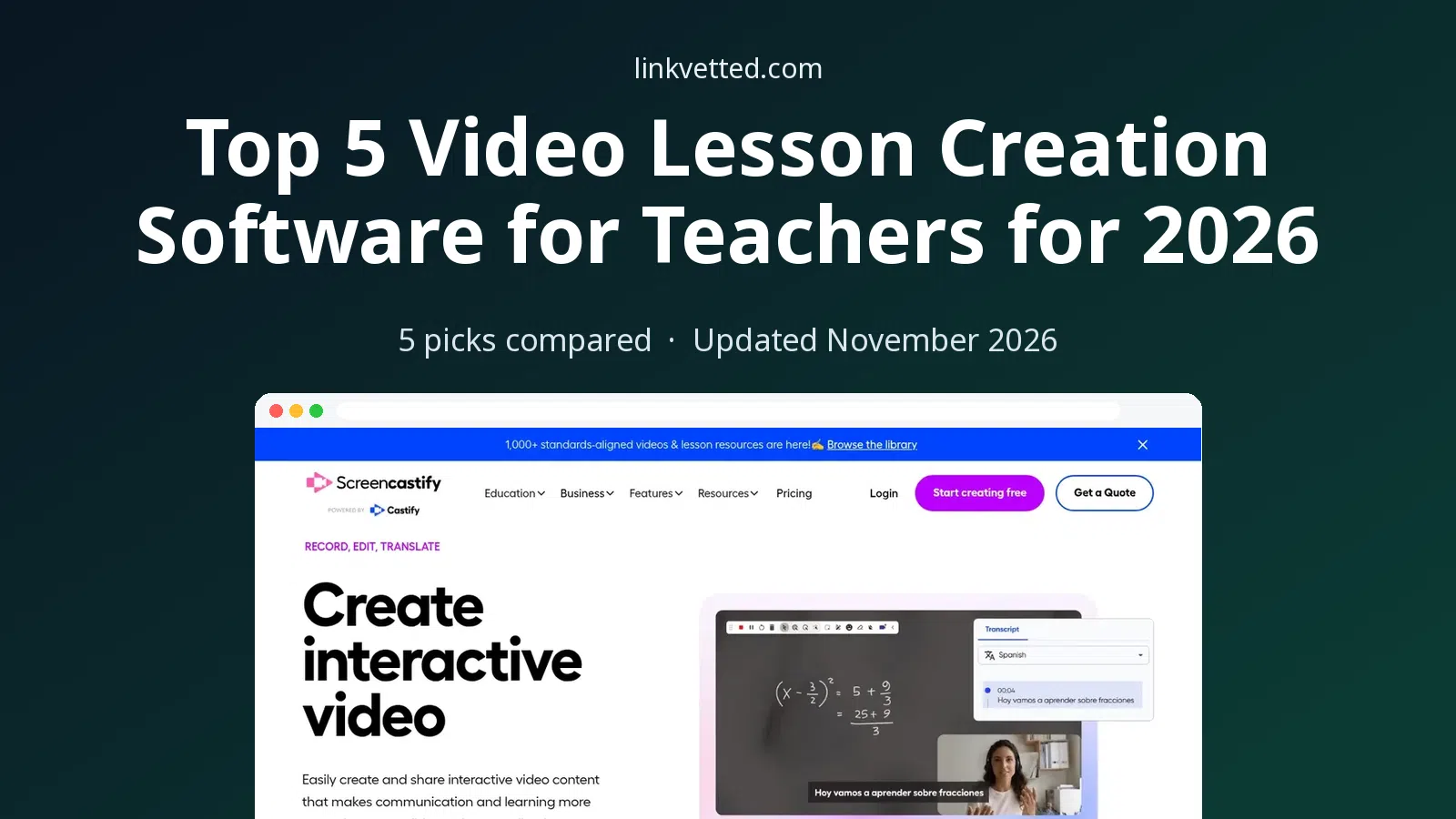
- Editor's choice
 Adobe Premiere Pro
Advanced editing of finished lesson videos
Starts atSee websiteVisit adobe.comFull review - Great alternative
 Screencastify
Browser-based lesson recording and editing
Starts at$7 per user per monthVisit screencastify.comFull review - Also consider
 Loom
Fast screen recordings with simple sharing
Starts at$18 per user per monthVisit loom.comFull review
Direct answer
Adobe Premiere Pro comes first here, mainly for advanced editing of finished lesson videos. Listed starting prices: Screencastify from $7 per user per month, Loom from $18 per user per month and Powtoon from $8 a month. For a different need, Screencastify covers browser-based lesson recording and editing and Loom covers fast screen recordings with easy sharing. Prices, free plans and limits for all 5 tools follow.
TL;DR:
- The list opens with Adobe Premiere Pro, aimed at advanced editing of finished lesson videos.
- Screencastify, Loom, Powtoon: these are the 3 tools out of 5 that offer a free plan.
- What to know about Screencastify first: depends on browser performance.
- For animated and AI-assisted lesson videos, Powtoon is worth a look.
- The cheapest monthly starting price in the list is $7 per user per month, offered by Screencastify.
Last checked November 2026. Prices and plan details were read from the vendors' own pages in November 2026; vendors change plans often, so confirm the current price on the vendor site before you buy.
Quick comparison
| Tool | Best for | Starts at | Free plan? | |
|---|---|---|---|---|
| Adobe Premiere Pro | Advanced editing of finished lesson videos | See website | Not stated | Visit |
| Screencastify | Browser-based lesson recording and editing | $7 per user per month | Yes | Visit |
| Loom | Fast screen recordings with simple sharing | $18 per user per month | Yes | Visit |
 Camtasia | Recording and editing tutorials in one app | See website | Not stated | Visit |
| Powtoon | Animated and AI-assisted lesson videos | $8 a month | Yes | Visit |
Every option for video lesson creation software for teachers explained
Choosing video lesson creation software for teachers usually comes down to price, fit and limits. This LinkVetted guide sets 5 tools side by side on those three points, with the facts kept short and checkable.
Adobe Premiere Pro serves advanced editing of finished lesson videos. The ramp-up time is steep and the interface assumes editing experience, which can slow down teachers who just want a fast lesson clip.
Adobe Premiere Pro is professional video editing and post-production software for trimming, effects, audio mixing, and more. Adobe Premiere Pro shows no starting price here, so confirm the cost on the vendor site. Free access: Not stated.
Watch-outs: Steep ramp-up time for beginners.
- Takes care of complicated multi-part projects
- Audio mixing
- No built-in lesson recording focus
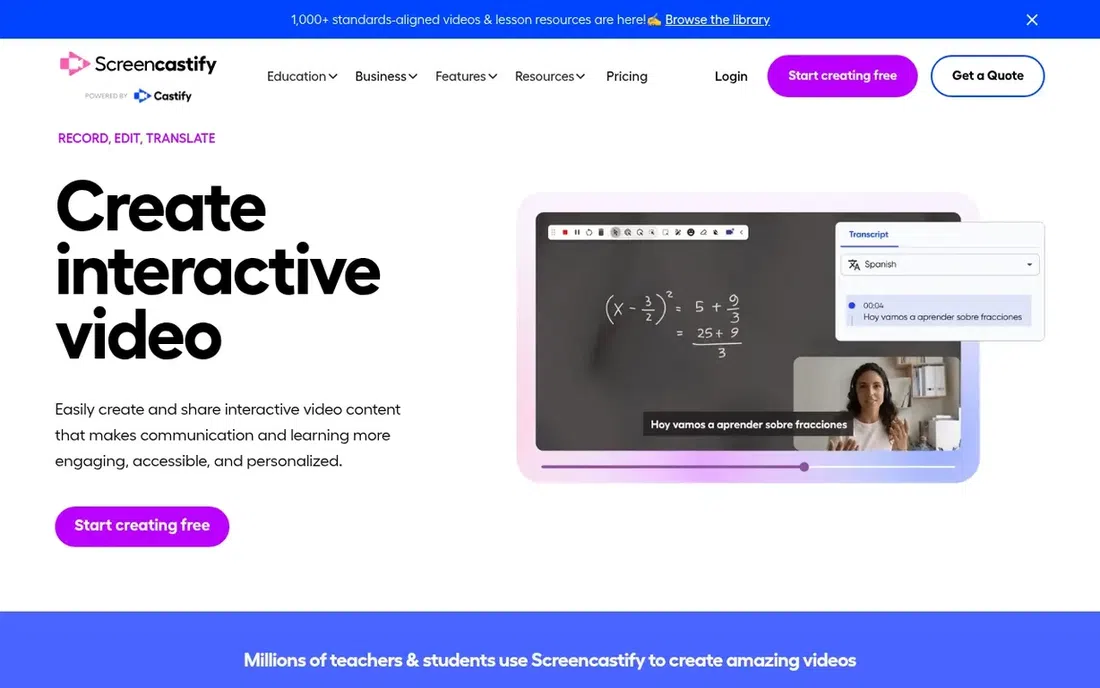
Screencastify is designed for browser-based lesson recording and editing. Browser tools can be restricted by device performance, and editing controls are generally more straightforward than a dedicated desktop editor.
Downsides: Relies on browser performance.
On top of that, if you need advanced effects, multi-track editing, or heavy post-production, a full editor is the better fit. Screencastify starts at: $7 per user per month. Free access exists with Screencastify.
- Runs in the browser
- Share in one flow
- Editing depth is lighter than desktop editors
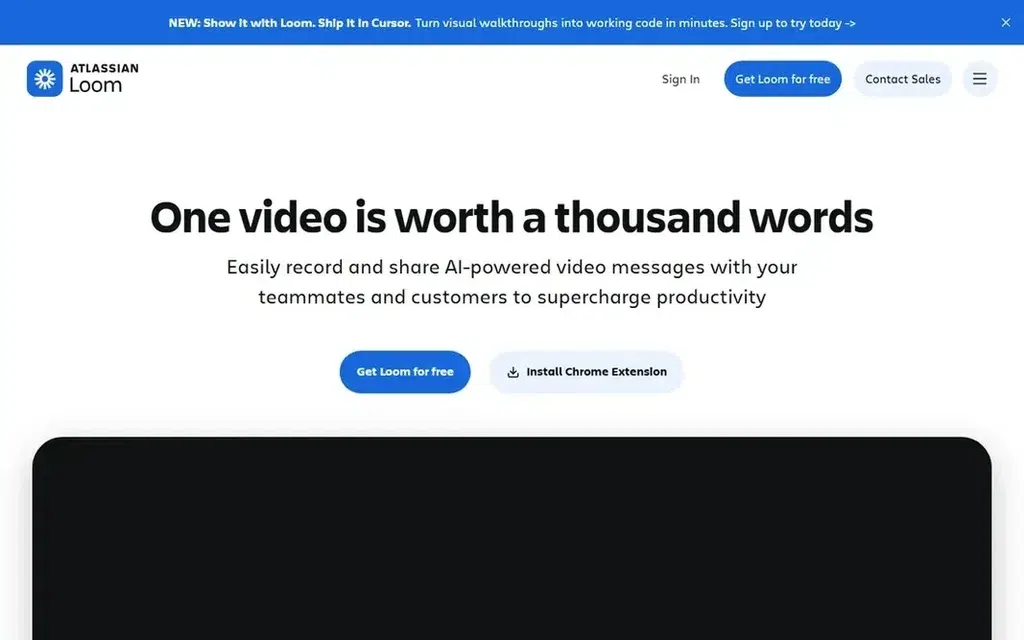
For fast screen recordings with simple sharing, Loom is a natural candidate. It is a practical choice for teachers who want to record an explanation rapidly and send a link instead of produce a heavily edited lesson. Beyond that, teachers building longer, refined courses with effects and layered audio should look at a full editor.
From a buyer's view, Loom is oriented toward fast recording and sharing. So it is not the place for in-depth editing or elaborate productions. Loom starts at: $18 per user per month. You can start on Loom without paying.
Points against: Less suited to complicated editing.
- Video editing and storage included
- Quick screen recording on Mac and PC
- Best treated as a capture-first tool
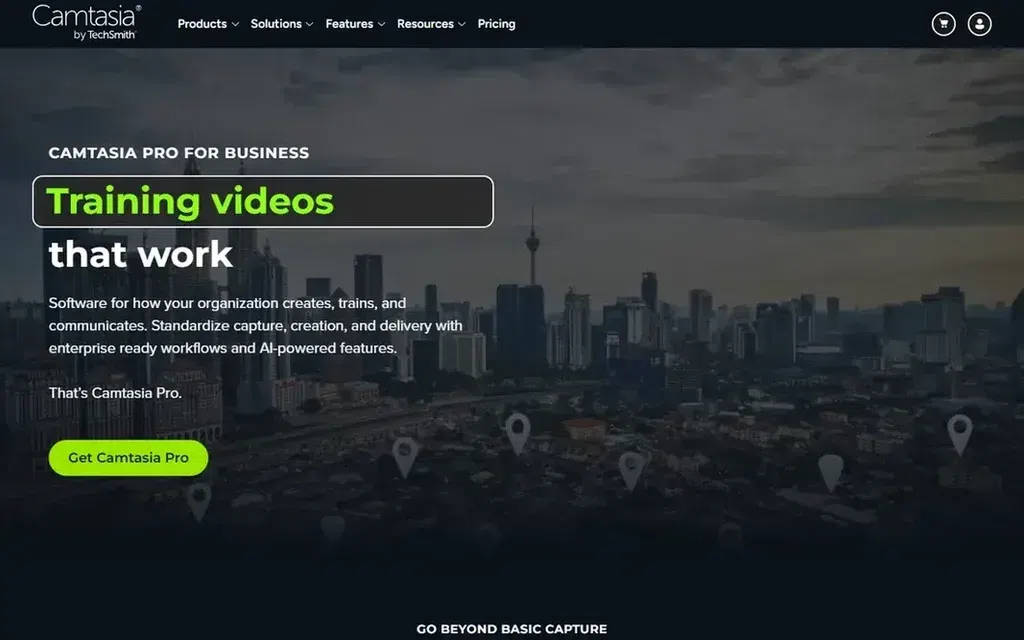
Camtasia works best for recording and editing tutorials in one app. For teachers, that means you can capture a lesson or a walkthrough of a tool and then trim, arrange, and polish it in the same application.
Drawbacks to consider: Desktop software to install and learn.
Upsides: Screen recording plus a full editor. It suits instructors who want one program for both capture and editing instead of stitching together separate tools. Camtasia shows no starting price here, so confirm the cost on the vendor site. Free options: Not stated.
- Training videos, demos
- Designed for tutorials
- More capability than straightforward lesson clips need
Powtoon
Best for: Animated and AI-assisted lesson videos
Choose Powtoon for animated and AI-assisted lesson videos. The animation-led style is not well suited to demonstrating software or walking through a document on screen. In practice, if your lessons rely on showing your actual desktop, pair Powtoon with a screen recorder or choose a capture tool instead.
Powtoon describes itself as a unified AI video product for building branded videos and presentations rapidly, with doc-to-video, AI avatars, text-to-speech, and AI translation. More specifically, for teachers, it is a route to animated explainer lessons and narrated presentations without filming. Price to start with Powtoon: $8 per month. Free access exists with Powtoon.
Points against: Less handy for raw screen capture.
- Animated videos and presentations
- Text-to-speech and translation features
- Animation style may not suit every subject
Selection criteria
What to check before you buy
- Get a written quote from Adobe Premiere Pro and Camtasia; the list shows no starting price for them.
- Check what the free option really includes: Screencastify, Loom and Powtoon offer a free plan, and usage caps differ.
- Read the limits listed for Adobe Premiere Pro first: no built-in lesson recording focus.
- Let daily users try Powtoon on real work; their feedback beats any feature checklist.
- List the apps you already depend on and check that Screencastify supports each one on the plan you would buy.
FAQ
Which options for video lesson creation software for teachers have a free plan?
Screencastify, Loom and Powtoon offer a free plan in this list. Free plans usually cap users, projects or features, so check the limits on the vendor page.
Is Adobe Premiere Pro the right pick for everyone comparing video lesson creation software for teachers?
No single tool suits every team. Adobe Premiere Pro comes first because it fits advanced editing of finished lesson videos, while Screencastify suits browser-based lesson recording and editing and Loom suits quick screen recordings with easy sharing. Match the tool to your own size, budget and workflow before deciding.
What is the cheapest option for video lesson creation software for teachers in this list?
On published monthly entry prices, Screencastify is the lowest here at $7 per user per month. Entry price is only part of the cost, because seats, add-ons and billing terms can change the total.
Do these tools publish their prices?
Not all of them. Adobe Premiere Pro and Camtasia publish no starting price, so expect a quote request for those. The rest, Screencastify included, show a starting price, though seats and billing terms still change the final cost.
Sources
- https://www.adobe.com/products/premiere.html
- https://www.screencastify.com
- https://www.loom.com
- https://www.techsmith.com/camtasia.html
- https://www.powtoon.com