Best Software for Clipping Gameplay (2026): 6 Picks Checked on Vendor Pages
Need the best software for clipping gameplay? We compare 6 tools on cost, free access and who each suits. Every entry states what it lacks. Refreshed for 2026.

- Editor's choice
 Kapwing
Browser-based clip creation from prompts
Starts at$16 a monthVisit kapwing.comFull review - Great alternative
 DaVinci Resolve
All-in-one editing, color, and audio
Starts atSee websiteVisit blackmagicdesign.comFull review - Also consider
 Filmora
Accessible AI-assisted editing on desktop and mobile
Starts atSee websiteVisit filmora.wondershare.comFull review
Direct answer
Kapwing leads the list, best for browser-based clip creation from prompts. Listed starting prices: Kapwing from $16 a month and Descript from $16 per person per month. Alternatives: DaVinci Resolve for all-in-one editing, color, and audio, and Filmora for accessible AI-assisted editing on desktop and mobile. The remaining 3 options are covered below with prices and limits.
TL;DR:
- Kapwing takes the first slot, best suited to browser-based clip creation from prompts.
- What to know about Kapwing first: browser workflow may limit heavy projects.
- Kapwing, Clipchamp, Descript: these are the 3 tools out of 6 that offer a free plan.
- Descript is the one to check for text-based editing of gameplay commentary.
Last checked November 2026. Prices and plan details were read from the vendors' own pages in November 2026; vendors change plans often, so confirm the current price on the vendor site before you buy.
Quick comparison
| Tool | Best for | Starts at | Free plan? | |
|---|---|---|---|---|
| Kapwing | Browser-based clip creation from prompts | $16 a month | Yes | Visit |
| DaVinci Resolve | All-in-one editing, color, and audio | See website | Not stated | Visit |
| Filmora | Accessible AI-assisted editing on desktop and mobile | See website | Not stated | Visit |
 Clipchamp | Fast in-browser gameplay clips | See website | Yes | Visit |
 VEED | AI-assisted clips with subtitles and dubbing | See website | Not stated | Visit |
 Descript | Text-based editing of gameplay commentary | $16 per person per month | Yes | Visit |
Our 6 picks for software for clipping gameplay
LinkVetted compared 6 tools for software for clipping gameplay. The goal is a practical shortlist: published prices, free plan facts, best-fit use cases and honest limits for every entry.
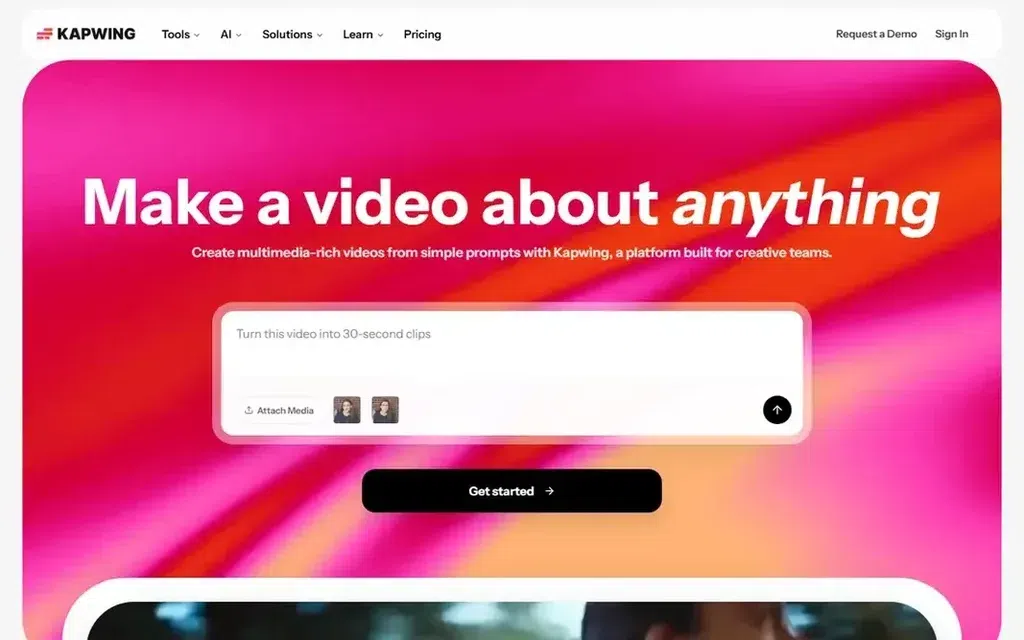
Kapwing targets browser-based clip creation from prompts. For gameplay clipping, it supplies a browser-based way to assemble flags, add captions, and resize clips for different systems without installing desktop software. From a buyer's view, Kapwing's online nature means very large gameplay files and complicated multi-layer edits can feel constrained compared to desktop suites.
Limits to weigh: Less depth for advanced postproduction.
It is not the deepest choice for color grading or audio post. As for the details, Kapwing is an online video product that can produce full video projects from a single prompt and is aimed at creators publishing on every channel. Kapwing cost at the entry level: $16 per month. Kapwing offers a free plan.
- Online editing on every channel
- Template-friendly workflow for creators
- Browser workflow may limit heavy projects
DaVinci Resolve works best for all-in-one editing, color, and audio. DaVinci Resolve merges professional video editing, color correction, visual effects, and audio post production in a single application, with free and premium versions for Mac, Windows, and Linux.
Resolve's breadth means a steeper ramp-up time, and complicated projects can tax older hardware. On top of that, choose Resolve when color, audio, and effects quality justify the additional setup time. DaVinci Resolve does not show a starting price in this comparison, so check the vendor site for current pricing. As for free access: Not stated.
What DaVinci Resolve does well: audio in one application.
Limits to weigh: Demanding on hardware for complicated projects.
- Editing, color, VFX
- Free and premium versions offered
- Deep feature set takes time to learn
Filmora
Best for: Accessible AI-assisted editing on desktop and mobile
Filmora is designed for accessible AI-assisted editing on desktop and mobile. Filmora is AI-powered video editing software for desktop and mobile, offering easy-to-learn timeline tools, AI features, effects, captions, and audio.
Downsides: Less depth than professional suites.
In practice, Filmora prioritizes approachability, so very advanced color or audio post workflows may feel restricted next to professional suites. Check the vendor site for Filmora pricing; none is listed in this comparison. Free plan details: Not stated.
- Easy-to-learn timeline tools and effects
- AI-powered editing features
- Advanced users may outgrow it
For fast in-browser gameplay clips, Clipchamp is a natural candidate. Clipchamp is an online video editor by Microsoft that lets you build videos with royalty-free music and stock footage, use templates, and export in up to 4K resolution in the browser or the Windows app.
Downsides: Fewer advanced post tools.
In practice, editors needing advanced color or audio work will likely outgrow it. As for the details, choose Clipchamp for quick, straightforward clips instead of deep postproduction. This comparison lists no price for Clipchamp; ask the vendor. Clipchamp has a free plan.
- Online editor by Microsoft
- Templates and up to 4K export
- Browser editing limits heavy projects
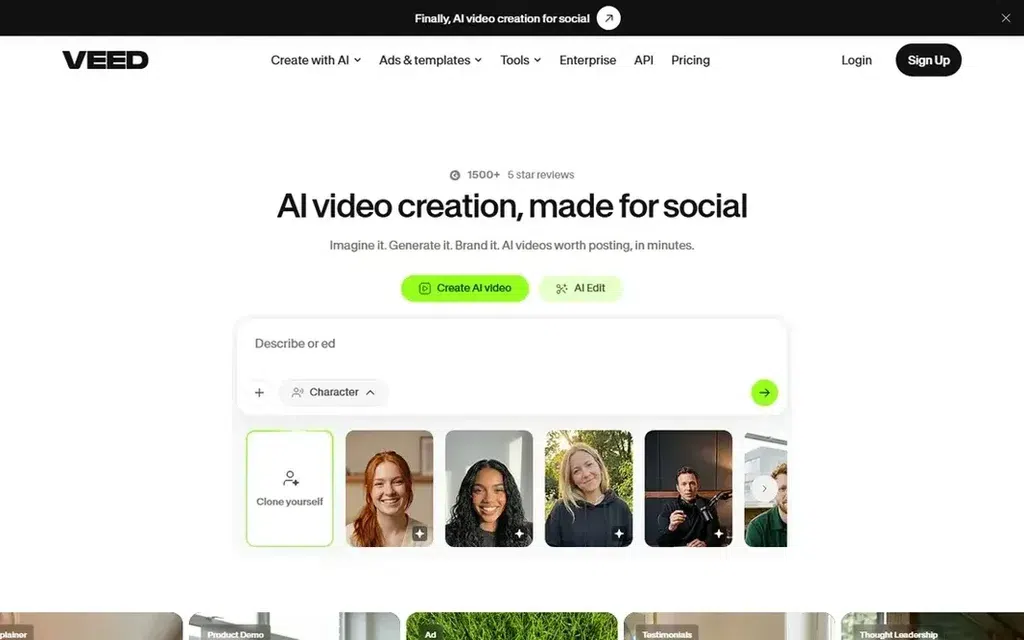
Where VEED fits: AI-assisted clips with subtitles and dubbing. VEED is an AI video creation product that merges generation and editing in one workflow, with tools for talking heads, AI editing, dubbing, and subtitles. For gameplay clips, it helps creators add captions and localized audio rapidly, which fits short-form flags meant for wide audiences.
Watch-outs: Browser-based workflow has limits.
It is targeted at marketers and solopreneurs who want a single browser tool. VEED's strengths are in quick, caption-heavy social clips instead of deep timeline craft or precise action cutting. Pricing for VEED is not stated here, so ask the vendor for current figures. Trial and free access: Not stated.
- Create and edit in one workflow
- Aimed at marketers and solopreneurs
- Less suited to complicated cinematic edits
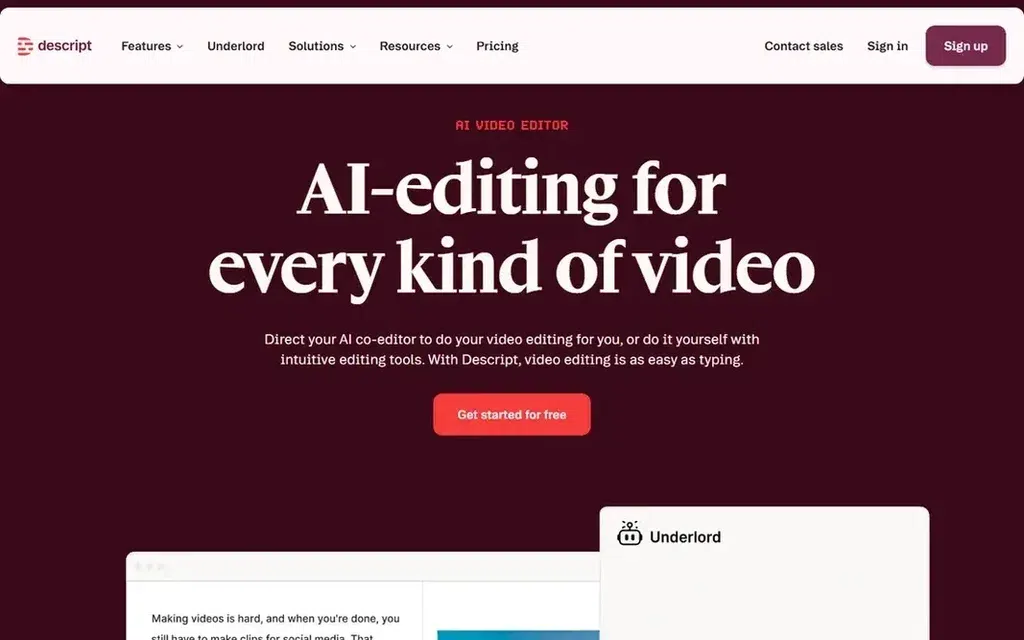
Descript was built for text-based editing of gameplay commentary. If your clips rely on precise visual moments instead of spoken content, a timeline-first editor may serve you better.
Main advantages: AI video and audio editing features.
Descript is an AI video and audio editor that makes editing as easy as editing text. On cost, Descript starts like this: $16 per person per month. You can start on Descript without paying. Limits to weigh: Less concentrated on advanced color grading.
- Publish in one tool
- Record, transcribe, edit
- A good match for commentary-driven clips
Selection criteria
Each tool was reviewed on what its vendor publishes: price, plan limits, core features and stated drawbacks. We did not run hands-on tests. Seat minimums, billing terms and add-ons can move the real cost, so the starting prices here are a guide and not a quote. The order reflects how well each tool fits the most common buying scenario for software for clipping gameplay, then price clarity, then free plan access. It is a starting point, not a verdict.
Before you commit
- Get a written quote from DaVinci Resolve, Filmora, Clipchamp and VEED; the list shows no starting price for them.
- Look at free plan limits closely: Kapwing, Clipchamp and Descript have one, and the caps decide whether it is usable for real work.
- Before choosing Kapwing, weigh its main limit: browser workflow may limit heavy projects.
- Price DaVinci Resolve for your actual team size; headline prices rarely include add-ons or overage.
- Check the support hours and onboarding help VEED offers; smaller vendors vary a lot here.
FAQ
Do I need professional software to clip gameplay?
Not necessarily. Filmora and Clipchamp offer friendlier timelines and templates for fast flags. Professional suites like Premiere Pro and DaVinci Resolve add deeper color, audio, and effects control for editors who require it. Start with your output goals and confirm features on vendor pages.
Is browser-based clipping decent enough for gameplay flags?
Browser editors like Kapwing, VEED, and Clipchamp can manage short flags, captions, and templates well. Very large gameplay files or complicated multi-layer edits may be better served by desktop tools like Premiere Pro or DaVinci Resolve.
Which options for software for clipping gameplay have a free plan?
On this list, Kapwing, Clipchamp and Descript include a free plan. Caps on seats, usage or features are common, so test the free plan against your real workload.
Is Kapwing the right pick for everyone comparing software for clipping gameplay?
No single tool suits every team. Kapwing comes first because it fits browser-based clip creation from prompts, while DaVinci Resolve suits all-in-one editing, color, and audio and Filmora suits accessible AI-assisted editing on desktop and mobile. Match the tool to your own size, budget and workflow before deciding.
Which tool is a good match for gameplay clips with commentary?
Kapwing comes first here and is built for browser-based clip creation from prompts. Buyers with other needs may prefer DaVinci Resolve (for all-in-one editing, color, and audio) or Filmora (for accessible AI-assisted editing on desktop and mobile). Compare costs and limits first.
Can I try these tools before paying?
Often, yes. Kapwing, Clipchamp and Descript have a free plan. Use your own data and a real task during the test, and check what the free tier or trial limits before you rely on it.
Sources
- https://www.kapwing.com
- https://www.blackmagicdesign.com/products/davinciresolve
- https://filmora.wondershare.com
- https://clipchamp.com
- https://www.veed.io
- https://www.descript.com