Choosing Computer Hardware Monitoring Software in 2026: 6 Options Compared
6 tools for the best computer hardware monitoring software, compared on pricing, free plans and best-fit use. Real limits included. Pick with confidence.
- Editor's choiceSpeedFan
Fan speed control and temperature monitoring
Starts atPricing on requestVisit almico.comFull review - Great alternativeHWiNFO
In-depth hardware analysis and reporting
Starts atPricing on requestVisit hwinfo.comFull review - Also considerMSI Afterburner
Graphics card overclocking and monitoring
Starts atPricing on requestVisit msi.comFull review
Direct answer
Our first pick is SpeedFan, best for fan speed control and temperature monitoring. For a different need, HWiNFO covers in-depth hardware analysis and reporting and MSI Afterburner covers graphics card overclocking and monitoring. Details and limits for the rest of the 6 tools are below. None of these vendors publish plan prices, so pricing is on request for every option.
TL;DR:
- SpeedFan sits first on this list: fan speed control and temperature monitoring.
- Before buying HWiNFO, weigh this: interface can be overwhelming for beginners.
- A permanent free plan is missing from all 6 tools, SpeedFan and AIDA64 included; plan for a trial or a premium start.
- AIDA64 fits system diagnostics and benchmarking.
Last checked November 2026. Pricing on request: vendors did not publish plan prices when this guide was last checked (November 2026), so ask each vendor for a written quote.
Quick comparison
| Tool | Best for | Starts at | Free plan? | |
|---|---|---|---|---|
| SpeedFan | Fan speed control and temperature monitoring | Pricing on request | Not stated | Visit |
| HWiNFO | In-depth hardware analysis and reporting | Pricing on request | Not stated | Visit |
| MSI Afterburner | Graphics card overclocking and monitoring | Pricing on request | Not stated | Visit |
| Open Hardware Monitor | Open-source sensor monitoring | Pricing on request | Not stated | Visit |
| HWMonitor | Straightforward sensor monitoring for Windows PCs | Pricing on request | Not stated | Visit |
 AIDA64 | System diagnostics and benchmarking | Pricing on request | Not stated | Visit |
The full computer hardware monitoring software list
LinkVetted put together this guide to computer hardware monitoring software for readers who want a clear shortlist without reading every vendor page. It compares 6 tools on starting price, free plans, who each one suits and where each one falls short.
SpeedFan
Best for: Fan speed control and temperature monitoring
SpeedFan makes the most sense for fan speed control and temperature monitoring. SpeedFan is a hardware monitor for Windows that can access digital temperature sensors located on multiple 2-wire SMBus Serial Bus. It can also access voltages and fan accelerates and control fan accelerates.
As for the details, SpeedFan has an older interface and may need configuration to work correctly with specific hardware. From a buyer's view, choose SpeedFan for its fan control capabilities. Check the vendor site for SpeedFan pricing; none is listed in this comparison. Free access: Not stated.
Watch-outs: Setup can be complicated.
- Contains technical articles and docs
- Controls fan accelerates
- Interface is dated
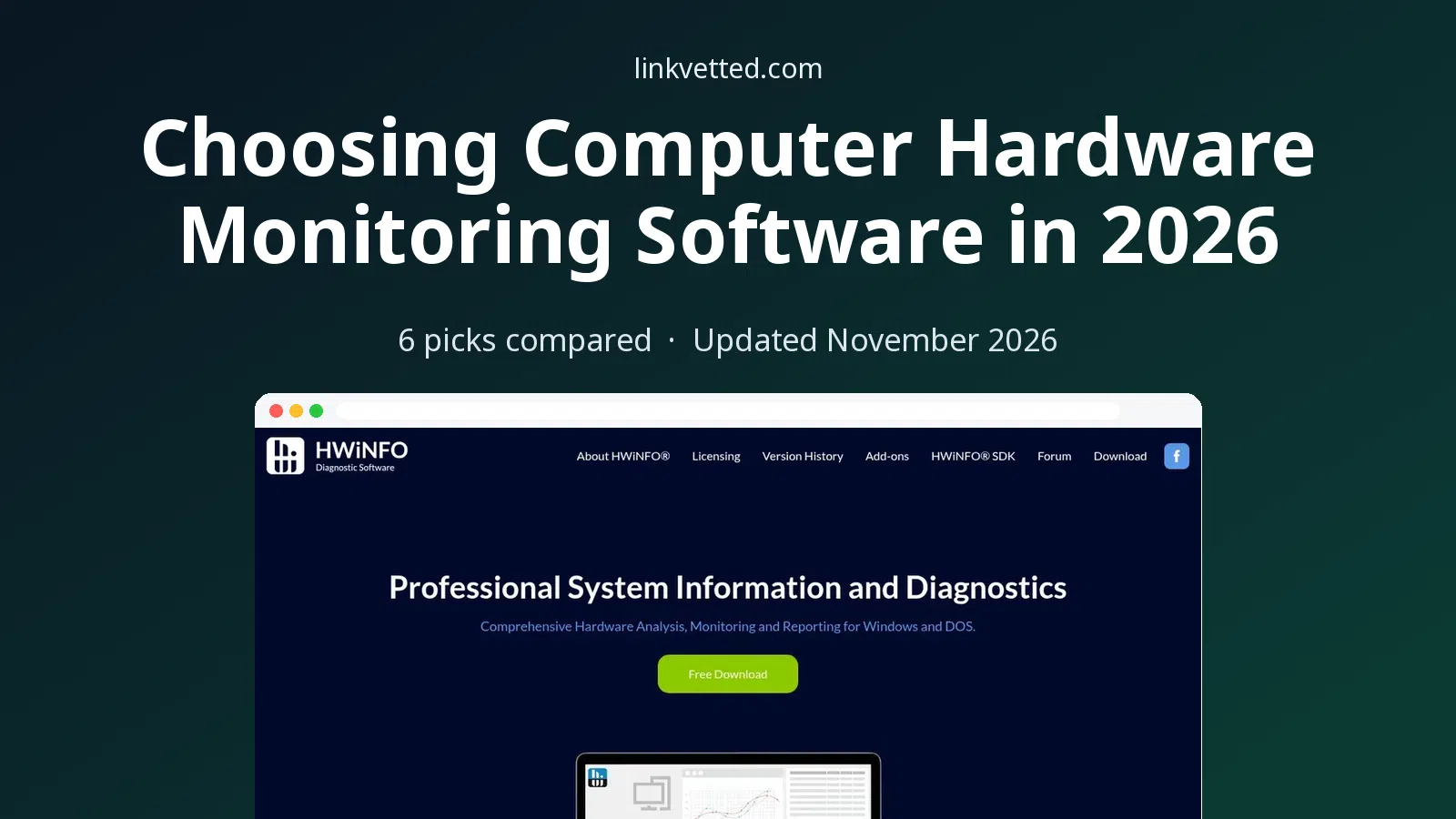
HWiNFO
Best for: In-depth hardware analysis and reporting
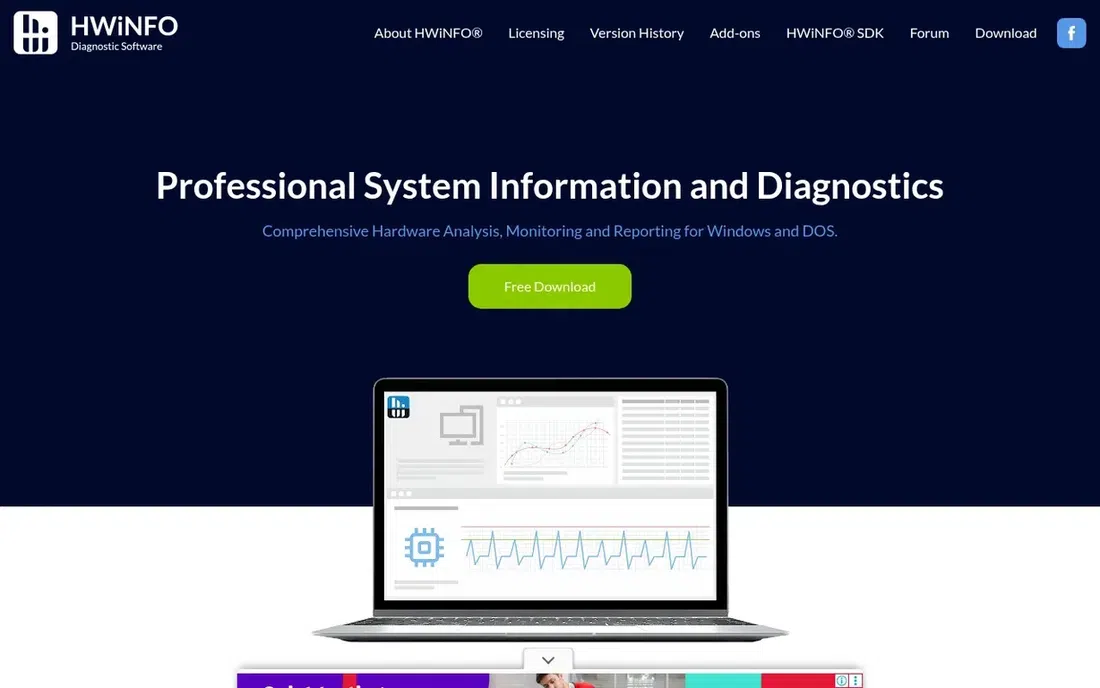
HWiNFO is designed for in-depth hardware analysis and reporting. HWiNFO supplies free hardware analysis, monitoring, and reporting. It provides in-depth hardware information and live system monitoring, making it a solid choice for users who require thorough diagnostics.
Downsides: Some features need technical knowledge.
On top of that, the software is frequently used by enthusiasts and professionals who want to track plenty of sensors and produce reports. Its broad data can be daunting for casual users, and the interface is not as straightforward as HWMonitor. As for the details, choose HWiNFO when you need thorough hardware insights and reporting. HWiNFO does not show a starting price in this comparison, so check the vendor site for current pricing. Free options: Not stated.
- Supports a broad set of sensors
- In-depth hardware information
- Interface can be overwhelming for beginners
MSI Afterburner
Best for: Graphics card overclocking and monitoring
Choose MSI Afterburner for graphics card overclocking and monitoring. MSI Afterburner is described as a widely used graphics card overclocking utility. It gives you an in-depth overview of your hardware and bundles features like customizing fan profiles and benchmarking.
What to check first: Overclocking carries risks.
On top of that, whereas it supplies some system monitoring, its primary focus is on graphics cards. So it may not handle all motherboard sensors. Overclocking can also void warranties or cause instability if not done carefully. Pricing for MSI Afterburner is not stated here, so ask the vendor for current figures. As for free access: Not stated.
- Overclocking capabilities
- In-depth GPU monitoring
- Focused primarily on GPUs
Open Hardware Monitor
Best for: Open-source sensor monitoring
Pick Open Hardware Monitor if this describes you: Open-source sensor monitoring. The software may not support the latest hardware and has seen restricted updates. It lacks advanced features like fan control or deep reporting.
From a buyer's view, Open Hardware Monitor is a free software gadget that watches core temperature, fan speed, and voltages. It is open-source and offers a straightforward way to keep an eye on key system sensors. It appeals to users who prefer open-source tools and need entry-level monitoring without additional features. On top of that, for more up-to-date support, consider HWiNFO or HWMonitor. Open Hardware Monitor does not show a starting price in this comparison, so check the vendor site for current pricing. As for free access: Not stated.
What to check first: Restricted development activity. What works well: fan speed, voltages.
- Free and open-source
- Watches core temperature
- May not support newer hardware
HWMonitor
Best for: Straightforward sensor monitoring for Windows PCs
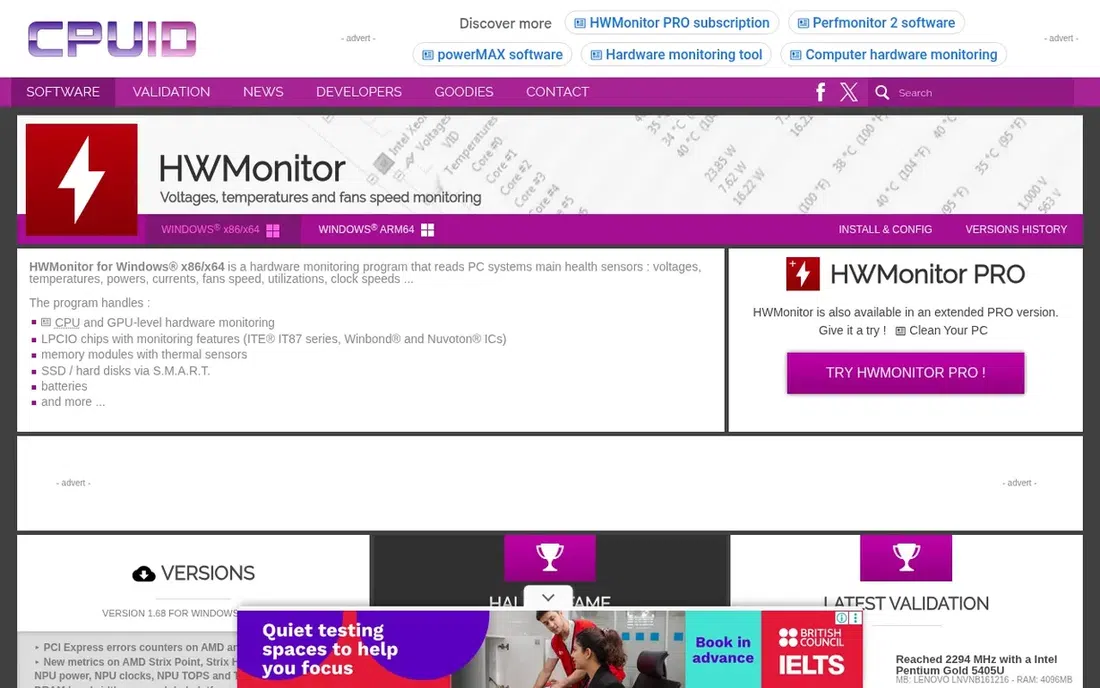
HWMonitor is aimed squarely at straightforward sensor monitoring for Windows PCs. HWMonitor is a hardware monitoring program for Windows that reads main health sensors like voltages, temperatures, powers, currents, fan accelerates, utilizations, and clock accelerates.
What works well: Reads voltages, temperatures.
Where it is weaker: No built-in fan control.
It presents this data in a clear layout, making it a good match for users who want a fast overview of system health without diving into complicated settings. If you need deeper hardware analysis or custom fan profiles, consider HWiNFO or MSI Afterburner instead. Pricing for HWMonitor is not stated here, so ask the vendor for current figures. As for free access: Not stated.
- Displays utilization and clock accelerates
- Fan accelerates
- Restricted advanced diagnostics
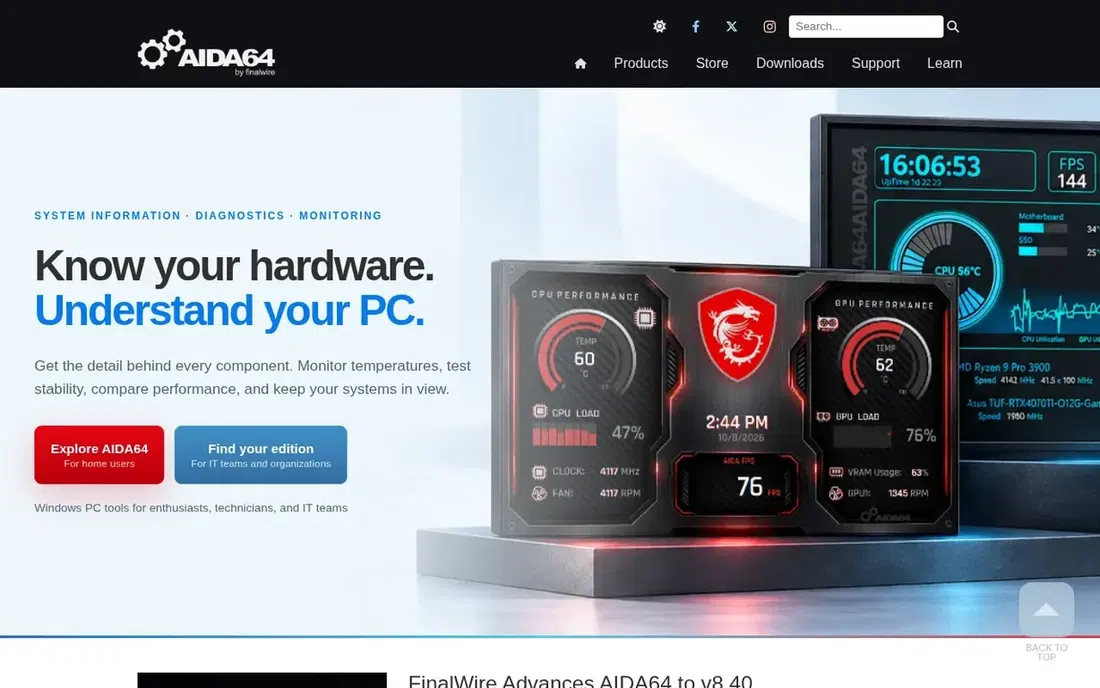
Think of AIDA64 for system diagnostics and benchmarking. It fits users who want a comprehensive tool that merges monitoring with performance testing and in-depth system analysis.
Watch-outs: premium software with restricted free version.
In practice, AIDA64 is a commercial product, and its deep feature set may be overkill for straightforward monitoring tasks. This comparison lists no price for AIDA64; ask the vendor. Trial and free access: Not stated.
- Contains benchmarking tools
- Advanced hardware monitoring
- More features than entry-level users need
How the list was put together
Selection started from tools commonly considered for computer hardware monitoring software, then narrowed to 6 that have clear pricing information or a clear quote process. Plan names, prices and limits change often. Treat the figures here as a starting point and verify them with the vendor. We ordered the tools by general fit, then by how clearly pricing is shown, then by free access. A buyer with unusual needs may reorder them.
Things to verify first
- Confirm the entry price with every vendor: no tool from SpeedFan to AIDA64 shows a fixed starting price.
- Read the limits listed for SpeedFan first: interface is dated.
- Find out whether the entry plan of MSI Afterburner covers your must-haves or only a trimmed-down version.
- Ask Open Hardware Monitor about contract length, onboarding fees and user minimums before you sign.
- Ask SpeedFan which support channels and response times come with the plan you would buy.
FAQ
Can I try these options before paying?
Not by default. None of the tools, from SpeedFan to AIDA64, lists a free plan or a free trial here, so ask each vendor for a demo before committing.
What is the best hardware monitoring software for beginners?
This list starts with SpeedFan, which fits fan speed control and temperature monitoring. For other needs, HWiNFO is aimed at in-depth hardware analysis and reporting, and MSI Afterburner at graphics card overclocking and monitoring. Check each tool's price and main limit first.
How are the tools for computer hardware monitoring software ordered?
The order follows typical fit for computer hardware monitoring software, with SpeedFan first and AIDA64 last, then price clarity and free access. It is editorial judgement, not a score, so another team could rank the tools differently.
Does any tool for computer hardware monitoring software here have a free plan?
A permanent free plan is not offered by SpeedFan, AIDA64 or the other tools here. Plan a short evaluation period instead.
Is SpeedFan the right pick for everyone comparing computer hardware monitoring software?
No single tool suits every team. SpeedFan comes first because it fits fan speed control and temperature monitoring, while HWiNFO suits in-depth hardware analysis and reporting and MSI Afterburner suits graphics card overclocking and monitoring. Match the tool to your own size, budget and workflow before deciding.
Sources
- https://www.almico.com/speedfan.php
- https://www.hwinfo.com
- https://www.msi.com/Landing/afterburner/graphics-cards
- https://openhardwaremonitor.org
- https://www.cpuid.com/softwares/hwmonitor.html
- https://www.aida64.com