Best Apps to Fill Out PDF Forms Free in 2026: 8 Apps Compared
best app to fill out pdf forms free: we compare 8 free tools for filling, signing and saving PDF forms, with limits, mobile apps and paid upgrades in 2026.
- Editor's choice
 Adobe Acrobat Reader
One-off forms and signing
Starts atFreeVisit adobe.comFull review - Great alternative
 DocHub
Google Workspace users
Starts atFreeVisit dochub.comFull review - Also consider
 Sejda
Occasional browser edits
Starts atFreeVisit sejda.comFull review
TL;DR:
- Adobe Acrobat Reader and its free Fill and Sign web tool are the best starting point for most one-off forms.
- Free plans differ in what counts as free, with some limiting documents per month and others limiting actions per day.
- DocHub and Sejda suit occasional browser use, while PDFgear suits users who want a free desktop editor.
- Signing your own form is usually free, while sending forms to others for signature often needs a paid plan.
- Always save a copy of the filled form and check that text and signatures appear correctly before sending it on.
Quick comparison
| Tool | Best for | Starts at | Free plan? | |
|---|---|---|---|---|
| Adobe Acrobat Reader | One-off forms and signing | Free | Yes | Visit |
| DocHub | Google Workspace users | Free | Yes | Visit |
| Sejda | Occasional browser edits | Free | Yes | Visit |
 PDFgear | Free desktop editing | Free | Yes | Visit |
 Smallpdf | Quick browser tools | Free | Yes | Visit |
 Xodo | Daily free actions | Free | Yes | Visit |
 SignWell | Occasional sending for signature | Free | Yes | Visit |
 PDFfiller | Templates and full forms | See website | Free trial | Visit |
The best apps to fill out PDF forms free
We compared free tiers, form filling, signing, saving and mobile access for these tools, using official pricing and help information. Free limits change often, so check the current limit in the app before starting an important form.
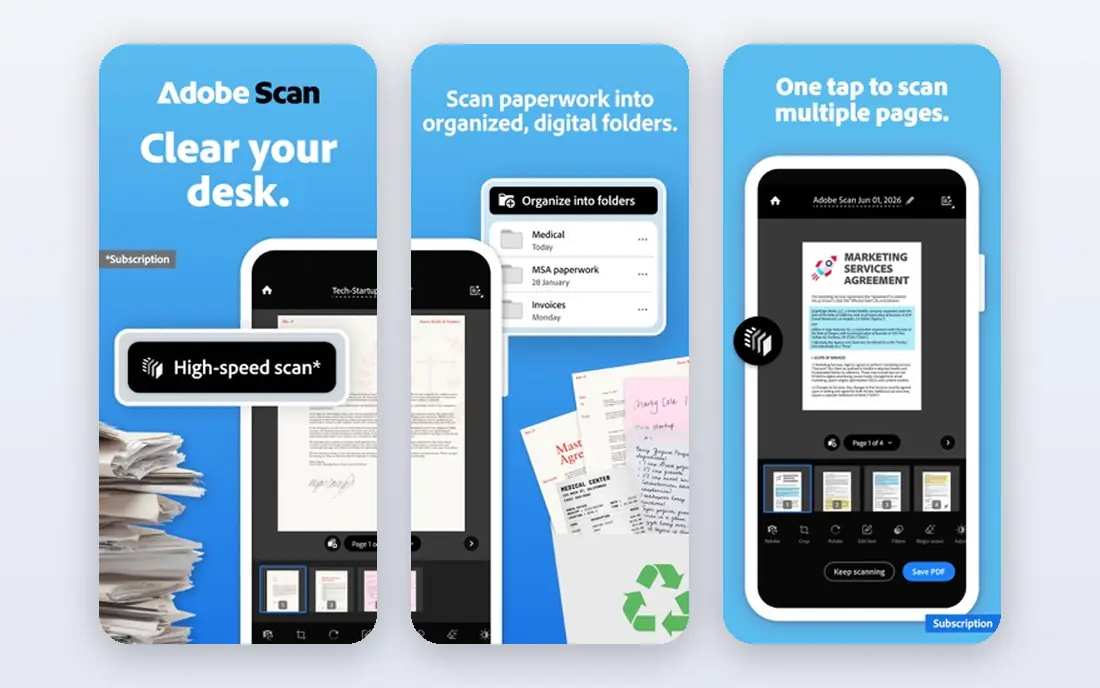
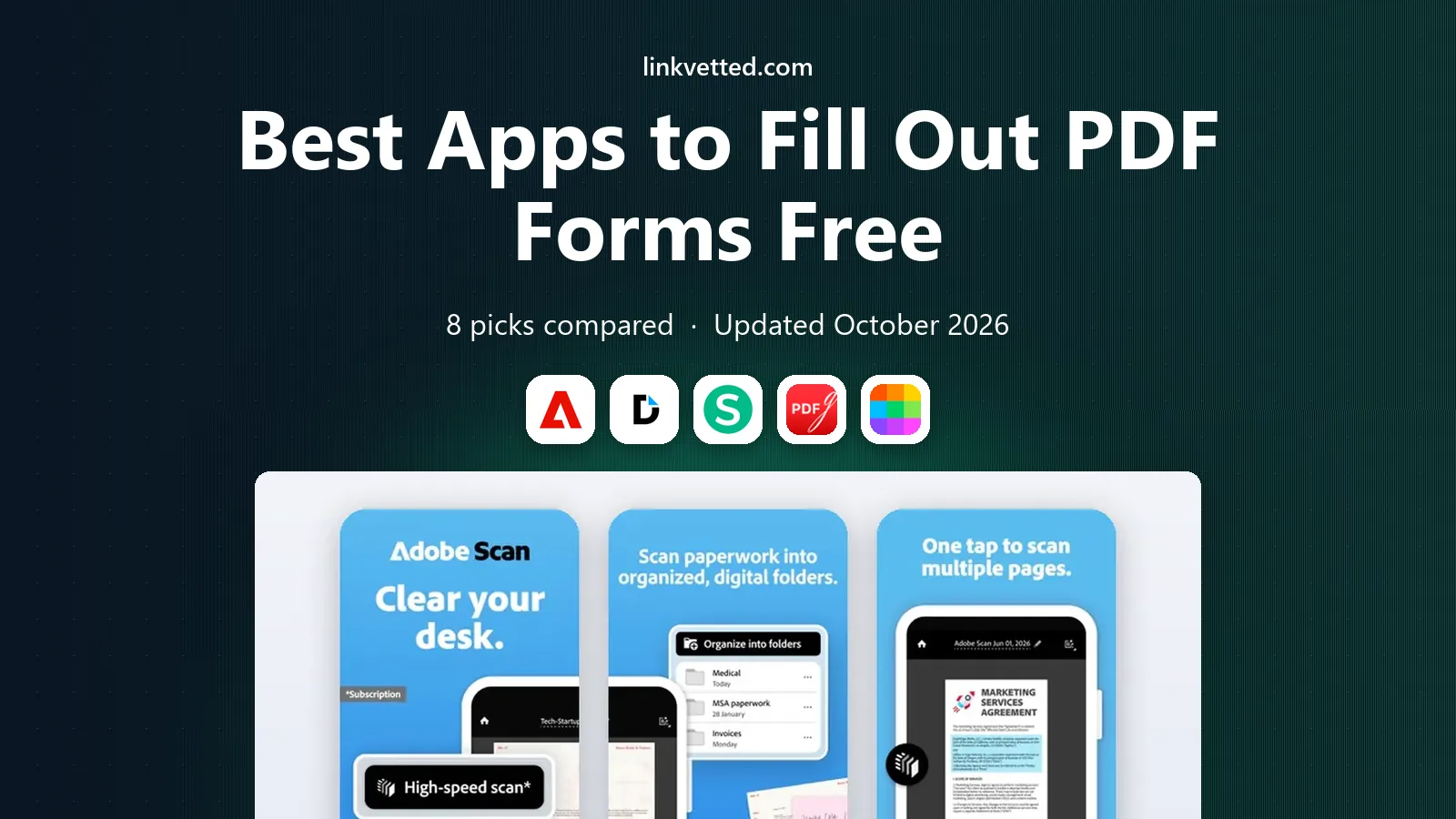
Adobe Acrobat Reader is our first recommendation for most people, because its free Fill and Sign tools cover the core job: type into fields, add check marks, add a signature and save the result. The web tool works without installing desktop software, and the mobile apps let you fill a form on a phone when a paper form arrives as a scan or email attachment.
The limits appear when you need more than self-signing. Requesting signatures from others, creating fillable fields for others, and editing PDF text in depth need paid Acrobat plans. For a job application, rental form or school form that only you need to complete, the free tools are enough. For a business form workflow, a paid tool will be a better fit.
- Free Fill and Sign tool for filling and signing your own forms
- Widely recognised format
- Mobile apps for iOS and Android
- Sending for signature and full editing need paid plans
- Some advanced form features sit behind Acrobat Pro
- Account needed for some web features
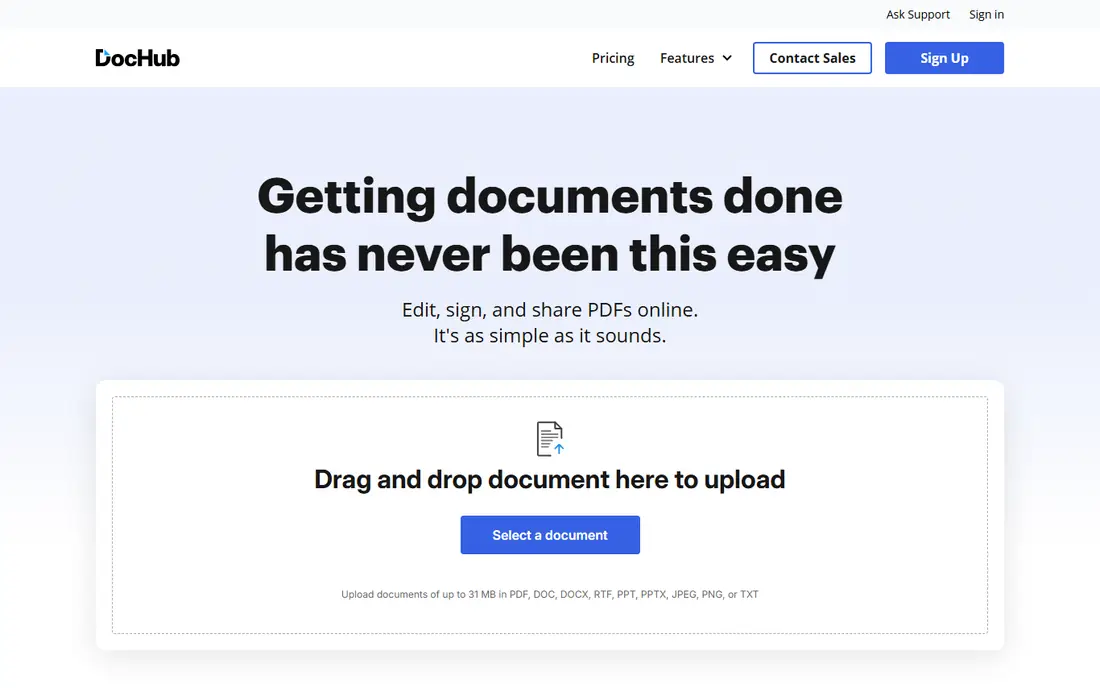
DocHub suits people who live in Google Drive and Gmail. You can open a PDF from Drive, fill fields, add text, signatures and dates, and save the result back to Drive without downloading extra software. That flow is fast for forms that arrive by email and need a quick return.
The free plan allows only a few uses per month, so DocHub is not a good daily tool on the free tier. Paid plans add more uses and sending for signature. Use DocHub free when you fill a handful of forms each month and value Google integration, and move to a paid plan or another free tool when volume rises.
- Browser based filling and signing
- Google Drive and Gmail integration
- Free tier for occasional use
- Free plan limits uses per month
- Sending for signature needs a paid plan
- Form field creation is limited on free use
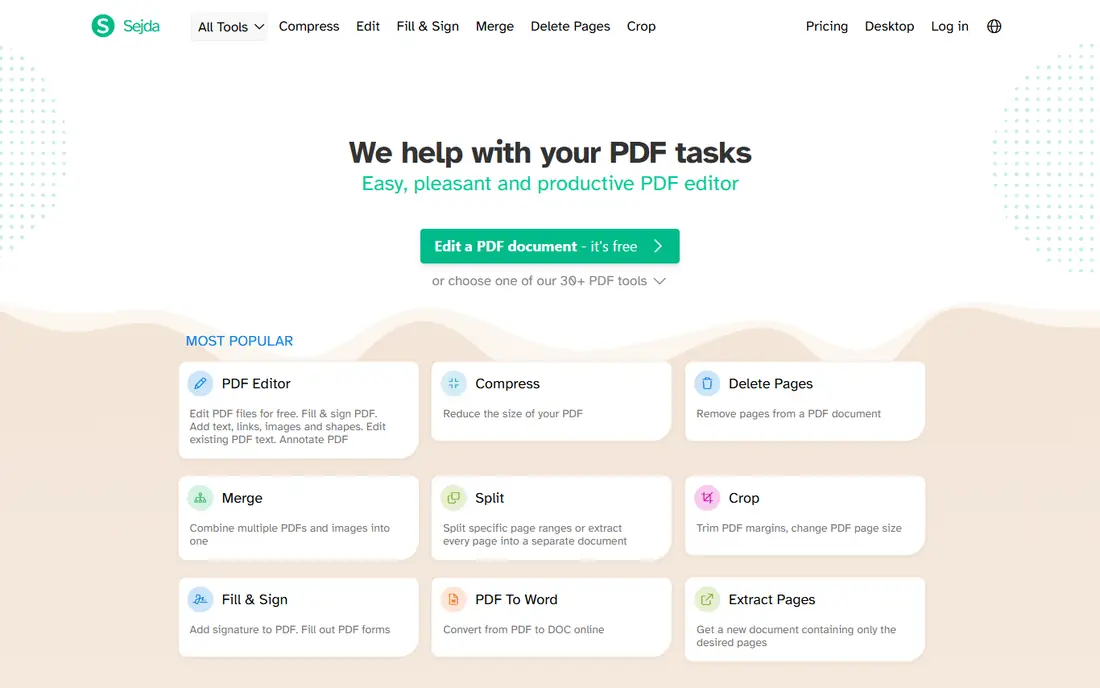
Sejda is a strong browser choice for occasional form work. The free tier lets you fill fields, add text and signatures, and edit basic PDF content without installing software. Tasks are counted per hour on the free tier, which suits a user who fills one form, saves it, and moves on.
The hourly limit is the main drawback for batch work. If you need to fill many forms in one sitting, Sejda free will slow you down, and a weekly or monthly pass may be better value. Sejda also lacks a full send-for-signature workflow, so it is best for forms you complete yourself rather than forms you send to clients for signing.
- Browser based form filling and editing
- Free tier for occasional tasks
- Desktop version available for heavier use
- Free tier limits tasks per hour
- No built-in sending for signature workflow
- Larger files may need a paid plan
PDFgear stands out because its core desktop editor is free, not just a trial. You can fill forms, add signatures, annotate and convert PDFs without a subscription for basic use. That makes PDFgear a good choice for students, job seekers and small business owners who fill forms often and do not want to count monthly uses.
The limits are mobile access and sending workflows. PDFgear desktop is stronger than its mobile offering, and collecting signatures from others needs a separate signing tool. For self-completed forms on a computer, however, PDFgear offers the most generous free deal on this list.
- Free PDF editing, filling and signing
- Desktop apps for Windows and Mac
- No monthly document cap on core free features
- Mobile features are more limited than desktop
- E-signature sending needs a separate tool
- Interface is less polished than Adobe
Smallpdf suits quick, one-off browser tasks. The interface is simple, files upload fast, and the fill and sign flow is easy to follow for a first-time user. That simplicity helps when a form arrives unexpectedly and you need a completed copy within minutes.
Free limits are the catch. Smallpdf restricts free use per day, and many users will hit the limit if they process several forms at once. Paid plans remove those limits and add more editing tools. Use Smallpdf free for a single urgent form, and choose PDFgear or Adobe for regular free use.
- Simple browser tools for filling and signing
- Easy file handling
- Mobile web access
- Free use is limited per day
- Full editing and sending features need a paid plan
- Some tools redirect to partner signing services
Xodo offers a useful middle ground for light daily use. The web tool allows a free action each day, which covers a single form fill or edit without a subscription. Mobile and desktop apps add annotation and reading tools, making Xodo a handy all-round PDF reader as well as a form filler.
The daily limit is strict for anyone with several forms to complete in one day. Xodo Sign, the separate signing product, offers its own free tier for sending documents, but that adds a second account to manage. Xodo is best for a user who fills one form a day and values a clean reader and editor in one app.
- Free action per day on the web tool
- PDF editing, filling and annotation
- Apps for mobile and desktop
- One free action per day is tight for batch work
- Sending for signature uses a separate Xodo Sign product
- Paid plans needed for unlimited use
SignWell is the best free option on this list when you need to send a form to someone else for signature, not just sign it yourself. The free plan covers a small number of documents per month, with an audit trail and tamper proofing included. Templates help when you send the same agreement or consent form repeatedly.
The focus is signing, not general PDF editing, so SignWell is a poor choice for restructuring a complex form. Free limits also cap senders and templates, which matters for team use. For a freelancer or small business owner who sends a few contracts a month, SignWell free is a practical starting point.
- Free plan for sending a few documents per month
- Audit trail and tamper proofing
- Templates for repeat documents
- Free plan limits senders and templates
- Full form editing is not the focus
- Paid plans needed for team use
PDFfiller earns a place for users who need templates and full form creation, rather than just filling a form someone else sent. The library includes many US legal and business forms, and paid plans let you create fillable fields, save templates and manage team workflows. That depth suits HR, real estate and small business users with repeat form needs.
The drawback is price and the lack of a permanent free plan. PDFfiller offers a trial, then paid plans, so it is not a free tool in the same sense as the others here. Include PDFfiller when template depth matters more than free cost, and use Adobe, PDFgear or Sejda when free filling is the priority.
- Large template library including US legal forms
- Fillable field creation
- Team workflows on paid plans
- No permanent free plan, only a trial
- Monthly pricing is higher than rivals
- Signing for others needs higher tiers
How we picked these
We compared free tiers, form filling, signing, saving and mobile access from official pricing and help pages, and we favoured tools that let a user complete a real form without paying. We included both browser and desktop tools, because phone, browser and desktop users have different needs. We excluded tools that only offered a short trial with no usable free tier, except PDFfiller, which we included for template depth and labelled clearly as trial only.
What to check before you fill an important form
Test the save and print output
Fill a test copy first when the form matters, then save, reopen and print or preview it. Check that typed text stays inside fields, signatures appear in the right place, and check marks do not shift. A form that looks right in the editor can still print badly if fields overlap or fonts change.
Keep the original and the filled copy
Save the blank original and the filled version with clear file names, such as form name, date and version. That habit helps when a recipient asks for a correction or claims a field was blank. Store sensitive forms in a secure folder, not in a shared downloads folder.
Check signature requirements
Some forms accept a typed or drawn signature, while others need a certified e-signature with an audit trail, or a wet signature on paper. Check the instructions from the recipient before you sign digitally. When in doubt, ask the recipient which signature type they accept, because a rejected signature can delay an application or contract.
FAQ
What is the best free app to fill out PDF forms?
Adobe Acrobat Reader is the best free starting point for most people, because its Fill and Sign tools cover filling and self-signing. PDFgear is a strong free desktop alternative for frequent use, while DocHub and Sejda suit occasional browser use.
Can I fill out a PDF form on my phone for free?
Yes, Adobe Acrobat Reader, Xodo and other apps on this list offer mobile apps or mobile web tools for filling and signing. Check that the mobile version supports your form type, because scanned forms and complex fields can be harder to complete on a small screen.
Do free PDF tools add a watermark?
Most form filling tools on this list do not add a watermark to a filled form on their free tier, but signing and editing tools can differ. Check the saved output before sending, especially when using a free trial of a paid product, because trial exports can carry limits.
Can I create a fillable PDF form for free?
Creating fillable fields for others is more limited on free tiers than filling an existing form. PDFgear, Sejda and Xodo offer some free editing, while PDFfiller and Adobe Acrobat Pro offer fuller field creation on paid plans. Check field creation limits before choosing a tool for this job.
Is it safe to upload a sensitive form to a browser PDF tool?
Reputable browser tools use encryption and delete files after processing, but any upload carries some risk. For highly sensitive forms, use a desktop tool such as PDFgear or Adobe Acrobat Reader, keep the file on your device, and avoid public or shared computers.
What is the difference between filling a form and sending it for signature?
Filling a form means you complete fields and sign it yourself. Sending for signature means you ask another person to sign, often with an audit trail, reminders and a certificate of completion. Free tiers usually cover the first job well and limit the second, so choose based on which job you actually need.