Best App to Edit YouTube Videos in 2026: 9 Apps Compared
Compare the best app to edit YouTube videos in 2026, from CapCut and DaVinci Resolve to Premiere Pro, Filmora, and iMovie for every creator in detail.
- Editor's choice
 CapCut
Phone-first Shorts and social edits
Starts atFreeVisit capcut.comFull review - Great alternative
 DaVinci Resolve
Free professional editing
Starts atFreeVisit blackmagicdesign.comFull review - Also consider
 Adobe Premiere Pro
Professional Adobe workflows
Starts at$22.99 per monthVisit adobe.comFull review
TL;DR:
- DaVinci Resolve is the best free editor for serious YouTube creators, with professional editing, color, and audio at no cost.
- CapCut is the best phone-first editor for Shorts and fast social edits, with templates, captions, and quick exports.
- Adobe Premiere Pro is the best professional choice for creators who work in the Adobe ecosystem or with a team.
- Final Cut Pro is the best one-time purchase for Mac creators who want speed without a subscription.
- Start with a free editor and upgrade only when export limits, color tools, or collaboration needs actually slow you down.
Quick comparison
| Tool | Best for | Starts at | Free plan? | |
|---|---|---|---|---|
| CapCut | Phone-first Shorts and social edits | Free | Yes | Visit |
| DaVinci Resolve | Free professional editing | Free | Yes | Visit |
| Adobe Premiere Pro | Professional Adobe workflows | $22.99 per month | No | Visit |
 Final Cut Pro | Mac creators, one-time purchase | $299.99 one-time | No | Visit |
 Filmora | Beginner-friendly polish | $49.99 per year | Yes | Visit |
 iMovie | Free Apple beginner editing | Free | Yes | Visit |
 Clipchamp | Free Windows editing | Free | Yes | Visit |
 VN Video Editor | Free mobile editing without watermarks | Free | Yes | Visit |
 LumaFusion | Professional mobile editing | $29.99 one-time | No | Visit |
The best apps to edit YouTube videos
YouTube editing needs differ by video type. A Short needs speed and captions, a vlog needs clean cuts and good audio, and a tutorial needs screen capture and clear titles. We compared official pricing pages, feature lists, and system requirements, and we focused on editors available in the US today on phone, Mac, Windows, or both.
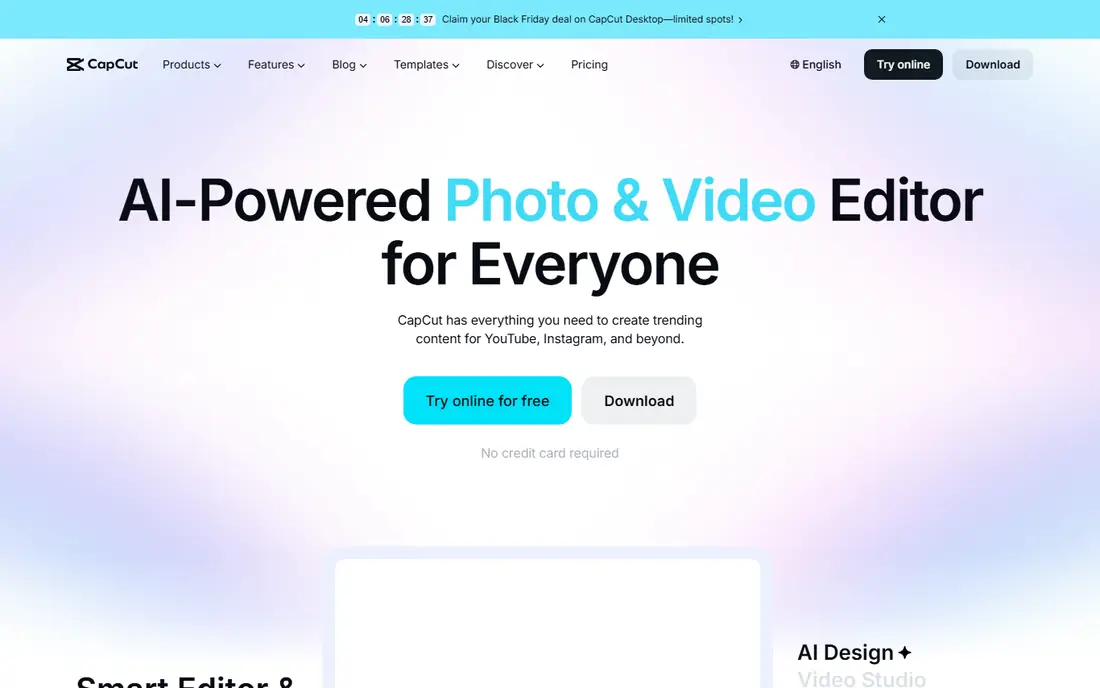
CapCut is the fastest way from a phone clip to a finished Short. Templates, auto captions, trending effects, and a simple timeline let a beginner publish the same day they shoot, and the desktop app helps when a project outgrows a phone screen. The free tier covers core cutting, multi-track editing, and basic effects, which is enough for many Shorts and simple vlogs.
The limit shows up on longer YouTube videos. Color grading, audio mixing, and precise control are thinner than in DaVinci Resolve or Premiere Pro, and Pro-tagged templates and features need a paid plan, listed around 19.99 dollars per month. Use CapCut for Shorts and fast social cuts, and move to a desktop editor when your main videos need deeper polish.
- Fast mobile timeline with templates and auto captions
- Desktop version for larger projects
- Free core editing with 1080p export
- Pro features and templates cost extra
- Color and audio tools are thinner than professional editors
- Some exports carry limits on free tiers
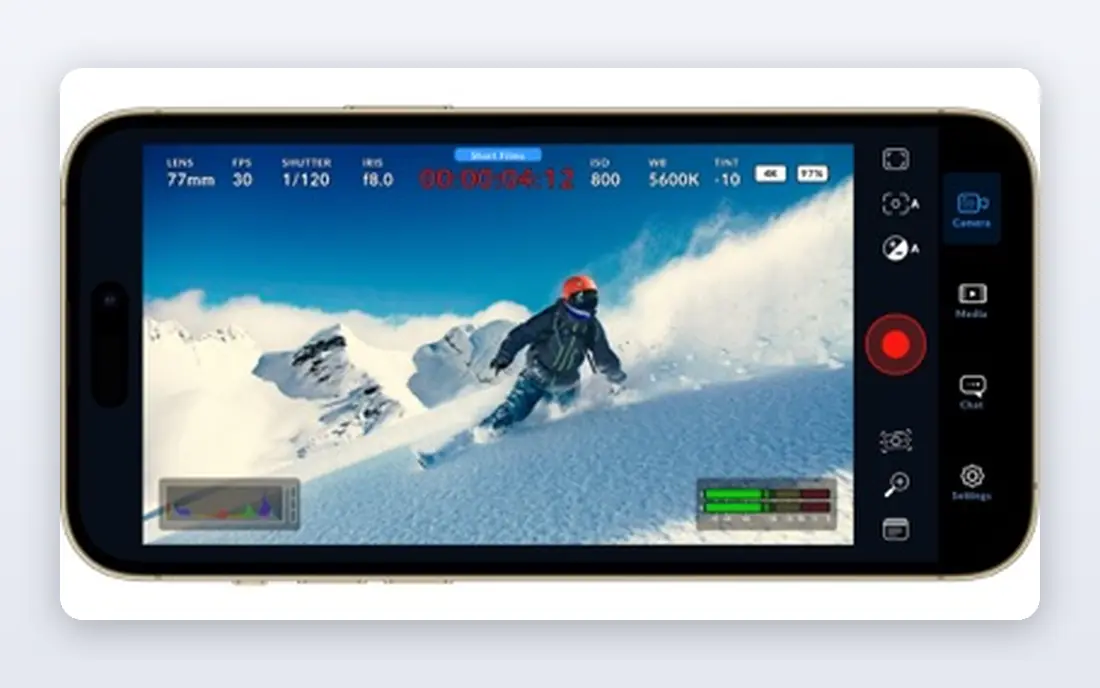
DaVinci Resolve is the best value in video editing, full stop. The free version includes professional editing, node-based color grading, Fairlight audio post-production, and Fusion visual effects, with exports up to 4K at 60 frames per second and no watermark. That is a toolkit that once cost thousands of dollars, now free for any YouTube creator willing to learn it.
The price is time and hardware. The interface has separate pages for editing, color, audio, and effects, and a modest laptop may struggle with 4K timelines. DaVinci Resolve Studio, at 295 dollars one-time, adds AI tools, advanced noise reduction, and higher frame rates. If you plan to grow a channel seriously, learning Resolve early saves you from switching editors later.
- Full editing, color, Fairlight audio, and Fusion effects free
- Exports up to 4K at 60 frames per second
- No watermark on the free version
- Steep learning curve for beginners
- Needs a capable computer
- Studio-only AI tools and higher frame rates cost 295 dollars one-time
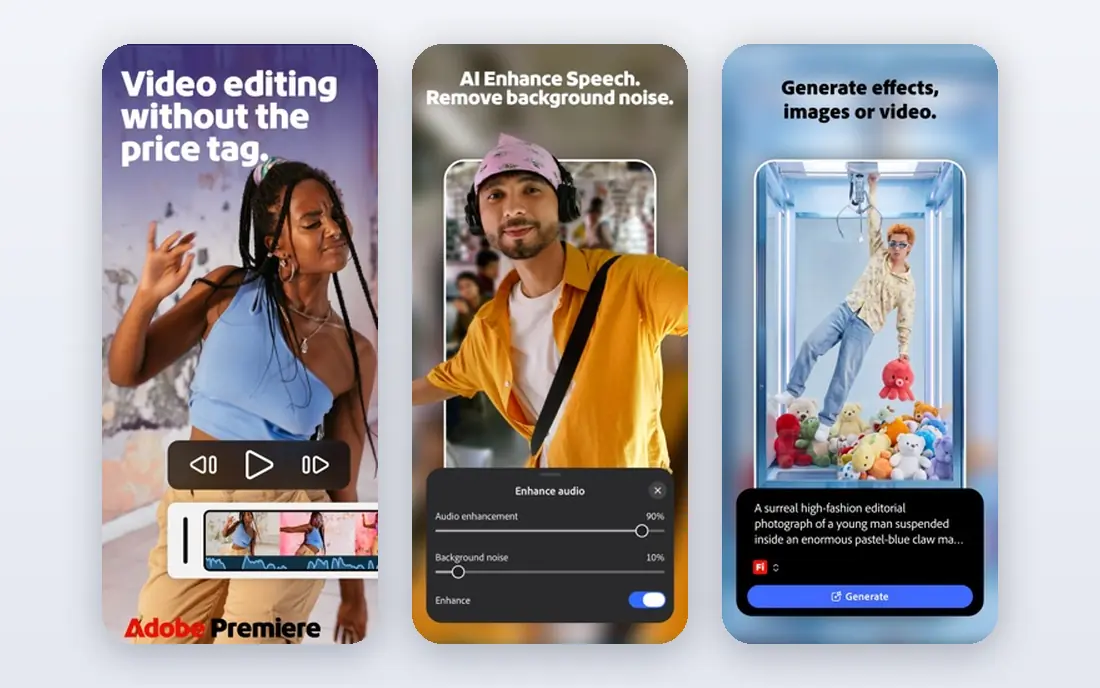
Premiere Pro is the professional default for many YouTube teams, agencies, and creators who already use Photoshop, After Effects, or Audition. Text-based editing lets you cut by editing a transcript, speech tools clean up dialogue, and shared projects make team editing practical. At 22.99 dollars per month on an annual plan for the single app, it is a real ongoing cost, but it buys a mature ecosystem.
The downside is the subscription and the learning curve. There is no one-time purchase, and the app rewards users who invest time in its workflow. Solo creators on a budget will get more value from free Resolve, while teams and Adobe users will find Premiere Pro worth the monthly fee for compatibility and collaboration alone.
- Industry-standard timeline with deep Adobe integration
- Text-based editing and speech tools
- Strong team and shared project workflows
- Subscription only, with no perpetual license
- Needs a capable computer
- Headline AI features may need a pricier plan
Final Cut Pro is the best pick for a Mac creator who hates subscriptions. The magnetic timeline keeps clips connected as you trim, which makes rough cuts fast, and performance on Apple Silicon is excellent even with 4K footage. At 299.99 dollars one-time, it pays for itself in about a year compared with a Premiere Pro subscription, and there is no monthly bill to forget.
The limits are platform and ecosystem. Final Cut Pro runs only on Mac, and its plugin and collaboration world is smaller than Adobe. The iPad version is a separate subscription, so check that price if you plan to edit on both. For a solo Mac YouTuber who wants speed and a single payment, Final Cut Pro is hard to beat.
- One-time purchase with no subscription
- Magnetic timeline is fast once learned
- Excellent performance on Apple Silicon Macs
- Mac only
- Smaller plugin and team ecosystem than Premiere Pro
- IPad version uses a separate subscription
Filmora sits between CapCut and a professional editor. It is easy enough for a beginner to learn in a weekend, yet it offers titles, transitions, effects, and AI tools that make a YouTube video look polished without a steep learning curve. The yearly plan starts around 49.99 dollars, with a one-time purchase option also listed, so check the current Filmora pricing page for the plan that fits you.
The catch is the free version, which exports with a watermark, so most creators will need to pay. AI features also use credits on some plans, which can add cost for heavy users. If you want a gentle learning curve and a polished result without learning Resolve, Filmora is a solid middle path.
- Friendly interface with titles, effects, and transitions
- Good AI tools for captions and background removal
- Works on Windows, Mac, and mobile
- Free version exports with a watermark
- AI credits and some effects cost extra
- Less color depth than Resolve
iMovie is the best free starting point for Apple users who have never edited before. It covers the essentials: trimming clips, adding titles and music, simple transitions, and exporting to YouTube, all without a watermark or a subscription. A beginner can cut a clean vlog or school project in an afternoon, and the skills transfer later to Final Cut Pro.
The ceiling is low. You get limited tracks, basic color tools, and few advanced effects, so a creator who grows into multi-camera edits, detailed audio, or complex graphics will outgrow iMovie. That is fine, since iMovie is free. Start here, learn what good pacing and clean audio feel like, then move to Resolve or Final Cut Pro when you hit a real limit.
- Free on Mac, iPhone, and iPad
- Simple timeline with titles, transitions, and trailers
- No watermark on exports
- Limited tracks, effects, and color tools
- Apple only
- Not built for complex multi-track projects
Clipchamp is the easiest free editor for Windows users, especially those who want to edit in a browser without installing heavy software. Templates, text tools, and a simple timeline cover talking-head videos, tutorials, and Shorts, and Microsoft 365 users get extra integration. The free plan is genuinely useful for short, simple YouTube videos.
The limit is depth and stock. Premium stock video, audio, and filters need a paid plan, and browser editing can lag on a slow connection or a large project. For a Windows creator who wants a free, simple start, Clipchamp beats learning a professional editor on day one. Move to Resolve when you need color, audio, and effects depth.
- Free browser and Windows app with templates
- Simple timeline for quick YouTube videos
- Microsoft 365 integration
- Some stock assets and premium features need a paid plan
- Browser editing depends on your connection
- Fewer pro tools than Resolve
VN Video Editor is the mobile editor for creators who outgrow CapCut templates but still want to edit on a phone. It offers a multi-track timeline, keyframes, masks, and speed curves, which are features usually found on desktop editors, and free exports carry no watermark. That combination makes it a favorite for travel vloggers and creators who shoot and edit entirely on a phone.
The trade-off is templates and polish. VN has fewer trendy effects and ready-made templates than CapCut, so your videos will look more like your own work and less like a trending format. That is a plus for many YouTubers. If you want advanced phone editing without a watermark, VN is the best free mobile pick here.
- Multi-track mobile timeline with no watermark on free exports
- Keyframes, masks, and curves for advanced phone edits
- Desktop version available
- Smaller template and effect library than CapCut
- Interface takes a little learning
- Some features need a paid plan
LumaFusion is the closest thing to a desktop editor on an iPad or iPhone. It offers multi-track editing, titles, effects, color tools, and audio mixing in a touch-friendly layout, and the one-time price of 29.99 dollars makes it cheaper than a month of some subscriptions. Many creators edit full YouTube videos on an iPad Pro with LumaFusion and never touch a laptop.
The limits are screen size and platform. Long, complex projects are slower on a phone than on a desktop, and LumaFusion runs only on iOS, so Android and Windows users need another pick. For an Apple mobile creator who wants professional control without a subscription, LumaFusion is the clear winner.
- Professional multi-track editing on iPhone and iPad
- Strong titles, effects, and audio tools
- One-time purchase with no subscription
- IOS only
- Smaller screen can slow long projects
- Some features need extra in-app purchases
How we picked these
We compared official pricing pages, feature lists, and system requirements, and we favored editors that are available in the US today, export cleanly to YouTube, and serve a distinct need: free professional power, phone-first speed, beginner simplicity, or a one-time purchase. We left out editors with no YouTube export path, heavy watermarks on paid plans, or discontinued products, and we wrote See website where pricing was not published clearly.
How to choose a YouTube editor
Start with your video type and your device. Shorts and social cuts belong on CapCut or VN, beginner vlogs on iMovie or Clipchamp, and long-form videos on Resolve, Premiere Pro, or Final Cut Pro. Check your computer first, since a professional editor on a weak laptop will frustrate you more than a simple editor on the same machine. Download the free version, cut a real video, and judge export speed and audio quality before you pay.
Next, think about audio before effects. Viewers forgive imperfect video, but they leave fast when dialogue is muddy or music drowns out speech. Pick an editor with decent audio tools, learn basic noise cleanup and level balancing, and invest in a decent microphone before you buy effects packs. Good audio and tight cuts will improve retention more than any transition library.
Finally, plan for growth. If you aim to publish weekly for a year, learning Resolve or Final Cut Pro early pays off, even if the first videos take longer. If you publish Shorts daily, speed matters more than depth, so stay phone-first. The best editor is the one that lets you publish consistently, since a perfect video you never finish helps no channel.
FAQ
What is the best app to edit YouTube videos for beginners?
CapCut is best for phone-first beginners and Shorts, while iMovie is best for free Apple beginners and Clipchamp is best for free Windows beginners. Filmora is a good paid step up if you want more polish without a steep learning curve. Start free, cut a few real videos, and upgrade only when you hit a limit you can name.
Is there a free app to edit YouTube videos without a watermark?
Yes. DaVinci Resolve, iMovie, Clipchamp, and VN Video Editor all offer free exports without a watermark, though some premium features cost extra. CapCut and Filmora free versions have limits or watermarks on some exports, so check the current free plan details before you rely on them for a final video.
What is the best software to edit YouTube videos on a phone?
CapCut is best for fast Shorts and templates, VN Video Editor is best for advanced free phone editing without a watermark, and LumaFusion is best for professional iPhone and iPad editing. Your choice depends on whether speed, control, or a one-time purchase matters most. Most phone creators start with CapCut or VN and add LumaFusion later.
Is DaVinci Resolve really free for YouTube?
Yes, the free version of DaVinci Resolve covers full editing, color, audio, and effects, with exports up to 4K at 60 frames per second and no watermark. The paid Studio version, at 295 dollars one-time, adds AI tools, advanced noise reduction, and higher frame rates. For most YouTube creators, the free version is more than enough.
Should I use Premiere Pro or Final Cut Pro for YouTube?
Premiere Pro suits creators in the Adobe ecosystem or working with a team, while Final Cut Pro suits solo Mac creators who want a one-time purchase and fast performance. Both produce professional YouTube videos, so choose based on your computer, your budget, and the tools your collaborators use. If cost is the main factor, DaVinci Resolve beats both for free.
How do I export a video for YouTube?
Most editors offer a YouTube preset that handles format and resolution for you. YouTube recommends MP4 with H.264 video, at 1080p or higher, with a bitrate that matches your resolution. Use the preset when available, check the exported file before upload, and keep a master copy in case you need to re-export later.