Best Free Caption Apps for YouTube Videos in 2026: 8 Apps Compared
Find the best free caption apps for YouTube videos, with auto subtitles, SRT export, styling, and editing tools that help your videos reach more viewers.

- Editor's choice
 Kapwing
Browser captioning and team edits
Starts atFreeVisit kapwing.comFull review - Great alternative
 VEED
Styled captions in a browser
Starts atFreeVisit veed.ioFull review - Also consider
 CapCut
Short-form and mobile captions
Starts atFreeVisit capcut.comFull review
TL;DR:
- Kapwing and VEED offer the most complete free starting points for YouTube captions, but both add watermarks and limits on free exports.
- CapCut and Clipchamp suit creators who want captions inside a full editor, while Descript suits people who edit by transcript.
- For YouTube itself, always upload an SRT file or review auto captions in YouTube Studio, because burned-in captions cannot be turned off by viewers.
- Check free minute limits, language support, and export formats before you build a workflow around one app.
Quick comparison
| Tool | Best for | Starts at | Free plan? | |
|---|---|---|---|---|
| Kapwing | Browser captioning and team edits | Free | Yes | Visit |
| VEED | Styled captions in a browser | Free | Yes | Visit |
| CapCut | Short-form and mobile captions | Free | Yes | Visit |
 Clipchamp | Simple Windows captions | Free | Yes | Visit |
 Descript | Transcript-based editing | Free | Yes | Visit |
 Submagic | Animated short-form captions | Free | Free trial | Visit |
 Canva | Captioned social and YouTube clips | Free | Yes | Visit |
 Happy Scribe | Accurate subtitle files | Free | Free trial | Visit |
The best free caption apps for YouTube videos
Captions help viewers who watch without sound, viewers who use a second language, and viewers who rely on accessibility tools. They also help YouTube understand video content. We compared official feature pages, pricing, app store listings, and public reviews, with a focus on free plans that truly work for YouTube videos.
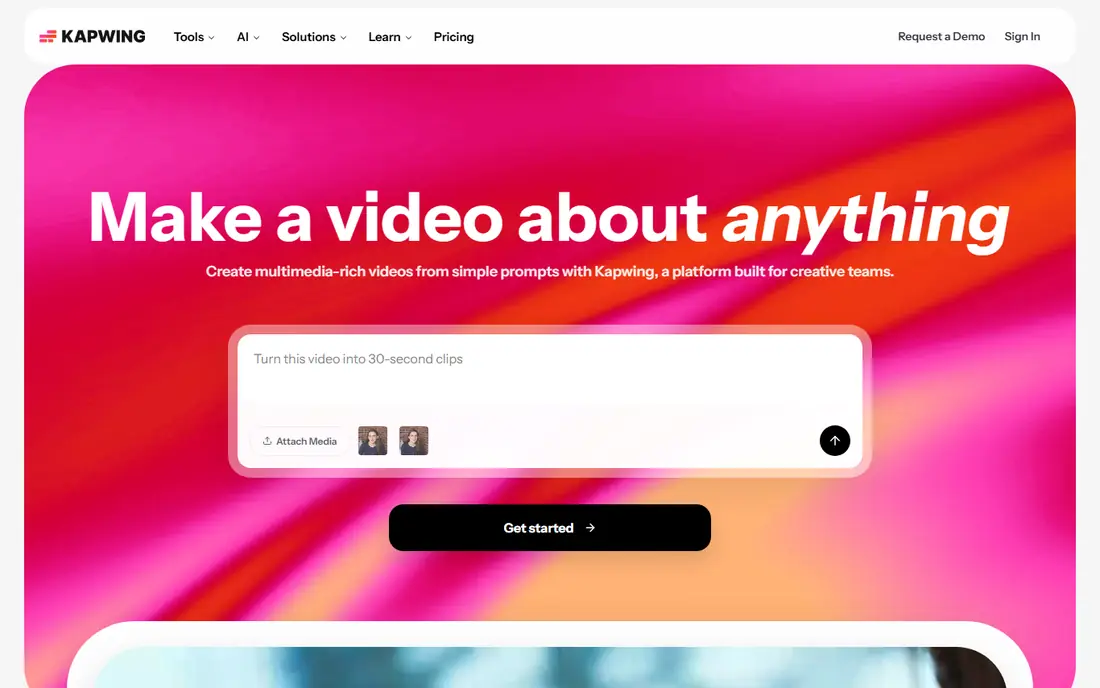
Kapwing is a good first stop when you want captions without installing software. Upload a video, generate subtitles, fix the text on a timeline, and style the words to match your channel. The browser workspace also makes it easy for a second person to review captions before upload.
The free plan is for testing, not for a full publishing schedule. Exports are watermarked and limited, and subtitle file downloads require a paid plan in current listings. If you publish often, budget for Pro or use Kapwing for drafts and a second tool for final subtitle files.
- Automatic subtitles in a browser editor
- SRT, VTT, and TXT export on paid plans
- Strong collaboration and template tools
- Free exports carry a watermark and are capped in quality and length
- Free auto-subtitle minutes are limited
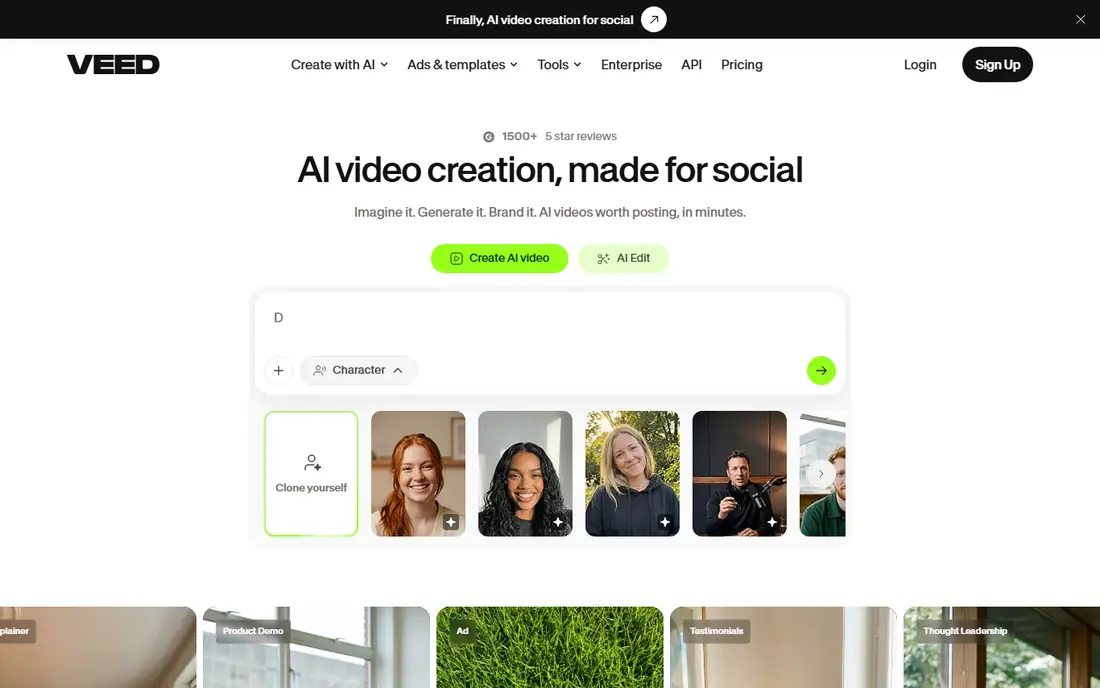
VEED stands out for caption style. You can change fonts, colors, position, and animation, which helps captions feel like part of your video rather than an afterthought. Language coverage is broad, so creators with an international audience have room to grow.
As with Kapwing, the free tier is a trial of the workflow, not a full free publishing tool. A watermark on free exports is a real drawback for a public YouTube channel. Paid plans remove the watermark and add subtitle file export, translation, and longer videos.
- Auto subtitles in many languages
- Flexible caption styling
- Browser editing with no install needed
- Free exports carry a watermark
- Separate subtitle file download requires a paid plan
- Free length limits apply

CapCut is familiar to short-form creators, and its auto caption tool is quick for talking-head videos and clips. You can edit caption text, split lines, and apply styles that match trends without learning a complex editor. The mobile app is useful when you film and caption on a phone.
For long YouTube videos, CapCut is less focused than a transcript editor. Accuracy still needs a manual review pass, especially for names, brands, and technical terms. It works best as a fast caption tool for Shorts, promos, and shorter main videos.
- Free auto captions on web and mobile
- Large template and text effect library
- Easy trimming for Shorts and clips
- Paid features vary by region and platform
- Advanced caption tools may require a Pro plan
Clipchamp is the quiet value pick here. It is simple, it runs in a browser, and its free exports avoid the watermark problem that limits other free plans. For a creator who wants clean captions on a standard YouTube video without a subscription, that matters.
The editor itself is more basic than Kapwing or VEED. You get solid auto captions, trimming, and text tools, but not the same depth of templates or translation features. If your videos are straightforward talking-head or tutorial content, Clipchamp covers the job well.
- Free up to 1080p exports with no watermark in current listings
- Built into Windows and Microsoft accounts
- Simple auto captions
- Advanced features require a Microsoft 365 plan
- Fewer caption styles than VEED or Kapwing
Descript flips the usual workflow. Instead of scrubbing a timeline, you read the transcript and delete words to cut the video. That method makes caption correction natural, because you fix the text and the video follows. It is a strong fit for interviews, podcasts, and tutorials with long spoken sections.
The free plan will not cover a heavy publishing schedule, and transcription hours are the main limit to watch. Descript also takes a short learning period if you are used to a timeline editor. For creators who value clean transcripts and accurate captions, the extra effort pays off.
- Edit video by editing the transcript
- Strong transcription accuracy for clear speech
- Good for podcasts and interviews
- Free plan is limited in transcription hours
- Full video editing features require a paid plan
Submagic focuses on the animated caption look that performs well in short-form feeds. Words highlight as they are spoken, emojis and b-roll cues can be added, and styles are ready without design work. For YouTube Shorts cut from a longer video, it can make a clip feel polished in minutes.
The limits are clear. Submagic is not built for a 30 minute tutorial, and free access is limited to a trial. Long-form creators should use it for clips and promos, then use a transcript or browser editor for the main video captions.
- Animated word-by-word captions
- Many styles for Shorts and Reels
- Fast turnaround for short clips
- Free access is a trial, not a full free plan
- Best for short clips rather than long YouTube videos
Canva suits creators who already design thumbnails, titles, and social posts in one place. You can add captions, text overlays, and branded frames to a YouTube clip without switching apps. That single-workspace benefit saves time for small channels and solo creators.
Caption accuracy and control are not as strong as in Kapwing, VEED, or Descript. You may need to split lines by hand and check timing more closely. Canva is best for short clips, intros, and promos, rather than as your only tool for long, speech-heavy videos.
- Free video editor with caption and text tools
- Huge template library
- Easy brand colors and fonts
- Auto caption features are less advanced than dedicated caption tools
- Long video editing can feel slow
Happy Scribe is the file-first option. When you need a clean SRT file to upload to YouTube Studio, rather than captions burned into the video, it gives you timing controls and export formats that matter. That approach also lets viewers turn captions on or off, which is better for accessibility.
It is not a full video editor, so you will still need another app if you want styled, burned-in captions. Cost is also a factor for frequent publishers, because transcription is priced by usage. For occasional videos where accuracy matters, Happy Scribe is a practical choice.
- Strong subtitle and transcript export in SRT and VTT
- Good language coverage
- Editor for timing and text correction
- Free access is limited
- Ongoing use requires a paid plan or credits
How we picked these
We compared official feature pages, pricing pages, and public reviews for tools that generate captions for video, support YouTube workflows, and offer a free plan or free trial in October 2026. We favored tools with SRT or VTT export, language support, and a caption editor for corrections. We left out tools that only add text by hand with no auto caption help, and tools with no current free access.
How to get captions right for YouTube
Start with accuracy, not style. Generate captions, then read them while the video plays. Fix names, places, and technical terms first, because those are where auto tools fail most often. Split long lines so viewers can read each caption before it changes, and keep captions on screen long enough for a normal reading pace.
Next, choose the right format for the video. Upload an SRT file to YouTube Studio when you want viewers to control captions, search, and translation. Use burned-in captions only for Shorts, clips, or social cuts where the video will be watched without sound and without a caption toggle. That choice affects accessibility, so do not burn captions into a main long-form video by default.
Finally, check your free limits before you commit. Count your monthly video minutes, not just the number of videos, and note whether subtitle file export is free or paid. A tool that looks free can become costly when export is locked behind a plan. Test two tools on the same video, compare accuracy and export time, and keep the one that needs the least fixing.
FAQ
Can I add captions to YouTube videos for free?
Yes. YouTube Studio can generate auto captions for free, and tools like Clipchamp, Kapwing, and CapCut offer free caption generation with limits. For a public channel, review auto captions for errors before publishing, because accuracy varies with audio quality and accents.
What is the difference between captions and subtitles on YouTube?
Captions usually include dialogue plus sound cues, while subtitles usually focus on dialogue and translation. On YouTube, both are delivered as caption tracks that viewers can turn on or off. Uploading an SRT file gives viewers that control, while burned-in text cannot be turned off.
Do captions help YouTube videos get more views?
Captions can help viewers who watch without sound, viewers in noisy places, and viewers who use a second language. They also make videos more accessible. Any ranking effect is indirect, through watch time and audience reach, rather than a guaranteed boost.
Which free caption app is best for YouTube Shorts?
CapCut and Submagic are strong for Shorts, because they offer animated styles and fast mobile editing. For a Short cut from a longer video, generate captions in the short-form tool, check the text, and keep lines short so they stay readable on a phone screen.
Why do free caption apps add a watermark?
Watermarks mark free exports so the vendor can offer a free tier without giving away the full paid product. If you publish to YouTube regularly, choose a tool with watermark-free free exports, like Clipchamp in current listings, or budget for a paid plan.