Best AI Tool for PowerPoint Presentation in 2026: 8 Tools Compared
Find the best AI tool for PowerPoint presentation work in 2026, from fast first drafts to brand-safe team decks, with pricing, exports and honest limits.

- Editor's choice
 Gamma
Fast first drafts
Starts atFreeVisit gamma.appFull review - Great alternative
 Beautiful.ai
Brand-consistent decks
Starts at$12 per monthVisit beautiful.aiFull review - Also consider
 Canva
All-in-one design
Starts atFreeVisit canva.comFull review
TL;DR:
- Gamma is the fastest route to a first draft, with a free plan that covers short test decks.
- Beautiful.ai is the stronger choice when every slide must match a set brand style.
- Canva and PowerPoint with Copilot win when you already work in those ecosystems every day.
- Pitch and Prezi suit teams and presenters who need collaboration or a non-linear flow.
- Export to PowerPoint format before you present, and check fonts, charts and images on the real file.
Quick comparison
| Tool | Best for | Starts at | Free plan? | |
|---|---|---|---|---|
| Gamma | Fast first drafts | Free | Yes | Visit |
| Beautiful.ai | Brand-consistent decks | $12 per month | Free trial | Visit |
| Canva | All-in-one design | Free | Yes | Visit |
 Pitch | Team decks | Free | Yes | Visit |
 Prezi | Non-linear presentations | Free | Yes | Visit |
 PowerPoint with Copilot | Microsoft 365 users | $9.99 per month | Free trial | Visit |
 SlidesAI | Google Slides outlines | Free | Yes | Visit |
 Presentations.AI | Quick business decks | Free | Yes | Visit |
The best AI tools for PowerPoint presentations
A good AI presentation tool should turn notes into a clear deck, not a wall of text. We compared tools that generate slides from a prompt or outline, help with design, and export to PowerPoint format where that matters. The best choice depends on how much design control you want and where the final deck will be presented.

Gamma is our pick when speed matters most. Paste notes or write a short prompt, and it builds a structured deck with headings, body text and images. The card layout reads well as a shared link, and the editing tools let you change text, theme and layout without rebuilding the deck. For a meeting tomorrow, a class outline or a first version for a client, that speed is hard to match.
The free plan gives 400 credits at signup and up to 10 slides per prompt, which is enough for a test deck but not for regular work. Plus costs 9 dollars per seat per month billed annually, and Pro costs 18 dollars per seat per month billed annually, with more credits and branding controls. Check every fact Gamma adds, since AI drafts can include plausible but unsourced numbers. Export early and review the PowerPoint file before presentation day.
- Very fast draft creation
- Clean card-based layouts
- Exports to PDF, PowerPoint and Google Slides
- Free credits do not refill
- Interactive formatting can shift on PowerPoint export
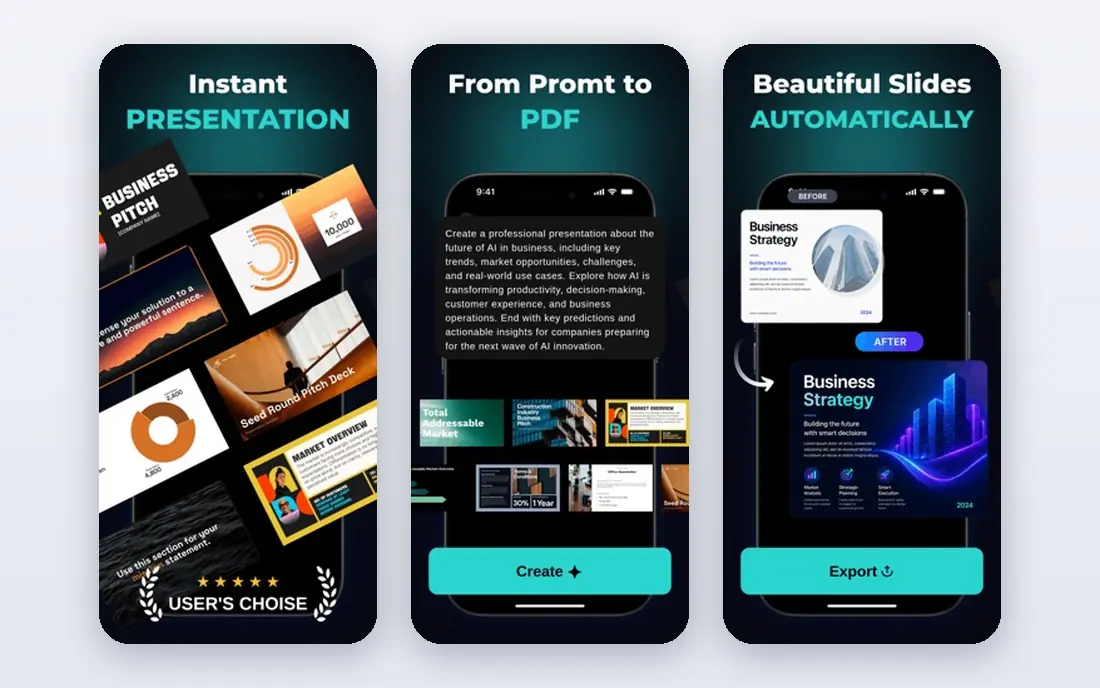
Beautiful.ai takes a different approach from Gamma. Its Smart Slides adapt layout as you add or remove content, so text rarely overflows and charts stay aligned. That discipline is valuable for sales decks, investor updates and client work where a messy slide undermines the message. Team plans add shared libraries, locked slides and version control, which help larger groups stay on brand.
Pricing needs a careful read at checkout. Pro has been listed at 12 dollars per month billed annually in some sections and 14.50 dollars per month billed annually in others, with a 14-day trial that requires a card. Team costs 40 dollars per user per month billed annually. If you only need one deck, the single-presentation option at 45 dollars may fit better than a year plan. For repeated brand work, the layout control is worth the cost.
- Slides adjust layout as you type
- Strong brand themes
- PowerPoint import and export
- No permanent free plan
- Trial requires a card
- Less free-form than a blank canvas

Canva is the easiest choice if you already design social posts, handouts and decks in one place. Magic Design can turn a prompt or outline into a set of slides, and the template library gives you a strong starting point for almost any topic. You can add photos, charts, video and brand colors without leaving the editor, then present from Canva or export to PowerPoint format.
The free plan includes a limited number of AI uses, while Pro costs about 144 dollars per year for one person and raises the AI allowance. Canva drafts are a starting point, not a finished deck, and dense business content often needs trimming and fact checking. If your team already pays for Canva, using it for slides costs nothing extra. If you only need slides, a dedicated tool may give cleaner results.
- Huge template and image library
- Magic Design drafts
- Easy sharing and presenting
- AI presentation drafts still need editing
- Best AI allowance sits behind Pro
Pitch is built for teams that build decks together. Multiple people can edit, comment and use shared templates, and the AI tools help draft slides, rewrite text and build structure from an outline. The free plan includes a one-time AI credit allowance and unlimited presentations, which makes it easy to test the workflow before paying. Plus costs 13 dollars per month, with higher team plans above it.
The main limit is credit-based AI use, so heavy generation across a large team adds up. Pitch also works best when the whole team stays inside Pitch, since moving decks in and out of PowerPoint can require layout fixes. For a marketing or sales team that iterates on the same decks each quarter, the shared library and collaboration tools justify the switch. For a single presenter, Gamma or Beautiful.ai may be simpler.
- Real-time collaboration
- Shared templates and libraries
- Analytics on shared decks
- AI credits are limited on lower plans
- PowerPoint import can need cleanup
Prezi suits presenters who want to show how ideas connect, rather than click through a straight line of slides. The zooming canvas lets an audience see the big picture, then look at a detail, then return to the overview. That flow works well for teaching, pitches and talks where story matters more than a table of numbers. AI tools on paid plans help with structure and content, and the free Basic plan gives a credit-capped way to try it.
Standard costs 7 dollars per month, with higher plans for teams and education. Prezi is not the best tool for a dense financial deck or a slide pack that must be read as a document, since its strength is live presentation. It also takes a little practice to avoid motion that distracts from the message. Use it when the talk itself is the product, and keep a PowerPoint version for handouts.
- Zooming canvas keeps context visible
- AI help on structure
- Good for teaching and storytelling
- Style takes practice
- Not ideal for dense data decks
PowerPoint with Copilot is the right pick when the final file must be a true PowerPoint deck. You keep full control over masters, fonts, charts and animations, and Copilot can draft a deck from a prompt, an outline or a Word document. That matters for client work, board decks and any presentation that will be edited by other people in PowerPoint later. The web version is free with a Microsoft account, without Copilot.
Microsoft 365 Personal costs 9.99 dollars per month or 99.99 dollars per year, and Copilot access sits with paid plans, with usage limits on some business plans. Copilot drafts still need a human edit for structure, accuracy and design. If your company already uses Microsoft 365, this is the lowest-friction path. If you do not, Gamma or Canva will get you to a first draft faster.
- Full PowerPoint control
- Copilot drafts from Word docs and outlines
- Offline presenting
- Copilot needs a paid Microsoft 365 plan
- AI help is tied to Microsoft apps
SlidesAI is a focused add-on style tool for Google Slides users. Paste text or write an outline, pick a theme, and it builds a slide deck you can open and edit in Google Slides. That narrow focus is its strength: there is little to learn, and the result lands in the app many schools and small teams already use. The free plan lets you test the workflow on short decks.
Long or complex decks show its limits, since design choices are narrower than Canva or Beautiful.ai, and AI text still needs trimming and fact checking. Paid plans raise generation limits and remove branding limits that apply on lower tiers. Choose SlidesAI when Google Slides is your home base and you want speed over design depth. Choose a fuller editor when brand control matters more.
- Turns text into Google Slides quickly
- Simple outline workflow
- Easy theme changes
- Design options are narrower than Canva
- Output needs editing for long decks
Presentations.AI aims at business users who need a clean deck fast, without learning a design tool. Its templates suit company updates, sales overviews and training decks, and the outline flow keeps the structure clear. The free Starter plan includes 200 credits and up to 20 slides, while Pro costs 20 dollars per month billed annually with far more credits.
The trade is control. You get speed and a tidy business look, but fewer ways to fine-tune a slide than in Canva or PowerPoint. AI text also needs a careful read, especially for numbers and claims about your own company. For a weekly internal deck or a quick client update, that trade works well. For a flagship pitch, start here for structure, then polish in PowerPoint.
- Business-focused templates
- Fast outline to deck flow
- PowerPoint export
- Starter credits are limited
- Fewer design controls than larger editors
How we picked these
We compared official pricing pages, feature pages and export options for AI presentation tools available in October 2026. We required a working product, a clear way to generate slides from a prompt or outline, and a route to present or export the result. We checked free plans, trial terms and PowerPoint or Google Slides export, since those decide real cost and real usefulness. Tools that had closed, or that only made images, were left out.
How to buy the right presentation tool
Start with the final format, not the AI demo. If the deck must be a PowerPoint file edited by others, pick a tool with clean PowerPoint export and test it with your own template before you pay. If the deck will be shared as a link, Gamma or Prezi may be enough on their own. If brand rules matter, test locked templates and shared libraries with two colleagues, since that is where team plans earn their price.
Run the same test in two tools before you choose. Use one real outline, about eight slides, with a chart, a quote and a call to action. Time the draft, count the edits, and check the exported file on a second device. Credit-based tools look cheap until heavy image use eats the monthly allowance, while seat-based tools look pricey until a whole team uses them daily. Pick the tool whose draft needs the least fixing, not the one with the flashiest demo.
FAQ
Which AI tool is best for PowerPoint presentation work?
Gamma is best for a fast first draft, Beautiful.ai is best for brand-consistent decks, and PowerPoint with Copilot is best when the final file must stay in PowerPoint. Canva is best if you already design in Canva. Test two tools with the same outline and keep the one that needs fewer fixes.
Is there a free AI tool for PowerPoint presentations?
Yes. Gamma, Canva, Pitch, Prezi, SlidesAI and Presentations.AI offer free plans, and PowerPoint for the web is free without Copilot. Free plans limit AI credits, slide counts or branding, so they suit occasional decks rather than daily production. For regular work, a paid plan is usually needed.
Can AI tools export to PowerPoint format?
Most tools on this list can export to PowerPoint format, PDF or Google Slides, but formatting can shift in export. Interactive elements, fonts and complex layouts are the most likely to change. Always open the exported file, check each slide, and fix layout before you present or send it.
Do AI presentation tools check facts?
No, not reliably. AI drafts can include wrong dates, invented statistics or outdated claims, and they may present them with confidence. Treat every number, quote and claim as a draft to verify against your own sources. Add citations yourself for any fact an audience might question.
What is the best AI platform for PowerPoint presentation teams?
Pitch and Beautiful.ai Team plans suit teams that need shared libraries, templates and version control. PowerPoint with Copilot suits teams already on Microsoft 365. Compare seat cost against how many decks the team makes each month, and test collaboration with real colleagues before you buy.
How many slides should an AI deck have?
Use as many as the story needs, and no more. A short talk often works with 8 to 12 slides, while a detailed report may need more. AI tools tend to add slides and text, so cut weak slides, shorten body text and keep one idea per slide. The audience remembers a clear story, not a full document on screen.