Best AI Editing App in 2026: 8 Apps Compared
Find the best AI editing app for photos, from free browser editors to pro tools with generative fill, object removal, and smart retouching in 2026 today.
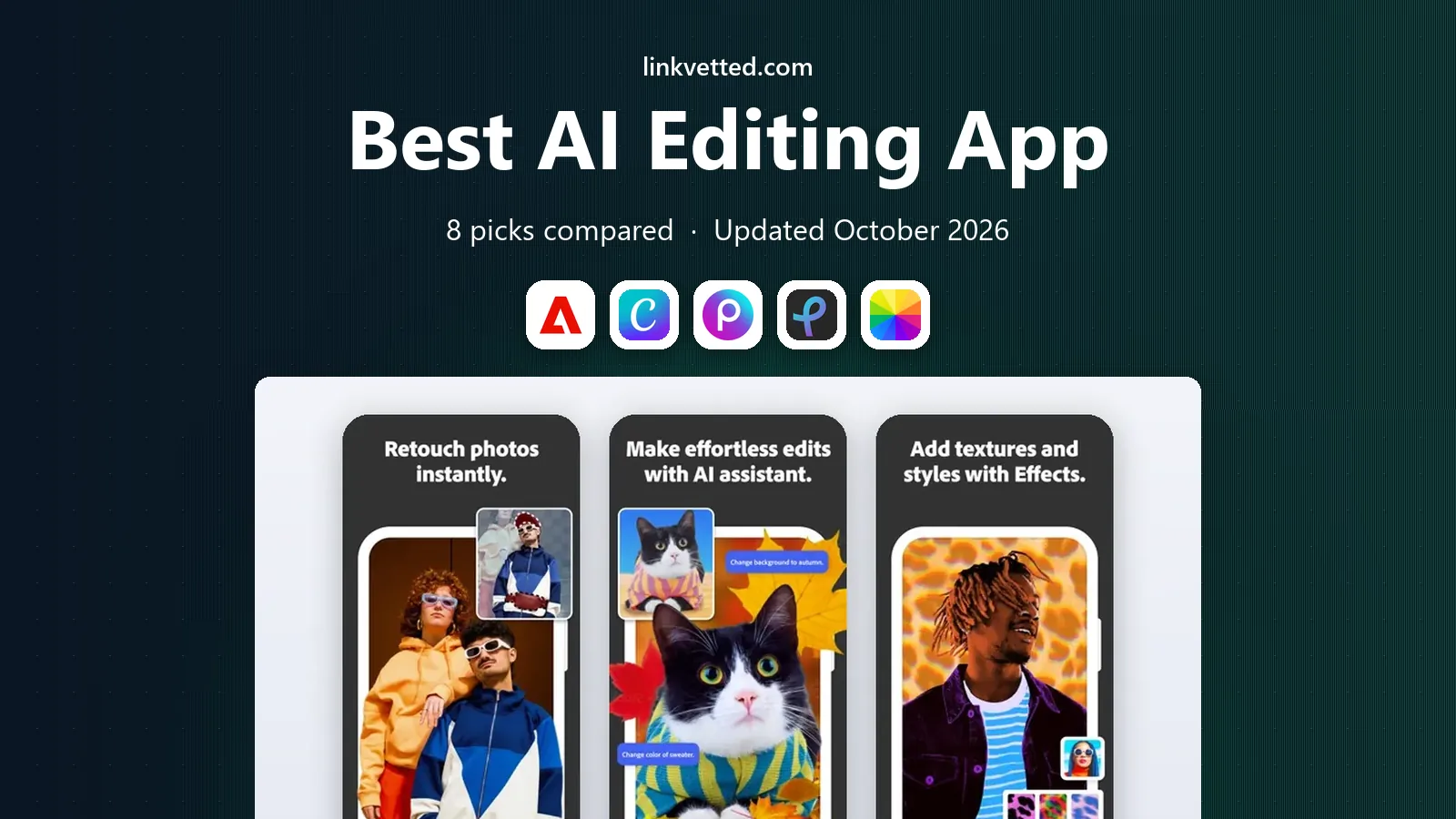
- Editor's choice
 Adobe Photoshop
Professional editing with generative AI
Starts atSee websiteVisit adobe.comFull review - Great alternative
 Canva
Everyday edits inside designs
Starts atFreeVisit canva.comFull review - Also consider
 Picsart
Creative mobile edits and AI effects
Starts atFreeVisit picsart.comFull review
TL;DR:
- Photoshop still leads for professional work, while Canva and Pixlr cover most everyday edits at a lower cost.
- Free tiers are useful for testing, but AI uses, exports, and watermarks often push regular users to a paid plan.
- Product sellers should shortlist PhotoRoom first, and photographers who dislike subscriptions should check Luminar Neo.
Quick comparison
| Tool | Best for | Starts at | Free plan? | |
|---|---|---|---|---|
| Adobe Photoshop | Professional editing with generative AI | See website | Free trial | Visit |
| Canva | Everyday edits inside designs | Free | Yes | Visit |
| Picsart | Creative mobile edits and AI effects | Free | Yes | Visit |
 Pixlr | Low cost browser editing | Free | Yes | Visit |
 Fotor | Single purpose AI tools in a browser | Free | Yes | Visit |
 PhotoRoom | Product photos and clean backgrounds | Free | Yes | Visit |
 Luminar Neo | One click AI enhancements for photographers | See website | Free trial | Visit |
 Google Photos | Quick phone edits and organisation | Free | Yes | Visit |
The best AI editing apps
We treated this as AI photo editing, and we favoured apps that pair a genuinely useful free tier with AI tools you will use every week, not just a filter pack.

Photoshop remains the professional benchmark, and its generative tools now handle jobs that once took careful manual work. Generative Fill can extend a background, remove a distraction, or replace part of a scene from a text prompt, while the classic retouching tools still give precise control. For photographers and designers who edit daily, that depth is unmatched. The cost and learning curve are real drawbacks. Beginners may feel lost among panels and options, and a subscription is hard to justify for occasional edits. A free trial helps, but check the current plan price and whether Lightroom is bundled, since plan names change.
- Generative Fill and Expand
- Deep retouching control
- Huge plugin and tutorial ecosystem
- Subscription cost
- Learning curve for beginners
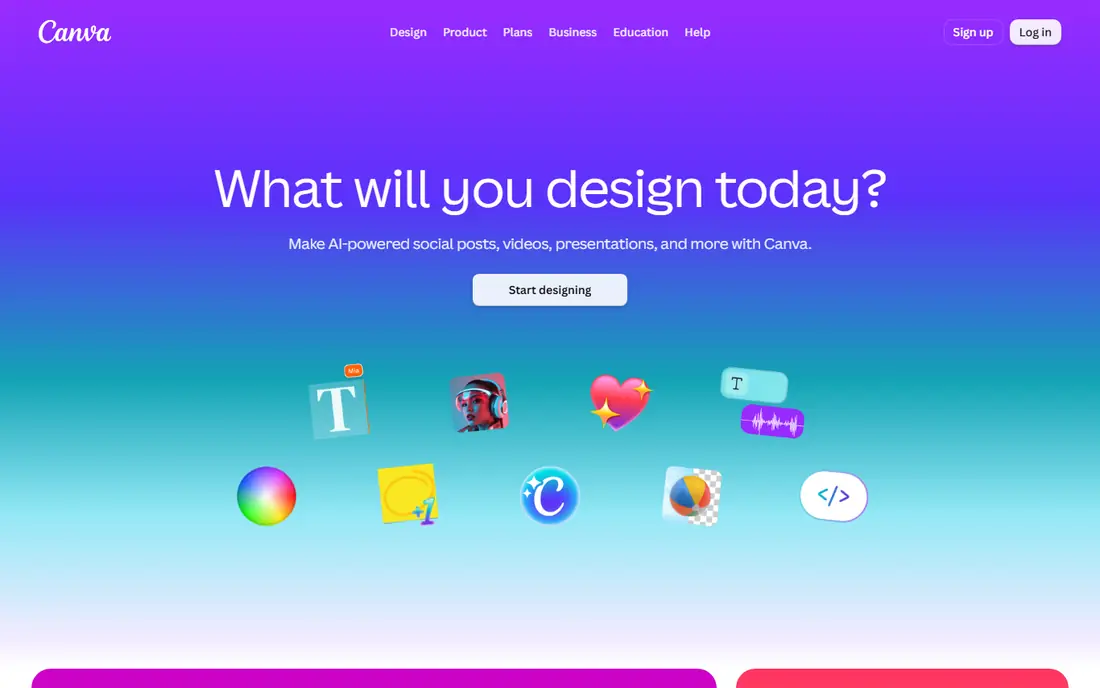
Canva is the best pick if your photo edit is part of a larger design, such as a social post, a flyer, or a presentation slide. Its AI tools remove backgrounds and objects, enhance images, and fit the result straight into a template, which saves exporting between apps. For creators who publish often, that workflow speed matters more than pixel level control. Precision is the limit. Detailed retouching, complex masking, and print grade colour work are better in Photoshop or Lightroom. Free AI uses are also limited each month, so heavy users need a Pro plan. Choose Canva when design speed beats deep editing.
- Magic Eraser and background tools inside a design app
- Huge templates
- Easy sharing
- AI uses limited on free plan
- Less precise than Photoshop for detailed retouching

Picsart suits phone first creators who want a large catalog of AI tools without opening a desktop app. Background removal, object removal, AI backgrounds, and creative effects sit alongside stickers and templates, so a social image can go from raw photo to finished post in one place. The mobile editor is fast and forgiving for everyday use. The free tier covers only some models and tools, and the best AI features sit behind a paid plan. Results can also lean stylised rather than natural, which suits social content more than client photography. Pick Picsart for fun, fast, creative edits on a phone.
- Large AI tool catalog
- Strong mobile editor
- Stickers, templates, and effects in one app
- Free models limited
- Premium features need a paid plan
Pixlr is a strong budget pick for browser editing, because it opens in any modern browser and covers the core AI jobs: object removal, background replacement, generative fill, and automatic enhancement. Paid entry is among the lowest in this list, which makes it an easy upgrade if the free tier starts to feel tight. For students and casual editors, that value is hard to ignore. The free experience includes limits and ads, and the template and design side is weaker than Canva. Interface polish also varies between its two editors, so spend a few minutes learning which one fits your job. Choose Pixlr when price and browser access lead the decision.
- Browser based with no install
- AI fill, removal, and enhancement
- Very low paid entry
- Free tier has limits and ads
- Less polished than Canva for templates
Fotor works well if you want one AI tool for one job, such as enhancing a portrait, removing a background, or upscaling an old photo. Each tool opens quickly in the browser, and the yearly Pro plan is affordable compared with professional subscriptions. Casual users who edit a few photos a week will find the workflow refreshingly simple. Depth is the trade-off, since Fotor does not match Photoshop for layered, precise work. Free exports may carry a watermark, so check the export terms before using a result publicly. Pick Fotor for quick, focused AI edits rather than a full editing suite.
- Many focused AI tools
- Simple browser workflow
- Affordable yearly Pro plan
- Free exports may carry a watermark
- Advanced control is limited
PhotoRoom is the specialist pick for sellers, because it turns a phone snapshot into a clean product photo with a consistent background in seconds. Batch editing helps when a shop lists many items, and templates for marketplaces and social shops keep listings looking uniform. For Etsy, Shopify, or marketplace sellers, that consistency can lift a whole store. General photo editing is narrower than Canva or Pixlr, and free exports are limited in number and may be watermarked. Paid plans make sense only if you sell regularly enough to use batch tools weekly. Choose PhotoRoom when product photos are the main job.
- Instant AI backgrounds for products
- Batch editing
- Templates for shops and marketplaces
- Free exports limited
- Best value appears on paid plans for sellers
Luminar Neo appeals to photographers who want strong AI enhancements without a monthly subscription mindset. Its AI tools handle skies, portraits, and general enhancement with sliders that stay understandable, and one-time purchase options suit buyers who dislike subscriptions. For hobby photographers, that combination is attractive. It is not a graphic design app, so text, layout, and template work belong elsewhere. Some advanced AI features also sit in higher tiers, so check the edition you buy. Pick Luminar Neo when photo enhancement, not design, is the priority.
- AI sky, portrait, and enhancement tools
- One-time purchase options
- Desktop focused
- Less suited to graphic design
- Some AI tools need a paid tier
Google Photos is the app most people already have, and its AI editing tools cover the everyday jobs well: Magic Eraser removes distractions, auto enhance fixes light and colour, and portrait tools tidy up a shot. Because your library is already there, there is no import step, and sharing a finished photo takes seconds. For quick phone edits, convenience wins. Depth is limited compared with dedicated editors, and some features vary by phone and by Google plan. Storage also needs watching, since the free tier covers 15 GB shared across Google services. Choose Google Photos for fast, everyday fixes rather than detailed creative work.
- Magic Eraser and auto enhance on your phone
- Free storage tier
- Easy sharing and search
- AI editing depth is basic
- Full features vary by device and plan
How we picked these
We compared official feature pages, pricing, and app store listings for AI photo editors that work in October 2026. We checked which AI tools are included on free plans, whether exports carry watermarks, and whether paid plans are subscriptions or one-time purchases. We left out tools with no clear free or trial path and no published pricing, and we marked uncertain prices as See website.
Choosing an AI editing app for your photos
Match the app to the output
A social post, a product listing, and a client portrait need different tools, even though all three involve AI. Social creators do well with Canva or Picsart, sellers do well with PhotoRoom, and photographers who need precise control do well with Photoshop or Luminar Neo. Start from the finished image you need, then work back to the tool that produces it with the least friction.
Check AI limits before you rely on them
Free AI allowances, export watermarks, and resolution limits decide whether a free plan is genuinely usable. Test a real photo end to end: run the AI edit, export at full size, and check for a watermark or a size cap. If you edit daily, compare the paid plan cost against how many AI uses you actually need each month.
Keep an original copy
AI edits can change faces, backgrounds, and details in ways that are hard to undo, so keep the original photo before you apply a generative change. Save edited versions as copies, and check faces, hands, text, and edges closely before publishing. A quick zoom check catches most AI errors before your audience does.
FAQ
What is the best AI editing app overall?
For professional work, Adobe Photoshop leads thanks to Generative Fill, deep retouching, and a huge tutorial ecosystem. For most everyday users, Canva is the better overall pick, since its AI tools sit inside designs you already make. Pixlr is the best low cost browser alternative if budget is the main concern.
Is there a free AI editing app?
Yes, Canva, Picsart, Pixlr, Fotor, PhotoRoom, and Google Photos all offer free tiers with some AI tools. Free plans usually limit AI uses, export size, or remove watermarks only on paid plans. Test your exact edit on the free plan before assuming it will stay free at full quality.
Can AI editing replace Photoshop?
For everyday edits, background removal, object removal, and enhancement, modern AI apps come close and are often faster. For detailed retouching, complex composites, and print work, Photoshop still offers more precise control. Many photographers use an AI app for speed and Photoshop for final polish.
Does AI photo editing change my photos too much?
It can, especially with generative fill and style effects that invent new detail. Keep an original copy, apply AI changes in small steps, and zoom in to check faces, hands, and text. For client or documentary work, disclose significant AI changes where honesty matters.
Which AI editing app is best for product photos?
PhotoRoom is the strongest product photo pick here, with instant AI backgrounds, batch editing, and marketplace templates. Canva is a good second choice if product photos sit inside wider marketing designs. Pixlr also works for sellers on a tight budget.