Best AI Photo Editing Software Comparison in 2026: 8 Tools Compared
Read the best ai photo editing software comparison, covering AI masking, denoise, sky tools, pricing, and which editor fits your workflow best in daily use.
- Editor's choice
 Adobe Lightroom
Library plus AI masking and denoise
Starts at$11.99 per monthVisit adobe.comFull review - Great alternative
 Adobe Photoshop
Retouching and compositing with AI tools
Starts at$19.99 per monthVisit adobe.comFull review - Also consider
 Luminar Neo
Fast AI looks and sky tools
Starts at$119 one-timeVisit skylum.comFull review
TL;DR:
- Adobe Lightroom leads for most photographers, because it pairs AI masking and denoise with a strong library and mobile apps.
- Luminar Neo suits fast AI edits, while DxO PhotoLab leads on RAW quality and denoise for photographers who buy once.
- Capture One suits studio and tethered work, while ON1 Photo RAW and Affinity suit buyers who dislike subscriptions.
- Topaz Photo AI is the best specialist for enhancing and upscaling single images, rather than managing a whole library.
- The best ai photo editing tools comparison comes down to workflow: library management, RAW quality, or fast AI looks.
Quick comparison
| Tool | Best for | Starts at | Free plan? | |
|---|---|---|---|---|
| Adobe Lightroom | Library plus AI masking and denoise | $11.99 per month | Free trial | Visit |
| Adobe Photoshop | Retouching and compositing with AI tools | $19.99 per month | Free trial | Visit |
| Luminar Neo | Fast AI looks and sky tools | $119 one-time | Free trial | Visit |
 DxO PhotoLab | RAW quality and denoise | $229 one-time | Free trial | Visit |
 Capture One Pro | Studio and tethered shooting | $18 per month | Free trial | Visit |
 ON1 Photo RAW | All-in-one perpetual editor | $99.99 one-time | Free trial | Visit |
 Affinity by Canva | Free pixel editing | Free | Yes | Visit |
 Topaz Photo AI | AI enhancement and upscaling | See website | Free trial | Visit |
The best AI photo editing software
AI photo tools now cover masking, denoise, sky replacement, and upscaling, but editors differ in how those tools fit a real workflow. The comparison below focuses on AI features that save time, plus pricing and library handling, so you can pick the editor that matches how you shoot.
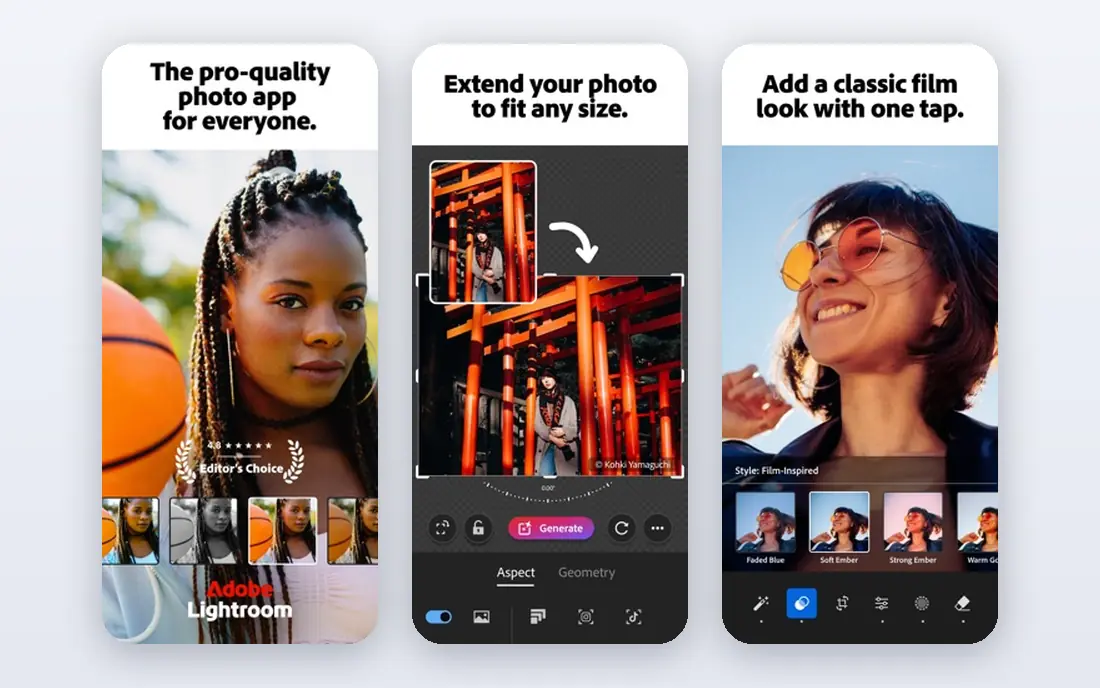
Lightroom is the default for photographers who manage large libraries, and its AI tools fit that workflow well. AI masking lets you select a subject, sky, or background in seconds, then adjust only that area, while AI denoise cleans high-ISO RAW files without leaving the catalog. Those tools matter most when you edit hundreds of images, since small time savings add up fast.
The cost is a subscription, with the Lightroom plan starting at $11.99 per month for 1TB in recent listings, and the Photography plan adding Photoshop for $19.99 per month. The catalog can also grow large over time, so keep backups. For most photographers, Lightroom is the best ai photo editing software comparison winner on workflow alone.
- AI masking for subject, sky, and background
- Strong denoise
- Cloud and mobile sync
- Subscription only
- Base plan storage is limited

Photoshop is the pick when an edit goes beyond exposure and color. Generative Fill can extend a background or remove an object, the Remove tool cleans distractions, and layers give full control over composites. For product, portrait, and creative work, those AI tools save hours compared with manual cloning and masking.
Photoshop is not a library manager, so most photographers pair it with Lightroom rather than replacing it. The Photography plan, which includes both, is the usual route, starting at $19.99 per month in recent listings. If your work is mostly culling and basic edits, Photoshop alone is more tool than you need, but for retouching it remains the standard.
- Generative Fill and Remove tools
- Deep retouching and layers
- Huge plugin ecosystem
- Subscription only
- Overkill for simple library edits

Luminar Neo is built for speed. Sky AI can swap a dull sky, portrait tools can clean skin and relight a face, and presets give a finished look in a few clicks. That makes it ideal for photographers who want strong results fast, without learning masks and layers in depth. A perpetual desktop license, from $119 in recent listings, also appeals to buyers who dislike subscriptions.
The trade-off is library depth. Cataloging, keywording, and large-batch workflows are thinner than Lightroom, and heavy AI tools need a capable computer to run smoothly. Luminar Neo also works well as a plugin alongside Lightroom or Photoshop, which is how many users get the best of both. For fast AI edits, it is our pick.
- One-click AI sky, portrait, and relight tools
- Perpetual license option
- Easy for beginners
- Library tools are thinner than Lightroom
- Some AI features need newer hardware
DxO PhotoLab leads this comparison on pure RAW image quality. Its DeepPRIME denoise handles high-ISO files with detail that many editors struggle to match, and its lens corrections draw on extensive camera and lens profiles. For photographers who shoot in low light or print large, that quality edge is real and visible.
PhotoLab is a desktop editor with a perpetual license, with Elite priced at $229 in recent listings, though the current version price should be checked on the vendor site. It lacks the cloud sync and mobile workflow of Lightroom, so it suits desktop-first photographers. If image quality matters more than cloud features, DxO is the best choice here.
- DeepPRIME denoise
- Strong lens corrections
- Perpetual Elite license
- No subscription-free library sync like Lightroom cloud
- Learning curve for new users
Capture One Pro is the studio standard for tethered shooting, where a camera feeds images straight to a computer during a shoot. Color tools, sessions, and live view controls suit fashion, product, and portrait studios that need reliable, fast review on set. AI masking and editing tools have grown, but tethering and color remain the core reasons to choose it.
Pricing starts at $18 per month on an annual plan in recent listings, with a perpetual license also offered at a higher upfront cost. Casual photographers may find the interface and price more than they need. For studio work, Capture One is the clear pick in this comparison.
- Excellent tethered shooting
- Strong color tools
- Session-based studio workflow
- Higher cost
- Steeper learning curve for casual users
ON1 Photo RAW tries to be Lightroom and Photoshop in one app, with browsing, editing, effects, portrait tools, and resizing under one roof. AI masking, denoise, and sky tools cover the main AI tasks, and a perpetual license from $99.99 in recent listings makes it one of the cheapest capable all-rounders. For photographers who want one purchase and one app, that value is hard to ignore.
The interface can feel busy, with many panels and modules, and performance depends on your computer, especially for AI tasks. It also lacks the plugin ecosystem and cloud sync of Adobe. Still, for a perpetual, all-in-one editor, ON1 Photo RAW is a strong value pick.
- Browse, edit, effects, and resize in one app
- Perpetual license
- AI masking and denoise
- Interface can feel busy
- Performance varies by computer
Affinity, now by Canva, is the best free pixel editor on this list, and it changes the value calculation for many photographers. You get layers, retouching, masks, and RAW support without a subscription, plus a free legacy iPad app in some cases. For compositing and detailed edits on a budget, it covers most of what casual Photoshop users need.
AI tools are thinner than Adobe, Luminar, or Topaz, so you will not get the same one-click sky, denoise, or generative features. There is also no Lightroom-style cloud library. Pair Affinity with a free RAW workflow such as darktable, or use it alongside Lightroom, and you get pro-level pixel editing for free.
- Completely free
- Strong layers and retouching
- Good RAW support
- AI tools are thinner than Adobe or Luminar
- No cloud library like Lightroom
Topaz Photo AI is a specialist, not a general editor. It focuses on enhancing single images: removing noise, sharpening soft detail, and upscaling for print or crop. Autopilot settings give a quick starting point, and you can fine-tune each model for a specific image. As a plugin for Lightroom or Photoshop, it fits neatly into an existing workflow.
It does not manage a library, organize keywords, or replace a RAW editor, so most users pair it with Lightroom, Capture One, or DxO. Pricing should be checked on the vendor site, since Topaz offers both purchase and upgrade paths. For rescuing noisy or soft images, Topaz Photo AI is the best specialist in this comparison.
- Strong denoise, sharpen, and upscaling
- Autopilot settings for quick results
- Works as a plugin
- Not a library manager
- Best as a specialist alongside another editor
How we picked these
We compared official feature pages, pricing pages, and product documentation for photo editors with real AI tools in October 2026. We favored editors with AI masking, denoise, or enhancement that saves time on real photos, not just a filter labeled as AI. We mixed subscriptions and perpetual licenses, plus free options, since pricing model matters as much as features. We did not claim hands-on testing, and we noted where pricing varies by plan or version, so readers should verify the current price before buying.
How to choose an AI photo editor
Start with workflow, then AI, then price, since the best AI tool in the wrong workflow still slows you down.
Library, RAW, or single-image work
If you manage thousands of RAW files, Lightroom or Capture One should lead your shortlist. If RAW quality and denoise matter most, DxO PhotoLab should lead. If you mainly enhance single images for print or social, Topaz Photo AI plus a simpler editor may be enough. Luminar Neo and ON1 Photo RAW sit in the middle, with strong AI looks and a perpetual license.
Which AI features actually save time
AI masking saves time on portraits and skies, denoise saves high-ISO shoots, and sky replacement saves dull-weather days. Generative Fill saves retouching time, but it also raises questions about authenticity, so check contest or client rules before using it on documentary work. Try the free trial on your own photos, not sample images, since your camera and lighting change the result.
Subscription versus perpetual
Subscriptions give cloud sync, mobile apps, and constant updates, but they cost every year you use the tool. Perpetual licenses from DxO, Luminar Neo, and ON1 cost more upfront and less over time, but major upgrades may cost extra. Free tools such as Affinity and darktable remove cost entirely, at the price of thinner AI and support. Pick the model you will still be happy paying for in three years.
FAQ
What is the best ai photo editing software comparison winner for most people?
Adobe Lightroom is our pick for most photographers, because it combines AI masking, denoise, library management, and mobile apps. Luminar Neo is better for fast AI looks, and DxO PhotoLab is better for maximum RAW quality. The top ai photo editing software comparison depends on whether you value workflow, speed, or quality most.
What are the best ai photo editing tools comparison options without a subscription?
DxO PhotoLab, Luminar Neo, and ON1 Photo RAW all offer perpetual licenses, while Affinity by Canva is free. Darktable is another free RAW workflow option, though its AI tools are thinner. For a one-time purchase with strong AI, Luminar Neo is the easiest start, while DxO leads on quality.
What is the best ai photo editing apps comparison for mobile?
Lightroom mobile, with a subscription, offers the strongest mobile AI editing and sync in this group. Snapseed remains a good free mobile option for basic edits, though its AI tools are limited. For serious mobile work, use a desktop editor for RAW files and a mobile app for selects and social exports.
Is Topaz Photo AI worth it if I already use Lightroom?
It can be, if you often rescue noisy, soft, or heavily cropped images. Lightroom denoise is strong, but Topaz models for sharpening and upscaling give a different result on some files. Try the trial on your hardest images, and buy only if the difference is visible at your usual print or screen size.
Do AI photo editors replace skill?
No, they speed up tasks such as masking, denoise, and cleanup, but composition, light, and editing judgment still come from the photographer. AI tools also make mistakes, especially on complex edges, skin, and skies, so check results at full size. Use AI as a starting point, then refine by hand where it matters.