8 Best AI Apps to Edit Photos in 2026
Looking for the best AI app to edit photos? We compare 8 proven editors for phones and desktops, with current pricing, free plans, strengths and limits.
- Editor's choice
 Adobe Lightroom
RAW photographers who edit across phone, tablet and desktop
Starts at$11.99 per monthVisit adobe.comFull review - Great alternative
 Luminar Neo
Desktop users who want strong AI results with less manual work
Starts atSee websiteVisit skylum.comFull review - Also consider
 Adobe Photoshop
Detailed retouching, composites and layered edits
Starts atSee websiteVisit adobe.comFull review
TL;DR:
- The best choice depends on where you edit, on a phone for social posts or on a desktop for RAW files and print work.
- Phone-first editors win on speed and one-tap cleanup, while desktop editors give you finer control over color, detail and large files.
- Free plans are useful for testing, but AI features, high-resolution exports and batch work usually sit behind a paid plan.
- Check export size, file formats and credit limits before you pay, since those limits shape daily use more than a feature list does.
Quick comparison
| Tool | Best for | Starts at | Free plan? | |
|---|---|---|---|---|
| Adobe Lightroom | RAW photographers who edit across phone, tablet and desktop | $11.99 per month | No, free trial | Visit |
| Luminar Neo | Desktop users who want strong AI results with less manual work | See website | No, free trial | Visit |
| Adobe Photoshop | Detailed retouching, composites and layered edits | See website | No, free trial | Visit |
 Canva | Social posts, marketing images and quick design edits | See website | Yes | Visit |
 Picsart | Phone creators who edit and post every day | See website | Yes | Visit |
 Fotor | Quick AI enhancements in a browser or on a phone | See website | Yes | Visit |
 Pixlr | Browser editing with Photoshop-style layers and no install | See website | Yes | Visit |
 Photoroom | Product photos, listings and clean studio-style backgrounds | See website | Yes | Visit |
The best AI apps to edit photos
Adobe Lightroom
Best for: RAW photographers who edit across phone, tablet and desktop
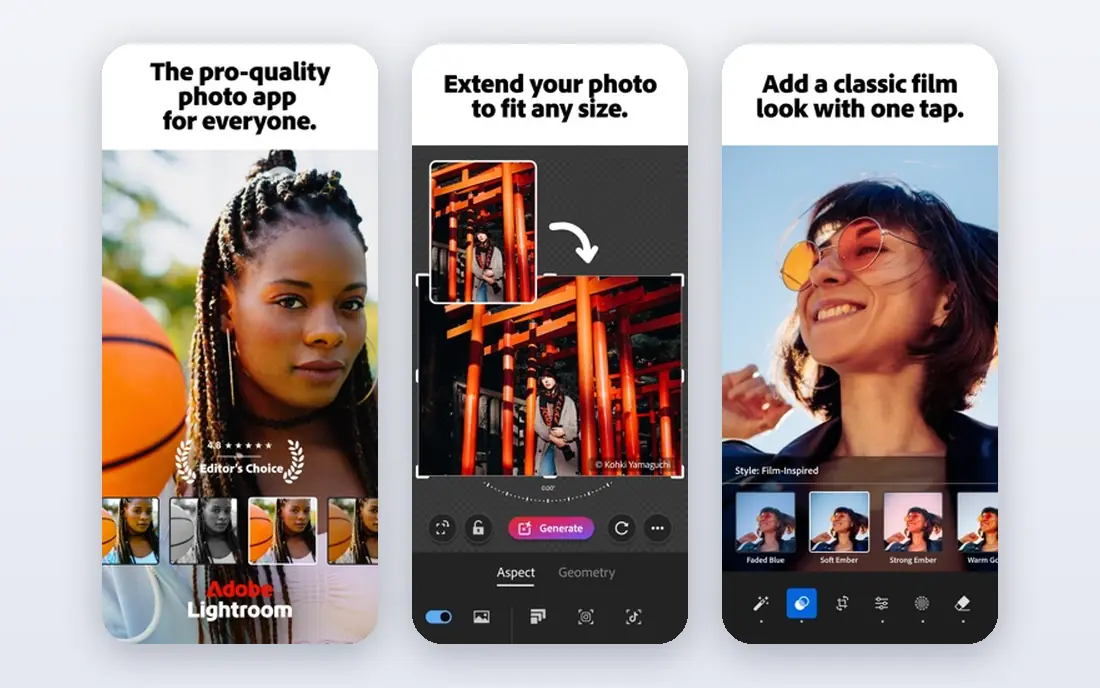
Lightroom remains the steady choice for people who shoot in RAW and want the same catalog on every device. Its AI denoise, masking and remove tools handle common cleanup jobs without forcing you into layered manual work. You can start an edit on a phone and finish it on a desktop, which suits photographers who travel or shoot on location. The trade-off is commitment. The monthly plan is a real ongoing cost, and the interface rewards users who learn its catalog, presets and export settings. If you only edit a few phone photos a week, a lighter app will feel faster. For regular RAW work, though, Lightroom gives you a consistent, dependable base.
- Strong RAW tools, AI denoise and masking, cloud sync across devices
- Subscription cost adds up, and the full system takes time to learn
Luminar Neo
Best for: Desktop users who want strong AI results with less manual work
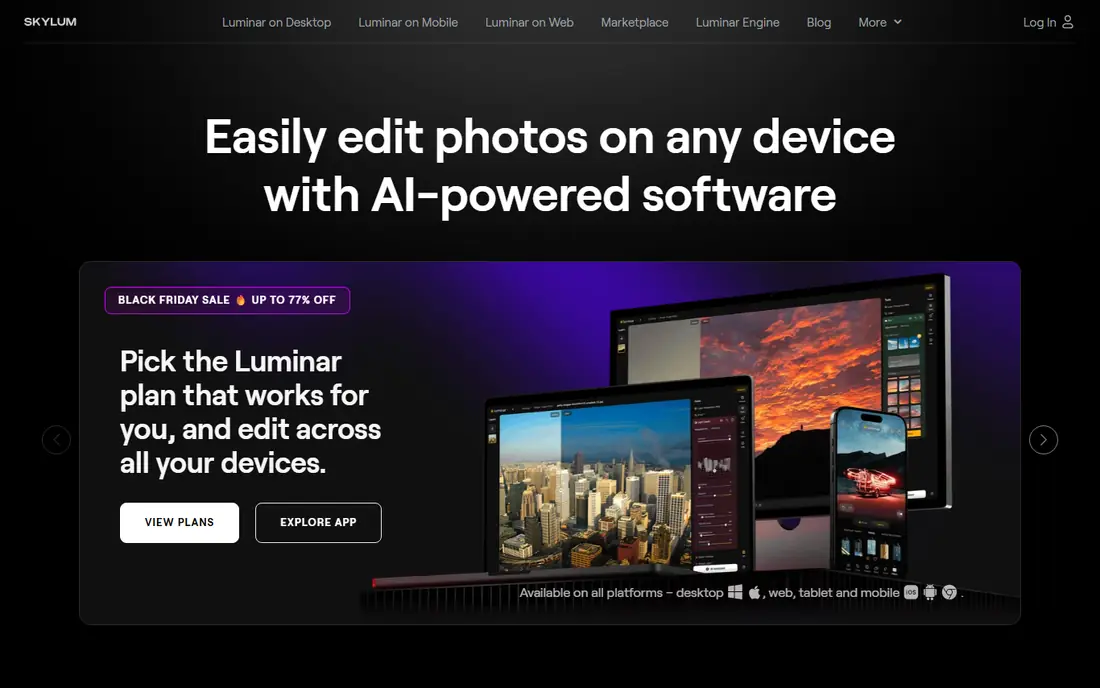
Luminar Neo is built for speed. Sky replacement, portrait retouching, noise reduction and object removal are placed front and center, so a dull photo can look finished in minutes. It also works as a plug-in inside Photoshop and Lightroom, which helps if you already use Adobe tools for part of your work. Where it falls short is organization. Large libraries and complex catalog searches feel less smooth than in Lightroom. Pricing also needs a careful read, since generative features may need renewal after the first year. Still, for photographers who value fast results over deep library management, it is a practical desktop pick.
- Sky replacement, portrait tools and object removal in a few clicks, one-time license option
- Catalog tools are weaker than Lightroom, and some generative features need renewal
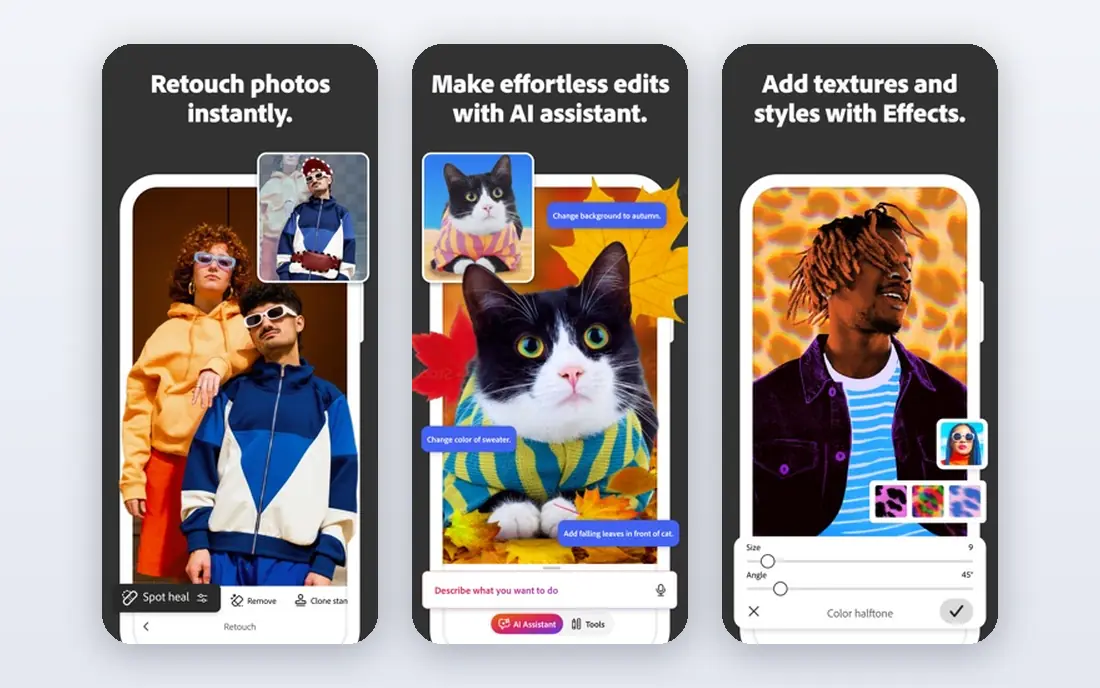
Photoshop is the tool to choose when an edit goes beyond color and cleanup. Layers, precise selections and generative fill let you rebuild parts of an image, swap backgrounds and blend several photos into one scene. For product work, portraits and creative composites, that control is hard to match. That power comes with complexity. New users can feel lost in panels, masks and blending modes, and casual editors may never use most of the toolset. The subscription also makes it a poor fit if you only need occasional touch-ups. Use Photoshop when the edit itself is the project, not a quick step before posting.
- Deepest control for retouching, layers and selections, strong generative fill tools
- Steep learning curve and higher cost for casual users
Canva suits people who edit photos as part of a post, flyer or presentation rather than as a standalone craft. You can remove a background, adjust a photo, drop it into a template and export for social media in one place. That all-in-one flow saves time for small business owners and content creators. It is not a replacement for a RAW editor. Color control is shallower, and print work with strict color needs will expose its limits. The free plan covers basic edits, while the stronger AI tools sit behind Pro. If your goal is clean, on-brand visuals at speed, Canva is a sensible daily tool.
- Templates, background remover and Magic Edit in one simple workspace, easy sharing
- Not a full RAW editor, and some AI tools need a Pro plan
Picsart packs a lot into a phone app. Background removal, object removal, AI image tools, filters and templates live alongside video editing, so creators can move from photo to post without switching apps. Bulk edits and a broad template library help when you publish often. The catch is how paid features are metered. Subscription credits may expire at the end of a billing cycle, which penalizes burst editors who edit heavily one month and little the next. The free version also pushes upgrades. Still, for daily social creators, the breadth on mobile is a clear draw.
- Wide sticker, filter and AI tool set on mobile, works across phone, web and desktop
- Credits can expire monthly, and ads and upsells appear in the free version
Fotor is a good middle ground for people who want better photos without learning a pro editor. Its one-tap enhancer, background remover and batch tools handle common jobs, and the web version means you can edit on almost any computer. Small shops use it for listings, menus and simple marketing images. It will not replace a desktop RAW workflow. Fine color grading and detailed local edits are limited, and free use comes with caps. Think of Fotor as a fast cleanup and export tool. When speed matters more than pixel-level control, it earns its place.
- One-tap enhance, background removal and batch tools, no install needed on web
- Free exports can be limited, and advanced controls are thinner than desktop editors
Pixlr appeals to users who want real editing tools without installing software. It runs in a browser, supports layers and masks in its fuller editors, and adds AI background removal and enhancement for quick jobs. Students, office workers and casual creators can open it on a borrowed computer and get work done. Ads in the free version can interrupt the flow, and the AI tools that matter most are often paid. Export and resolution limits also deserve a check before a print job. For everyday browser editing, though, Pixlr gives you more control than most free web tools.
- Layer support in a browser, AI background removal, works on most devices
- Free version shows ads, and some AI features need a paid plan
Photoroom focuses on one job and does it well. Sellers and small brands can remove a messy background, add a clean studio look and resize for a marketplace in minutes. Batch editing helps when a shop lists dozens of items at once, and the templates keep product images consistent. General photo editing is not its strength. If you need detailed color work, portrait retouching or RAW development, pair it with a fuller editor. For anyone whose photos exist to sell a product, that narrow focus is a benefit, not a flaw, because the workflow stays short.
- Fast background removal and product templates, batch editing for sellers
- Narrower general editing toolset than full photo editors
How we picked these
We favored apps that exist and work today, with a clear official homepage and a current pricing or free plan page. Each pick had to offer real AI editing, not just filters, and to fit a distinct use case, from RAW photography to product listings. We mixed well-known leaders with smaller, focused tools so readers are not pushed toward one subscription by default. Where a price was not clearly published, we listed it as See website rather than guessing.
What to check before you choose
Start with your source files. RAW shooters need a desktop editor with RAW support, while phone shooters can rely on mobile apps and cloud sync. Next, check export limits, including resolution, file format and whether the free plan adds a watermark. Then look at how AI features are metered, since credits, monthly caps and renewals change the real cost. Also consider where you publish. Social creators need fast resizing and templates, sellers need batch background removal, and print users need color control and high-resolution output. A short trial with your own photos tells you more than a feature list. Edit five typical images, export them at the size you actually use, and see which app feels least like work.
FAQ
What is the best AI app to edit photos for beginners?
Canva and Fotor are the easiest starting points, since both offer one-tap enhancement, background removal and templates without a steep learning curve. Lightroom is better once you shoot in RAW or edit large batches. Start free, then pay only when you hit a limit that slows you down.
Are there good free AI photo editing apps?
Yes, Canva, Picsart, Fotor, Pixlr and Photoroom all offer free plans with AI tools, though exports, resolution and monthly AI uses are limited. Free plans suit occasional edits and testing. Regular creators usually need a paid plan for full-resolution exports and unlimited AI features.
Which AI photo editor is best for RAW photos?
Adobe Lightroom is the strongest pick here, with RAW development, AI denoise and catalog tools built for photographers. Luminar Neo also handles desktop editing well, but its library tools are weaker. Phone apps can enhance JPEG files, but they are not a substitute for a RAW workflow.
Can AI photo editors replace Photoshop?
For cleanup, background removal and social edits, yes, many can. Photoshop still leads for layered composites, precise selections and complex retouching. Most users do not need that depth every day, so a lighter editor plus Photoshop for special jobs is a practical mix.
Do AI photo edits look natural?
They can, when used lightly for exposure, color and cleanup. Heavy sky swaps, face changes and generative fills are easier to spot, especially in portraits. Keep original files, preview at full size before export, and avoid AI changes that alter a photo in a misleading way.
Sources
https://www.adobe.com https://skylum.com https://www.picsart.com https://www.canva.com https://www.fotor.com https://www.pixlr.com https://www.photoroom.com