Best AI Tools for Restoring Old Photos in 2026: 8 Tools Compared
We compared the best ai tools for restoring old photos, covering scratch repair, face enhancement, colorization, and batch work for family archives now.

- Editor's choice
 VanceAI Photo Restorer
All-round web restoration
Starts at$5.94 per monthVisit vanceai.comFull review - Great alternative
 Remini
Mobile face restoration
Starts at$9.99 per monthVisit remini.aiFull review - Also consider
 MyHeritage Photo Enhancer
Family history projects
Starts atSee websiteVisit myheritage.comFull review
TL;DR:
- VanceAI is the strongest all-round web tool for faded, scratched, and blurry old photos, with batch processing for large archives.
- Remini is best for mobile face restoration, while MyHeritage suits family history projects tied to a family tree.
- Desktop tools such as Topaz Photo AI and Photoshop keep photos on your computer, which matters for sensitive family images.
- No one-click tool reliably rebuilds a photo torn in half, so badly damaged originals may still need manual repair.
Quick comparison
| Tool | Best for | Starts at | Free plan? | |
|---|---|---|---|---|
| VanceAI Photo Restorer | All-round web restoration | $5.94 per month | Free trial | Visit |
| Remini | Mobile face restoration | $9.99 per month | Free trial | Visit |
| MyHeritage Photo Enhancer | Family history projects | See website | Free trial | Visit |
 Topaz Photo AI | Desktop quality and upscaling | $199 per year | Free trial | Visit |
 Adobe Photoshop | Manual control and repair | $22.99 per month | Free trial (7 days) | Visit |
 Fotor | Quick one-click fixes | $8.99 per month | Yes | Visit |
 Hotpot.ai | Simple web restoration | See website | Yes | Visit |
 Photomyne | Scanning plus restoration | $5.99 per month | Free trial | Visit |
The best ai tools for restoring old photos
The best AI tool for restoring old photos depends on the damage in front of you. Light fading and blur respond well to one-click tools, while deep scratches, tears, and missing areas need more control or manual work. The best AI app for restoring old photos on a phone is not always the best tool for a large archive, so the list below separates mobile, web, and desktop options by what they do best.
VanceAI Photo Restorer is our pick for most people with a box of old photos, because it handles fading, scratches, blur, and color problems in one web tool. Upload a scan, let the AI repair damage and sharpen faces, and download the result without installing software. Batch processing helps if you have dozens of prints to work through, rather than one or two favourites.
The free tier is limited, so a large archive will need a paid plan, and as a web tool it processes photos on its servers. Read the privacy policy before uploading sensitive family images, and keep your original scans untouched. For most family projects, VanceAI gives the best balance of ease, quality, and price.
- Scratch and tear repair
- Face enhancement
- Batch processing for archives
- Free credits are limited
- Web processing sends photos to its servers

Remini is the best AI app for restoring old photos on a phone, especially portraits where faces have faded or blurred. Take a photo of an old print or upload a scan, and the app sharpens faces and details in seconds. That simplicity makes it ideal for sharing a restored photo with family quickly, without learning desktop software.
The trade-off is control. Remini can over-smooth skin and details if you push enhancement too far, and a weekly or monthly subscription is expensive if you only restore a few photos. Use the trial to test it on your hardest portrait first, and keep the original scan so you can compare and rework the result.
- Excellent mobile face enhancement
- Simple one-tap workflow
- Good for phone scans
- Subscription cost adds up
- Less control than desktop tools
- Some results can look over-smoothed
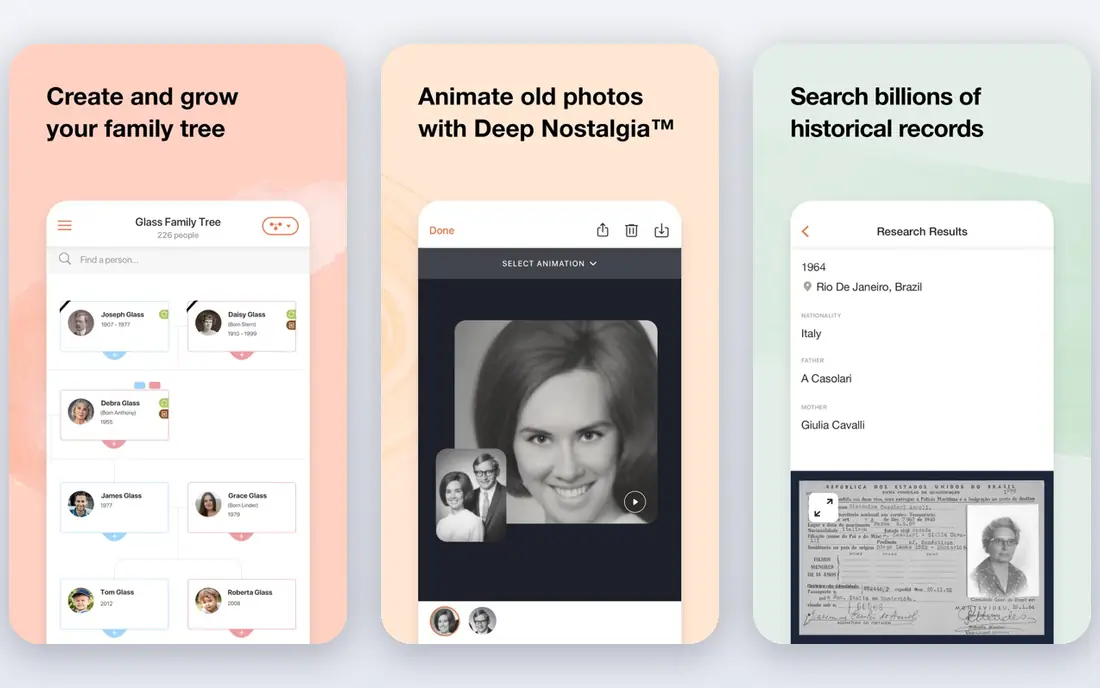
MyHeritage Photo Enhancer suits anyone already building a family tree, because restored photos sit alongside names, dates, and records in the same account. Its tools sharpen faces and colorize black-and-white photos, which can make an old family portrait feel immediate for relatives who never met the people in it. Sharing within a family tree is also simple.
If you do not use MyHeritage for genealogy, the plan cost may be hard to justify for photo work alone, and free enhancements are limited. For a pure restoration project, VanceAI or Topaz may be cheaper. For a family history project, the combined tree and photo tools are a strong reason to choose MyHeritage.
- Tied to family tree research
- Face enhancement and colorization
- Good for genealogy users
- Full features need a MyHeritage plan
- Free enhancements are limited
Topaz Photo AI is the desktop choice for the best quality on badly faded or low-resolution scans, especially if you plan to print the result. It sharpens, removes noise, and upscales in a way that holds up at larger sizes better than most web tools. Because it runs on your computer, your photos stay local, which is a privacy advantage for sensitive archives.
The price is higher, at $199 per year in the sources we checked, and it needs a reasonably capable computer to run smoothly. It also does not magically rebuild missing areas from torn photos. Use Topaz when print quality and privacy matter most, and pair it with manual repair for severe physical damage.
- High-quality sharpening, denoise, and upscaling
- Local desktop processing
- Good for prints
- Higher price
- Needs a capable computer
- Less one-click for torn photos
Photoshop remains the best tool when an old photo needs manual repair, not just AI enhancement. You can clone out scratches, rebuild small missing areas, adjust color by hand, and use Neural Filters for smoothing and colorization. For a torn, stained, or badly creased original, that control is the difference between a plausible repair and a smoothed-over guess.
The cost is a monthly subscription, and the learning curve is steep if you have never edited photos. For simple fading and blur, a one-click tool will be faster and cheaper. Choose Photoshop when you are willing to learn, or when you have a few precious photos that deserve careful manual work.
- Full manual repair control
- Neural Filters for colorization and smoothing
- Industry standard
- Steep learning curve
- Subscription cost
- Overkill for simple one-click jobs
Fotor is a good choice for light restoration combined with everyday editing. If your old photos mainly need sharpening, color correction, and a crop, Fotor handles that in a browser without a complex workflow. It is also useful after restoration, when you want to adjust brightness, remove a border, or prepare a photo for printing or sharing.
It is not the strongest tool for heavy physical damage such as deep scratches or tears. Think of Fotor as a fast cleanup and editing tool, not a specialist repair tool. For a small family project with lightly faded photos, it is affordable and easy to learn.
- Easy one-click enhancement
- Built-in editor for crops and color
- Web and mobile
- Restoration depth is less than VanceAI or Topaz
- Some tools need a paid plan
Hotpot.ai offers a simple web route to restoring old photos, with tools for repair, colorization, and enhancement that do not require an install. Credit-based pricing can suit a small project, since you pay for what you use rather than a monthly plan. That makes it worth testing on a few photos before committing to a subscription elsewhere.
Quality can vary, and Hotpot has fewer batch controls and advanced settings than VanceAI or Topaz. For a handful of photos with light damage, it is a low-cost way to start. For a large archive, a tool with batch processing and stronger face repair will save more time.
- Simple web tools for restoration and colorization
- Low-cost credit options
- No install needed
- Quality varies by photo
- Fewer batch and advanced controls than rivals
Photomyne solves the step before restoration: getting old prints into digital form quickly. Its app can scan several photos at once, crop them automatically, and organise them into albums, then apply enhancement and colorization. If your main barrier is a box of un scanned prints, Photomyne removes that barrier faster than scanning one by one on a flatbed.
The workflow is mobile-first, so detailed desktop repair is limited, and full features need a subscription. Pair Photomyne with VanceAI or Topaz if some scans need deeper repair after scanning. For digitising a family archive, its batch scanning is the feature that matters most.
- Scan multiple prints at once
- Album and slide scanning
- Restoration and sharing tools
- Mobile-first workflow
- Desktop editing is limited
- Subscription needed for full features
How we picked these
We compared official feature pages, pricing pages, app store listings, and public reviews for each option, and we checked that each product is still offered in October 2026. We gave weight to how well it handles the core job in this article, how clear its pricing is, how usable its mobile tools are, and how it treats smaller teams as well as larger ones. Where pricing is quote based or a free plan has real limits, we say so plainly.
How to get a good restoration from a scan
Scan well before you restore
A good restoration starts with a good scan. Scan at 600 dpi or higher, save as TIFF or high-quality JPEG, and keep the original file untouched. Clean the scanner glass, scan in color even for black-and-white prints, and do not crop tightly, since AI tools work better with a little border around the photo.
Match the tool to the damage
Use a one-click tool for fading, blur, and light scratches, and a desktop tool for print-quality upscaling or manual repair. Test each tool on your hardest photo first, not your easiest, and compare results side by side. If faces look waxy or over-smoothed, reduce the enhancement strength rather than accepting the first result.
Keep originals and check privacy
Always keep the original scan in a separate folder, and save restored versions with a clear name. For web tools, read the privacy policy and avoid uploading photos you would not share publicly if you are unsure. Desktop tools keep photos on your computer, which is safer for sensitive family images.
FAQ
What is the best ai tool for restoring old photos?
For most people, VanceAI Photo Restorer is a strong all-round choice, because it handles fading, scratches, and faces in a browser with batch processing. Remini is best on a phone for faces, MyHeritage suits family tree projects, and Topaz Photo AI suits print-quality desktop work.
What is the best ai app for restoring old photos on a phone?
Remini is the best-known mobile option for face restoration, while Photomyne is best for scanning many prints at once on a phone. Both offer trials, so test them on the same portrait and compare how natural the faces look before paying.
Can AI fix torn or water-damaged photos?
AI handles light creases, small tears, and water stains fairly well, but large tears and missing areas need manual repair in Photoshop or a specialist desktop tool. No one-click tool reliably rebuilds a photo torn in half, so set expectations before you start.
Is it safe to upload old family photos to AI websites?
Web tools process photos on their servers, which is how the AI works. Read the privacy policy, check how long files are kept, and prefer desktop tools such as Topaz or Photoshop for sensitive images. Keep original scans backed up locally in any case.
How much does photo restoration cost?
Costs range from free trials and low-cost credits to about $9 to $23 per month for web and mobile tools, and $199 per year for Topaz Photo AI. Most small family projects can be done for under $50 by using free tiers and one month of a paid tool.