Choosing 3D Modeling Software for Printing Toys in 2026: 6 Options Compared
Weighing the best 3D modeling software for printing toys? We lined up 6 products by cost, free access and fit. Every entry states what it lacks. No filler.
- Editor's choice
 Meshmixer
Preparing and repairing toy meshes
Starts atPricing on requestVisit meshmixer.comFull review - Great alternative
 ZBrush
Highly in-depth character sculpting
Starts atPricing on requestVisit maxon.netFull review - Also consider
 FreeCAD
Open source parametric toy parts
Starts atPricing on requestVisit freecad.orgFull review
Direct answer
This list puts Meshmixer first for preparing and repairing toy meshes. For a different need, ZBrush covers highly in-depth character sculpting and FreeCAD covers open source parametric toy parts. Details and limits for the rest of the 6 tools are below. None of these vendors publish plan prices, so pricing is on request for every option.
TL;DR:
- Meshmixer is the opening pick, best for preparing and repairing toy meshes.
- A permanent free plan is missing from all 6 tools, Meshmixer and Fusion 360 included; plan for a trial or a premium start.
- Fusion 360 is the one to check for Parametric toy parts and assemblies.
- The main caution on ZBrush: not a CAD or engineering tool.
Last checked November 2026. Pricing on request: vendors did not publish plan prices when this guide was last checked (November 2026), so ask each vendor for a written quote.
Quick comparison
| Tool | Best for | Starts at | Free plan? | |
|---|---|---|---|---|
| Meshmixer | Preparing and repairing toy meshes | Pricing on request | Not stated | Visit |
| ZBrush | Highly in-depth character sculpting | Pricing on request | Not stated | Visit |
| FreeCAD | Open source parametric toy parts | Pricing on request | Not stated | Visit |
 Blender | Sculpted and animated toy designs | Pricing on request | Not stated | Visit |
 Cinema 4D | Motion-friendly toy concept modeling | Pricing on request | Not stated | Visit |
 Fusion 360 | Parametric toy parts and assemblies | Pricing on request | Not stated | Visit |
3D Modeling Software for Printing Toys profiles
LinkVetted compared 6 3D modeling software for printing toys. The goal is a practical shortlist: published prices, free plan facts, best-fit use cases and honest limits for every entry.
Choose Meshmixer for preparing and repairing toy meshes. Meshmixer is an Autodesk tool associated with its Design and Make Marketplace, and it is best known for working straight with mesh geometry. For toy printing, that makes it a useful companion for repairing imperfect meshes, blending separate pieces and adjusting scanned or downloaded models before printing.
More specifically, development attention has also slowed compared to actively evolving tools. Use it as a finishing step instead of your primary modeling application. No starting price is listed for Meshmixer here; confirm pricing on the vendor site. Trial and free access: Not stated.
Honest limits: Restricted for precise parametric work.
- Handy for combining and smoothing scans
- Concentrated on mesh editing
- Not a full design modeler
ZBrush is built with highly in-depth character sculpting in mind. ZBrush from Maxon is a digital sculpting application known for working with dense meshes and fine surface detail, which fits toy figures, creatures and character busts.
Worth adding: pick it when character detail is the priority and precise part fitting is not. For everyday use, artists treat it like virtual clay, pushing and layering forms instead of sketching precise dimensions. ZBrush shows no starting price here, so confirm the cost on the vendor site. As for free access: Not stated.
The main drawbacks: Interface differs from standard modelers.
- Deals with fine surface detail
- Purpose-built digital sculpting
- Not a CAD or engineering tool
FreeCAD is designed for open source parametric toy parts. Parametric modeling means dimensions drive the geometry, which helps when a toy part needs to be resized or adjusted after a test print.
Where it is weaker: Fewer guided tutorials than commercial tools.
If you want a smoother guided experience and can use a commercial tool, that may be simpler. For everyday use, the interface and workflow are less refined than commercial packages, and troubleshooting can need community help instead of vendor support. FreeCAD shows no starting price here, so confirm the cost on the vendor site. As for free access: Not stated.
- Open source parametric modeler
- Fits precise part design
- Interface can feel rough
Think of Blender for sculpted and animated toy designs. Toy makers use it for character figures, stylized creatures and organic shapes that are awkward to build with CAD primitives. It also appeals to anyone who wants to preview or animate a toy concept before printing, since the same file can serve sculpting and presentation.
Honest limits: Interface has a steep ramp-up time.
The interface is dense and takes real practice. For everyday use, Blender is not built around manufacturing, so wall thickness, tolerances and print preparation are mostly manual and depend on your own discipline. Beyond that, if you need precise mechanical suits more than freeform shapes, a parametric CAD tool is the better fit. Blender does not show a starting price in this comparison, so check the vendor site for current pricing. Free plan details: Not stated.
- Deals with animation and rendering too
- Wide modeling and sculpting toolset
- Plenty of features need add-on workflows
Cinema 4D was built for motion-friendly toy concept modeling. Toy creators turn to it for clean stylized shapes and for animated previews that present how a figure or playset might look in motion.
In daily use, Cinema 4D from Maxon is a 3D modeling, animation and rendering application widely used in motion design and visualization. In practice, if your goal is strictly functional printed parts, a CAD-first tool is more direct. Cinema 4D shows no starting price here, so confirm the cost on the vendor site. Free access: Not stated.
Honest limits: Not pitched at manufacturing.
- Capable rendering workflow
- Approachable for motion designers
- Wide feature set to learn
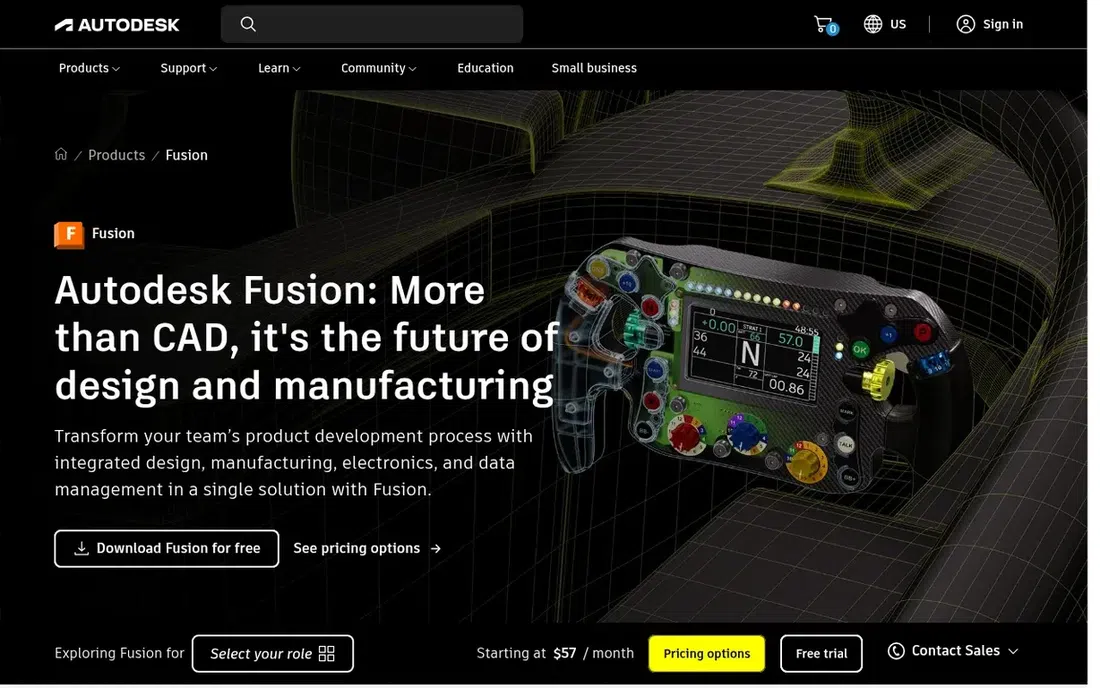
Fusion 360 is aimed squarely at Parametric toy parts and assemblies. If your toys are purely organic characters with no mechanical fit, a dedicated sculpting tool may feel more natural.
Honest limits: Cloud workflow may not suit everyone.
Highlights: Fits mechanical and product work. In daily use, for toys, that breadth helps when a model mixes sculpted shapes with precise joints, snap suits or moving parts that require to fit together dependably after printing. Fusion 360 shows no starting price here, so confirm the cost on the vendor site. Free plan details: Not stated.
- Cloud-based system
- Merges CAD
- Professional feature set takes time to learn
Selection criteria
Things to verify first
- Confirm the entry price with every vendor: no tool from Meshmixer to Fusion 360 shows a fixed starting price.
- Read the limits listed for Meshmixer first: not a full design modeler.
- The entry price of Blender is only the starting point; model the full cost with seats and extras.
- A short pilot of ZBrush with your real workflow tells you more than a feature table.
- Confirm you can export your data from FreeCAD, so leaving later does not mean losing records.
FAQ
Is open source software enough for toy design?
FreeCAD and Blender show that open source tools include both parametric modeling and sculpting. They can deal with serious toy projects, though you should expect to depend on community documentation and to spend time learning the interface.
Can I try these tools before paying?
Not by default. None of the tools, from Meshmixer to Fusion 360, lists a free plan or a free trial here, so ask each vendor for a demo before committing.
Is Meshmixer the right pick for everyone comparing 3D modeling software for printing toys?
No single tool suits every team. Meshmixer comes first because it fits preparing and repairing toy meshes, while ZBrush suits highly detailed character sculpting and FreeCAD suits open source parametric toy parts. Match the tool to your own size, budget and workflow before deciding.
How are the tools for 3D modeling software for printing toys ordered?
The order follows typical fit for 3D modeling software for printing toys, with Meshmixer first and Fusion 360 last, then price clarity and free access. It is editorial judgement, not a score, so another team could rank the tools differently.
Can I combine multiple of these tools in one workflow?
Yes. A typical approach is to model or sculpt in one application, then use a mesh-focused tool for example Meshmixer to repair and blend pieces before printing. Export formats are the central thing to check when moving between tools.
Do these tools publish their prices?
No. None of the tools, from Meshmixer to Fusion 360, shows a fixed starting price here, so budget time for quotes.
Sources
- https://meshmixer.com
- https://www.maxon.net/en/zbrush
- https://www.freecad.org
- https://www.blender.org
- https://www.maxon.net/en/cinema-4d
- https://www.autodesk.com/products/fusion-360