Best 3D Modeling Software for 3D Printing Beginners in 2026: 8 Products Compared
Looking for the best 3d modeling software for 3d printing beginners? We compare 8 free and paid tools for simple, printable first models. Updated for 2026.
- Editor's choice
 Tinkercad
First models in a browser
Starts atFreeVisit tinkercad.comFull review - Great alternative
 Autodesk Fusion
Precise parts for personal use
Starts atFreeVisit autodesk.comFull review - Also consider
 FreeCAD
Free parametric CAD
Starts atFreeVisit freecad.orgFull review
TL;DR:
- Start in a browser tool such as Tinkercad if you have never modeled before, then move to parametric CAD when you need exact sizes.
- Free tools cover most beginner printing, but check export formats, document limits, and whether your designs stay private.
- Printability matters more than fancy rendering, so favor tools that export clean STL or 3MF files and let you check wall thickness.
- A tablet or pen tool can help for organic shapes, while CAD tools suit brackets, boxes, and parts that must fit together.
Quick comparison
| Tool | Best for | Starts at | Free plan? | |
|---|---|---|---|---|
| Tinkercad | First models in a browser | Free | Yes | Visit |
| Autodesk Fusion | Precise parts for personal use | Free | Yes | Visit |
| FreeCAD | Free parametric CAD | Free | Yes | Visit |
 Blender | Organic shapes and sculpting | Free | Yes | Visit |
 SketchUp Free | Fast simple shapes in a browser | Free | Yes | Visit |
 Onshape | Cloud CAD and collaboration | Free | Yes | Visit |
 Shapr3D | Tablet and pen modeling | Free | Yes | Visit |
 SelfCAD | All in one design to print | Free | Yes | Visit |
The best 3D modeling software for 3D printing beginners
We compared official feature pages, pricing pages, app store listings, and public reviews to find tools a true beginner can actually finish a printable model in.
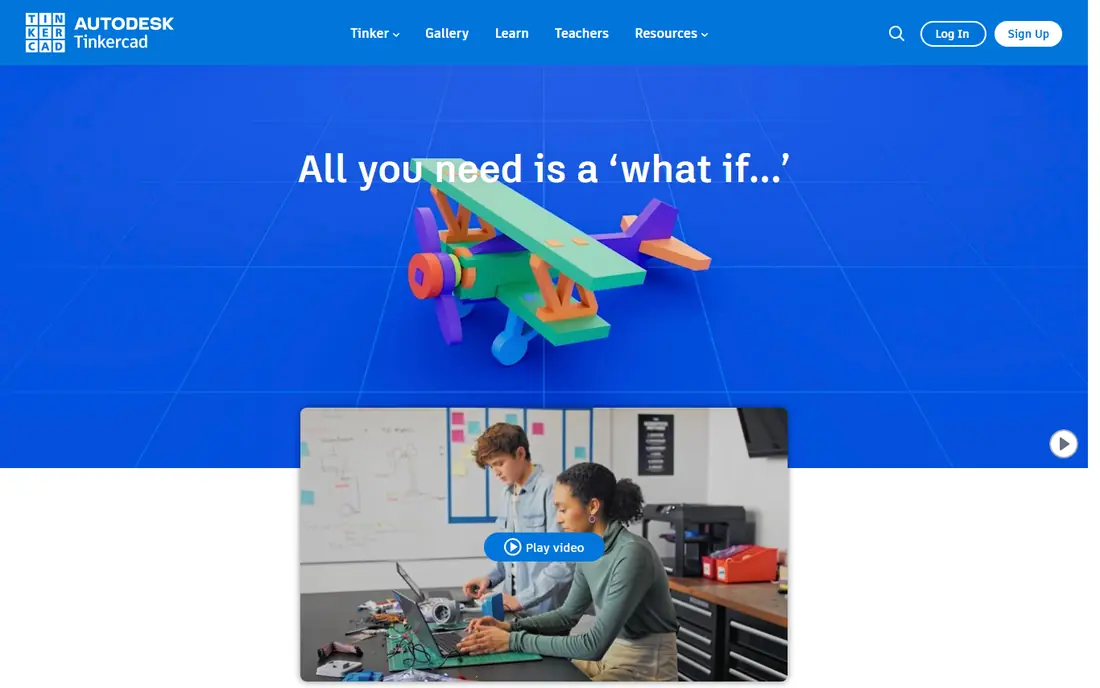
Tinkercad is the easiest place to begin. You open it in a browser, drag boxes, cylinders, and spheres onto a workplane, and combine or cut them to make a shape. Most people can make a phone stand, a hook, or a simple bracket in one sitting, and the export step is plain to follow.
The catch is scope. Tinkercad suits simple functional parts and learning basic ideas, but it struggles with smooth curves, detailed assemblies, and tight mechanical tolerances. Treat it as a first step, not a final home, and move on when you start wanting dimensions you can edit later.
- No install needed
- Drag and drop shapes
- Direct STL and 3MF export
- Limited detail for curved parts
- No full parametric history
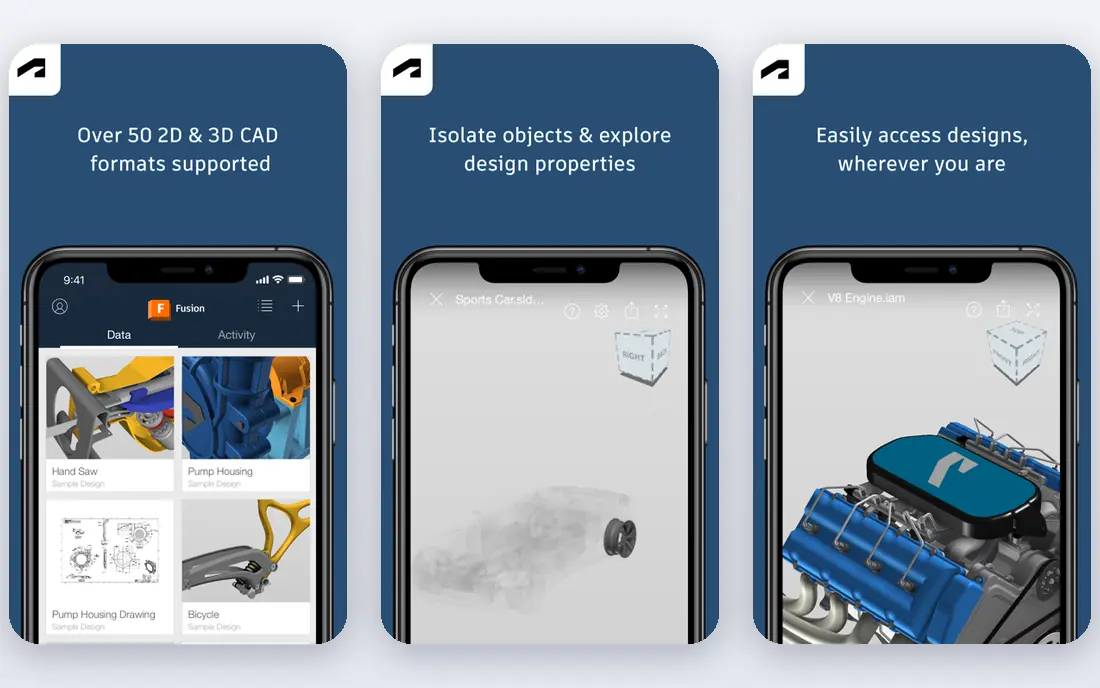
Fusion is the natural next step when a part must fit something real. You sketch a shape, add exact dimensions and constraints, and change one number later to update the whole part. That habit saves time when a screw hole, lid, or bracket needs a second version.
Beginners should expect a few weeks of practice before it feels natural. The free personal tier is for non-commercial use and limits active editable documents, so archive older work as you go. Paid plans are listed on the vendor pricing page if you later sell your designs.
- Parametric sketches and dimensions
- Strong STL and STEP export
- Large tutorial library
- Free personal tier limits active documents
- Learning curve is steeper than Tinkercad
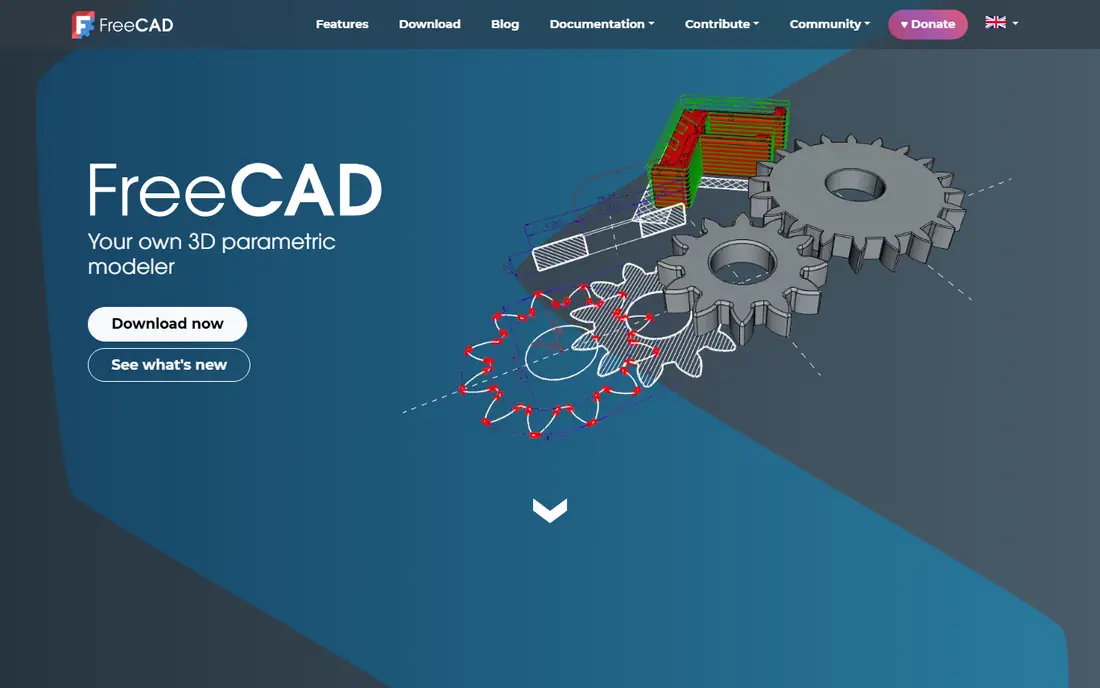
FreeCAD gives you real parametric CAD without a subscription. You can build parts from sketches, set dimensions, and revise them later, which makes it a strong choice for mechanical prints. It also runs on major desktop systems and has an active community behind it.
The trade is polish. Menus and workflows can feel scattered at first, and beginners may need to search for guides for specific tasks. If you value cost and control over a slick first run, FreeCAD is worth the patience.
- Fully free and open source
- Parametric modeling
- Works on Windows, Mac, and Linux
- Interface feels less polished
- Some tools need community guides to learn
Blender shines when a model should look organic rather than mechanical. Think figures, planters with curved walls, masks, and decorative pieces. Its sculpting tools let you push, pull, and smooth a mesh in ways that block based tools cannot match.
For brackets and parts that must mate with screws, Blender is less direct. You can still print from it, and it exports STL files, but checking exact dimensions takes more care. Many beginners use Blender beside a CAD tool, not instead of one.
- Free and very capable for sculpting
- Strong mesh tools
- Large community
- Steep learning curve
- Not built first for exact CAD dimensions
SketchUp Free is a friendly middle ground between Tinkercad and full CAD. You draw lines and faces, pull them into 3D shapes, and build objects quickly. It works well for simple holders, shelves, enclosures, and mockups where a boxy form is enough.
Print readiness needs attention. Check that a model is a closed solid before export, and confirm which export options sit behind paid plans on the vendor site. For complex mechanical parts, a parametric tool will serve you better.
- Quick to learn
- Browser based free version
- Good for boxy shapes and rooms
- Free web version has fewer export and solid tools
- Precision work takes practice
Onshape brings professional style CAD to a browser tab. You can sketch, dimension, and assemble parts, then share a link with a friend or classmate for comments. Version history makes it easy to step back when an edit goes wrong, which helps beginners learn without fear.
The main limit is privacy on the free tier, since free documents are public. If you plan to design a product you want to keep private, read the current free plan terms before you start. Paid plans add private documents and more controls.
- Runs in a browser
- Version history built in
- Easy sharing and collaboration
- Free tier documents are public
- Advanced features sit on paid plans
Shapr3D is a strong pick if you like drawing with a pen on a tablet. You sketch directly on a surface, extrude it into a solid, and adjust edges with your finger or stylus. That direct feel can make 3D space easier to grasp than mouse driven CAD at first.
The free basic plan limits how many designs you can keep active, so it suits trying the tool and small projects. Paid plans add more designs and features, and pricing is listed on the vendor site. Desktop versions are also available for larger screens.
- Touch and pen friendly
- Direct modeling feels natural
- Exports STL and STEP
- Free basic plan limits designs
- Full CAD depth takes time to learn
SelfCAD tries to keep the whole beginner path in one tool. You can model, sculpt, and prepare a file for printing without jumping between several apps. That single path can reduce confusion when you are still learning what each step does.
It will not replace a specialist CAD or sculpting app for advanced work. Its value is focus. If you want one account, one interface, and a clear route from idea to printer, SelfCAD is a practical test drive.
- Modeling, sculpting, and slicing in one place
- Beginner guides included
- Browser based
- Smaller community than Blender or Fusion
- Advanced CAD users may want more depth
How we picked these
We looked for tools that exist and work today, export files a common 3D printer can use, and suit a beginner rather than only a trained engineer. We checked official feature pages and pricing pages, app store listings where relevant, and public reviews for learning curve and print export limits. We favored a mix of free browser tools, free desktop CAD, sculpting, and tablet options, so readers can match the tool to the kind of model they want to make.
We did not claim hands-on testing. Where a price or limit was not clear on the vendor site, we used the free tier shown there and pointed readers to check the current plan page before buying.
What to check before you pay
Start with the shape you want
List three models you actually want to print in the next month. Boxy parts point to CAD, curved or character models point to sculpting, and simple household fixes point to a browser tool. That short list stops you from paying for features you will not use yet.
Check export and print checks
Confirm STL or 3MF export, and look for tools that flag thin walls, holes, or non-solid shapes. A pretty model that is not watertight will fail on the printer, and a quick mesh check saves filament and time.
Watch free plan limits
Free does not always mean unlimited. Note document counts, public versus private files, and whether commercial use is allowed. If you plan to sell prints, the paid tier or a fully open source tool may be the safer route.
Plan your learning path
Pick a tool with guides in a style you like, whether short videos, written steps, or classroom lessons. A tool you enjoy opening will teach you more than a stronger tool you avoid.
FAQ
Do I need a powerful computer to start 3D modeling for printing?
No, for most beginner tools. Browser tools such as Tinkercad, SketchUp Free, and Onshape run well on a modest laptop, and FreeCAD runs on common desktop systems. Heavy sculpting and rendering benefit from more power, but simple printable parts do not demand it.
What file format should I export for my printer?
STL is the most widely supported format, and 3MF is a newer option that can carry more model data. Most slicers accept STL, so start there if you are unsure. Check your slicer docs if your printer or service asks for a different format.
Is free software good enough for 3D printing?
Yes, for most beginner and hobby work. Tinkercad, FreeCAD, Blender, and SketchUp Free cover simple parts, organic models, and learning. Paid tools add convenience, collaboration, support, and private documents, which matter more as projects grow.
How long does it take to learn 3D modeling?
A first simple model can take under an hour in Tinkercad. Comfortable CAD work often takes a few weeks of steady practice, and sculpting takes longer to feel natural. Short daily projects teach faster than one long weekend of theory.
Should I learn CAD or sculpting first?
Learn CAD first if you want parts that fit, hold, or mount to other objects. Learn sculpting first if you want figures, art, and organic forms. Many makers learn both over time, starting with the style that matches their first few prints.
Can I sell models made with free software?
It depends on the license for the tool and the model. Fully open source tools generally allow commercial use, while some free personal tiers limit use to non-commercial projects. Read the license for your plan before you list a design for sale.