Best 3D Modeling Software for Beginners in 2026: 9 Tools Compared
Compare the best 3D modeling software for beginners in 2026, with free tools, easy browser apps and paid options for printing, games and design today.
- Editor's choice
 Tinkercad
Absolute beginners
Starts atFreeVisit tinkercad.comFull review - Great alternative
 Blender
Free full suite
Starts atFreeVisit blender.orgFull review - Also consider
 SketchUp Free
Architecture basics
Starts atFreeVisit sketchup.comFull review
TL;DR:
- Tinkercad is the easiest first step, because it runs in a browser, uses simple shapes and costs nothing.
- Blender is the best free long-term pick, with full modeling, sculpting, animation and rendering, but a steeper learning curve.
- SketchUp Free suits architecture and interiors, with an easy push and pull workflow and a large model library.
- FreeCAD and Fusion 360 for personal use suit engineering and functional parts, with precise dimensions and parametric design.
- Spline, Womp and Blockbench suit web, sculptural and low-poly work, and show how matching the tool to the project saves time.
Quick comparison
| Tool | Best for | Starts at | Free plan? | |
|---|---|---|---|---|
| Tinkercad | Absolute beginners | Free | Yes | Visit |
| Blender | Free full suite | Free | Yes | Visit |
| SketchUp Free | Architecture basics | Free | Yes | Visit |
 FreeCAD | Engineering parts | Free | Yes | Visit |
 Fusion 360 | Product design | Free | Yes | Visit |
 Spline | Interactive web 3D | Free | Yes | Visit |
 Womp | Soft sculpting in browser | Free | Yes | Visit |
 Blockbench | Low-poly game assets | Free | Yes | Visit |
 SelfCAD | Beginner printing plus sculpting | $14.99 per month | Free trial | Visit |
The best 3D modeling software for beginners
The best beginner 3D software lets you make something real in your first session, without a costly licence or a confusing interface. These nine tools cover simple shapes, architecture, engineering, sculpting and game assets, with free starts for most.
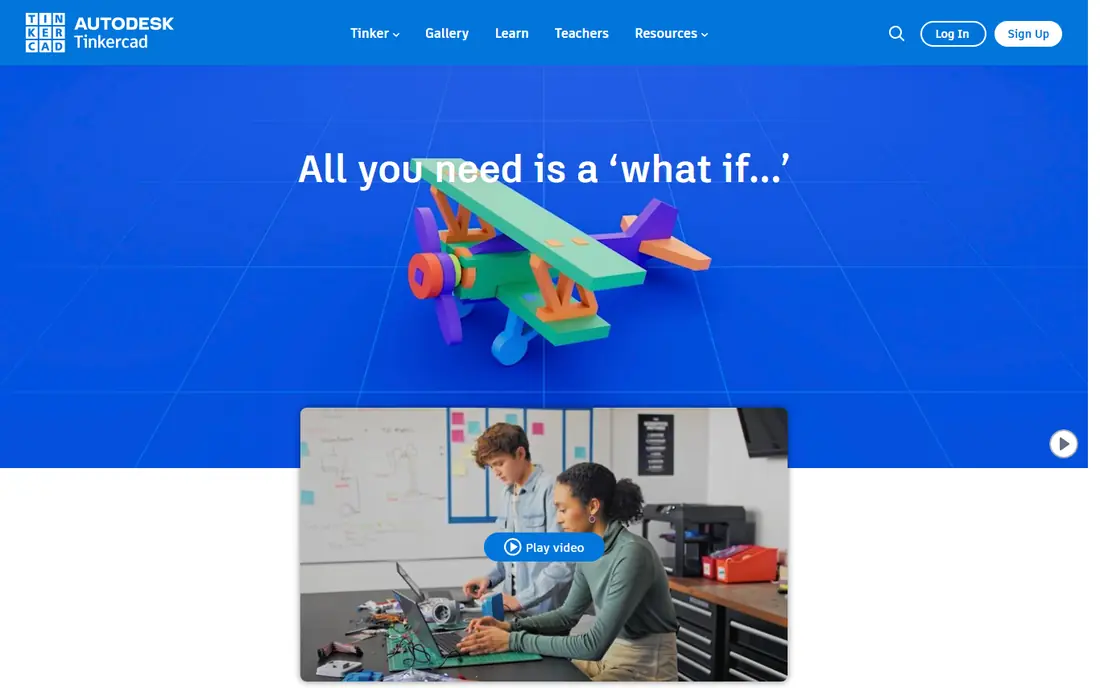
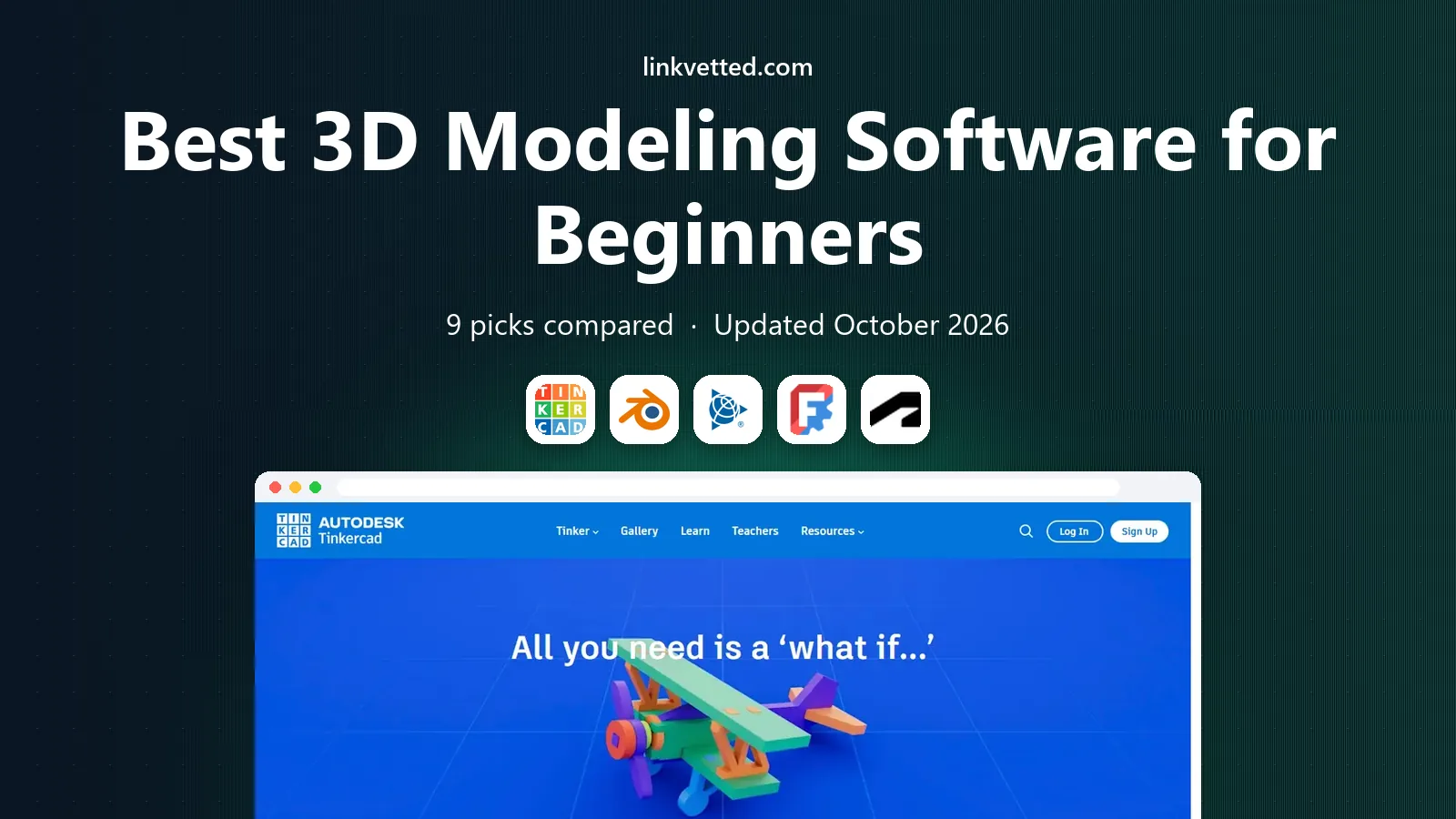
Tinkercad, by Autodesk, is the classic first 3D tool for a reason. You build models from boxes, cylinders and other basic shapes, combine or cut them, and export an STL file for 3D printing. It runs in a browser, needs no install, and includes guided lessons that help a complete beginner finish a first print in an afternoon.
The limit is clear: Tinkercad will not carry you into detailed sculpting, complex animation or professional rendering. That is acceptable for a first tool, because the goal is to learn 3D thinking, such as scale, orientation and solid shapes. When you outgrow it, Blender or Fusion 360 is a natural next step.
- Free and browser-based
- Drag-and-drop shapes
- Strong tutorials for schools
- Too basic for advanced modeling
- Limited rendering and sculpting
Blender is free, open source and far more powerful than its price suggests. It covers polygon modeling, sculpting, texturing, animation, video editing and rendering in one download for Windows, macOS and Linux. A huge community means free tutorials for almost any task, from a simple cup to a full animated scene.
Beginners should expect a busy first week. The interface has many panels and shortcuts, and early projects can feel slow. Follow one structured beginner series, learn basic navigation and editing first, and save sculpting and animation for later. For a learner who wants one free tool that can grow for years, Blender is the best investment of time here.
- Completely free and open source
- Modeling, sculpting, animation and rendering
- Huge tutorial community
- Interface can overwhelm beginners
- Learning curve is steep at first
SketchUp Free runs in a browser and suits rooms, houses, furniture and simple buildings. You draw a flat shape, push or pull it into 3D, and add doors, windows and materials from the 3D Warehouse library of user models. That direct workflow feels closer to sketching than to engineering CAD, which helps design beginners.
The free version is for personal use, with limited export and commercial restrictions, while paid Pro plans add desktop tools and professional features. Rendering is also more basic than in Blender, so photorealistic visuals need an add-on or another tool. For architecture concepts and interior layouts, SketchUp Free is still the fastest start.
- Easy push and pull modeling
- Large 3D Warehouse library
- Good for rooms and buildings
- Free web version is for personal use only
- Limited photorealistic rendering
FreeCAD suits makers who need exact parts, such as brackets, enclosures and mechanical pieces for 3D printing. Parametric design means you set dimensions and constraints, then change a value later and the model updates, which is essential for functional work. It exports STEP, IGES, STL and OBJ files for printing and manufacturing.
The interface is less polished than commercial CAD, and parametric thinking takes time to learn. Start with a simple part, such as a phone stand, and learn sketches, pads and pockets before tackling assemblies. For an engineering-minded beginner who wants free, precise CAD, FreeCAD is a strong pick.
- Free and open source
- Parametric design
- Precise dimensions for functional parts
- Interface is less polished
- Learning curve for parametric concepts
Fusion 360, also by Autodesk, bridges hobby making and product design. It offers parametric modeling, assemblies, rendering and basic simulation in one cloud-connected tool, with export to STEP, STL and 3MF for printing and manufacturing. A free personal use licence suits makers and learners, with limits on active documents and some export formats.
Commercial users need a paid subscription, so check the current personal use terms before you build a business around it. The learning curve is moderate, between Tinkercad and full engineering CAD. For a beginner who wants to design products that will actually be made, Fusion 360 is a practical next step after Tinkercad.
- Free for qualifying personal use
- Parametric CAD plus simulation
- Cloud collaboration
- Personal use version has limits
- Subscription needed for full commercial use
Spline suits web and product designers who want interactive 3D on a website without code-heavy setup. You model simple shapes, add materials, lighting and interactions, and embed the result in a web page. The browser workflow and real-time preview make it friendly for designers who already work in tools like Figma.
It is not a replacement for Blender rendering or FreeCAD engineering, and paid plans are needed for some exports, such as STL and USDZ without limits. For a portfolio, landing page or product demo that needs a spinning, clickable 3D element, Spline gives a fast path from idea to live web embed.
- Browser-based and easy to learn
- Real-time interactive 3D for web
- Good for designers
- Free exports carry a logo in some cases
- Not suited to heavy rendering or engineering
Womp, also written Womp 3D, is a browser-based sculpting tool for soft, organic shapes. You start with a blob-like form, push, pull and smooth it, and export STL, OBJ or GLB for printing or sharing. The interface is deliberately simple, which helps beginners who find Blender sculpting intimidating.
Precision work, such as a bracket with exact holes, is not Womp strength. Use it for characters, jewelry concepts, decorative objects and playful prototypes, where feel matters more than millimetre accuracy. For a first taste of digital sculpting without an install, Womp is one of the friendliest options available.
- Very simple browser sculpting
- Soft, organic shapes
- Free tier for beginners
- Limited advanced tools
- Less suited to precise engineering parts
Blockbench is a free, open source tool for low-poly, voxel and boxy game models. It runs in a browser and on desktop, supports textures and animations, and exports OBJ, glTF and FBX for game engines and Minecraft-style projects. Beginners who love games often learn faster here, because a finished character or item is visible quickly.
Smooth, high-detail sculpting and photorealistic rendering are outside its focus, so character artists who want organic detail should look at Blender or Womp instead. For a young maker, a game modder or a hobbyist building low-poly assets, Blockbench is a fun, focused and free start.
- Free and open source
- Low-poly and voxel modeling
- Exports for games including Minecraft-style assets
- Not suited to smooth, high-detail sculpting
- Niche focus
SelfCAD combines modeling, sculpting and 3D printing preparation in one browser and desktop tool, with a built-in slicer for printers. That all-in-one path suits beginners who want to go from idea to printed object without juggling three apps. Tutorials guide new users through shapes, sculpting and print settings in one workflow.
Paid plans from $14.99 per month are a drawback when so many rivals are free, though a trial lets you test the workflow first. If you value a guided, printing-focused path and you print often, SelfCAD can save time. If you mainly want free exploration, start with Tinkercad and Blender instead.
- Modeling, sculpting and printing tools in one place
- Beginner-friendly tutorials
- Slicer included
- Paid plans start at $14.99 per month
- Less powerful than Blender for animation
How we picked these
We compared official product pages, pricing pages and beginner guides for 3D tools that a new user can start without a large licence cost. We favored tools with a free plan or free personal use, a clear beginner path, and export formats for printing or sharing. We used See website only where pricing was not stated in this article, and we noted personal use limits where they affect commercial work.
How to choose your first 3D tool
Match the tool to the project
A room layout calls for SketchUp, a functional bracket calls for FreeCAD or Fusion 360, a game asset calls for Blockbench, and a web demo calls for Spline. Starting with the wrong tool makes learning harder, because you fight the workflow instead of learning 3D basics. Name your first three projects, then pick the tool that covers at least two of them.
Start free and finish something small
Free tools remove the pressure to justify a subscription while you learn. Choose a small project you can finish in one weekend, such as a keychain, a room model or a simple character. A finished object, even a simple one, teaches more than weeks of watching tutorials without making anything.
Learn one workflow at a time
Blender alone contains modeling, sculpting, animation and rendering, and trying to learn all four at once leads to frustration. Learn modeling first, then materials, then rendering. For CAD tools, learn sketches and basic solids first, then assemblies. A structured course or tutorial series helps more than random videos.
Check export and printing needs early
If you plan to 3D print, confirm STL export and slicer support before you invest weeks in a tool. If you plan to share on the web, confirm glTF or embed options. Export limits on free plans, such as logos or low resolution, can affect a portfolio, so read the free plan terms for your intended use.
FAQ
What is the best 3D modeling software for beginners?
Tinkercad is the easiest first tool, Blender is the best free long-term tool, and SketchUp Free is the best for architecture basics. The best choice depends on your project: printing, architecture, engineering, games or web. Start free, finish a small project, and move to a more powerful tool only when you hit a clear limit.
What is the best free 3D modeling software for beginners?
Blender, Tinkercad, FreeCAD, SketchUp Free and Blockbench are all free for beginners, with different strengths. Blender covers the most ground, Tinkercad is easiest, FreeCAD suits engineering, SketchUp Free suits buildings, and Blockbench suits low-poly games. All five export STL files for 3D printing.
Is Blender good for beginners?
Yes, Blender is good for committed beginners, because it is free, well documented and capable of professional work. The interface is busy at first, so follow a structured beginner series and focus on modeling before animation or rendering. Casual learners may prefer Tinkercad or SketchUp Free for a faster first result.
What is the best beginner 3D software for 3D printing?
Tinkercad is the simplest for first prints, while FreeCAD and Fusion 360 suit functional parts with exact dimensions. SelfCAD adds a built-in slicer for a guided printing workflow. All of these export STL files, and any of them can send a finished model to a printer without a paid add-on in most cases.
Do I need a powerful computer for 3D modeling?
Basic modeling in Tinkercad, Spline, Womp and SketchUp Free runs in a browser and needs only a modest computer. Blender rendering, large assemblies and detailed sculpting benefit from more RAM and a better graphics card. Start with browser tools if your computer is older, and upgrade only when rendering or large scenes slow you down.
How long does it take to learn 3D modeling?
You can make a simple model in Tinkercad in an afternoon, and a basic Blender model in a week of regular practice. Comfortable modeling usually takes a few months, while professional animation or engineering CAD takes longer. Regular short practice, with finished projects, builds skill faster than occasional long sessions.