8 Best Acronis Backup Alternatives for Home and Business in 2026
Searching for acronis backup alternatives? We compare 8 backup tools for PCs, servers, and cloud data, with pricing, storage plans, and restore options.
- Editor's choice
 Backblaze
Simple unlimited backup for a single computer
Starts atSee websiteVisit backblaze.comFull review - Great alternative
 IDrive
Backing up many devices under one storage plan
Starts atSee websiteVisit idrive.comFull review - Also consider
 Veeam
Virtual machines, servers, and business data protection
Starts atSee websiteVisit veeam.comFull review
TL;DR:
- Backblaze and IDrive are the simplest cloud backups for homes and small offices that want set-and-forget protection.
- Veeam and MSP360 suit IT teams that need servers, virtual machines, and control over where backups live.
- CrashPlan and Carbonite focus on endpoint backup with unlimited or simple plans for workstations.
- Duplicati is the free open source option for users who want to back up to their own storage.
- Macrium Reflect is a strong pick for full disk imaging and fast local restores on Windows.
- Test a restore before you need one. A backup you have never restored is only a hope, not a plan.
Quick comparison
| Tool | Best for | Starts at | Free plan? | |
|---|---|---|---|---|
| Backblaze | Simple unlimited backup for a single computer | See website | No, free trial available | Visit |
| IDrive | Backing up many devices under one storage plan | See website | Yes, limited free plan | Visit |
| Veeam | Virtual machines, servers, and business data protection | See website | Yes, community edition | Visit |
 CrashPlan | Small business endpoint backup with unlimited storage | See website | No, free trial available | Visit |
 Carbonite | Simple cloud backup for home and small office PCs | See website | No, free trial available | Visit |
 MSP360 | Backup to cloud storage you choose yourself | See website | Yes, limited free edition | Visit |
 Duplicati | Free backup to your own drives or cloud storage | Free | Yes | Visit |
 Macrium Reflect | Full Windows disk imaging and cloning | See website | Yes, limited free options vary | Visit |
The best acronis backup alternatives for reliable restores
Acronis combines backup with security tools, which some users love and others find heavy. The alternatives below focus more narrowly on backup, and they cover different needs: simple cloud backup, multi-device plans, server protection, and local imaging. We compared official feature pages, pricing pages, and documentation to match each tool to a backup job.
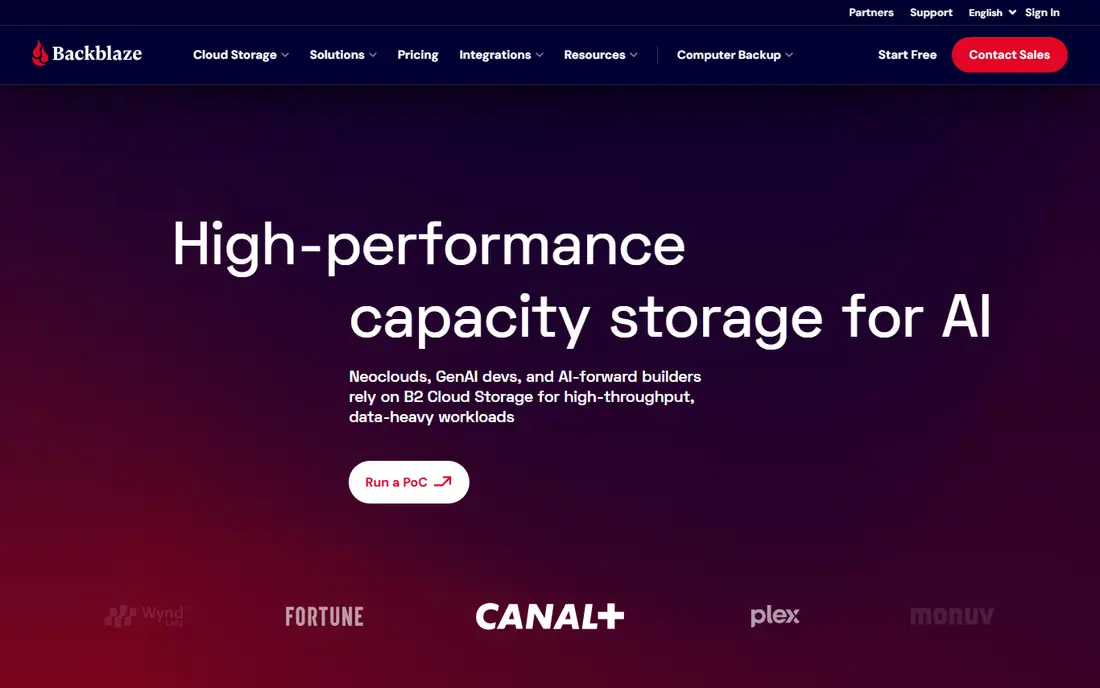
Backblaze is the set-and-forget option many home users want. Install it, let it back up your files continuously, and restore from a web browser or a shipped drive when needed. Personal plans offer unlimited storage for one computer, which removes the worry about how many photos or videos you add over time. The per-computer model matters for households with several machines. Each computer needs its own license, and external drives must stay connected regularly to remain in the backup set. Check current pricing on the vendor site, since personal and business plans differ. For one main computer, Backblaze is hard to beat for simplicity.
- Unlimited storage per computer on personal plans, automatic backup, simple restore options
- One computer per license, external drives need regular connection, business pricing is per computer
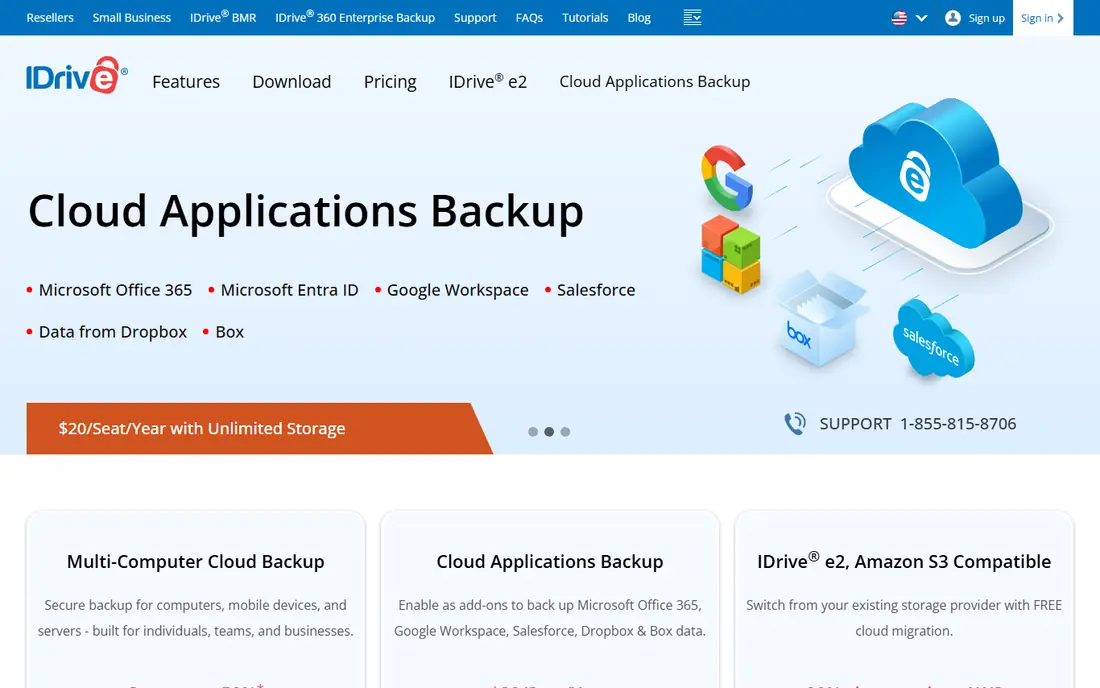
IDrive suits homes and small offices with a mix of PCs, Macs, phones, and tablets. One plan pools storage across devices, so a laptop, a desktop, and a phone share the same allowance. Version history helps when you need an older copy of a file, not just the latest one. The cap is the trade-off. Unlike unlimited per-computer plans, you must watch total storage as photo and video libraries grow. IDrive offers a limited free plan to test the apps, and paid plans scale by storage size. If you have several devices and a clear sense of total data, IDrive gives good value and flexibility.
- Multi-device plans, pooled storage, version history, mobile backup
- Storage caps mean planning, restore speed depends on connection, interface can feel busy

Veeam is the business-grade option in this list. It backs up virtual machines, physical servers, cloud workloads, and Microsoft 365 data, with recovery options that can bring a system back quickly after failure or ransomware. IT teams value its scheduling, replication, and reporting for larger environments. It is not a simple home backup app. Business editions are generally quoted, and setup assumes IT knowledge. A free community edition exists for smaller environments, which is a good way to learn the console. Choose Veeam when you run servers or virtual infrastructure and need recovery you can prove in a test.
- Strong VM and server backup, instant recovery options, broad platform support
- Quote-based business pricing, needs IT skill, more than most home users need
CrashPlan focuses on endpoints: laptops and desktops used by staff. Business plans offer unlimited storage per user within plan terms, continuous backup, and a central console where admins can see status and restore files for users. That mix suits small businesses that need to protect staff machines without managing storage caps. Pricing is per user, so count staff and devices carefully. Server protection sits in higher tiers, so check plan details if you also run servers. For a team of remote or office workers on laptops, CrashPlan gives a clean, managed endpoint backup story without the extra security suite Acronis bundles.
- Unlimited storage for endpoints on business plans, continuous backup, admin console
- Per-user pricing adds up, server backup is a separate tier, restore of very large sets takes time
Carbonite has long sold simplicity. Install it on a PC, let it back up files in the background, and restore through the app or web when a drive fails. Basic plans offer unlimited storage for one computer, which suits users who do not want to track gigabytes. Higher tiers add external drive backup, automatic video backup, and courier recovery options, so read plan details before you assume everything is included. Carbonite is less flexible than tools that let you choose your own cloud storage, but for a straightforward PC backup, that simplicity is the appeal.
- Automatic backup, unlimited storage on basic plans, simple setup
- Windows and Mac focus, higher tiers needed for external drives and video, business plans vary
MSP360, formerly CloudBerry Backup, takes a different model. The software backs up your systems, and you supply the storage from providers such as Amazon S3, Backblaze B2, Wasabi, or others. That control helps IT teams that already have storage, need data in a specific region, or want to avoid vendor lock-in. The trade-off is total cost and setup. You pay MSP360 per device plus storage charges from your provider, and you need to configure buckets and retention yourself. A limited free edition exists for basic use. For IT pros and managed service providers, that flexibility is worth it. For home users, a bundled cloud plan is simpler.
- Works with many cloud providers, image and file backup, central management for MSPs
- You pay for cloud storage separately, setup takes more skill, pricing is per device
Duplicati is the free option for users who want control without a subscription. It backs up files to local drives, network storage, or many cloud providers, encrypts data, and runs on a schedule you set. It works on Windows, macOS, and Linux, which suits mixed home labs. It is not a polished consumer app. Setup asks about destinations, encryption, and retention in terms a beginner may find daunting, and there is no paid support line to call. If you are comfortable with those settings and you test restores yourself, Duplicati gives a capable free backup. If you want help on call, a paid service is safer.
- Free and open source, many destinations, encryption, scheduled backups
- Interface is technical, no vendor support contract, restore testing is up to you
Macrium Reflect is best known for disk imaging. It can copy an entire Windows drive, including the operating system and programs, so you can restore a failed drive to a new one and be back where you left off. Cloning and rescue media tools make it popular with technicians and careful home users. It is Windows only, and it does not aim to be a cloud backup service in the same way Backblaze or IDrive do. Many users pair a local Macrium image with a cloud file backup for off-site safety. Check current free and paid edition details on the vendor site, since offerings have changed over time. For local imaging, Macrium remains a trusted name.
- Reliable disk images, fast bare-metal restore, cloning and rescue media
- Windows only, cloud backup is not the focus, free options vary by edition
How we picked these
We compared official feature pages, pricing pages, and documentation for backup tools that are actively available in October 2026. We kept tools that cover the main Acronis use cases: personal cloud backup, multi-device backup, server and VM protection, and local imaging. Prices marked See website reflect plans that vary by device count, storage, or quote, so the vendor page is the final authority.
How to choose the right acronis backup alternative
Follow the 3-2-1 rule in plain form
Keep three copies of important data, on two different types of storage, with one copy off site. A local image plus a cloud backup satisfies that rule for most homes and small offices. Do not rely on a single external drive that sits next to the computer it backs up.
Decide what you must restore fastest
If a failed laptop must be back in hours, disk imaging matters most. If you mainly need old versions of documents, file backup with version history matters more. If servers must return after ransomware, test VM and bare-metal recovery, not just file restore.
Check version history and retention
A backup that only keeps the latest copy will not help if a file was corrupted weeks ago. Check how many versions are kept, for how long, and whether deleted files stay available. Set retention to match your needs, and confirm it in a test restore of an older file.
Test restores on a schedule
Pick one file each month and one full system each quarter to restore in a safe way. Note how long it takes and whether anything is missing. A backup plan that passes a test is worth more than a larger plan that has never been tried.
FAQ
What is the best Acronis alternative for home users?
Backblaze is simplest for one computer with unlimited storage, while IDrive is better for several devices under one plan. Macrium Reflect is a good add-on for full disk images. Most home users do well with one cloud backup plus a local image or external drive copy.
Do acronis backup alternatives include antivirus?
Most backup-focused tools here do not bundle antivirus. Acronis stands out for combining backup with security tools. If you switch to a backup-only tool, keep a separate, current antivirus or endpoint protection product, and keep your operating system updated.
How much storage do I really need?
Add up your documents, photos, and videos, then add room for growth and version history. A 250 GB plan may suit documents only, while photo and video libraries often need 1 TB or more. Unlimited per-computer plans remove that math, while pooled plans need a yearly check as libraries grow.
Can I back up servers with these tools?
Yes, with the right tier. Veeam and MSP360 are built for servers and virtual machines. CrashPlan and Carbonite offer server options on higher business plans. Home plans usually cover workstations only, so check plan details before assuming server coverage.
Is free backup software safe to use?
Free tools such as Duplicati can be safe when you use strong encryption, a trusted destination, and tested restores. The risk is not the price, but the lack of support and the need for you to manage updates and retention. If no one will own that work, a paid service with support is safer.
How often should backups run?
Continuous or daily backups suit most homes and offices, since data changes every day. Servers and busy workstations benefit from continuous protection plus a daily image or snapshot. The right frequency is the one that limits how much work you can afford to lose, usually no more than a day for important files.
Sources
https://www.backblaze.com https://www.idrive.com https://www.veeam.com https://www.crashplan.com https://www.carbonite.com https://www.msp360.com https://www.duplicati.com https://www.macrium.com