5 Sublime Text Alternatives Worth Switching To in 2026
Shortlisting Sublime Text alternatives? 5 products compared on cost, free access and ideal buyer. Verdicts stay brief and factual. Pick with confidence.

- Editor's choiceJetBrains IntelliJ IDEA
Java and Kotlin development
Starts atPricing on requestVisit jetbrains.comFull review - Great alternative
 Atom
Historical reference only
Starts atPricing on requestVisit atom.ioFull review - Also considerVim
Keyboard-driven terminal editing
Starts atPricing on requestVisit vim.orgFull review
Direct answer
This list puts JetBrains IntelliJ IDEA first for Java and Kotlin development. Look at Atom for historical reference only, and at Vim for Keyboard-driven terminal editing. Free plan facts and limits for all 5 tools follow. None of these vendors publish plan prices, so pricing is on request for every option.
TL;DR:
- This list starts with JetBrains IntelliJ IDEA, which is built for Java and Kotlin development.
- No starting price is shown for any of the 5 tools, JetBrains IntelliJ IDEA and Visual Studio Code included, so plan time for sales calls.
- None of the 5 tools, from JetBrains IntelliJ IDEA to Visual Studio Code, has a free plan, so budget for a subscription or use a trial.
- For general editing with extensions, Visual Studio Code is worth a look.
- One limit worth knowing about JetBrains IntelliJ IDEA: heavier than plain text editors.
Last checked November 2026. Pricing on request: vendors did not publish plan prices when this guide was last checked (November 2026), so ask each vendor for a written quote.
Quick comparison
| Tool | Best for | Starts at | Free plan? | |
|---|---|---|---|---|
| JetBrains IntelliJ IDEA | Java and Kotlin development | Pricing on request | Not stated | Visit |
| Atom | Historical reference only | Pricing on request | Not stated | Visit |
| Vim | Keyboard-driven terminal editing | Pricing on request | Not stated | Visit |
| JetBrains WebStorm | JavaScript and TypeScript projects | Pricing on request | Not stated | Visit |
 Visual Studio Code | General editing with extensions | Pricing on request | Not stated | Visit |
Sublime Text, one by one
Short on time? The summary and table above give the quick view of 5 tools for Sublime Text, and the profiles that follow give the detail behind each entry.
JetBrains IntelliJ IDEA
Best for: Java and Kotlin development

JetBrains IntelliJ IDEA works best for Java and Kotlin development. It is a full IDE, so it carries more overhead than a light text editor and is less natural for fast edits or non-JVM scripting.
If your work is largely front-end JavaScript or general text, WebStorm or Visual Studio Code is a better match. JetBrains IntelliJ IDEA shows no starting price here, so confirm the cost on the vendor site. Trial and free access: Not stated.
Limits to weigh: Heavier than plain text editors.
- Built-in developer tools
- Support for running and verifying AI agents
- Narrower fit outside Java and Kotlin
Where Atom fits: historical reference only. For active development, pick a maintained editor like Visual Studio Code, IntelliJ IDEA, or Vim instead.
The main drawbacks: No continuing maintenance.
Atom was a hackable, community-driven text editor built on web technologies, and its package system made it widely used for customization. Readers researching editor history or maintaining old setups may still encounter it. Atom shows no starting price here, so confirm the cost on the vendor site. On free options: Not stated.
- Had a large package ecosystem
- Was highly configurable
- Officially sunset and archived
Vim
Best for: Keyboard-driven terminal editing
Vim serves Keyboard-driven terminal editing. Extending it needs configuration and plugins.
The ramp-up time is the honest downside: new users frequently find modal editing confusing. The default setup is sparse compared to modern editors. No starting price is listed for Vim here; confirm pricing on the vendor site. Free options: Not stated.
Drawbacks to consider: Minimal interface from day one.
- Runs in terminals and over remote sessions
- Available on nearly every Unix-like system
- Steep learning curve
JetBrains WebStorm
Best for: JavaScript and TypeScript projects
Pick JetBrains WebStorm if this describes you: JavaScript and TypeScript projects. The environment is cohesive for web projects of moderate to large size.
It is specialized for JavaScript and TypeScript, so other languages get less attention than in a general editor. No starting price is listed for JetBrains WebStorm here; confirm pricing on the vendor site. Trial and free access: Not stated.
Where it is weaker: Specialized instead of general purpose.
- Focused JavaScript and TypeScript tooling
- Built-in IDE tooling
- Heavier than a text editor
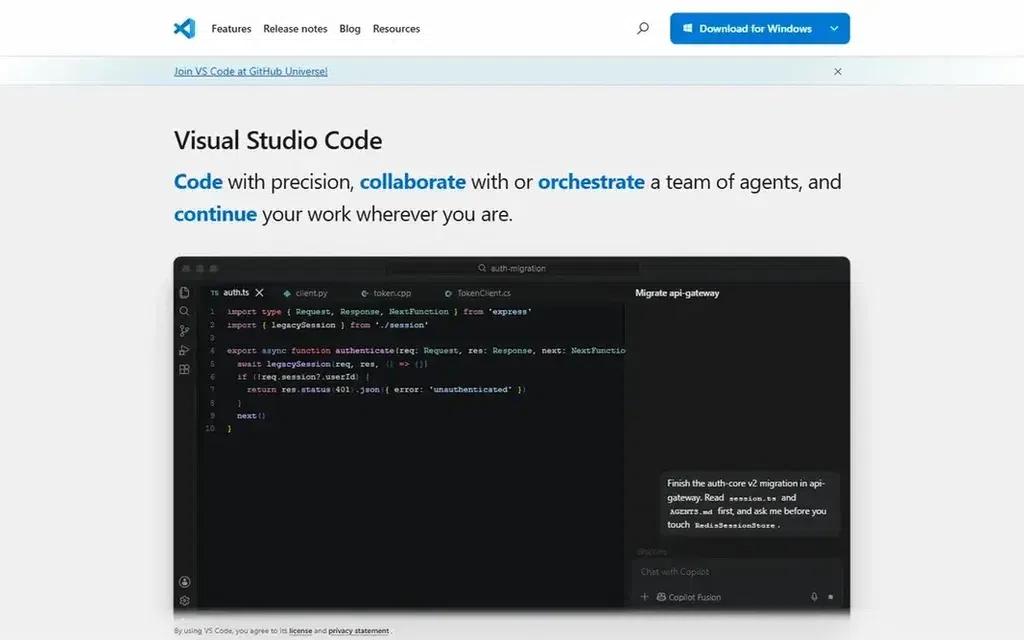
Visual Studio Code is built with general editing with extensions in mind. Its extension model means it can be shaped for almost any language or workflow.
Limits to weigh: Configuration can take effort.
Check the vendor site for Visual Studio Code pricing; none is listed in this comparison. Free options: Not stated.
- Large extension ecosystem
- Built-in collaboration and agent features
- Can feel heavy on older hardware
How these tools were picked
LinkVetted used vendor pricing pages and product documentation as the base, then compared plans, free access and documented limits for 5 tools. Plan names, prices and limits change often. Treat the figures here as a starting point and verify them with the vendor. Tools are placed by general fit for Sublime Text, with price clarity and free access as tie-breakers. A different team can reasonably rank them differently.
Before you commit
- Request quotes from JetBrains IntelliJ IDEA, Visual Studio Code and the others; the list shows no fixed prices.
- Before choosing JetBrains IntelliJ IDEA, weigh its main limit: heavier than plain text editors.
- Let daily users try JetBrains IntelliJ IDEA on real work; their feedback beats any feature checklist.
- Verify that exporting from Visual Studio Code is possible on your plan and covers all your records.
- Look at the help docs and support options for Atom before you commit.
FAQ
Should I choose Vim or a full IDE?
Vim fits keyboard-driven editing, terminal work, and remote sessions where low resource use matters. The right choice relies on how much setup you are willing to do and how much built-in tooling you need.
Do these tools publish their prices?
No. None of the tools, from JetBrains IntelliJ IDEA to Visual Studio Code, shows a fixed starting price here, so budget time for quotes.
Is Atom still a viable Sublime Text replacement?
No. Atom was officially sunset and its projects archived, so it no longer receives updates or fixes. It is handy primarily for historical reference or maintaining legacy setups. For active work, choose a maintained editor instead.
How are the tools for Sublime Text ordered?
The order follows typical fit for Sublime Text, with JetBrains IntelliJ IDEA first and Visual Studio Code last, then price clarity and free access. It is editorial judgement, not a score, so another team could rank the tools differently.
Does any tool for Sublime Text here have a free plan?
A permanent free plan is not offered by JetBrains IntelliJ IDEA, Visual Studio Code or the other tools here. Plan a short evaluation period instead.
Can I try these tools before paying?
Not by default. None of the tools, from JetBrains IntelliJ IDEA to Visual Studio Code, lists a free plan or a free trial here, so ask each vendor for a demo before committing.
Sources
- https://www.jetbrains.com/idea
- https://atom.io
- https://www.vim.org
- https://www.jetbrains.com/webstorm
- https://code.visualstudio.com