Best AI Text to Image App for Beginners in 2026: 8 Apps Compared
Compare the best AI text to image app for beginners, from ChatGPT image generation and Ideogram to Firefly and Canva, with rights notes for new users here.

- Editor's choice
 ChatGPT Image Generation
Easiest plain-word prompting
Starts atFreeVisit openai.comFull review - Great alternative
 Microsoft Image Creator
Free browser image creation
Starts atFreeVisit designer.microsoft.comFull review - Also consider
 Ideogram
Readable text in images
Starts atFreeVisit ideogram.aiFull review
TL;DR:
- ChatGPT image generation is our pick for most beginners, since you describe an image in plain words and refine it by chatting.
- Microsoft Image Creator gives a strong free starting point, while Ideogram leads for images that need readable text.
- Adobe Firefly suits commercial work with its focus on licensed training data, and Canva suits social and marketing designs.
- Check image rights for every tool before commercial use, and do not present AI images as real photos.
Quick comparison
| Tool | Best for | Starts at | Free plan? | |
|---|---|---|---|---|
| ChatGPT Image Generation | Easiest plain-word prompting | Free | Yes | Visit |
| Microsoft Image Creator | Free browser image creation | Free | Yes | Visit |
| Ideogram | Readable text in images | Free | Yes | Visit |
 Adobe Firefly | Commercially safer creation | See website | Free trial | Visit |
 Canva AI | Social and marketing designs | Free | Yes | Visit |
 Leonardo AI | Stylised art and game assets | Free | Yes | Visit |
 NightCafe | Fun styles and community | Free | Yes | Visit |
 Craiyon | Simple free experimentation | Free | Yes | Visit |
The best AI text to image app for beginners
A text to image app turns a written description into a picture. For beginners, ease of prompting, a free tier, and clear rights matter more than advanced controls. We compared official product pages and pricing for apps that work in 2026, favouring tools a first-time user can open and use in minutes.

ChatGPT image generation, powered by OpenAI image models, is the easiest starting point we found. You write what you want in plain words, such as a watercolour cat in a garden, and then refine it by chatting: make it warmer, add a fence, or change the season. That conversational loop removes the need to learn prompt syntax, aspect codes, or negative prompts on day one. The images also follow descriptions well, which helps beginners get close to their idea quickly.
The free tier limits how many images you can make, and paid ChatGPT plans raise those limits. Outputs are AI-generated images, not photographs, so label them as such when you share them and do not present them as real photos or real people. Check OpenAI terms for commercial use on your plan before selling work. For learning and everyday creativity, this is our pick for most beginners.
- Type plain English and refine by chatting
- Strong at following descriptions
- No prompt syntax to learn
- Free tier limits generations
- Photorealistic people need care with rights and honesty
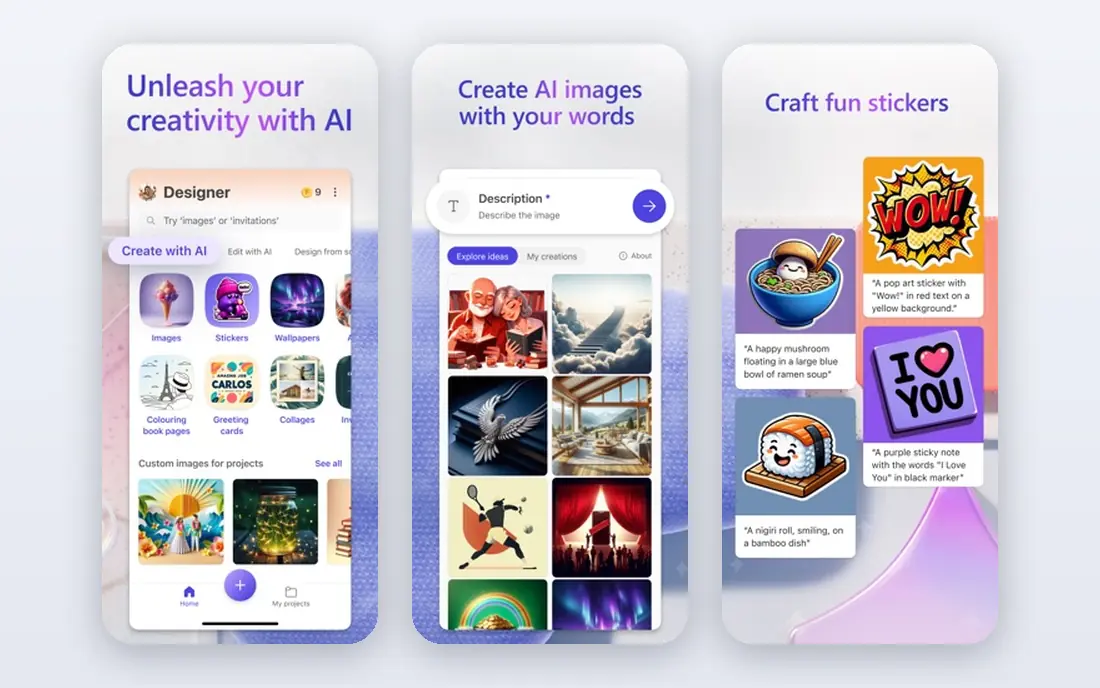
Microsoft Image Creator, built on DALL-E models, gives beginners a genuinely free browser starting point. Open it, type a description, and get several image options without installing software or learning a complex interface. That low friction matters for a first experiment, a school project, or a social post idea. Many users already have a Microsoft account, so sign-in is quick.
Daily credits limit how many images you can generate, and the style range feels narrower than Midjourney or Leonardo for artistic work. Commercial rights also depend on the current Microsoft terms for the tool, so check them before business use. As a free on-ramp to text to image creation, Image Creator is hard to beat, and it pairs well with Designer templates for finished social graphics.
- Free to use in a browser
- Simple prompt box
- Microsoft account sign-in many users already have
- Daily credit limits apply
- Style range is narrower than specialist tools
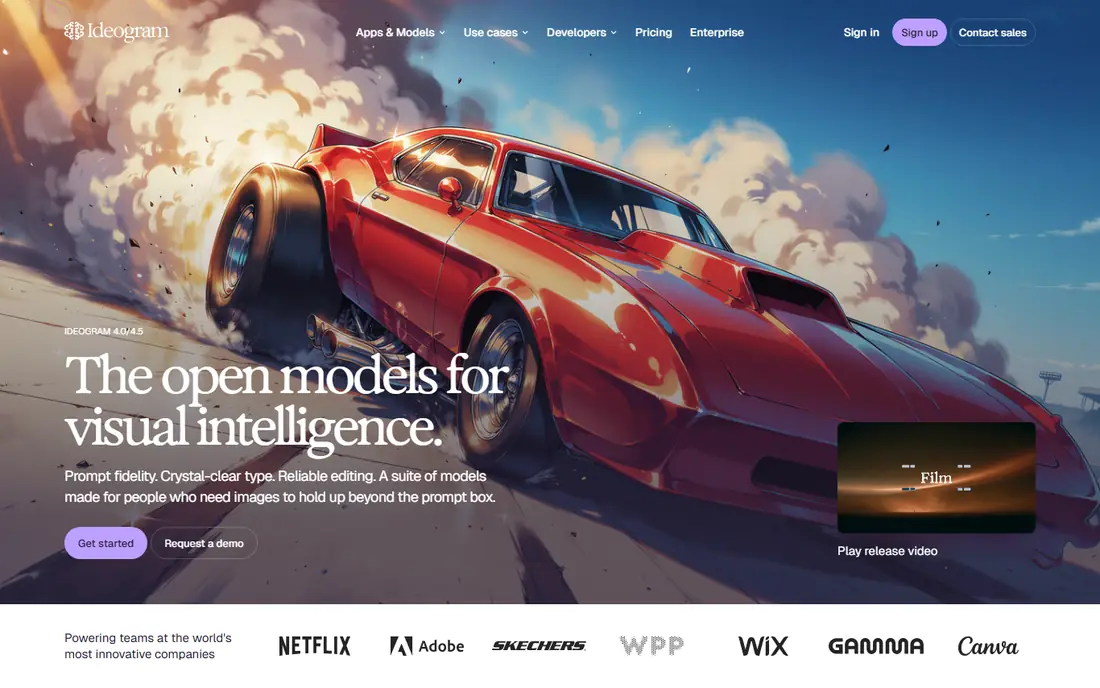
Ideogram earns its place for one clear strength: text inside images actually reads correctly far more often than with most rivals. Posters, signs, logos, and social cards with words come out clean, which solves the most common beginner frustration. The web app is simple, with style presets and a Magic Prompt feature that expands a short description into a fuller prompt. That help matters when you are not sure how much detail to include.
The free tier limits generations, and paid plans raise those limits with commercial rights on paid tiers in recent terms. Pure artistic range also trails tools built mainly for illustration. If your first projects involve posters, invitations, or product mockups with words, start with Ideogram. It will save you the repeated regeneration that text-heavy images usually demand elsewhere.
- Best readable text in posters and logos
- Simple web app
- Magic Prompt helps beginners
- Free tier limits apply
- Artistic range trails some rivals
Adobe Firefly suits beginners who plan to use images for work and worry about rights. Adobe states that Firefly models are trained with a focus on licensed and public domain content, which gives commercial users a clearer story than tools trained on broad web scrapes. Integration with Photoshop and Adobe Express also helps, since you can generate an image and edit it in a familiar app. The interface stays approachable, with presets for styles and sizes.
Heavier use needs a paid plan with generative credits, and the free tier limits how far you can experiment. Some users also find Firefly styles more restrained than artistic rivals. For business graphics, marketing images, and client work where rights clarity matters, Firefly is our pick, and its terms are worth reading before any commercial project.
- Trained with a focus on licensed content
- Integrates with Photoshop and Express
- Clear commercial terms
- Paid plans needed for heavier use
- Style can feel safer than more artistic rivals
Canva AI suits beginners who want a finished design, not just a picture file. You generate an image inside a social post, flyer, or presentation, then add text, logos, and layouts from Canva templates in the same editor. That end-to-end flow is why so many small businesses and creators use Canva daily. The free plan includes AI image tools with limits, which is enough to test the workflow.
Specialist generators produce stronger standalone art, and Canva Pro adds more AI credits and features. Image rights also depend on Canva terms and your plan, so check them for commercial use. If your goal is a ready-to-post graphic rather than gallery art, Canva AI is the most practical beginner tool on this list.
- Generate images inside finished designs
- Huge template library
- Very easy for non-designers
- Image quality trails specialist generators
- Best features need a Pro plan
Leonardo AI gives beginners a wide playground of models and styles, from anime and illustration to photorealistic and game art. That variety helps you discover which look suits your project, and the free tier lets you experiment before paying. It is popular for characters, concept art, and game assets, where a distinct style matters more than a single perfect photo. Presets and community examples also teach prompting by example.
The same variety can overwhelm a first-time user, since choosing a model adds a step other apps hide. Free credits also limit heavy experimentation, and commercial rights depend on your plan terms. Start with one preset model, learn how prompts change results, and only then explore the wider library. Used that way, Leonardo grows with you from beginner to confident creator.
- Many models and styles to try
- Free tier for learning
- Good for characters and game art
- More options can overwhelm beginners
- Free credits run out with heavy use
NightCafe is a friendly, community-focused place to learn text to image creation. Style presets let you try oil painting, anime, fantasy, and photographic looks without writing long prompts, and daily free credits keep casual use free. The community gallery shows prompts beside images, which teaches beginners how wording changes results. Challenges and shared creations also make learning feel social rather than solitary.
Daily credits run out quickly if you generate many images, and NightCafe suits exploration more than precise commercial briefs. Rights for commercial use depend on your plan, so check terms before selling work. For a beginner who wants to play, learn styles, and find inspiration, NightCafe is a welcoming and low-pressure choice.
- Fun style presets
- Daily free credits
- Community gallery for inspiration
- Free credits are limited
- Less suited to precise commercial work
Craiyon, formerly known as DALL-E mini, is the simplest free experiment on this list. Type a phrase, wait a short while, and get a grid of rough images without signing up for basic use. That makes it ideal for testing an idea, brainstorming with friends, or showing a child how text to image works. There is no prompt syntax to learn and no credit system to manage for a casual try.
Image quality trails every other tool here, with rougher detail and weaker text rendering, and the free tier includes ads and wait times. Do not use Craiyon for finished work or commercial projects. Use it to play, to test concepts, and to decide whether text to image creation interests you, then move to a stronger tool for anything you plan to publish.
- Very simple to use
- Free with no sign-up for basic use
- Quick for rough ideas
- Lower image quality than rivals
- Ads and wait times on the free tier
How we picked these
We compared official product pages, pricing, and beginner workflows, keeping apps that accept plain text prompts and work in 2026 without specialist setup. We favoured free tiers, simple interfaces, and clear rights information, and we excluded developer-only APIs that need code to use. We noted where commercial rights depend on plan terms, since beginners often assume every generated image is theirs to sell. Prices marked as See website reflect credit or subscription tiers that vary by plan.
How to write better prompts and use images honestly
Start simple, then add detail in layers. Name the subject, the setting, the style, and the mood in one short sentence, then refine one element at a time. Compare results, keep the prompts that worked, and learn from the ones that missed. Avoid asking for real people, real logos, or real photographs, since those requests raise rights and honesty problems and often produce poor results anyway.
On rights and honesty, follow three rules. First, read the terms for your plan before commercial use, since free and paid rights differ. Second, label AI images as AI-generated when you share them in contexts where people might mistake them for photos, news, or evidence. Third, never present an AI image as a real photo, a real person, or a real event. Those habits keep your work credible and avoid misleading your audience, which matters more than any single image.
FAQ
What is the best AI text to image app for beginners?
ChatGPT image generation is our pick for most beginners, thanks to plain-word prompting and conversational refinement. Microsoft Image Creator is the best free browser alternative, while Ideogram leads for images with readable text. Try a free tier first, and pay only when you hit generation limits or need commercial rights.
What are the best AI text to image apps for beginners with a free plan?
Microsoft Image Creator, Ideogram, Canva AI, Leonardo AI, NightCafe, and Craiyon all offer free tiers or daily credits. ChatGPT image generation also includes a free tier with limits. Free tiers suit learning and casual projects, while paid plans add credits, speed, and commercial options.
Can I use AI-generated images commercially?
It depends on the tool and plan. Adobe Firefly, paid Ideogram plans, and paid ChatGPT plans offer clearer commercial paths, while free tiers often limit commercial use. Always read the current terms for your specific plan before selling images or using them in client work, since terms change and vary by tool.
Can AI images look like real photos?
Modern tools can produce images that look photographic at a glance, which is why honesty matters. Label AI images as generated when context could mislead viewers, and never present them as real photos, real people, or real events. That rule protects your audience and your own credibility.
How do I get readable text in an AI image?
Use Ideogram for text-heavy images, since it handles spelling and layout better than most rivals. Keep text short, name the exact words in quotes in your prompt, and generate several options. Long paragraphs and small text still fail often, so design text in Canva or another editor when precision matters.
Do I need to learn prompt engineering to start?
No. Modern beginner tools accept plain descriptions and offer presets, style choices, and prompt helpers. Start with a simple sentence, refine by chatting or editing one detail at a time, and study example prompts in community galleries. Prompt skill grows with practice, and you do not need it to make your first good image.