Best Document Editing App in 2026: 8 Apps Compared
Compare the best document editing app options, from Google Docs and Word to Notion and LibreOffice, on price, collaboration, and offline editing in 2026.
- Editor's choice
 Google Docs
Real-time collaboration
Starts atFreeVisit google.comFull review - Great alternative
 Microsoft Word
Print-ready documents
Starts at$99.99 per yearVisit microsoft.comFull review - Also consider
 Notion
Docs plus databases
Starts atFreeVisit notion.comFull review
TL;DR:
- Google Docs is the best document editing app for real-time collaboration, while Microsoft Word remains best for finished documents that must print exactly right.
- Notion suits teams that want documents, wikis, and databases in one place, but it is weaker for print-ready files.
- LibreOffice Writer and Apple Pages are strong free options for people who want a traditional word processor without a subscription.
- Check file compatibility before you commit, since exchanging DOCX files with clients or schools is where weaker apps show their limits.
Quick comparison
| Tool | Best for | Starts at | Free plan? | |
|---|---|---|---|---|
| Google Docs | Real-time collaboration | Free | Yes | Visit |
| Microsoft Word | Print-ready documents | $99.99 per year | Free trial | Visit |
| Notion | Docs plus databases | Free | Yes | Visit |
 LibreOffice Writer | Free offline editing | Free | Yes | Visit |
 Apple Pages | Apple users and layout | Free | Yes | Visit |
 Zoho Writer | Free cloud word processing | Free | Yes | Visit |
 ONLYOFFICE Docs | Office compatibility | Free | Yes | Visit |
 WPS Office | A familiar Word-style interface | Free | Yes | Visit |
The best document editing apps
We compared document editing apps that US users can use in October 2026, with prices from vendor pages checked that month. Some are traditional word processors, some are browser-first collaborators, and one is a workspace that happens to hold documents. The right pick depends on whether you draft with others, print a finished file, or organise a whole team wiki.
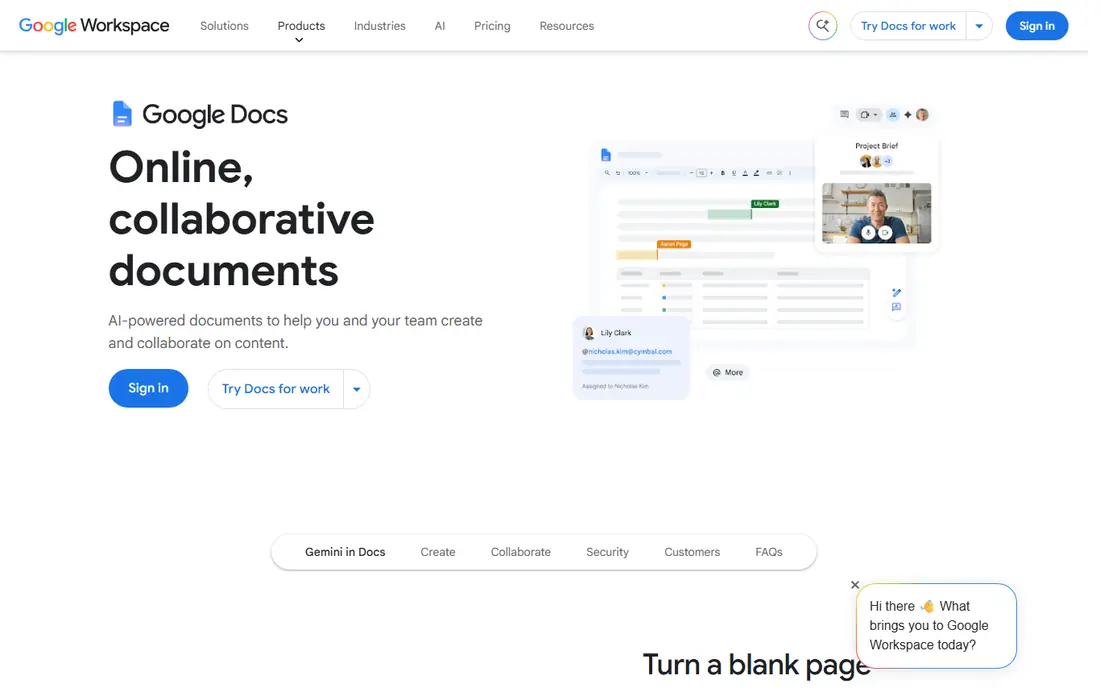
Google Docs is still the fastest way to get several people writing in the same document. There is nothing to install, no version conflicts to untangle, and comments, suggestions, and version history work in a way most people already know. Sharing is a link or an email address away, and Docs handles the everyday jobs well: letters, reports, meeting notes, school work, and drafts that will later move elsewhere. Voice typing and a solid mobile app make it useful on a phone too, which matters when an edit cannot wait for a laptop.
The limits appear when a document must look exactly right in print. Page layout, styles, and complex tables are weaker than in Word, and converting a heavily formatted DOCX file can shift spacing or fonts. Offline editing works but needs setup in Chrome, so travellers should test it before a flight. For collaborative drafting, though, Docs remains our pick for most people, and its free personal tier makes it easy to recommend without caveats about price.
- Free for personal use
- Live co-editing and comments
- Works in any browser
- Weaker page layout than Word
- Offline use needs setup
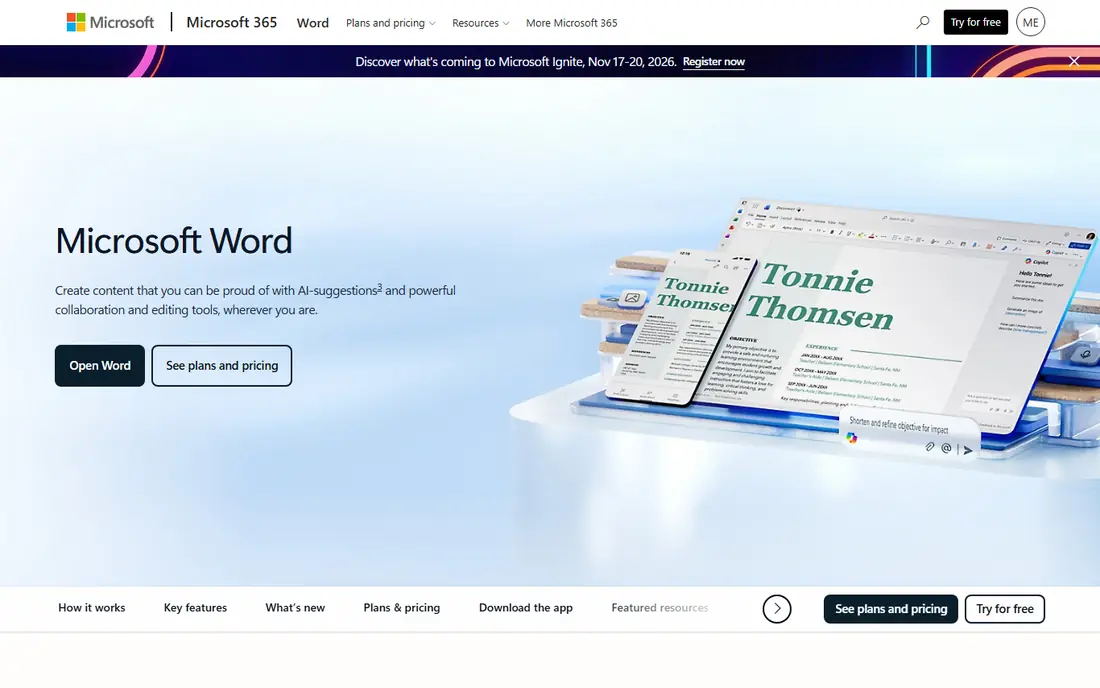
Microsoft Word remains the tool when the output is a finished document rather than a working draft. Layout, styles, footnotes, references, and print fidelity are still ahead of the field, and DOCX is the format employers, schools, publishers, and clients expect. Track changes, comments, and comparing versions are mature and reliable, which matters for contracts, manuscripts, and reports that pass through several hands. The desktop app works fully offline, so a slow connection never blocks writing.
The catch is price and packaging. Full Word comes inside Microsoft 365 Personal at about $99.99 per year or Family at about $129.99 per year, based on vendor pricing checked in October 2026, though a free web version covers basic editing. Collaboration works through OneDrive, but it feels less instant than Docs when many people edit at once. Choose Word when formatting, compatibility, or offline work matters most, and choose Docs when live collaboration matters more.
- Best layout and formatting control
- The standard DOCX format
- Strong offline use
- Full features need a Microsoft 365 subscription
- Collaboration is less smooth than Docs
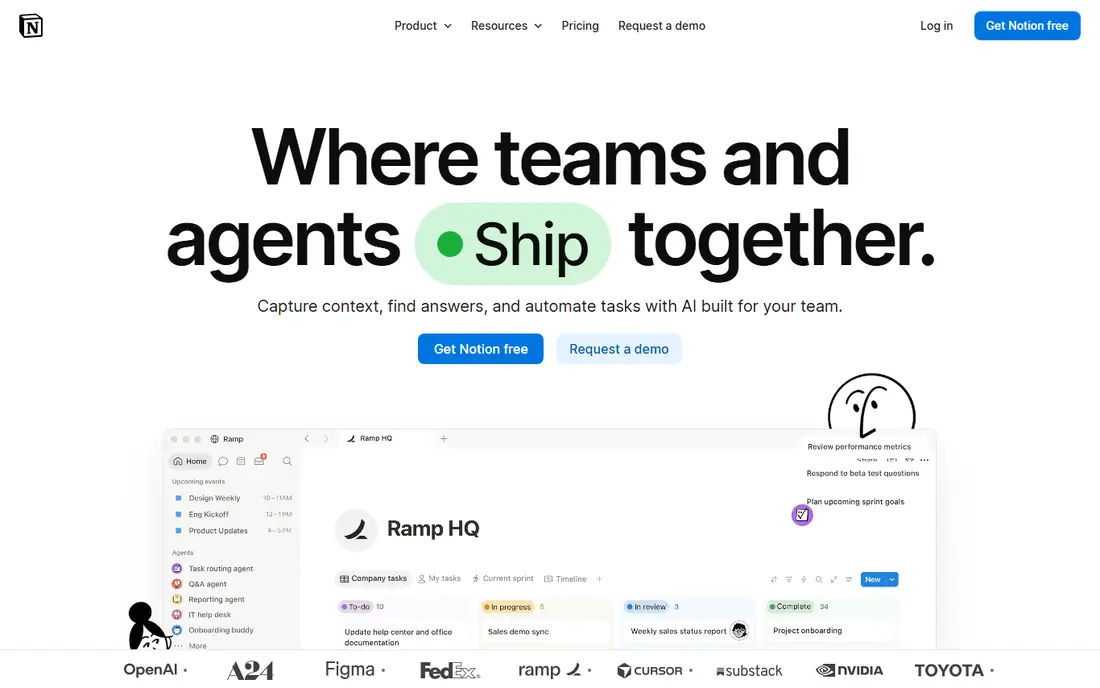
Notion treats a document as one block in a larger workspace, so a page can hold text, tables, checklists, and linked database rows at once. That makes it excellent for team handbooks, project docs, meeting notes that link to tasks, and personal knowledge bases that grow over months. Templates cover a lot of common setups, from content calendars to onboarding guides, and the free plan for individuals is generous enough for personal use. Collaboration is real-time, and comments and mentions keep discussions attached to the document itself.
The trade-off is that Notion is not a traditional word processor. Exporting to PDF or Word often loses formatting, page layout is limited, and a blank workspace can feel overwhelming until you build a structure. Paid plans start at about $10 per user per month billed annually for Plus, based on vendor pricing, with Business at about $20. Pick Notion when your documents live inside a system you use daily, and pick Word or Docs when you need a standalone file to send to someone else.
- Docs, wikis, and databases in one tool
- Strong templates
- Usable free plan
- Weak print and export fidelity
- You must design the structure yourself
LibreOffice Writer is the best free traditional word processor, and the right pick for anyone who wants Word-style editing without a subscription or an account. It opens and saves DOCX files, handles styles, tables, headers, footers, and mail merge, and runs fully offline on Windows, Mac, and Linux. For a single writer producing reports, letters, essays, or manuscripts, Writer covers nearly everything Word does in daily use, and its open source licence means no ads, no trial clock, and no locked features.
The interface looks older than modern rivals, and real-time collaboration is not its strength: sharing means sending files or using a separate service, and tracked changes can behave differently when a file returns from Word. Very complex Word documents may also shift slightly in layout. Those are acceptable trade-offs for a free tool, and for many users Writer is all they will ever need. Pair it with a cloud drive for backups and you have a complete, no-cost writing setup.
- Completely free and open source
- Strong offline word processing
- Good DOCX support
- Interface looks dated
- Collaboration features are weaker
Apple Pages is free on Mac, iPad, and iPhone, and it is the most design-friendly free word processor in this list. Templates for reports, resumes, flyers, and books look genuinely good, and placing images, shapes, and text boxes feels closer to a layout tool than a plain editor. Collaboration works through iCloud, with comments and tracked changes, and Pages exports to PDF, Word, and EPUB, so sharing with non-Apple users is possible. For students and Apple households, it is an easy default that costs nothing extra.
The limits come from the ecosystem. Pages is at its best on Apple hardware, and while a web version exists through iCloud, it is not as full as the native apps. Sending a DOCX file to a Word user and back can shift fonts or spacing, so people who exchange Word files daily should test that round trip first. If your household is all Apple and you value good-looking documents, Pages is a strong pick. If you live in Word files, keep Word or LibreOffice as your main tool.
- Free on Apple devices
- Polished templates
- Good layout control
- Apple ecosystem only in practice
- DOCX round trips can shift formatting
Zoho Writer is the free cloud word processor most people overlook, and it deserves a closer look. It offers a traditional page view with strong formatting, styles, tables, and images, plus real-time collaboration, comments, and version history, all without a subscription for basic use. Offline mode works in supported browsers, and Writer integrates with Zoho's wider office suite, including Sheets and Show, for teams that want a full Google Workspace alternative. Document automation and mail merge add depth for small businesses that send similar letters or contracts often.
The drawback is familiarity: fewer collaborators already use Zoho, so you may spend time explaining sharing links to clients used to Docs or Word. Some business features require a paid Zoho Workplace plan, though the core editor stays free. Zoho Writer is our pick for people who want a free, capable cloud editor with better layout than Docs, and who do not mind being the one who introduces a new tool to their team.
- Free with real layout control
- Clean interface
- Good collaboration
- Smaller user base
- Some advanced features sit in paid Workplace plans
ONLYOFFICE Docs is built for teams that need Office file compatibility above all else. It opens, edits, and saves DOCX, XLSX, and PPTX files with fewer layout shifts than most free editors, and its tabbed interface will feel familiar to Word users. Collaboration includes comments, tracked changes, and version history, and teams can run it in the cloud or host it on their own servers, which appeals to organisations with strict data rules. A free desktop editor covers single-user work, while cloud plans start with a free tier for small teams.
The catch is complexity for self-hosting, which needs server setup and maintenance, and the free cloud plan limits admins and storage. Most small teams will use the hosted version and never touch a server, so that limit matters less than it sounds. Choose ONLYOFFICE when DOCX fidelity and control over your data matter more than a large template library or a consumer-friendly brand.
- Strong DOCX compatibility
- Self-hosting option
- Collaborative editing
- Setup is more involved for self-hosted use
- Free cloud plan has limits
WPS Office is the closest free visual match to Microsoft Word, which makes it an easy switch for people who know Word's ribbon and menus. Writer handles documents, tables, and images well, and the suite adds spreadsheets and presentations in the same install, so one download covers most office work. It runs on Windows, Mac, Linux, Android, and iOS, and opens DOCX files with generally good fidelity. For students and small businesses that want a familiar office suite without paying for Microsoft 365, WPS is a practical pick.
The free version shows ads and reserves some features, such as extra cloud storage and advanced PDF tools, for Premium, which starts at about $35.99 per year based on vendor and review pricing. Privacy-minded users should also review the account and cloud settings, since WPS pushes its cloud services during setup. If ads do not bother you and you want a Word-like editor for free, WPS earns its place. If ads or account prompts annoy you, LibreOffice Writer is the cleaner free alternative.
- Free tier
- Interface close to Word
- Includes spreadsheets and slides
- Free version shows ads
- Some features need Premium
How we picked these
We compared official feature pages, pricing pages, and app store listings, and we checked that each vendor site loaded and matched the product named. We kept apps that are still maintained, that handle real documents rather than only notes, and that cover the main use cases: collaboration, print fidelity, free offline editing, and team wikis. Prices reflect vendor pages checked in October 2026 and can change.
How to choose a document editing app
Start with who reads the finished file. If clients, schools, or publishers expect DOCX, shortlist Word, ONLYOFFICE, and LibreOffice, and test a round trip with a real file before you commit. If a team writes together daily, shortlist Docs, Notion, and Zoho Writer, and judge them on comments, sharing, and version history rather than page layout. If you work alone and offline, LibreOffice Writer and Pages give you full tools for free, while WPS adds a familiar suite at the cost of ads.
Test before you move a whole team
Move one real document, not a blank page, through each candidate: a report with tables, a letter with headers, and a shared draft with comments. Check that fonts, spacing, and tracked changes survive the trip, and check the mobile app if you edit on a phone. A tool that passes a blank-page test but fails on a real file will cost far more time later than a careful trial costs now.
FAQ
What is the best document editing software for collaboration?
Google Docs is the strongest collaboration pick, with live editing, comments, and version history that most people already know. Notion is better when documents live inside a team wiki or project system. Word also collaborates through OneDrive, but it feels less instant than Docs for large groups.
Is there a good free app for editing documents?
Yes. Google Docs, LibreOffice Writer, Apple Pages, and Zoho Writer are all free for personal use and cover most writing jobs. LibreOffice Writer is best for offline work, Docs is best for sharing, and Pages is best for Apple users who want polished templates. Paid tools mainly add advanced collaboration, storage, or support.
What is the best app for editing documents on a phone?
Google Docs has the most reliable mobile editor for quick changes, comments, and sharing on both iPhone and Android. Apple Pages is excellent on iPhone and iPad but weaker for Android users. Notion works well on mobile for notes and wiki pages, though long formatted documents are easier on a laptop.
Can I edit Word documents without Microsoft Word?
Yes. LibreOffice Writer, ONLYOFFICE Docs, Google Docs, and WPS Office all open and save DOCX files. For simple documents, the conversion is usually clean, but complex layouts, fonts, and tracked changes can shift slightly. Test with a real file from your work before relying on a free editor for client documents.
What is the difference between Google Docs and Notion?
Google Docs is a document editor built for drafting and sharing single files, while Notion is a workspace where documents live alongside databases, tasks, and wikis. Docs is better for a finished letter or report to send out, and Notion is better for a living handbook or project hub that a team updates over time.
Which document editing tool is best for long books or manuscripts?
Microsoft Word and LibreOffice Writer are the safest picks for long manuscripts, since both handle styles, footnotes, tables of contents, and large files well. Scrivener, at $59.99 one-time, is a specialist alternative for authors who organise chapters, research, and drafts in one project. Notion and Docs can struggle with very long, heavily formatted manuscripts.